Users, Roles and Company Access
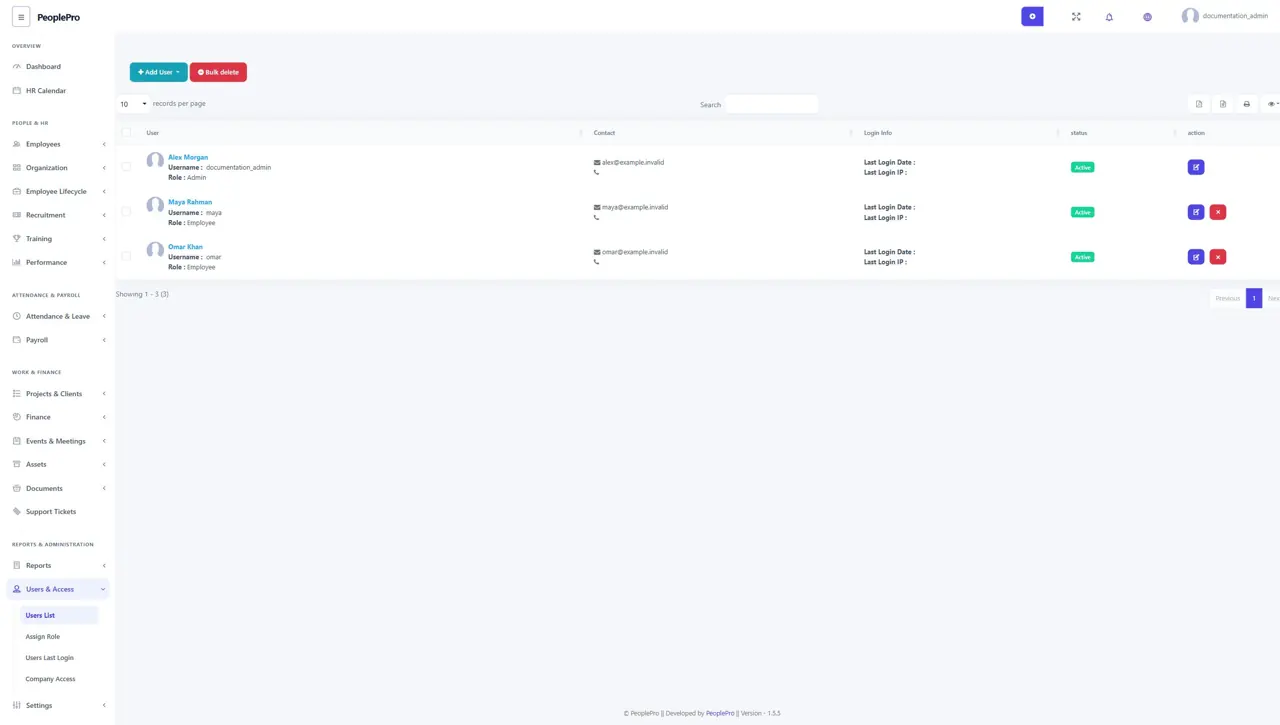
Open Users & Access > Users List to review the accounts allowed to use PeoplePro.
Last updated: 16 November 2026 · Product version: not specified in the supplied guide
Users list
Open Users & Access > Users List to review the accounts allowed to use PeoplePro. Select Add User to create a non-employee account where appropriate, or use the row actions to maintain an existing account. Review the assigned role and active status. Use the employee creation workflow when the person also needs a full employee record.
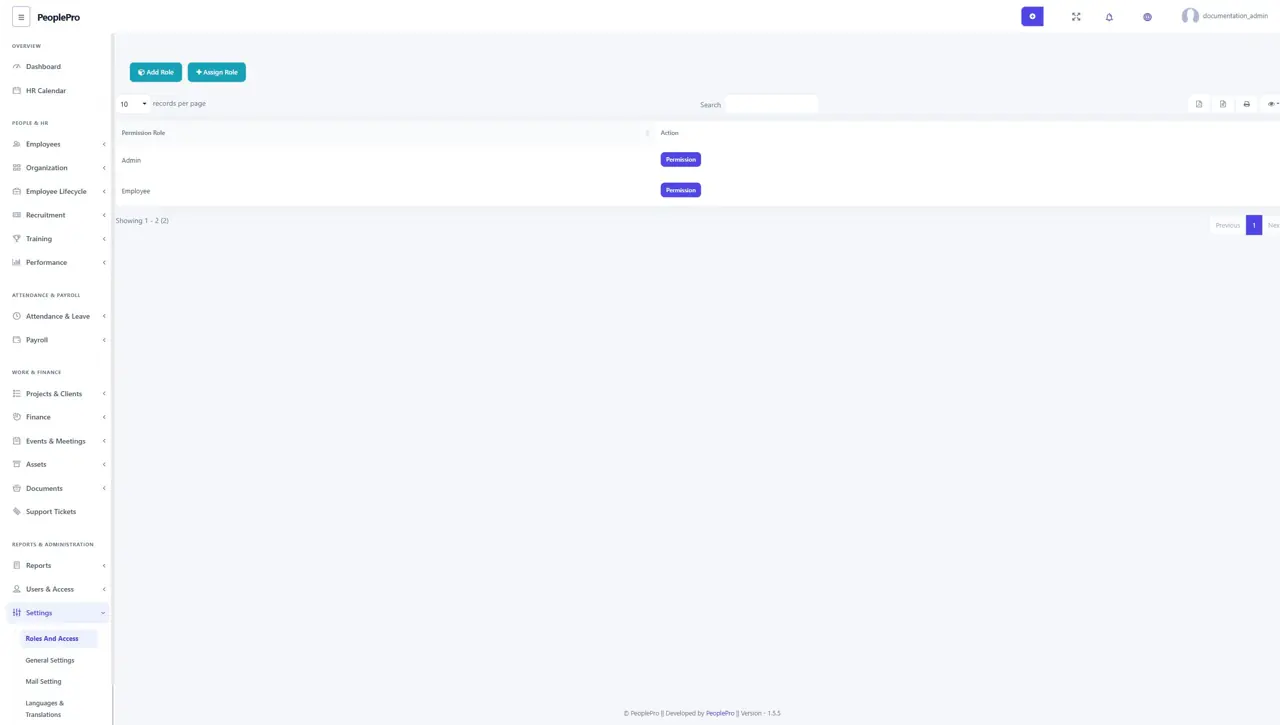
Roles and permissions
Open Settings > Roles and Access to manage permission roles. Add a role with a clear name and description, then choose Permission in its Action column to open the permission editor. The built-in Admin, Employee and Client roles offer Permission while their names and deletion are protected. Custom roles offer Edit and Delete when your account allows those actions. A role assigned to users cannot be deleted; reassign those users first if the role is no longer needed. Give each role only the modules and actions its users need. Saving role permissions affects everyone assigned to that role.
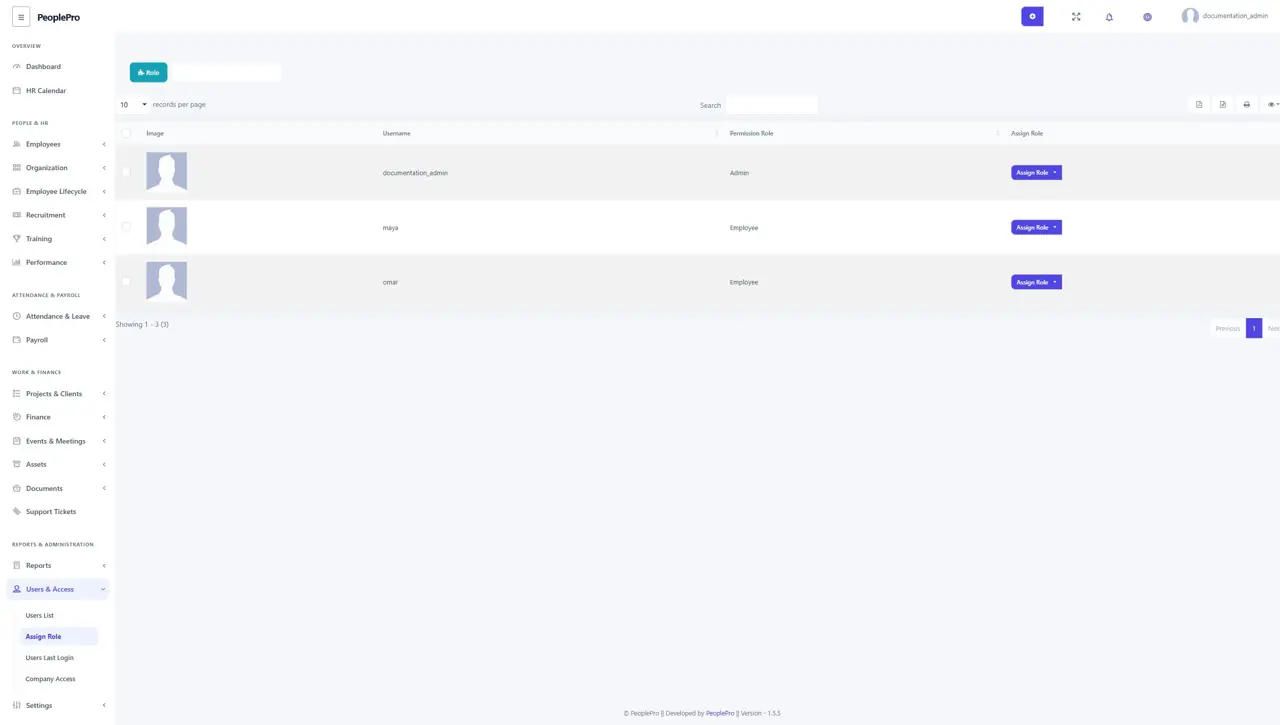
Assign a role to a user
Open Users & Access > Assign Role to review users and their current permission roles. Use the available role selector and assignment action for the intended user. A permission role controls what that person can do; company access separately controls which company records they can work with.
Company access and record ownership
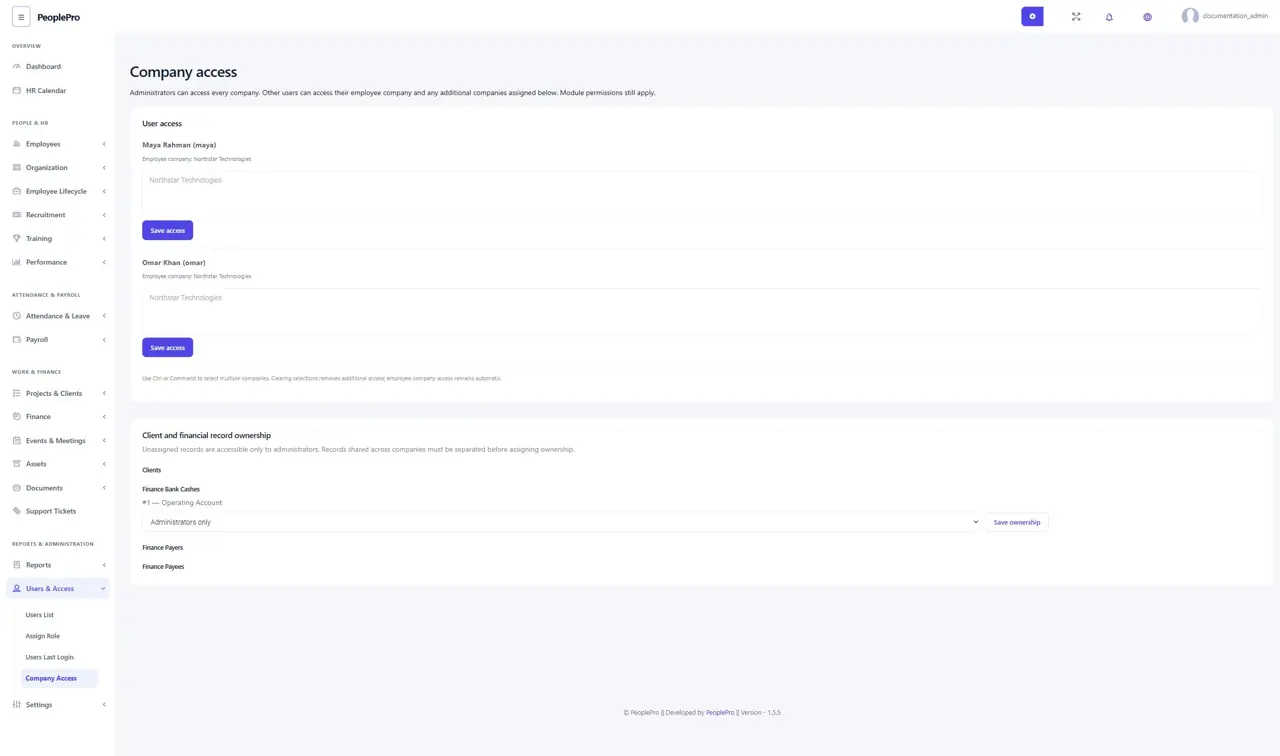
Open Users & Access > Company access to review additional company assignments. Administrators can access every company. Other users automatically retain their employee company and can be granted additional companies here; their module permissions still apply. Select the permitted companies and choose Save access for that user. The ownership section can assign eligible client and finance records to a company. Unassigned records remain administrator-only; shared records may need separating before ownership can be assigned.
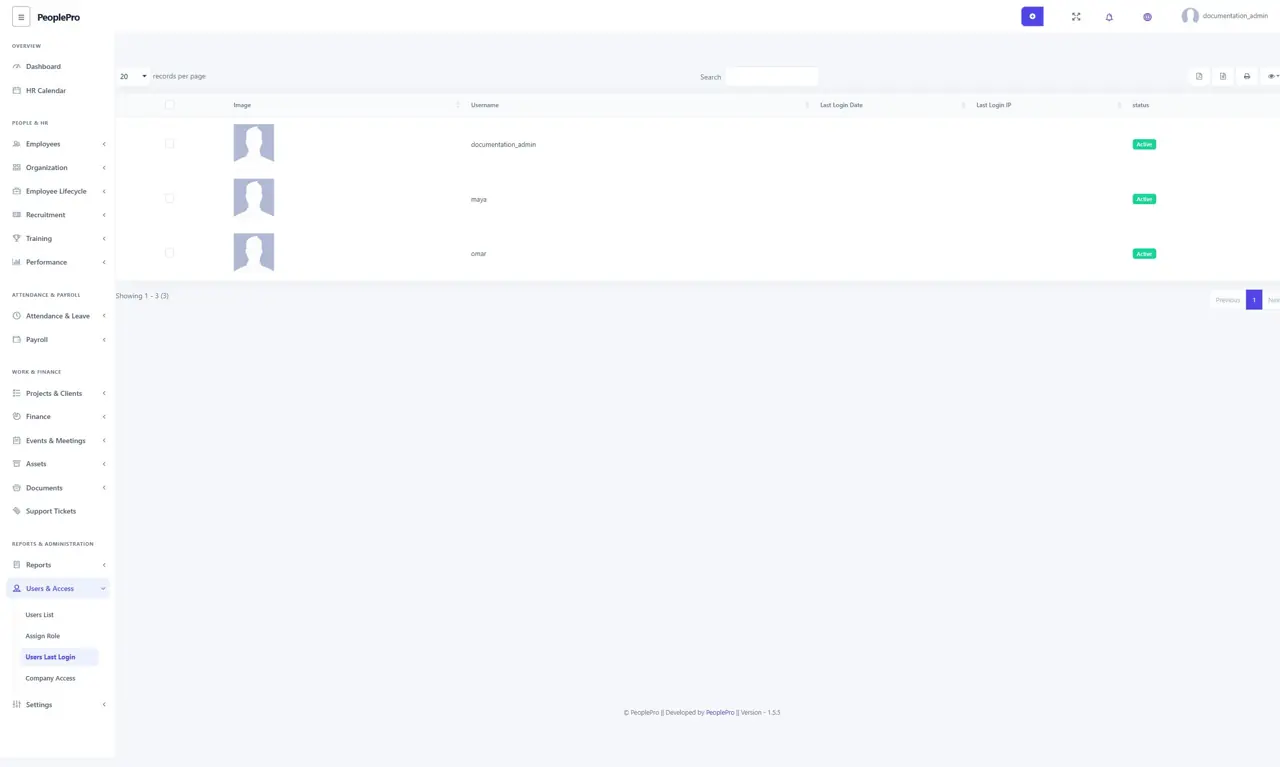
Users last login
Open Users & Access > Users Last Login to review the last login date, IP address and active status shown for each user. Search for a username to inspect a specific account. Use these records as part of routine account administration and follow up on access that the user does not recognize.