Client Portal
Clients use their assigned PeoplePro account to sign in.
Last updated: 16 November 2026 · Product version: not specified in the supplied guide
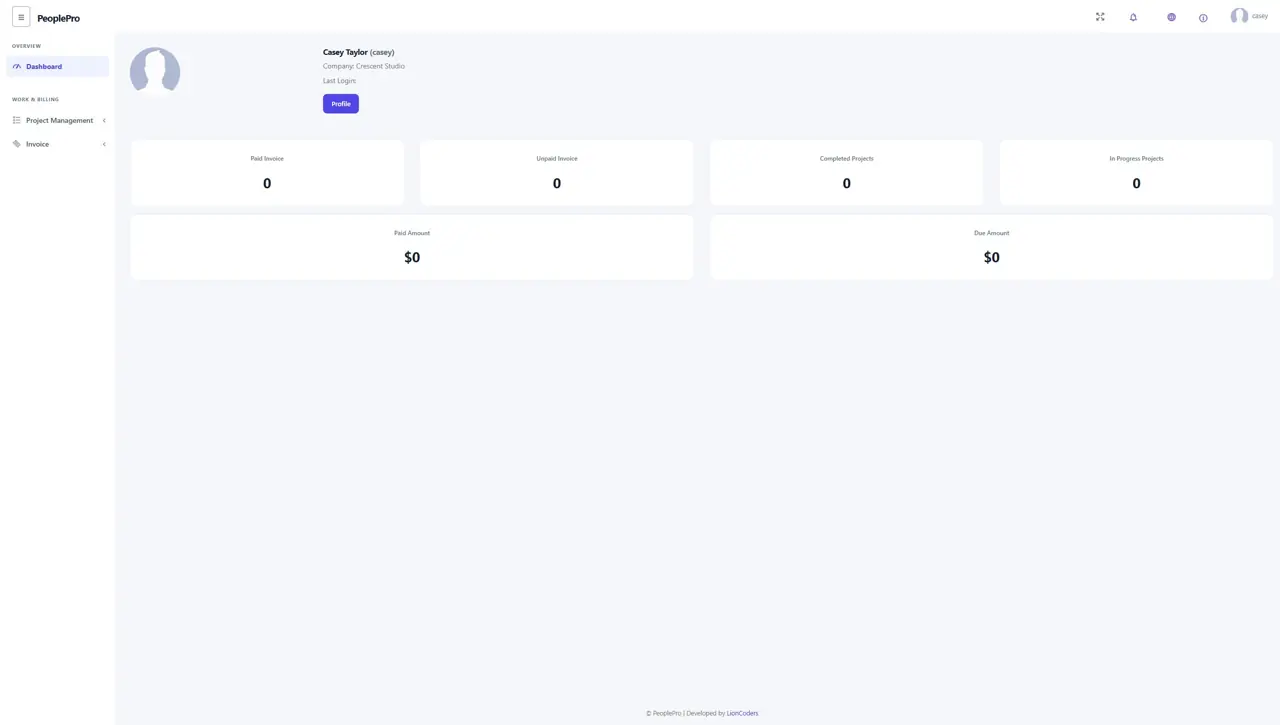
Client dashboard
Clients use their assigned PeoplePro account to sign in. The client dashboard summarizes paid and unpaid invoices, completed and in-progress projects, paid amount and due amount. Select a summary to open its matching list. This portal belongs to PeoplePro's project and invoicing features; it is separate from PeopleProSaaS subscription customer management.
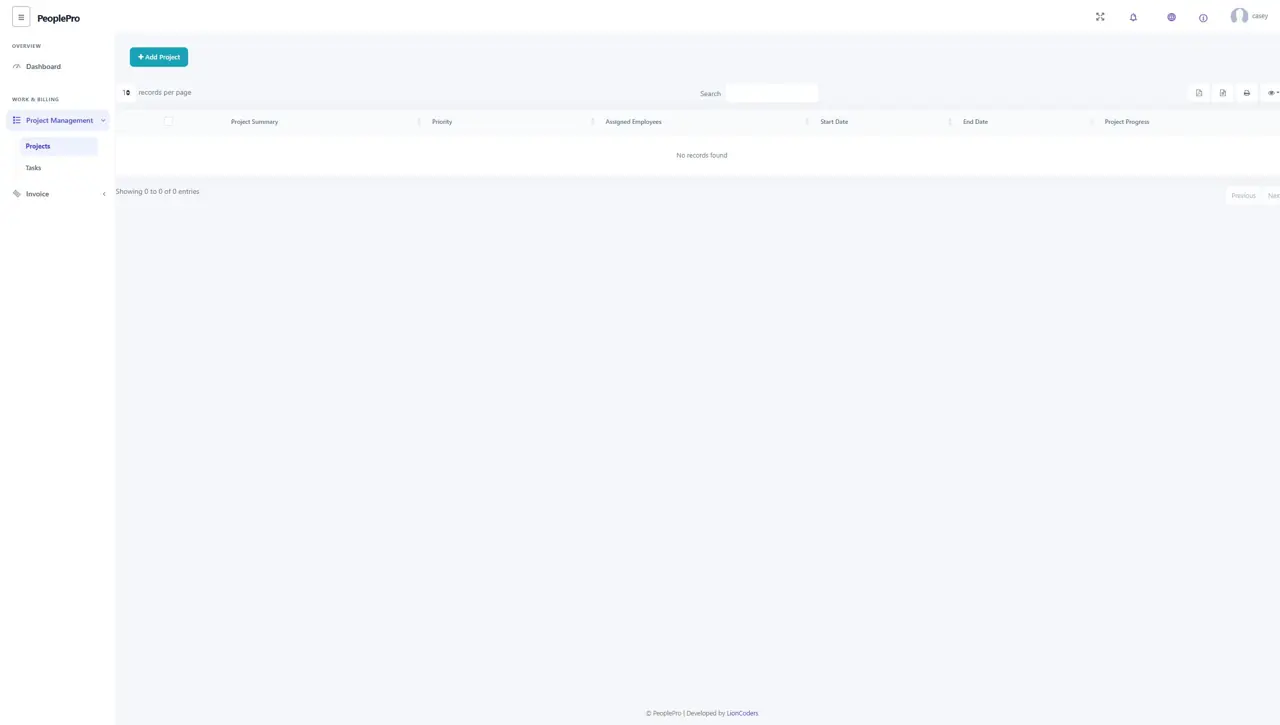
Client portal: Projects
Open Project Management > Projects to review the projects belonging to your client account. The list shows the project summary, priority, assigned employees, dates and progress. Use Add Project when that option is available, complete the requested information and review it before saving. Work with your provider to confirm the project scope.
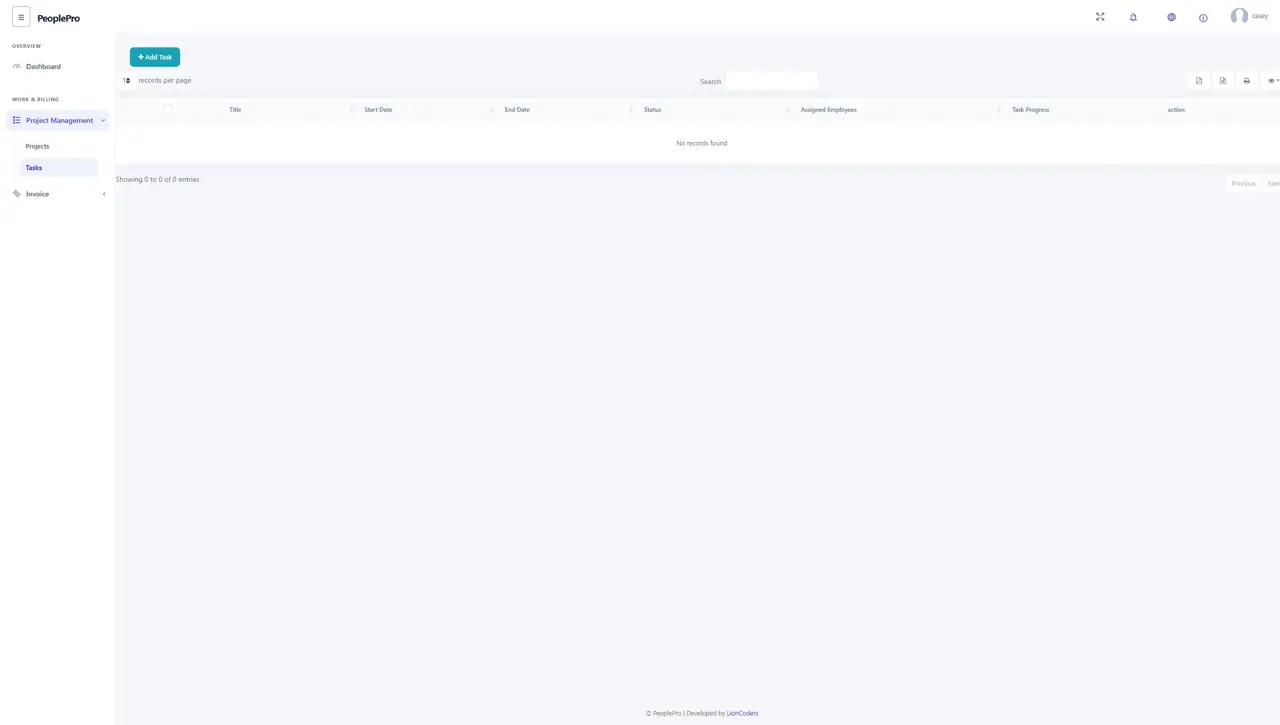
Client portal: Tasks
Open Project Management > Tasks to review tasks visible to your client account. Check the title, dates, status, assigned employees and progress. Use the Add Task or row actions offered by your account when you need to add or maintain work. Choose the appropriate project in the form so the task stays connected to the intended engagement.
Client portal: Invoices
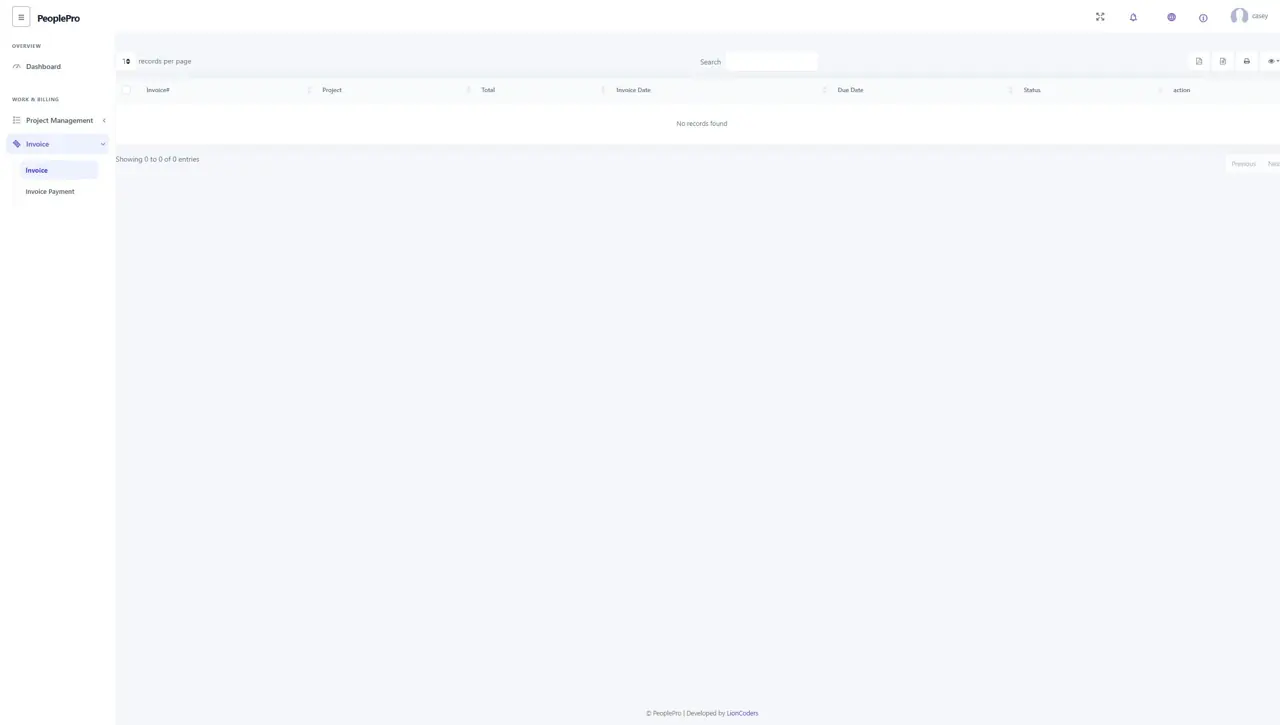
Open Invoice > Invoice to review your invoice list. Check the invoice number, project, total, invoice date, due date and status. Use the offered row actions to inspect an invoice. Follow the payment arrangement agreed with your provider; viewing an invoice does not itself make a payment.
Client portal: Invoice Payment
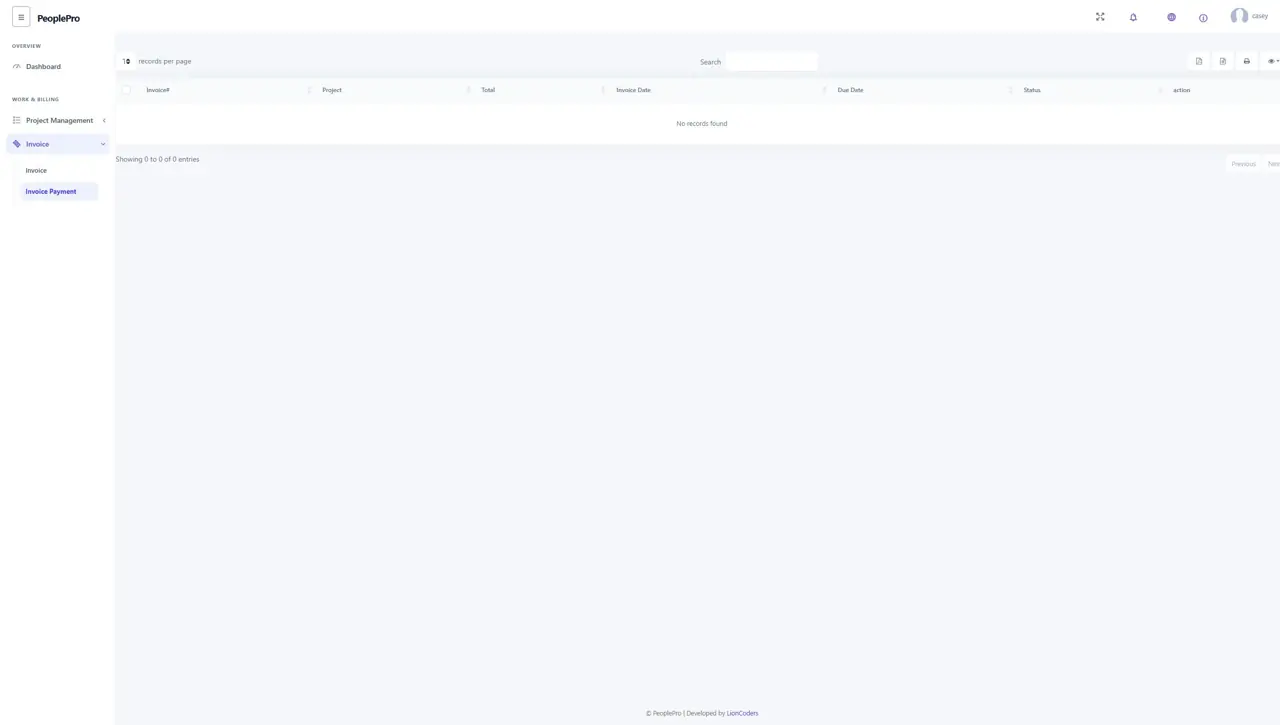
Open Invoice > Invoice Payment to review the paid invoice list. Use this page and the dashboard's Paid Invoice summary to locate invoices recorded as paid. Compare the invoice number and amount with your own payment records. Contact your provider if a completed payment is not reflected in the list.
Client profile, password and help
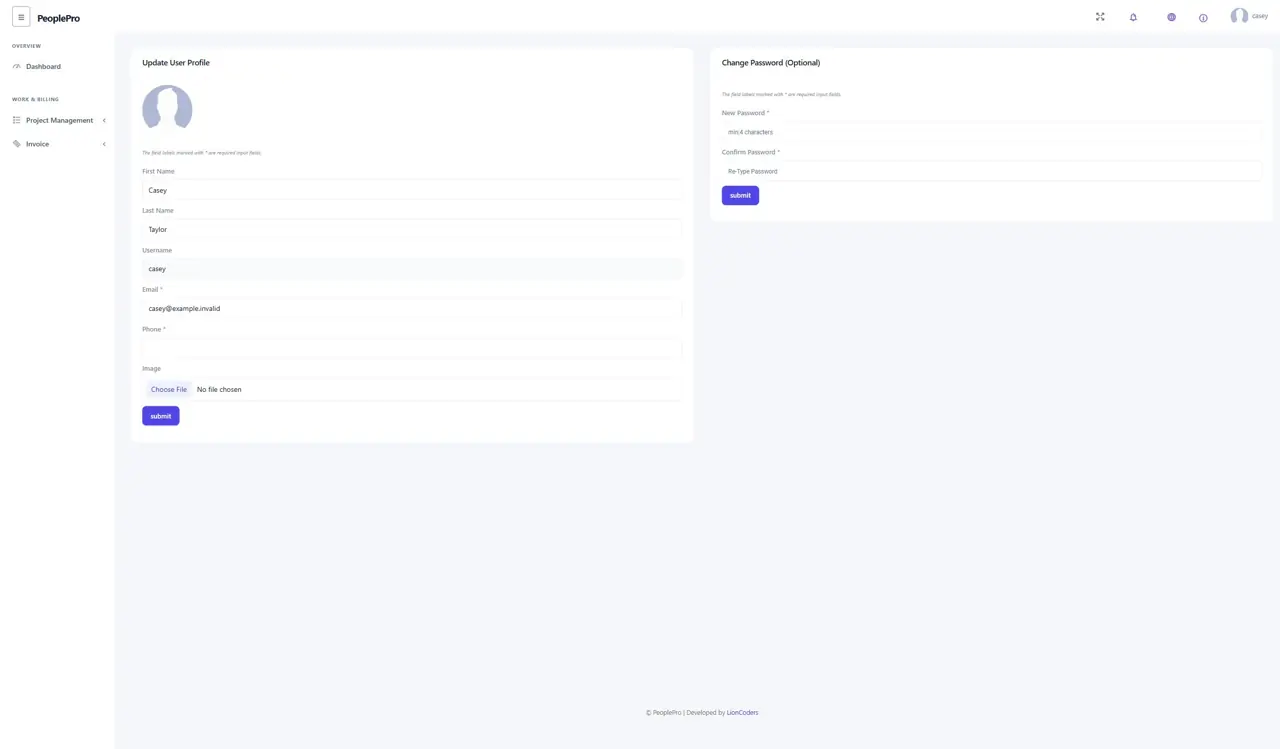
Open Profile from the client dashboard or account menu to maintain your name, username, email, phone and profile image. Use the separate Change Password form only when you want to replace your password. The Help link in the top bar opens the help resource available in your installation. Sign out from the account menu when finished.