Onboarding and Offboarding Checklists
Open Employee Checklists > Templates.
Last updated: 16 November 2026 · Product version: not specified in the supplied guide
Build a checklist template
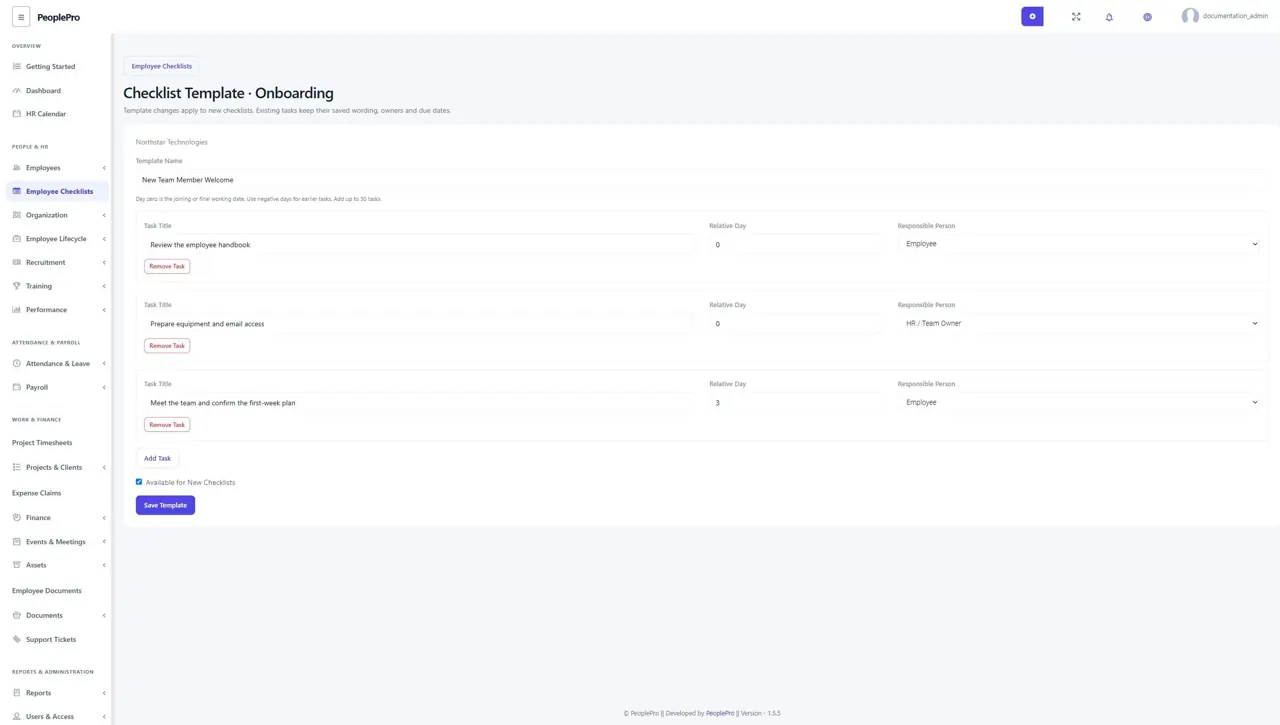
Open Employee Checklists > Templates. Choose the company, a clear name, and Onboarding or Offboarding. Add tasks and assign each to the employee or the team owner. Due-day offsets are relative to the joining or final-working date: 0 is that date, negative numbers are before it, and positive numbers are after it. Save a reusable template. Archive it when it should no longer be used for new checklists.
Start a checklist for an employee
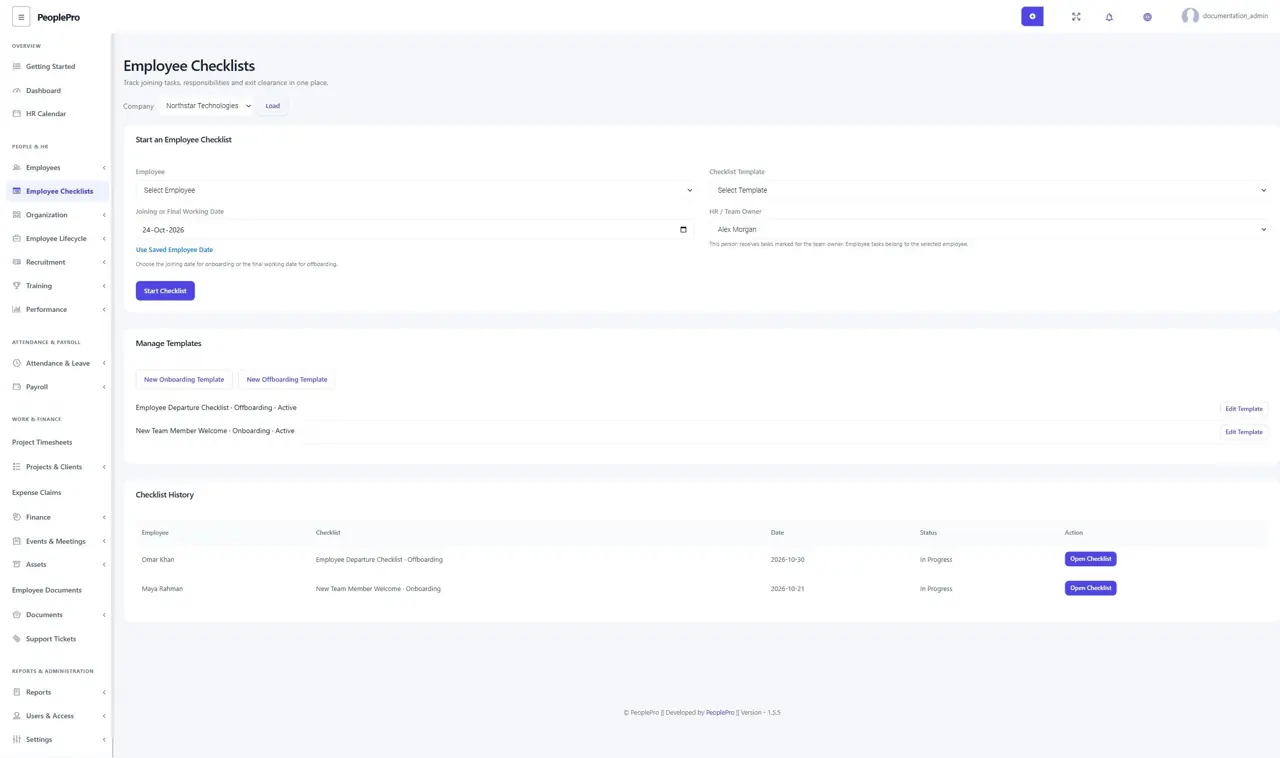
Choose an employee, template, anchor date and team owner. Starting the checklist saves a copy of its task wording, responsibilities and due dates. Later template changes do not rewrite that employee checklist. Only one active checklist of the same type can exist for an employee. The employee and HR can review the full checklist; another assignee sees only their assigned tasks.
Complete tasks and control date changes
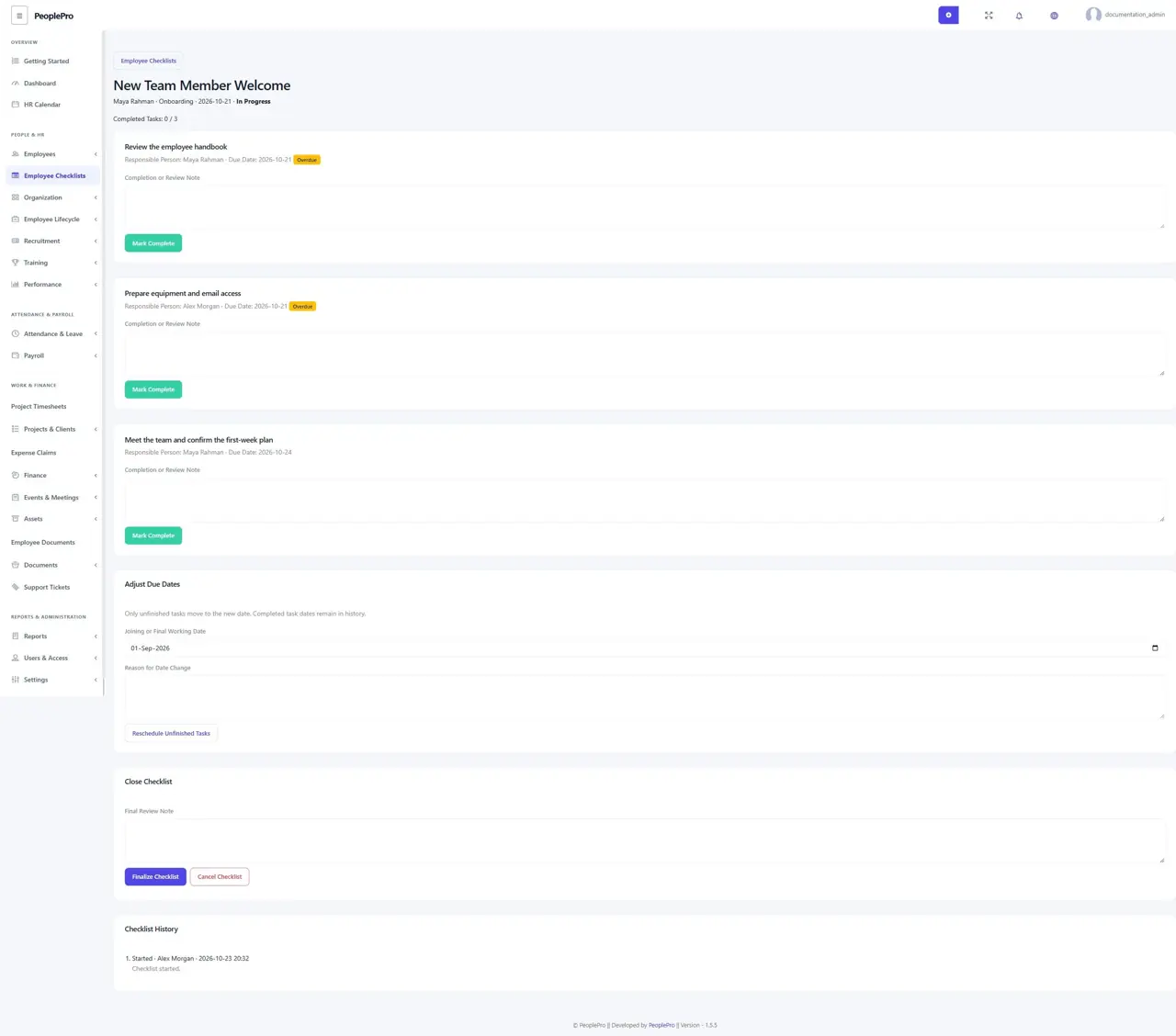
Open the checklist, complete the tasks you own and add useful notes. Authorized HR can reopen a task when more work is needed. Changing the employee profile date does not silently move saved deadlines. Use Reschedule when the anchor date changes; unfinished task dates are recalculated while completed work remains recorded. The history explains task completion, reopening and date changes.
Finish offboarding with equipment and payroll checks
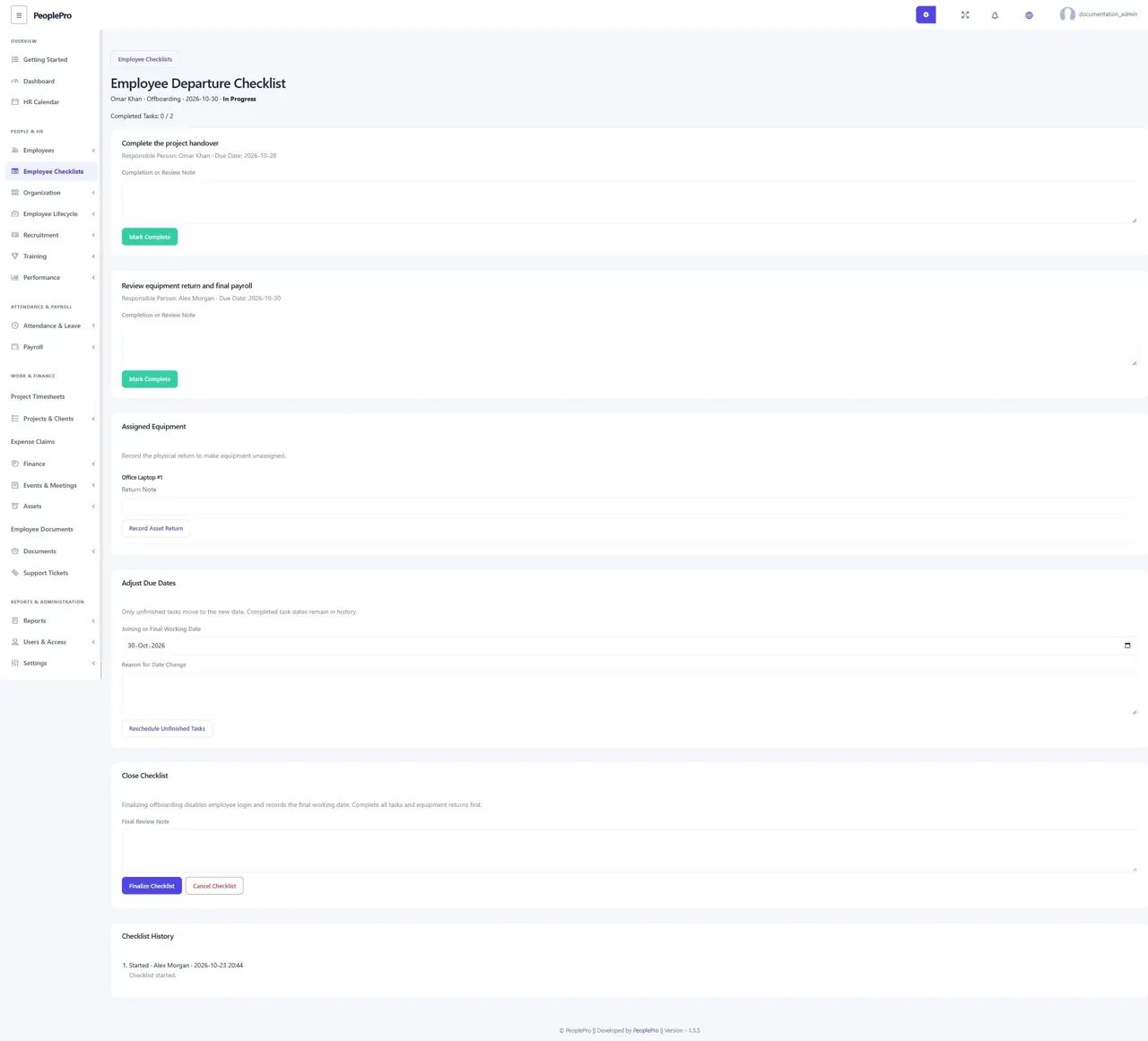
For an offboarding checklist, record the return of assigned equipment after confirming its physical return. Complete all tasks and resolve active payroll runs before finalizing. Finalization is available on or after the final working date and disables the employee account while keeping HR history. It cannot disable your own account or an administrator account through this shortcut. Keep resignation, termination and final-payment records according to your normal HR process.