Employees and Employee Records
Open Employees > Employee Directory to find employees and review their company, department, designation, staff ID, shift and contact information.
Last updated: 16 November 2026 · Product version: not specified in the supplied guide
Employee Directory
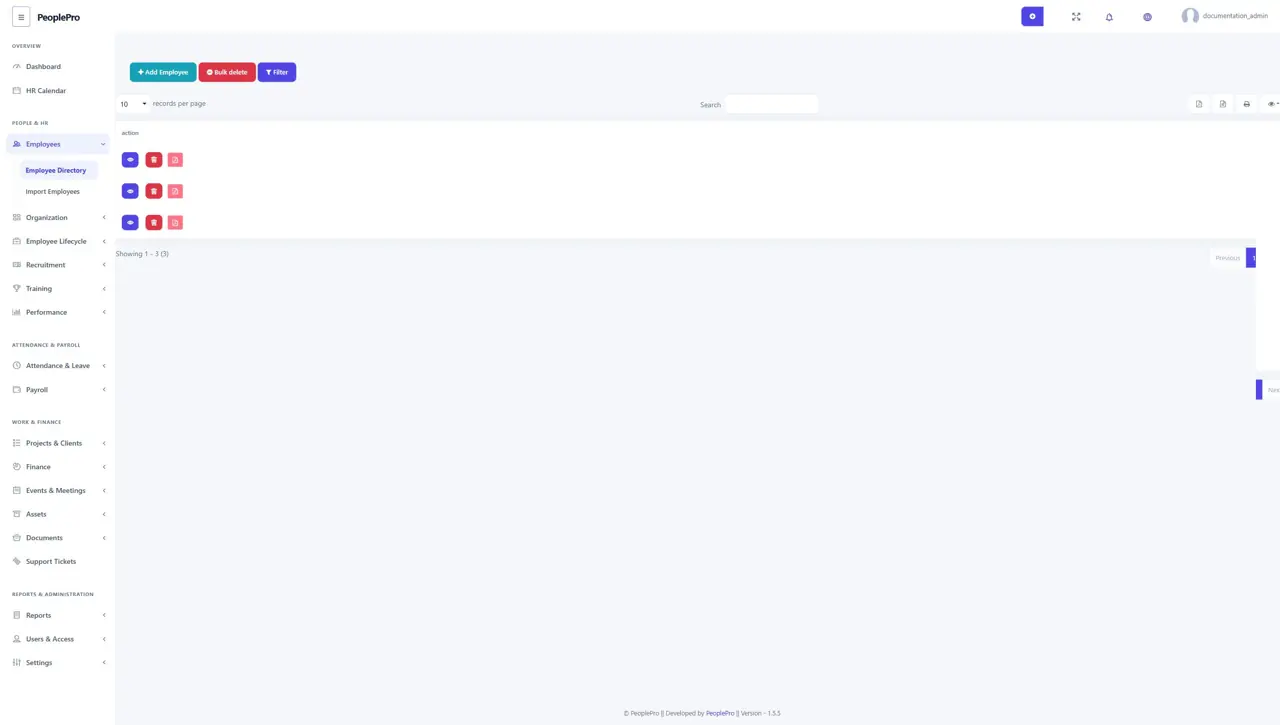
Open Employees > Employee Directory to find employees and review their company, department, designation, staff ID, shift and contact information. Use Search or Filter to locate the right person. Select the employee name or the appropriate row action to open the full record. Review the person and company carefully before editing or deleting a record.
Add an employee
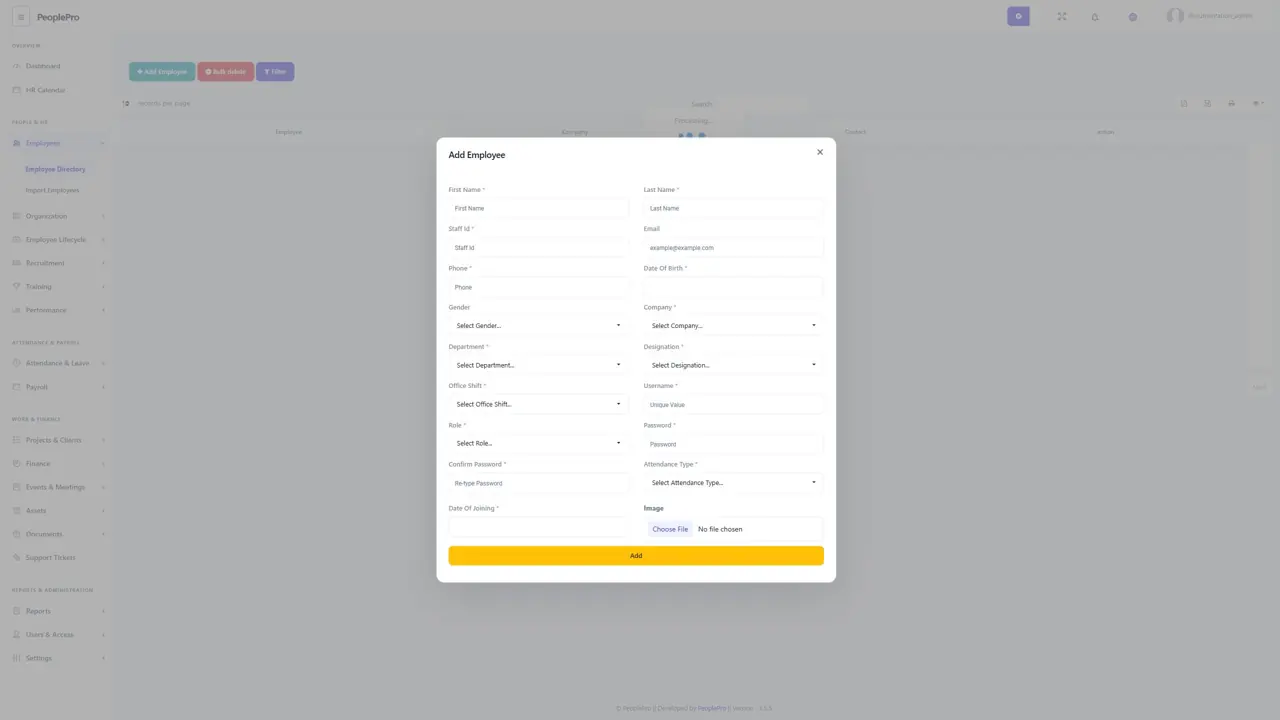
Select Add Employee in the directory. Enter the first and last name, a unique staff ID and the required personal and contact details. Choose the company first, followed by department, designation and office shift. Set the username, role, password and confirmation for the new account. Choose General or IP Based attendance as appropriate, enter the joining date and save. Fields marked with an asterisk are required.
Import employees from Excel or CSV
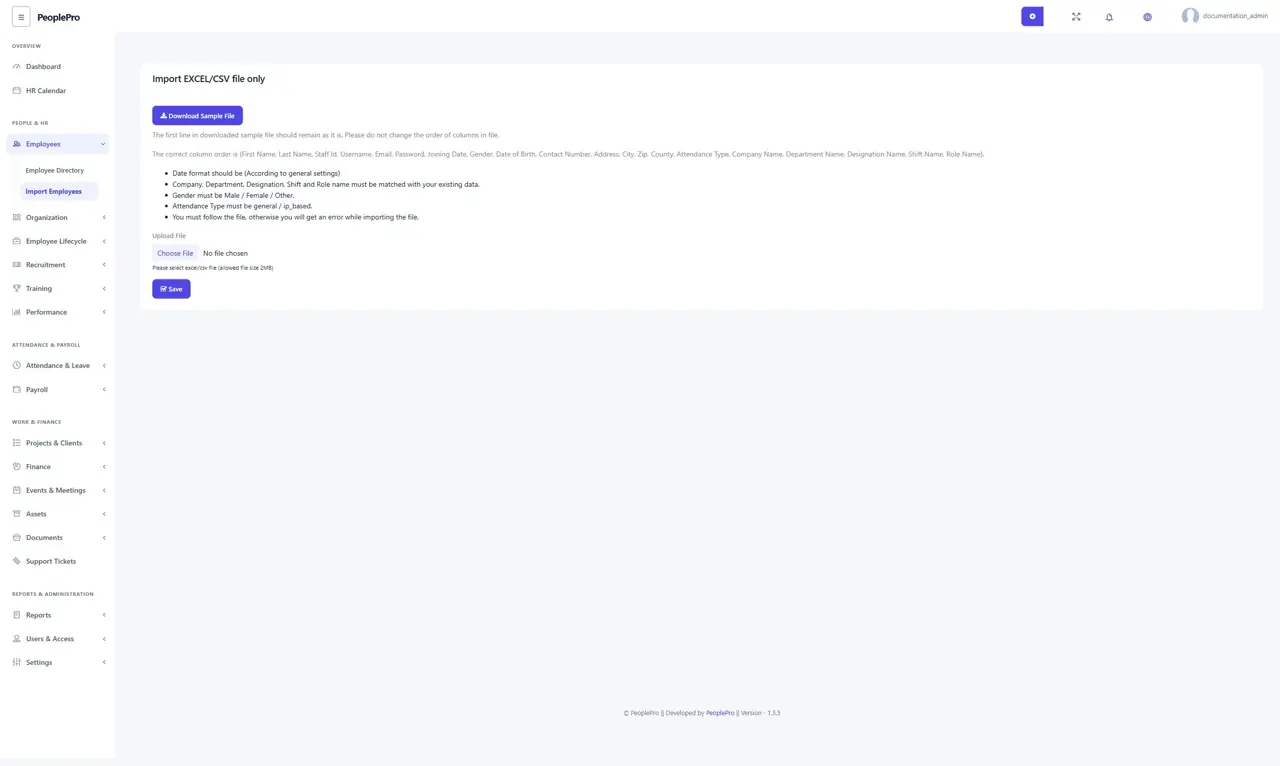
Open Employees > Import Employees and download the sample file. Keep its first row and column order unchanged. Fill the employee details using the date format selected in General Settings. Company, department, designation, shift and role names must match existing records exactly. Gender accepts Male, Female or Other; attendance type accepts general or ip_based. Upload the completed Excel or CSV file within the displayed 2 MB limit, then review the result before importing the rest of your team.
Employee basic information
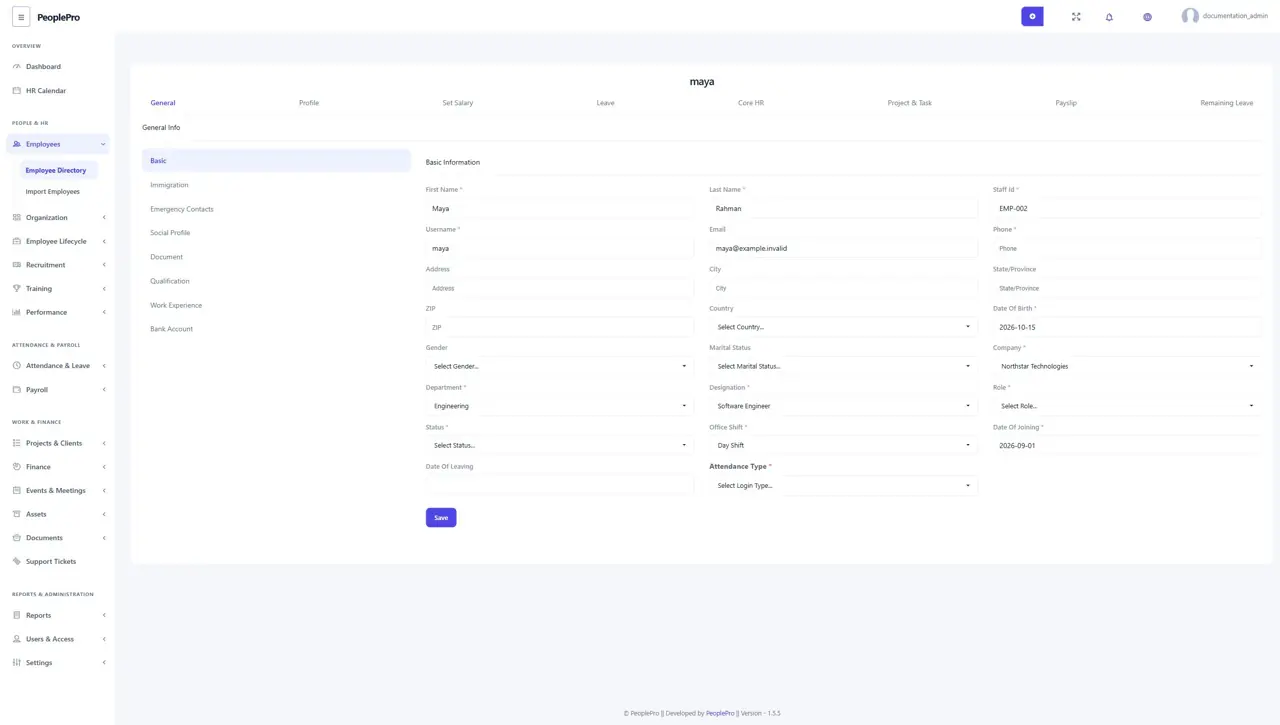
Open an employee from the directory. In General > Basic, maintain the name, staff ID, username, email, phone, address, personal details, company assignment, role, status, shift and employment dates. Change the company before choosing its department and designation. Save the form after reviewing the employee identity. A staff ID should remain consistent with attendance device records and imported files.
Immigration records
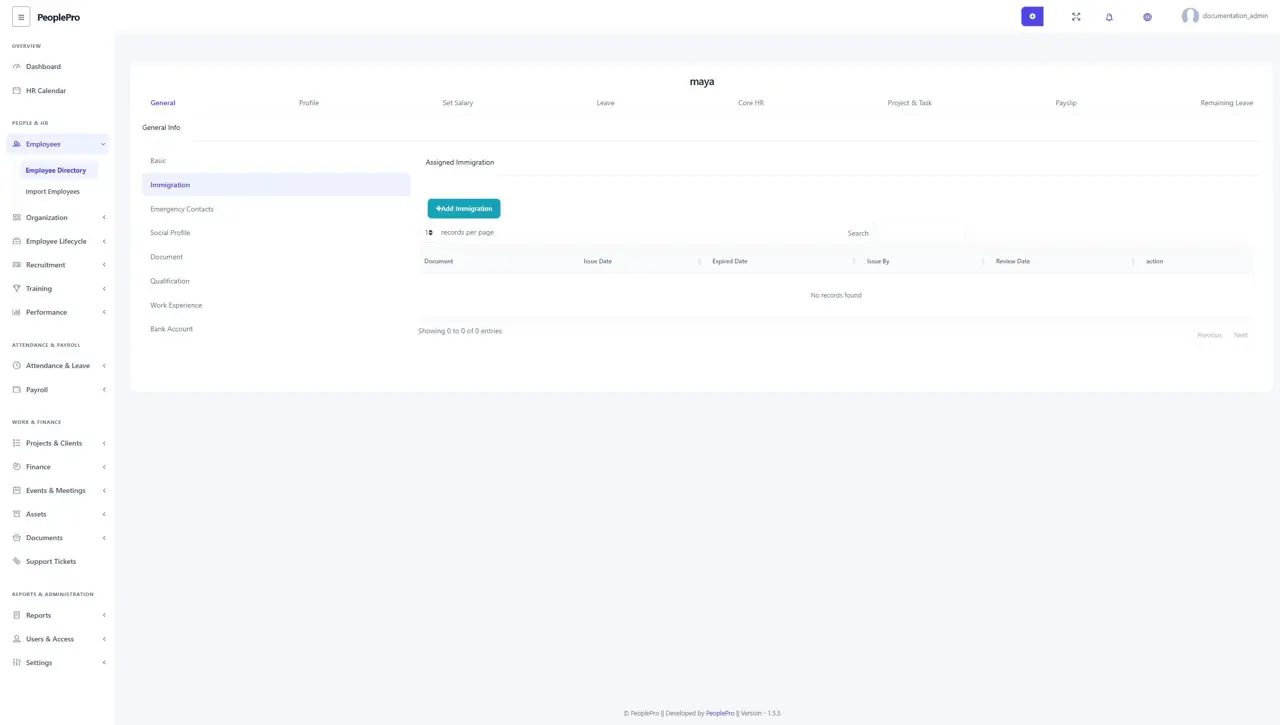
Open the employee record and choose General > Immigration. Use this area for the passport, visa or other immigration document information required by your organization. Add the document details and relevant dates shown in the form. Review expiry information when maintaining the employee file. Only give access to staff who need to manage these personal records.
Emergency contacts
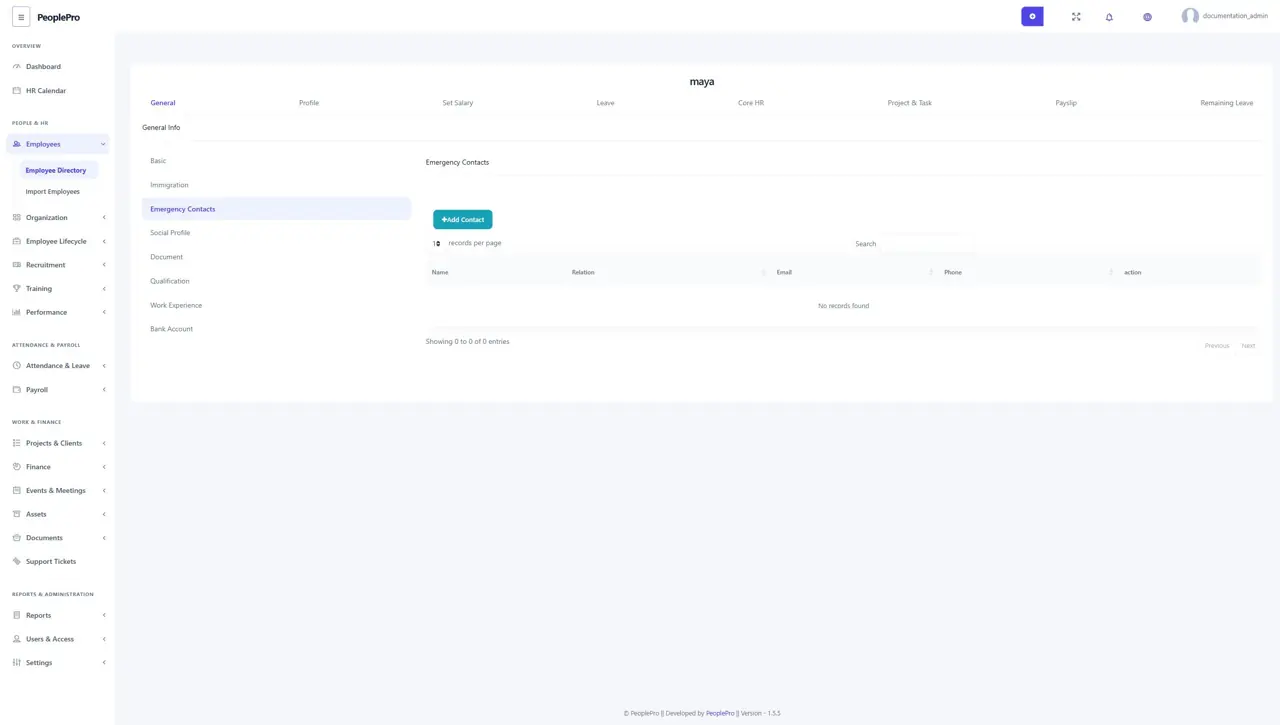
Choose General > Emergency Contacts in the employee record. Add a contact name, relationship and the available telephone or contact details. Use a person the organization should contact in an emergency. Review the information with the employee periodically so that it remains useful when needed.
Social profiles
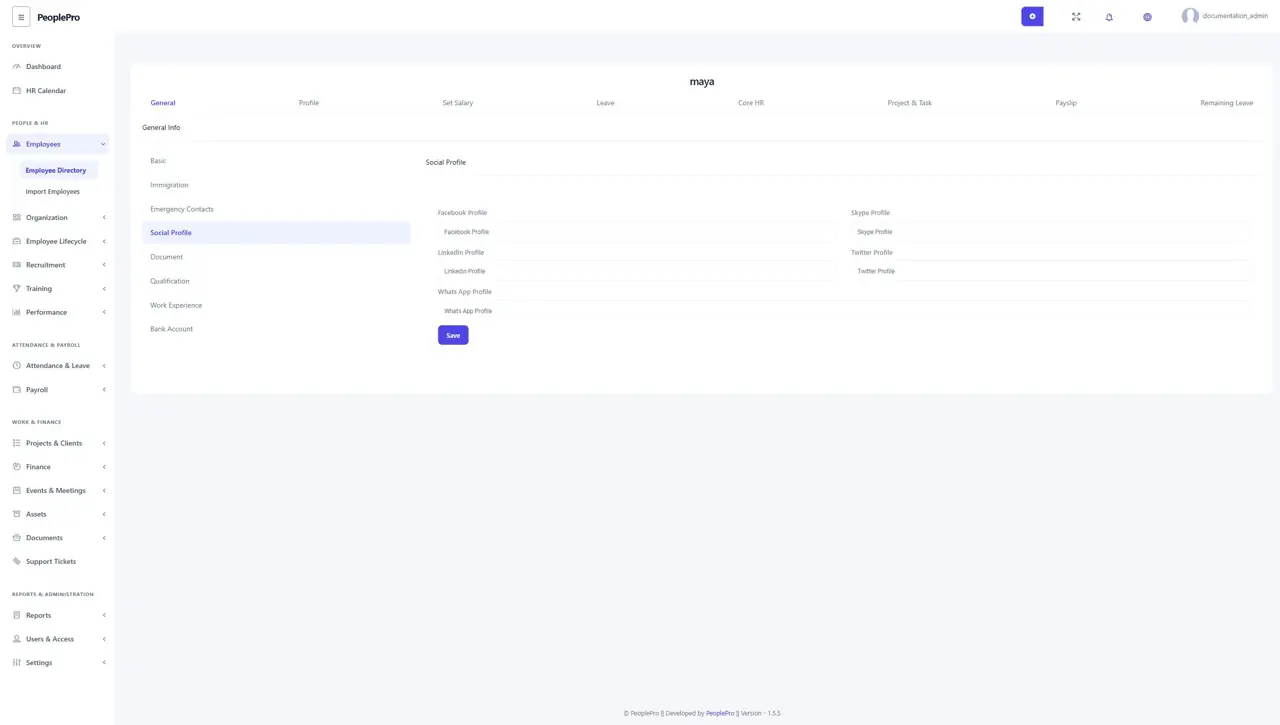
Choose General > Social Profile to maintain the employee's supported social profile links. Enter the full profile address in the appropriate field and save. Add only the profiles your organization needs for its employee records.
Employee documents
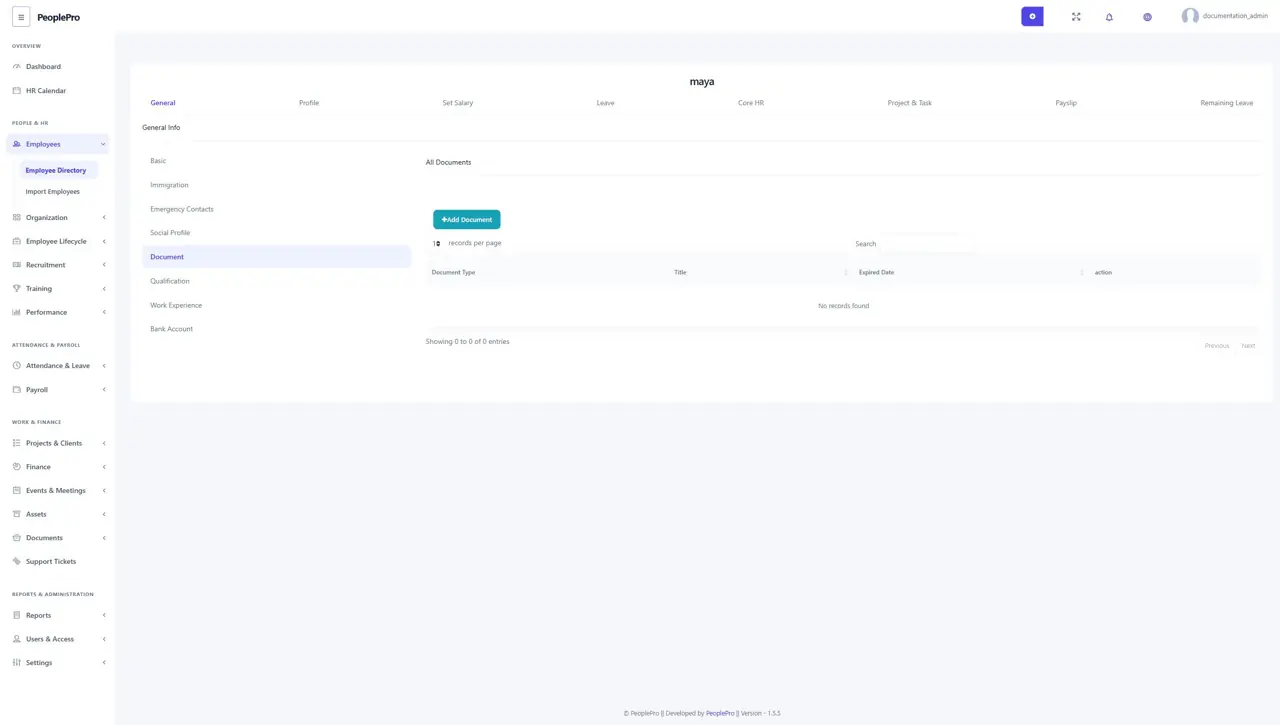
Choose General > Document to store files associated with the employee. Select Add Document, complete its title or type and other required fields, then attach the file. Observe the file type and size restrictions shown by the application. Use the document list to locate or maintain a previously uploaded record.
Qualifications
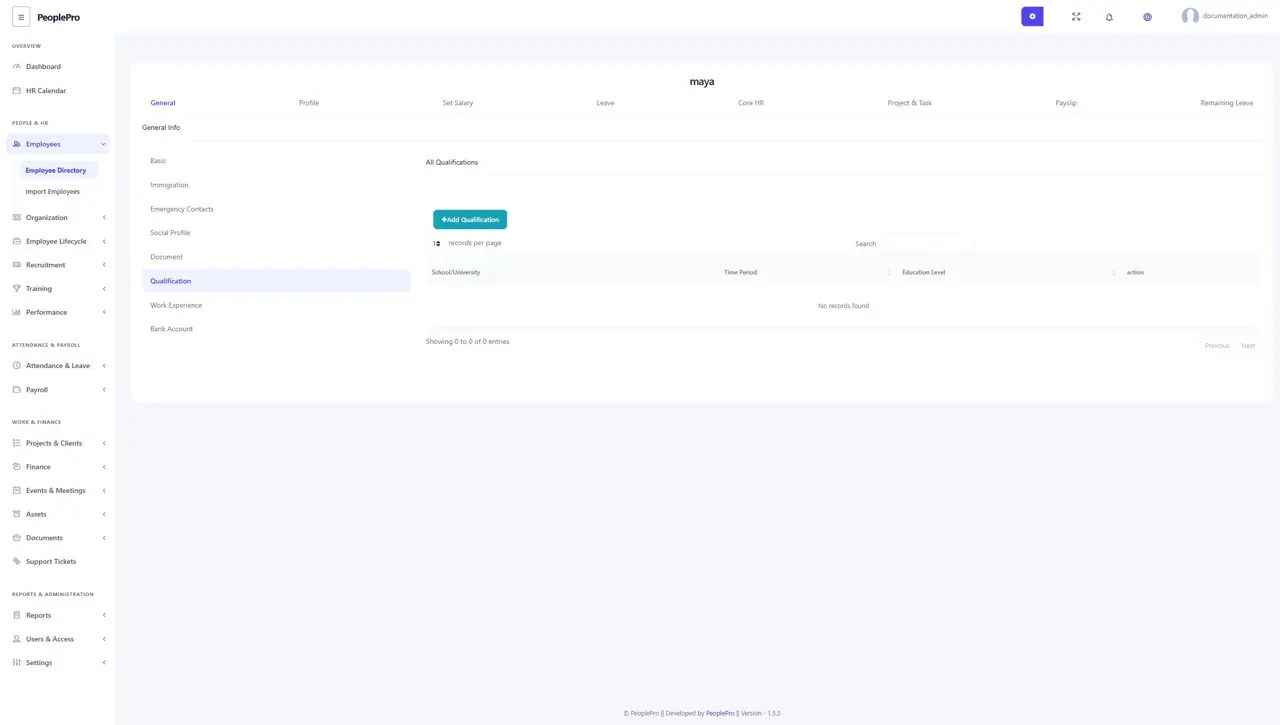
Choose General > Qualification to record education or professional qualifications. Add the institution, qualification and date information requested by the form. Save each qualification as a separate record where appropriate. This keeps the employee's background easy to review without combining unrelated qualifications into one description.
Work experience
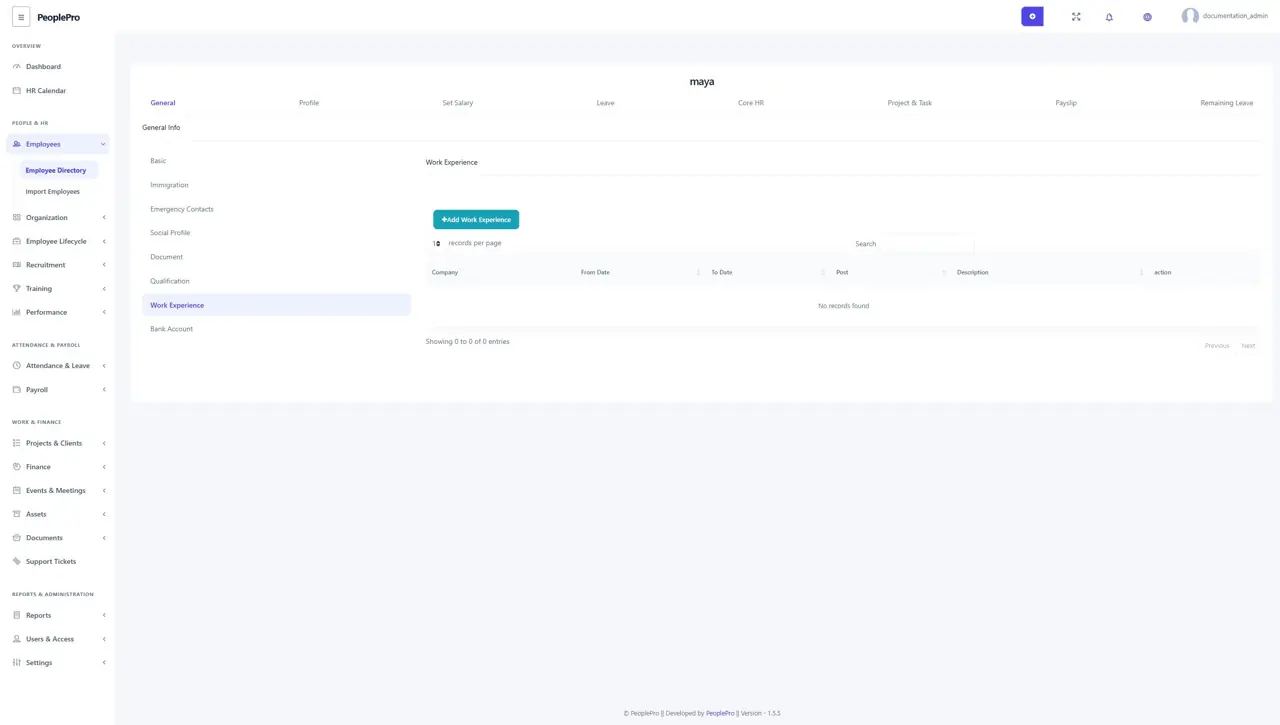
Choose General > Work Experience to record previous employment. Enter the organization, position, dates and description offered in the form. Add separate entries for different employers so the employee's work history stays readable.
Employee bank accounts
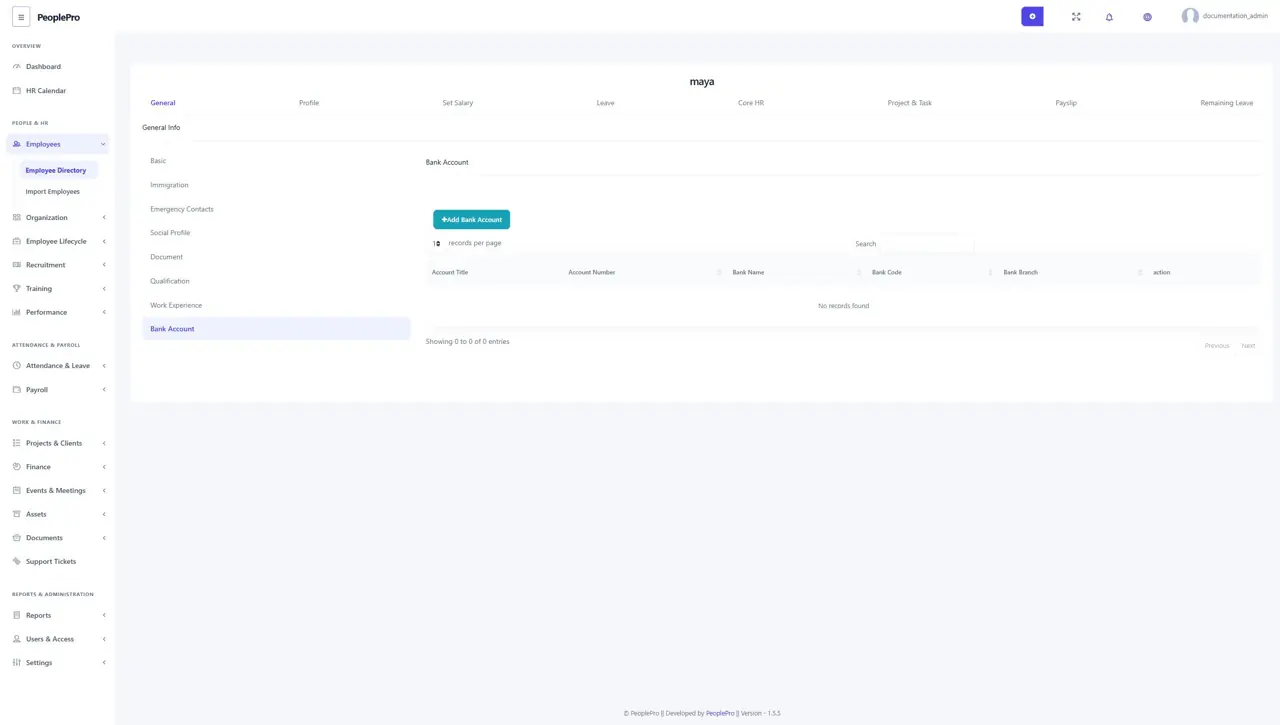
Choose General > Bank Account to maintain the employee's bank information. Enter the bank and account details carefully and save. Recheck the account number with the employee before relying on it for payroll administration. An employee bank record is separate from the organization's finance accounts.
Profile picture
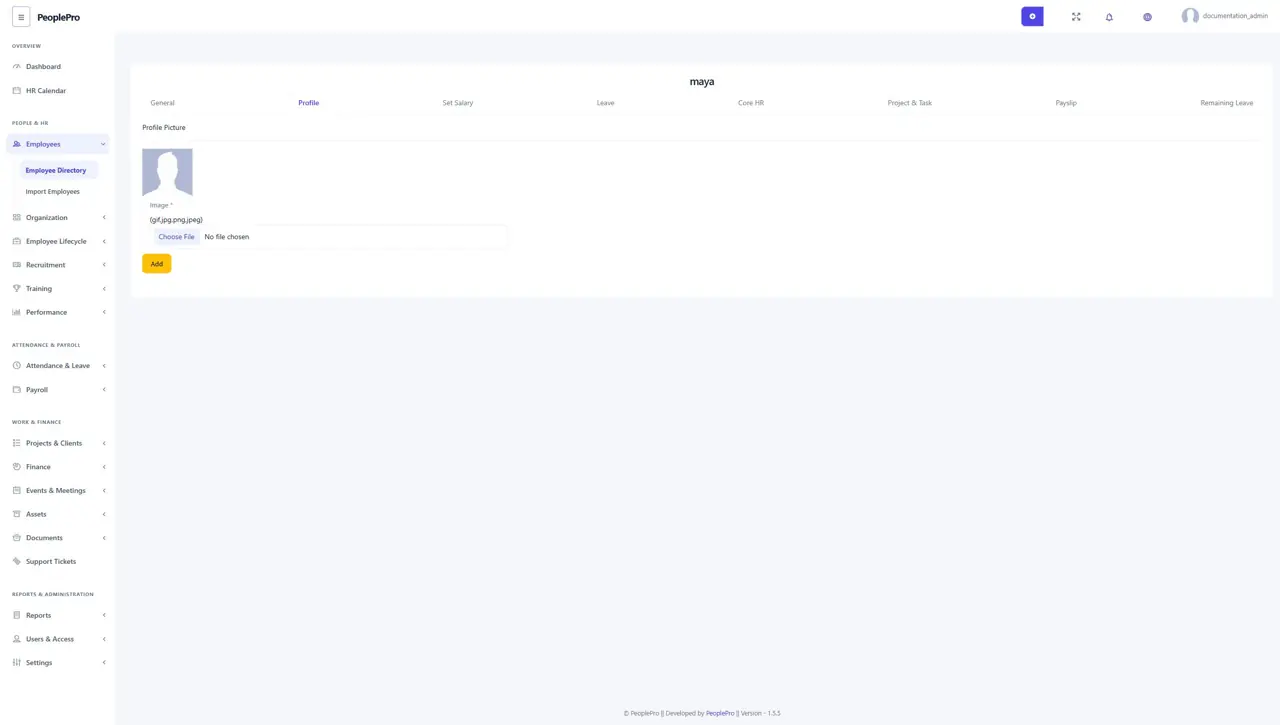
Select the Profile tab in an employee record to review or change the profile picture. Choose the permitted image file and use the available upload or save control. A clear photograph helps administrators identify employees in the directory and related screens.
Employee leave and remaining balance
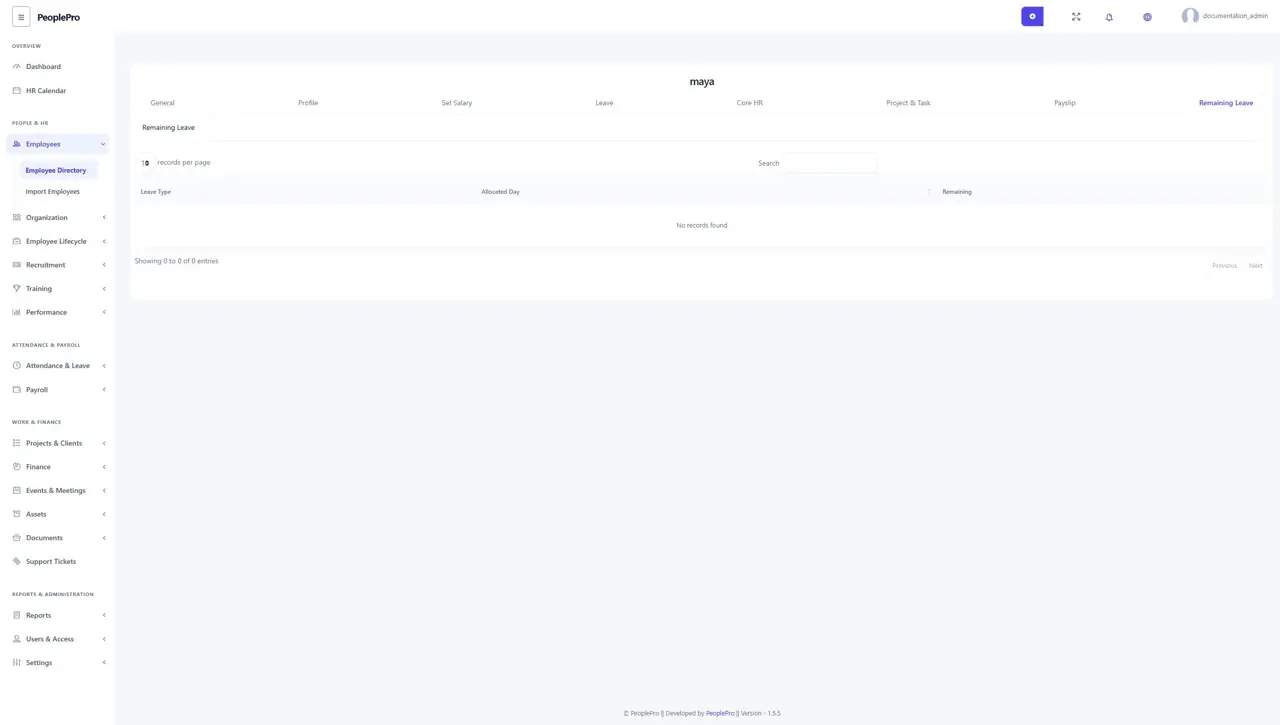
The Leave tab shows leave associated with the selected employee. The Remaining Leave tab shows the available leave type balances. Use these views when reviewing a leave request or answering a balance question. Leave type allowances are maintained in Settings > Variable Type; approved leave records and applicable rules determine the balance shown.
Employee HR history
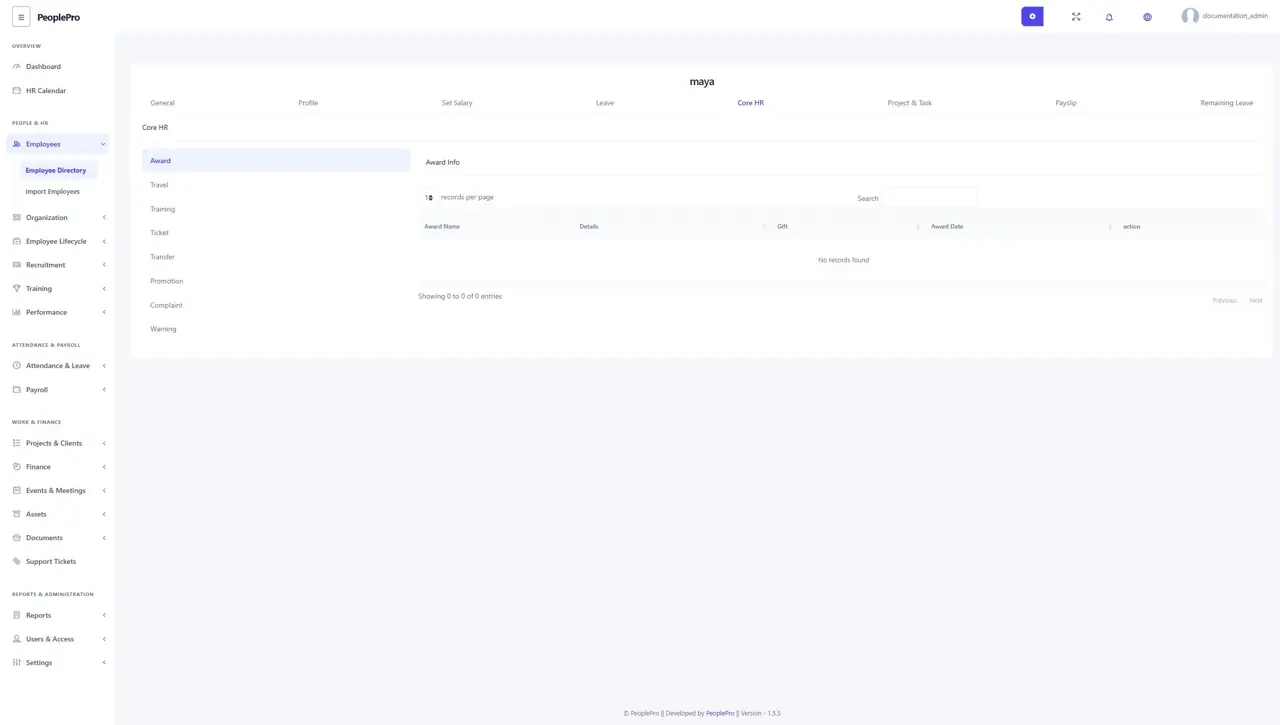
Select Core HR in an employee record to review the person's awards, travel, training, tickets, transfers, promotions, complaints and warnings through the available sub-tabs. Use these views for a focused history of one employee. The main Employee Lifecycle and Training pages remain the place to manage organization-wide lists.
Employee projects and tasks
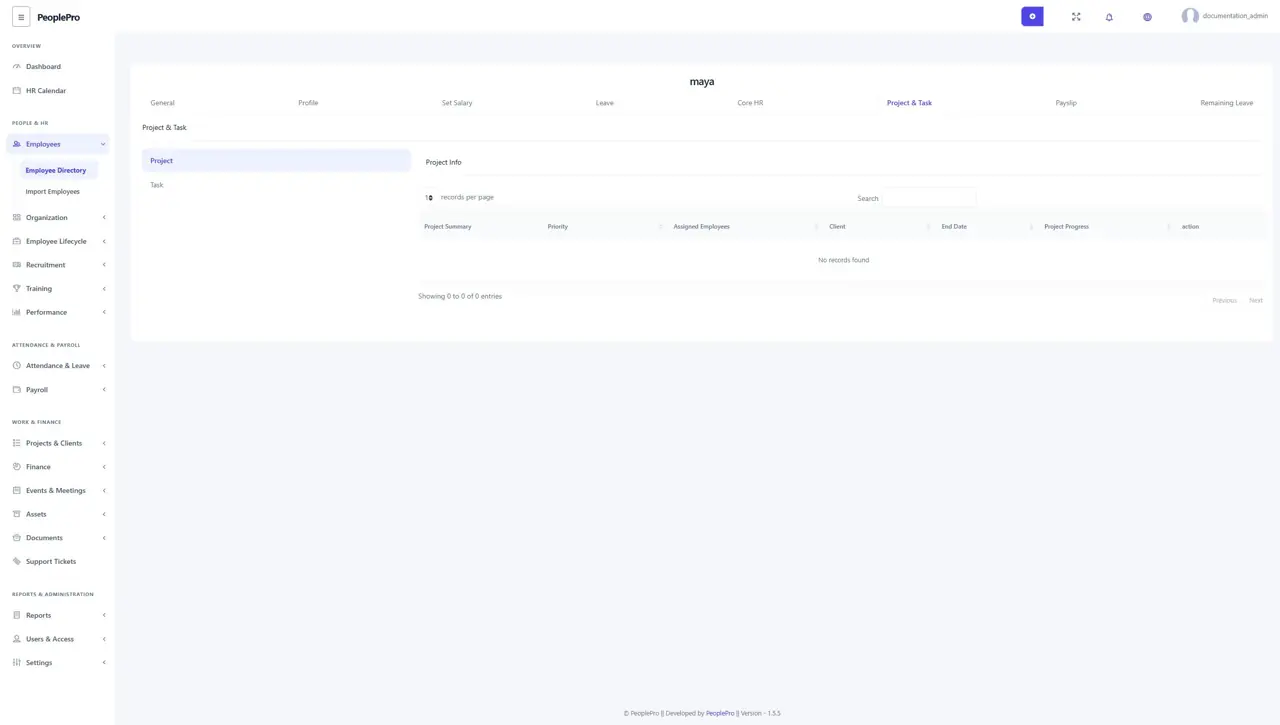
Select Project & Task to review the work assigned to an employee. The Project and Task sub-tabs display the related assignments. Create and maintain that work from Projects & Clients, then use this employee view to review a person's responsibilities.
Employee payslips
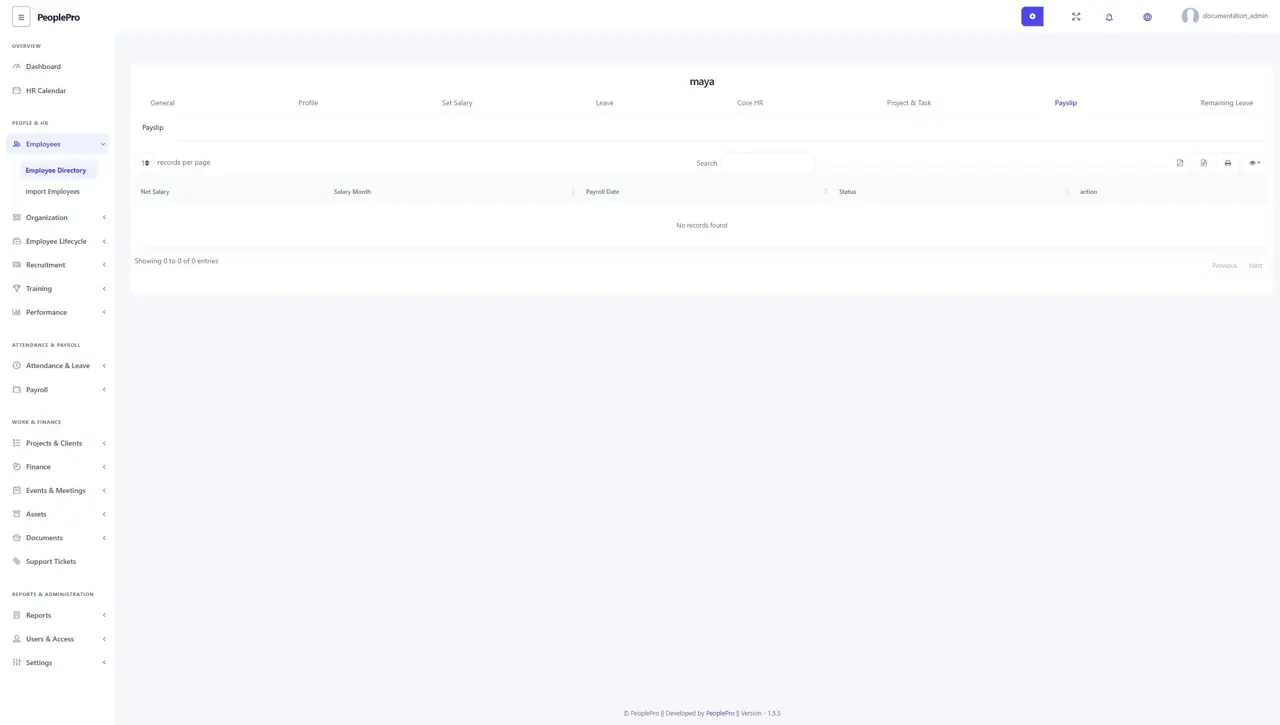
Select Payslip in the employee record to review salary payment documents available for that person. Use the offered actions to view or download a payslip. If a period is missing, check the payroll month and whether its payment has been completed in Payroll.