Approval Inbox, Payroll Runs and HR Audit
Open Approval Inbox to review pending leave, attendance and expense claims.
Last updated: 16 November 2026 · Product version: not specified in the supplied guide
Review requests in one inbox
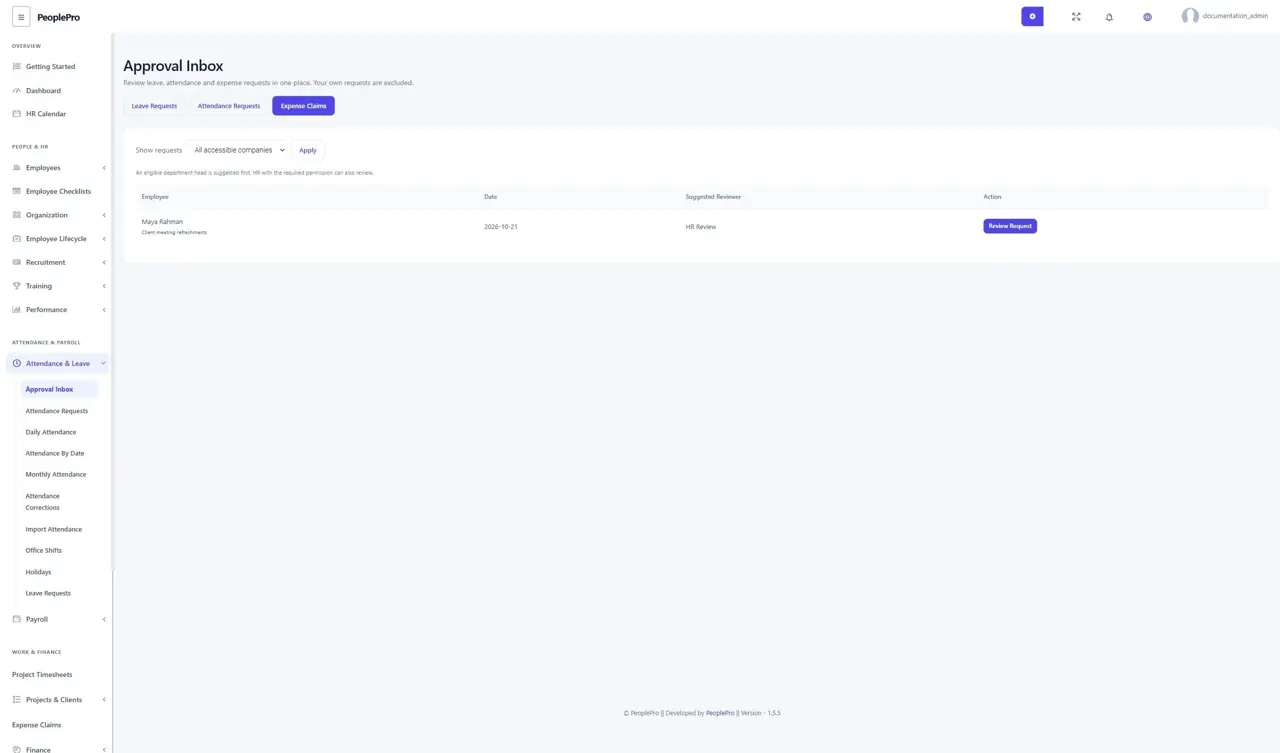
Open Approval Inbox to review pending leave, attendance and expense claims. Choose the request type, then show all accessible companies or departments you lead. Your own requests are excluded. An eligible department head is suggested first; authorized HR can also decide. A department-head title does not automatically grant approval rights. Open Review Request to inspect the details and enter a decision note.
Prepare a payroll draft
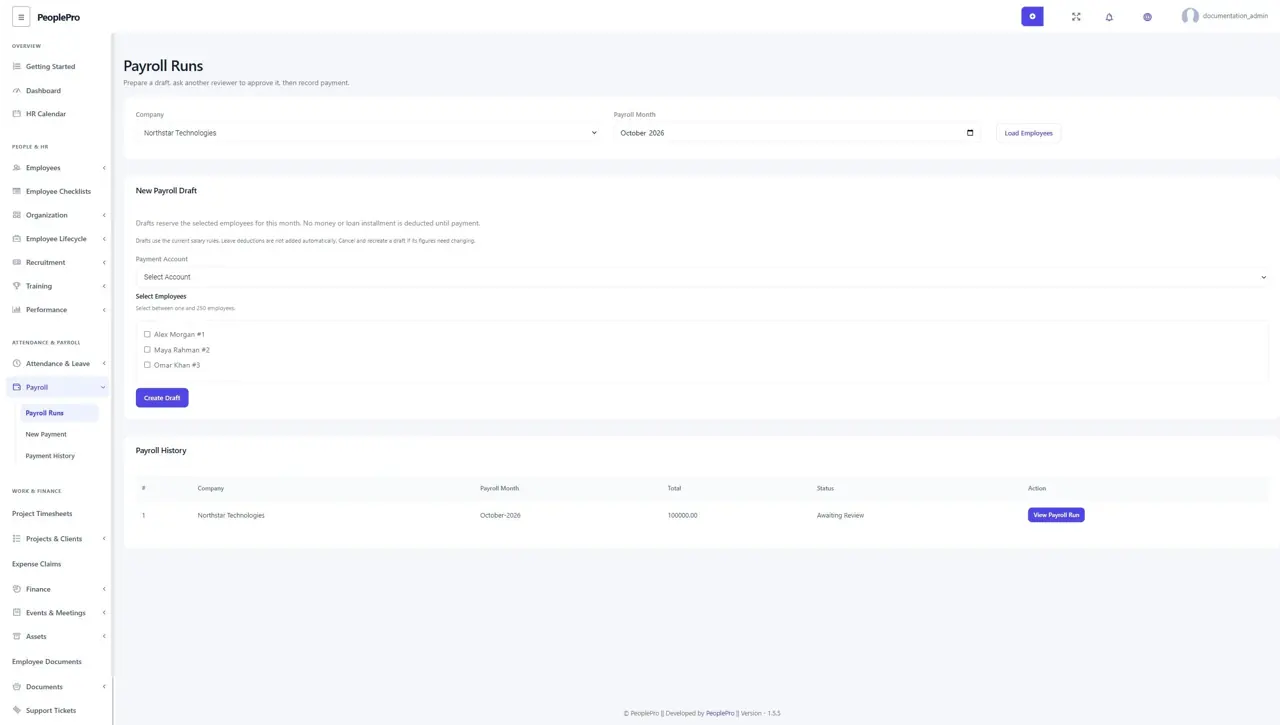
Open Payroll Runs and choose the company, paying account, month and employees. Creating a run saves the salary components and net amounts for review without making a payment. Open the draft and check the employee breakdown. A person already included in an active run cannot be paid again through the ordinary payment screen for that period.
Submit and independently approve payroll
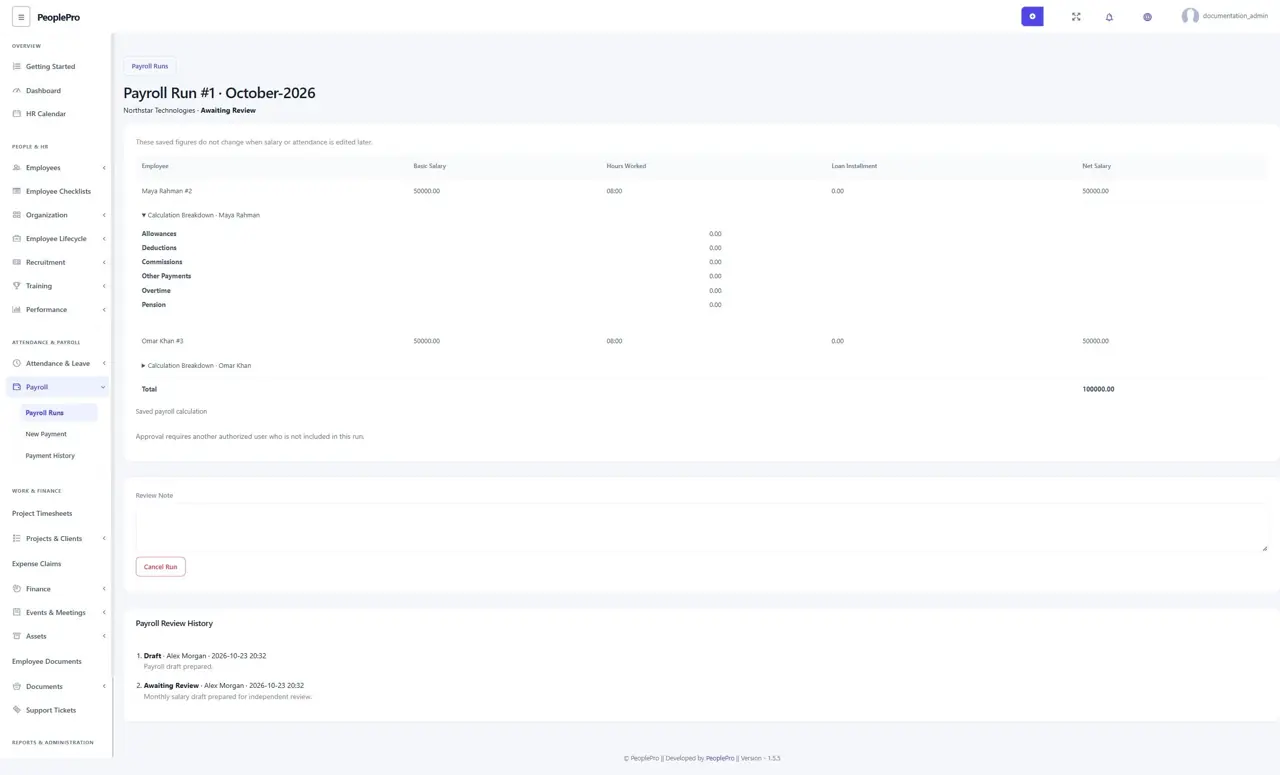
Submit a checked draft for review. A separate authorized reviewer must approve it; the creator and an employee receiving salary in that run cannot approve it. Approval keeps the saved amounts unchanged even if salary or attendance records are edited later. If the figures need correction, cancel the unpaid run and prepare a new draft. Current salary rules are reused; this feature does not introduce a new automatic unpaid-leave deduction policy.
Record the payroll payment once
After approval, authorized payroll staff can record payment from the saved account. The operation checks the account balance and recorded loan state, then creates the normal payslips and related finance entries together. A failed payment leaves the run unpaid. Repeating a successful submission does not pay it again. Recording payment in PeoplePro does not initiate a bank transfer.
Review selected critical HR changes
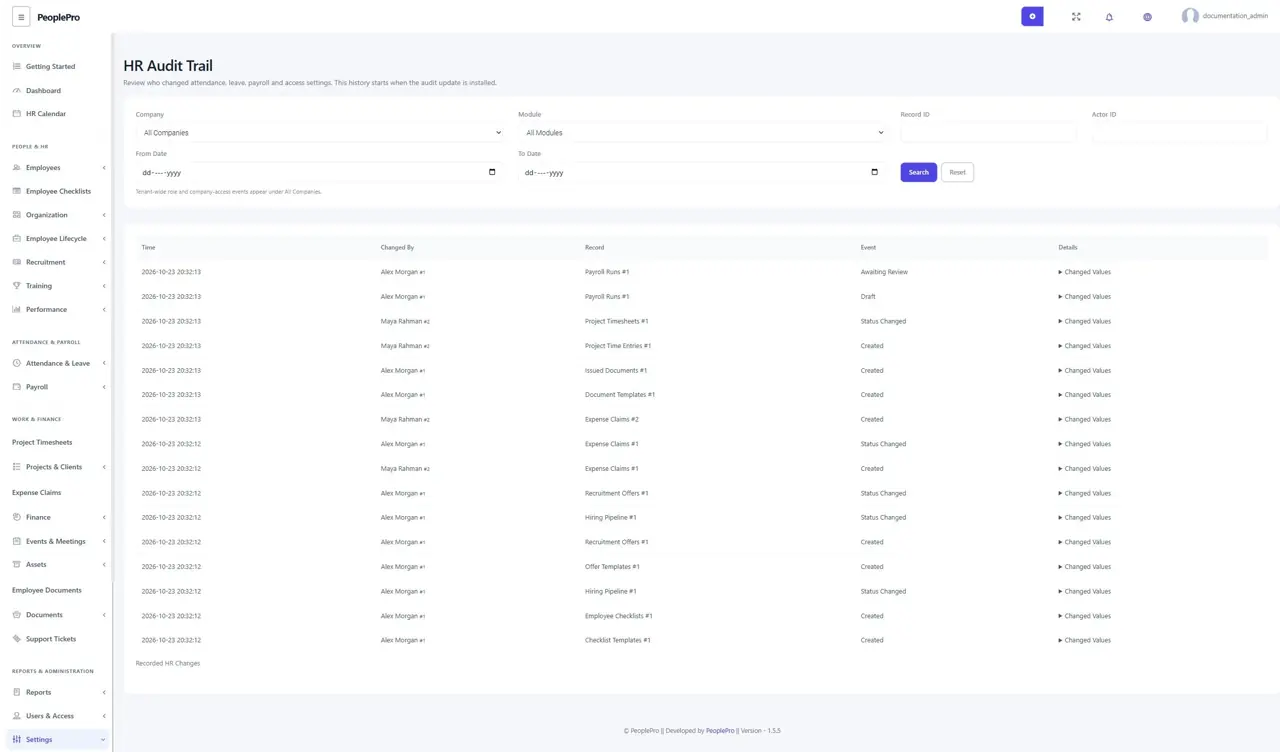
Administrators can open Settings > HR Audit Trail. Filter by company, module, record, actor or date range and open an event to inspect its saved before/after values. Covered workflows include attendance corrections, leave, payroll, role/company access and the new checklist, recruitment, expense, document and project-time actions. The log deliberately omits passwords and unrelated confidential fields. It is a record of the covered actions, rather than a promise to track every legacy form field.