Salary Setup and Payroll
Open the employee record and choose Set Salary > Basic Salary.
Last updated: 16 November 2026 · Product version: not specified in the supplied guide
Basic salary and payslip type
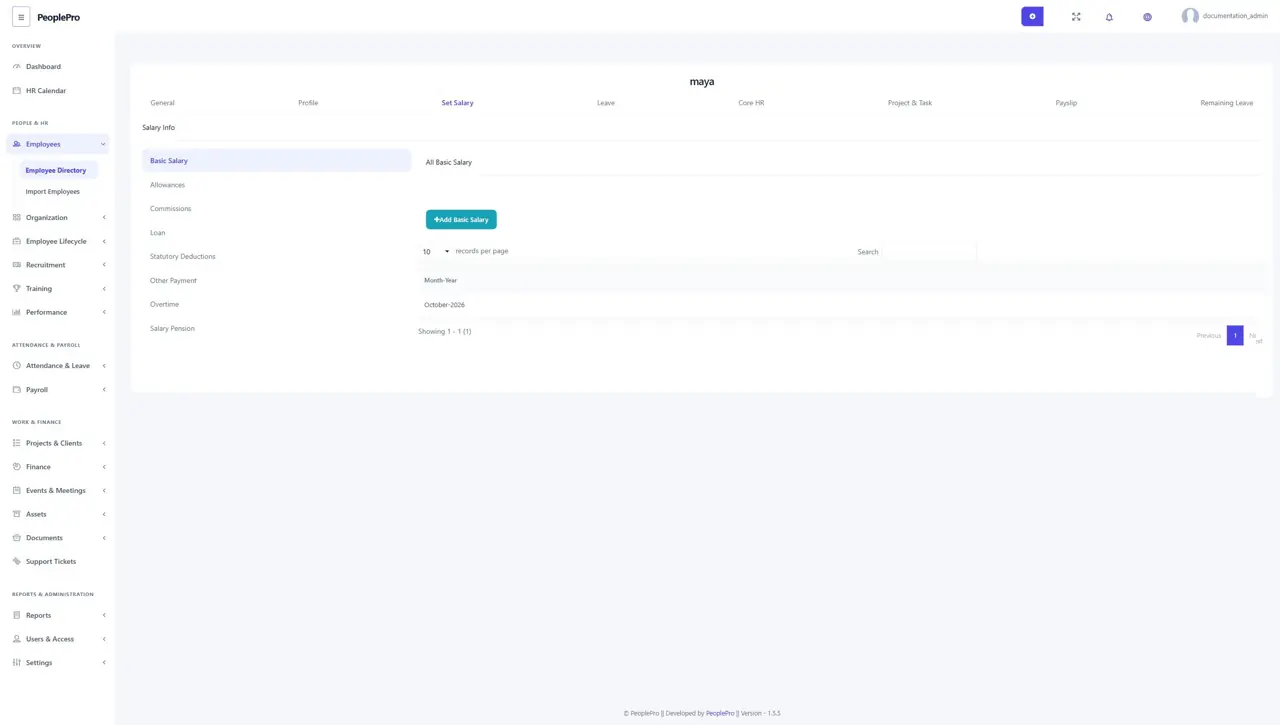
Open the employee record and choose Set Salary > Basic Salary. Add the salary for the relevant month or effective period and choose the supported payslip type shown in the form. Review the amount before saving. Enter salary information before generating payroll for the employee; the New Payment screen uses these salary components to calculate the amount due.
Allowances
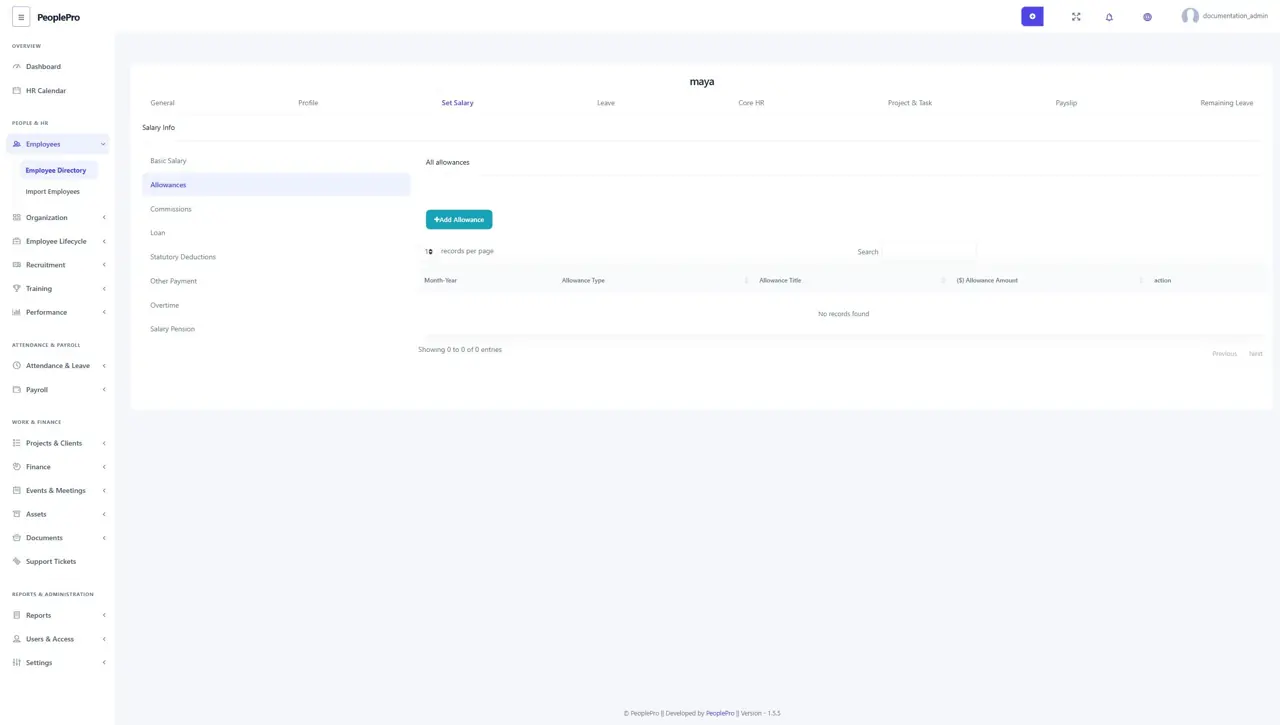
Use Set Salary > Allowances to add permitted additions such as housing or transport allowance. Enter the title, amount and applicable period or type shown in the form. Check that the allowance belongs to the intended salary period. Review the resulting payroll calculation after changing salary components.
Commissions
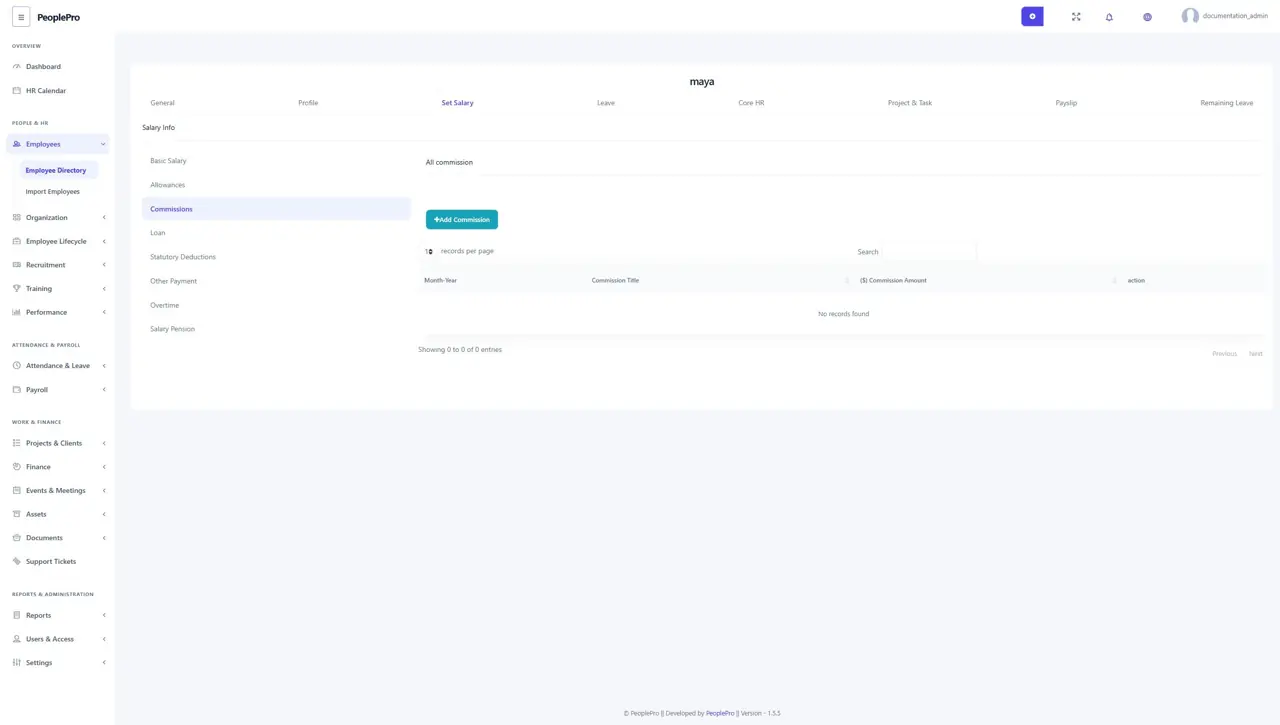
Use Set Salary > Commissions to record an employee's commission. Add a descriptive title and the amount and period required by the form. Keep the record tied to the correct employee and month, then review it in payroll before making payment.
Salary loans
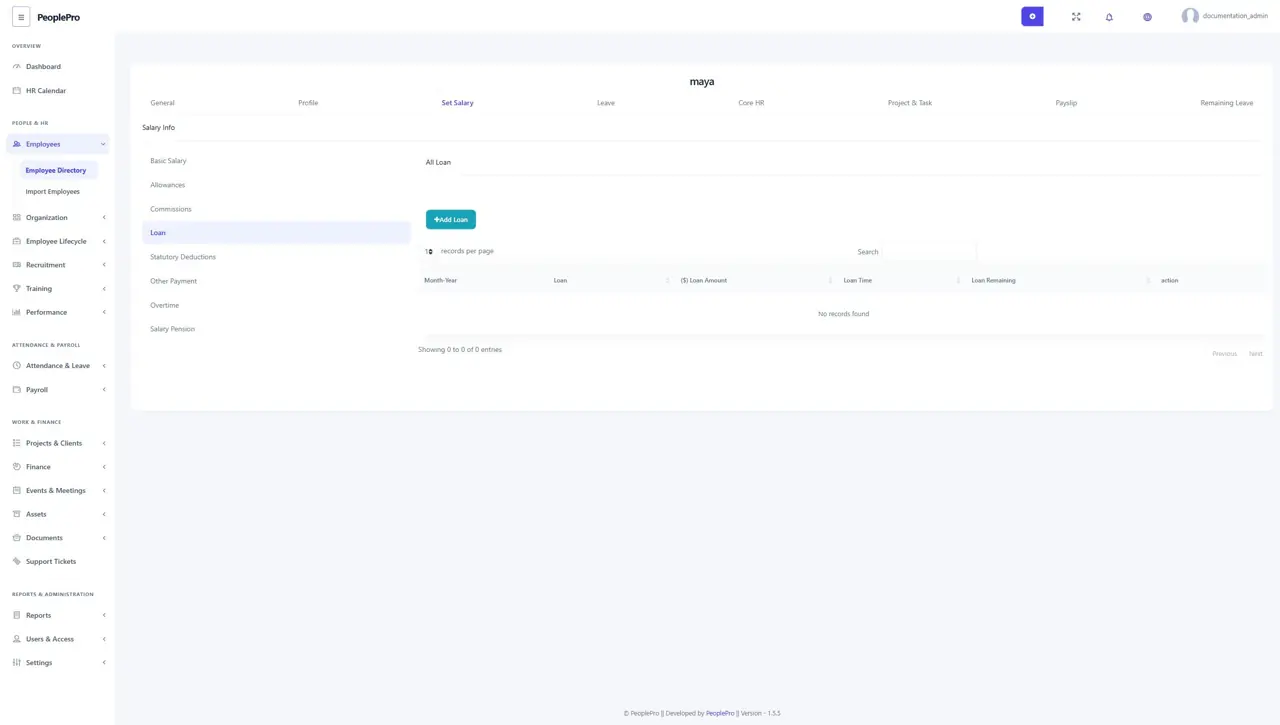
Use Set Salary > Loan to record salary-related loan entries and the repayment details supported by the form. Select the relevant loan type and enter the amount, period and other requested terms. Review how the entry affects the selected month's net salary before recording payment.
Statutory deductions
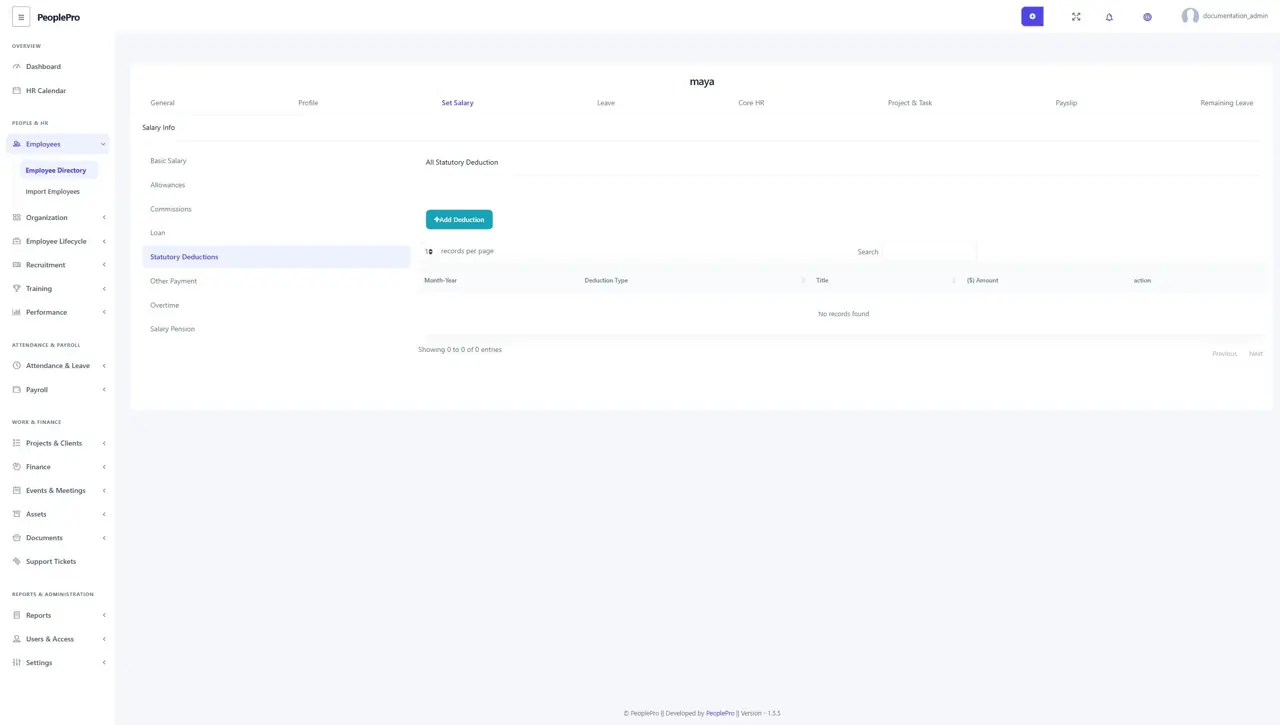
Use Set Salary > Statutory Deductions for deductions that apply to the employee. Enter the deduction title, amount or type and applicable period. Maintain deduction types from Variable Type settings where needed. Review deductions against your organization's requirements before finalizing payroll.
Other payments
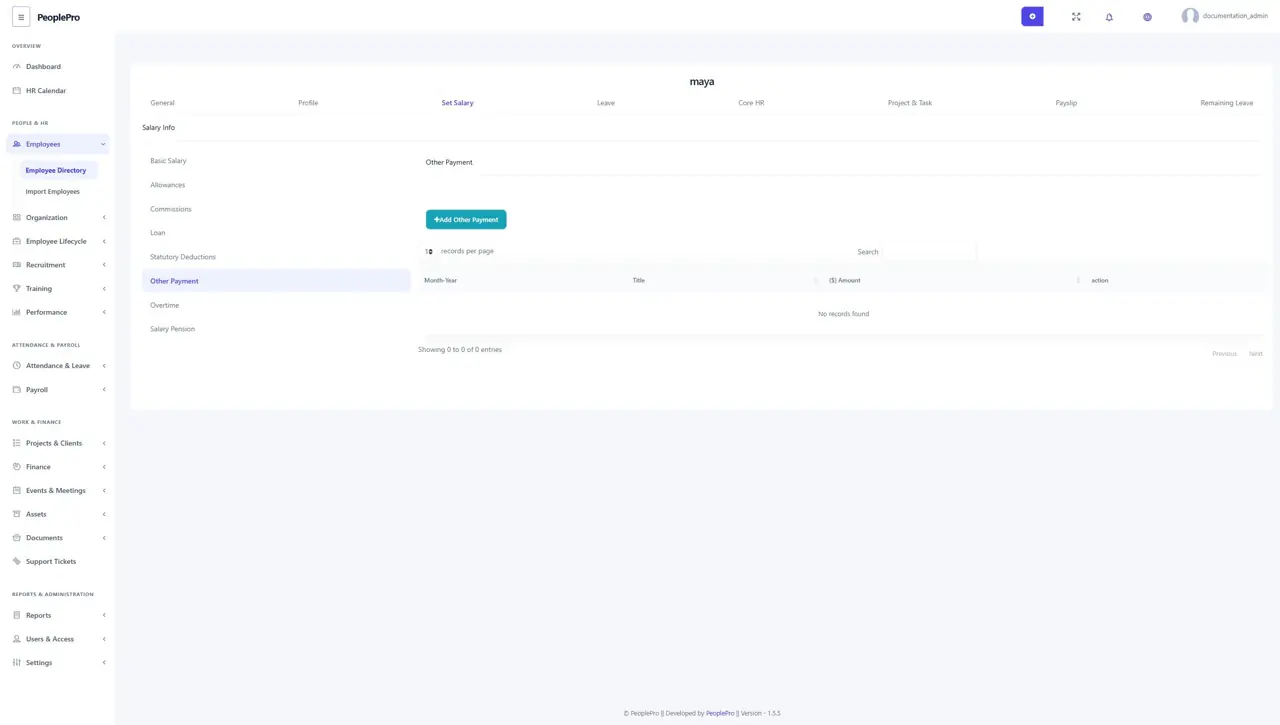
Use Set Salary > Other Payment for supported salary additions that do not belong to another component. Give the entry a clear title and enter the amount and period requested by the form. A meaningful description helps payroll staff understand the reason for the addition later.
Salary overtime
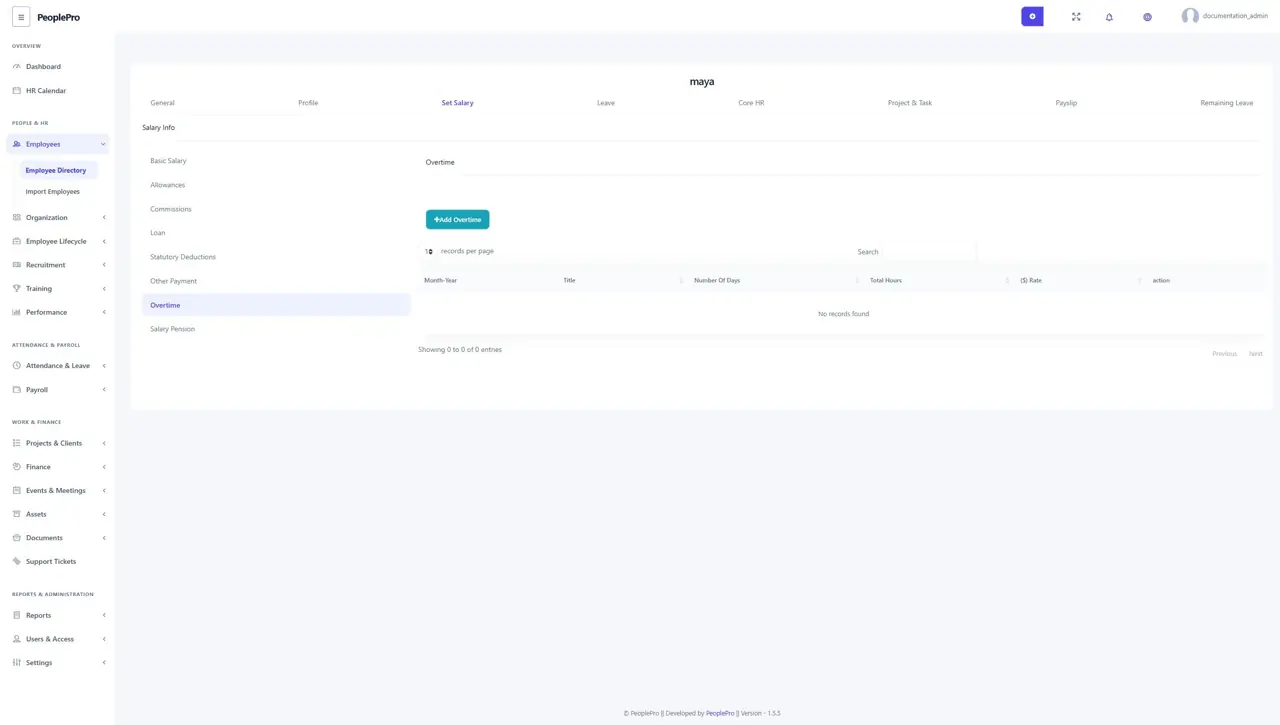
Use Set Salary > Overtime to maintain the employee's payable overtime entries, hours and rates as offered by the form. Attendance overtime and a payable salary overtime entry serve different purposes; check the salary components instead of assuming that every attendance hour has automatically become a payroll payment.
Salary pension
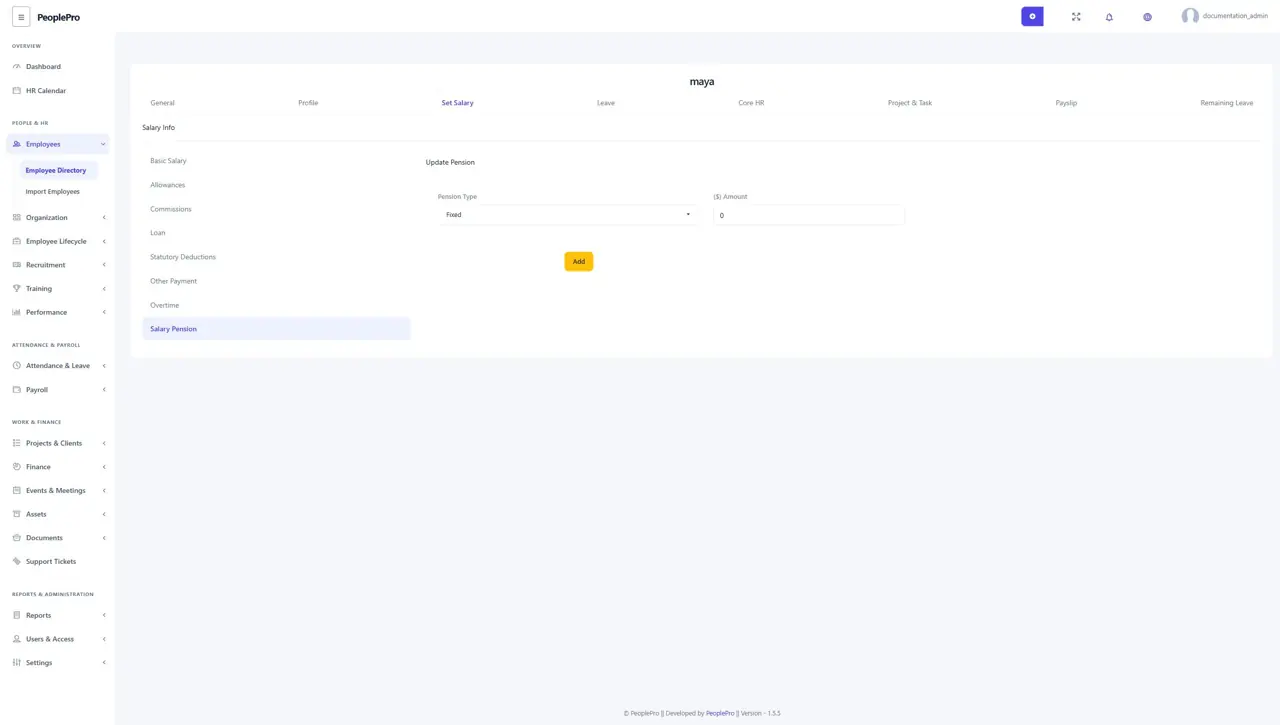
Use Set Salary > Salary Pension to configure the pension type and amount supported for the employee. Review whether the value is fixed or calculated using the available type. Check the payroll result and Pension Report after completing a salary payment.
Generate payslips and record salary payment
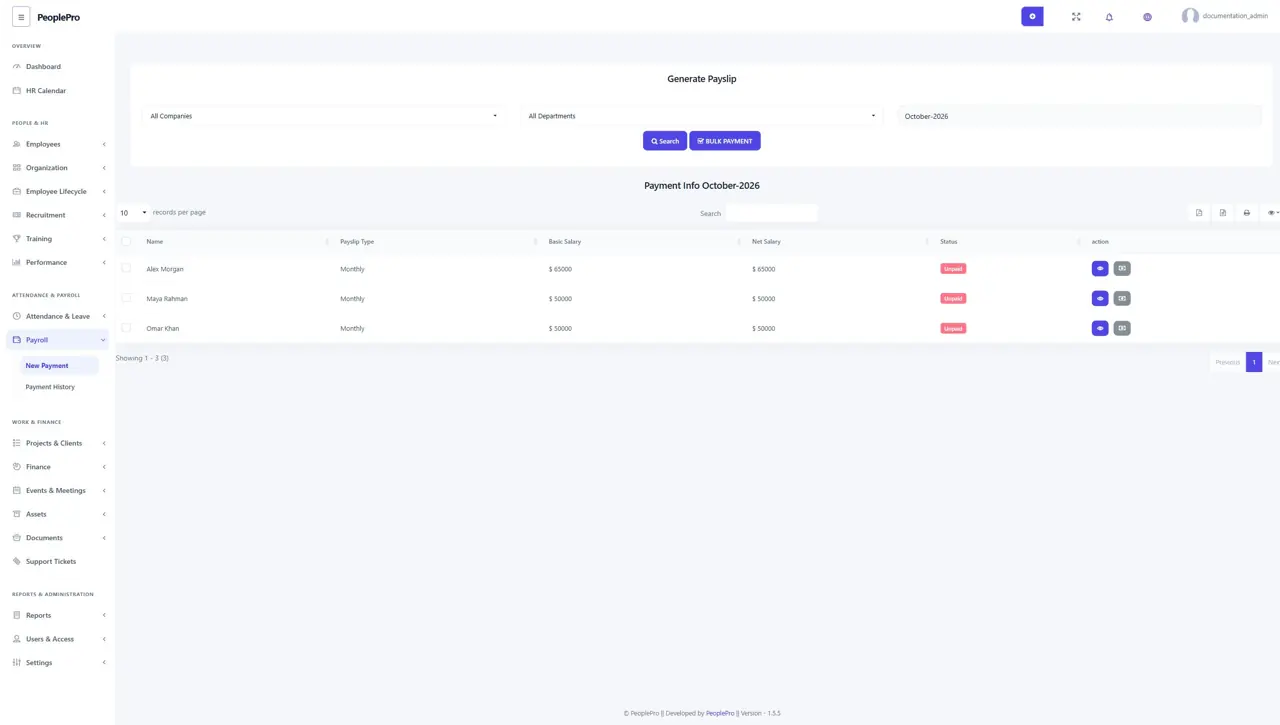
Open Payroll > New Payment. Choose the salary month and narrow the employees by company or department if needed, then select Search. Review the basic salary, net salary and unpaid or paid status. Use the row action to inspect the salary components and payment details before recording payment. Bulk Payment is available for processing selected eligible employees together; review the selection and financial details first.
Payment history and payslips
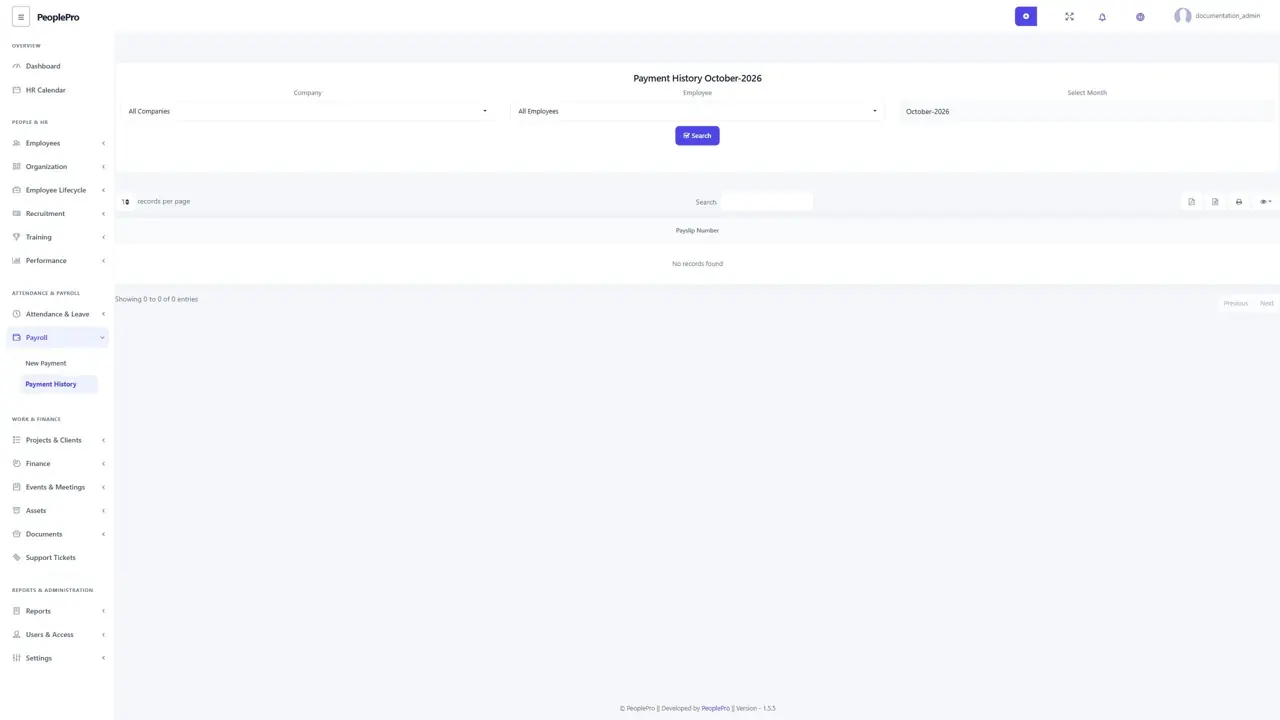
Open Payroll > Payment History to review completed salary payments. Filter by company, employee and month, then select Search. The list identifies the payslip number, finance account, employee, salary period and payment date. Use the offered actions to review the payslip or payment record. Recording a payment in PeoplePro is an accounting record; it does not by itself prove that an external bank transfer has occurred.