Sales Contracts, Customer Support and Help Articles
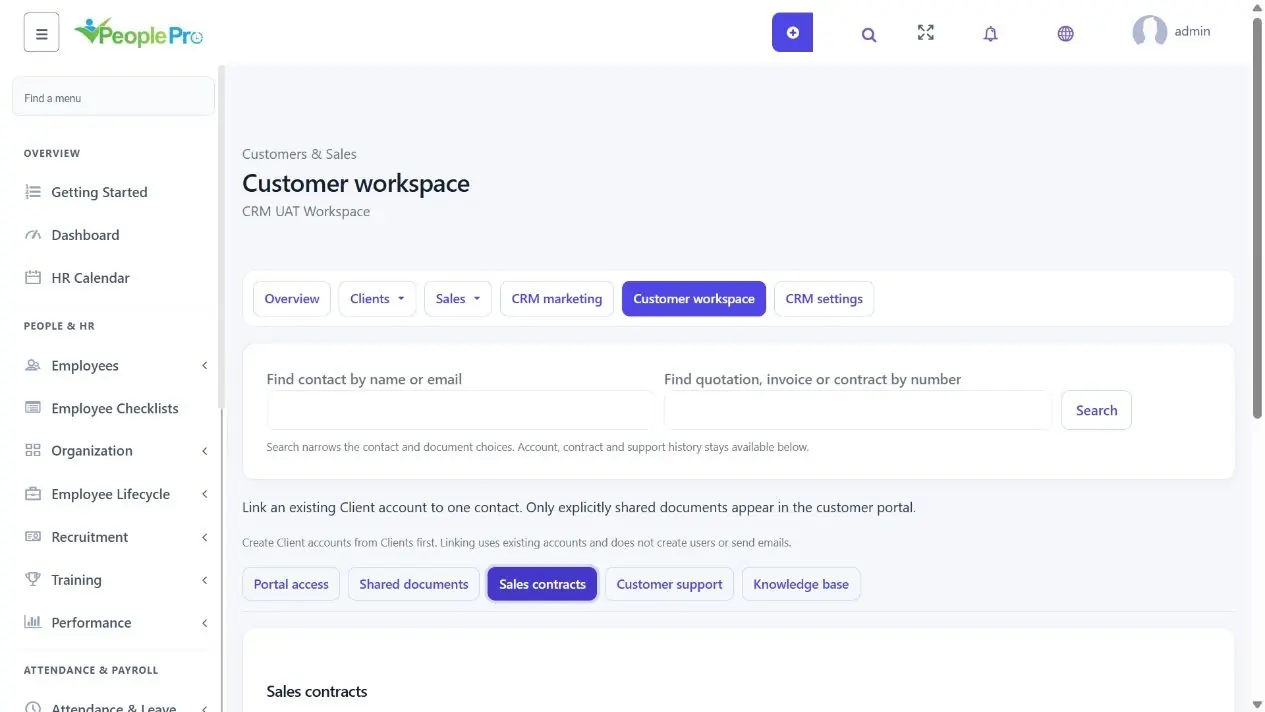
In Customer workspace, choose Sales contracts and expand New contract.
Last updated: 16 November 2026 · Product version: not specified in the supplied guide
Maintain contracts and renewals without changing history
In Customer workspace, choose Sales contracts and expand New contract. Select the contact, enter the title, start and end dates, optional reminder date and reviewed terms, then Save contract draft. Open Edit draft if more work is needed. Issue contract fixes that version for sharing; it does not send email or collect money.
Use Shared documents to give the intended customer access to the issued version. A customer decision is recorded only after that customer signs in and reviews the exact document. It is an acceptance record, not a certified electronic signature. Create amendment preserves the earlier issued version. Expand Version history to review what was issued or accepted and when.
For a renewal, start a new contract draft and choose the accepted previous agreement in Renewed from. The new agreement keeps its own dates and version history. A reminder date is a staff follow-up cue, not an automatic renewal, invoice, charge or email.
Reuse contract terms carefully
Open Contract templates below the contracts list. Add a name and reusable terms, or edit an existing template and its Active status. Copy the required terms into a contract draft and review them for that customer before issuing.
Changing a template does not rewrite an already saved or issued contract. Keep customer-specific prices, dates and commitments in the reviewed contract rather than assuming a template change updates existing agreements.
Find and follow a customer support request
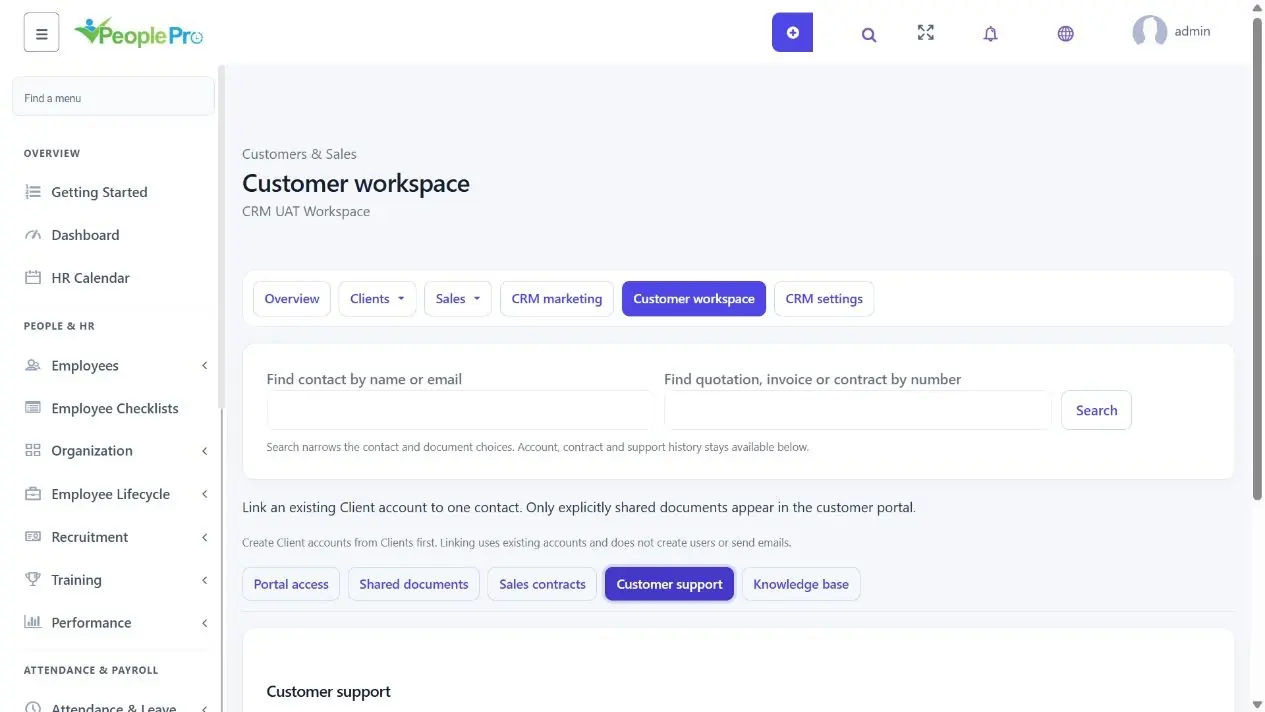
In Customer workspace, choose Customer support and open the request number or subject. Review the conversation, priority, owner and response/resolution dates before replying. The queue displays UTC times; elapsed-hour targets include weekends.
Customer support here is for your company contacts. Employee Support Tickets and the SaaS platform support inbox serve different audiences. A missing request can mean you selected another company or your role cannot view that customer.
Separate customer replies from internal notes
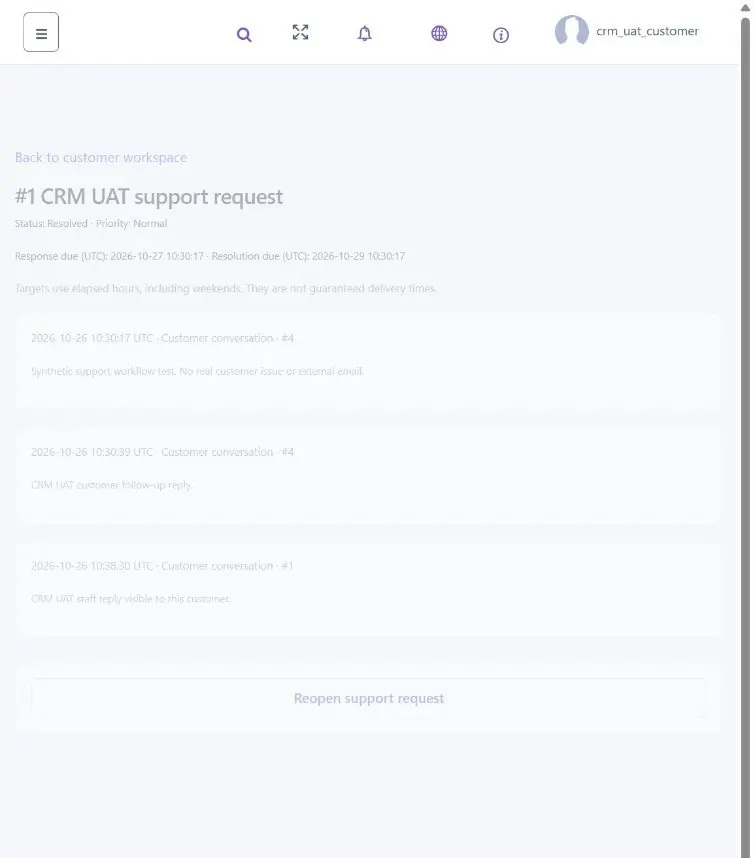
Customers open and reply to their own requests in Customer portal. Staff open the same request from CRM > Customer workspace, assign an eligible owner, reply, and update its status. Select Internal note for information or attachments that the customer must not see. Customers can reopen a resolved request. Normal targets use 24/72 elapsed UTC hours; urgent targets use 4/24 hours, including weekends. These are tracking targets, not guaranteed delivery times.
Publish helpful answers to the right customers
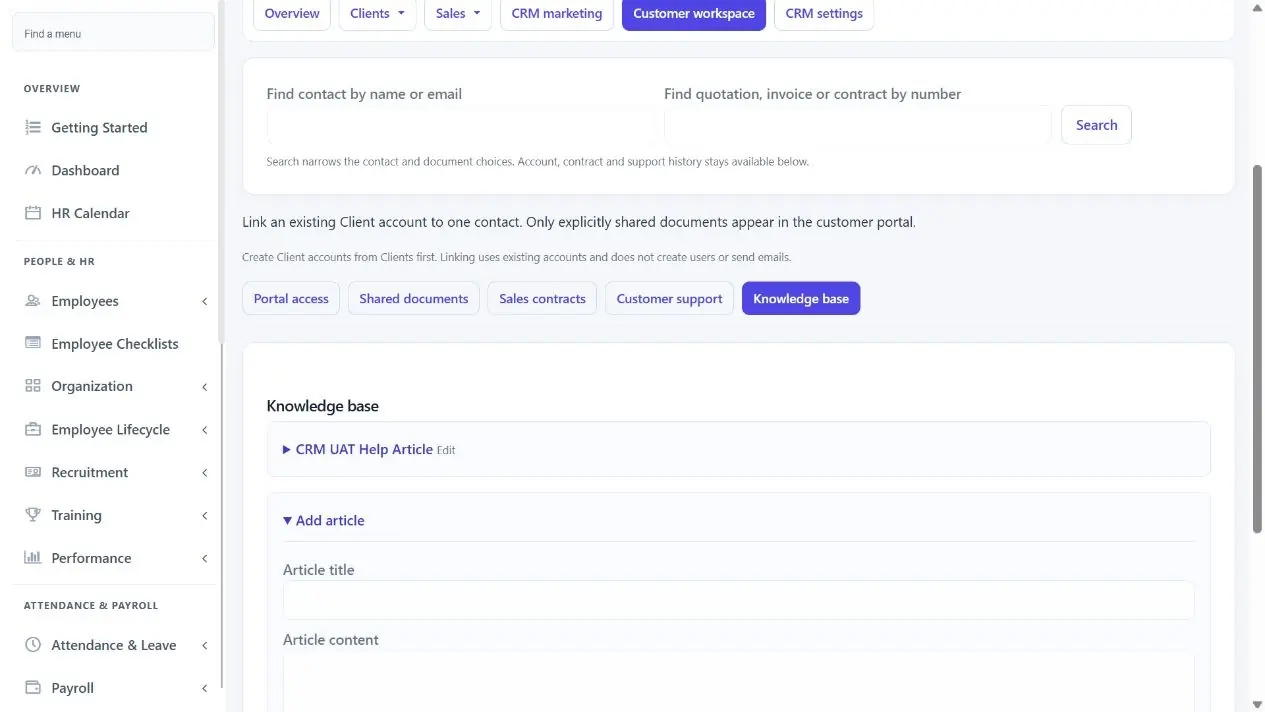
Choose Knowledge base in Customer workspace and expand Add article. Enter Article title and Article content. Keep Visibility as Draft while reviewing, then choose Published to this company customers when ready and save. Open an existing article heading to edit its content or return it to Draft.
Drafts remain available to authorized staff. Published articles are for that company linked customers, rather than a public cross-company help website. Avoid confidential HR information or internal support notes in articles intended for customers.