Everyday Checks and Maintenance
Before payroll, check employee joining and leaving dates, assigned shifts, holidays, leave approvals and attendance corrections.
Last updated: 16 November 2026 · Product version: not specified in the supplied guide
A practical monthly workflow
Before payroll, check employee joining and leaving dates, assigned shifts, holidays, leave approvals and attendance corrections. Review salary components for the intended month, generate the payroll list, inspect the net amounts and record approved payments. Review Payment History and the relevant reports afterwards. This order reduces the need to change records after a salary period has been processed.
Backups and updates
Keep current backups of the database, application configuration and uploaded files using your hosting backup process. The account menu offers Export Database to authorized administrators, but a database export does not include uploaded files. When a version notice appears, open the linked upgrade details, review the requirements and follow the application's update instructions. Check sign-in, employee records, attendance, payroll and translations after an update.
Review an available version
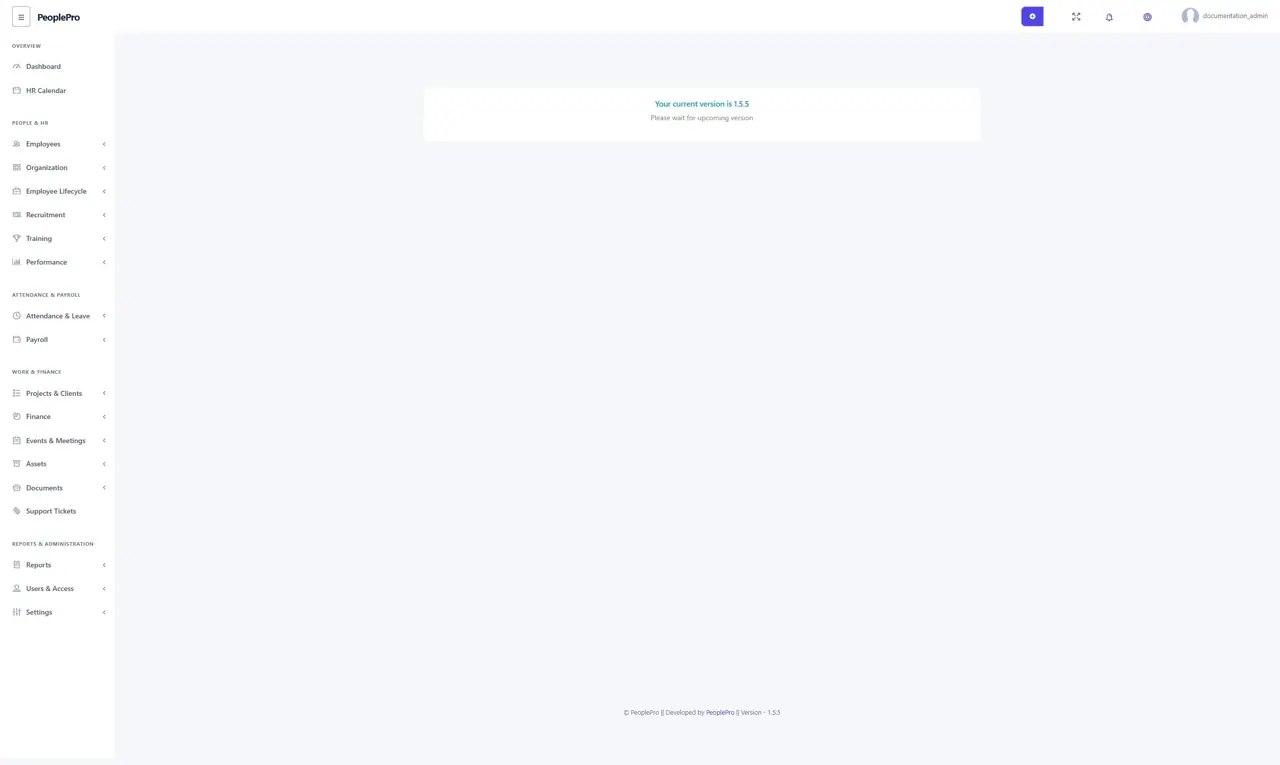
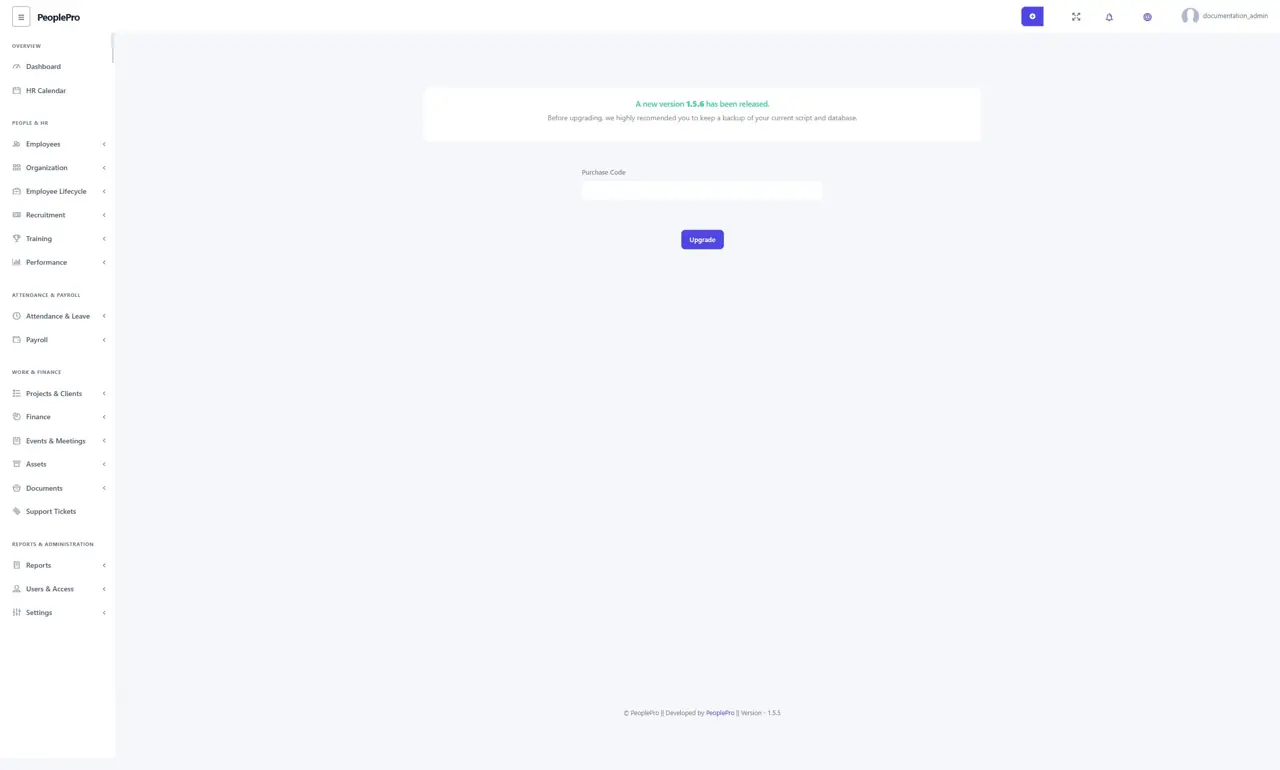
Open the version notice on the dashboard to review the release page. If no newer release is available, PeoplePro shows the current version and asks you to wait for an upcoming version, as in this illustration. When an update is offered, review its requirements and back up the installation before using the upgrade controls.
Upgrade using a purchase code
When the release page offers a newer eligible version, review the notice, make a complete backup and enter your valid PeoplePro purchase code. Select Upgrade once and wait for the operation to finish. PeoplePro verifies the purchase and obtains the release through its update process. After success, check the displayed version and important workflows. The screenshot uses fictional update availability to illustrate the form; no update was installed and the illustrated version is not a release announcement.
When a dropdown is empty
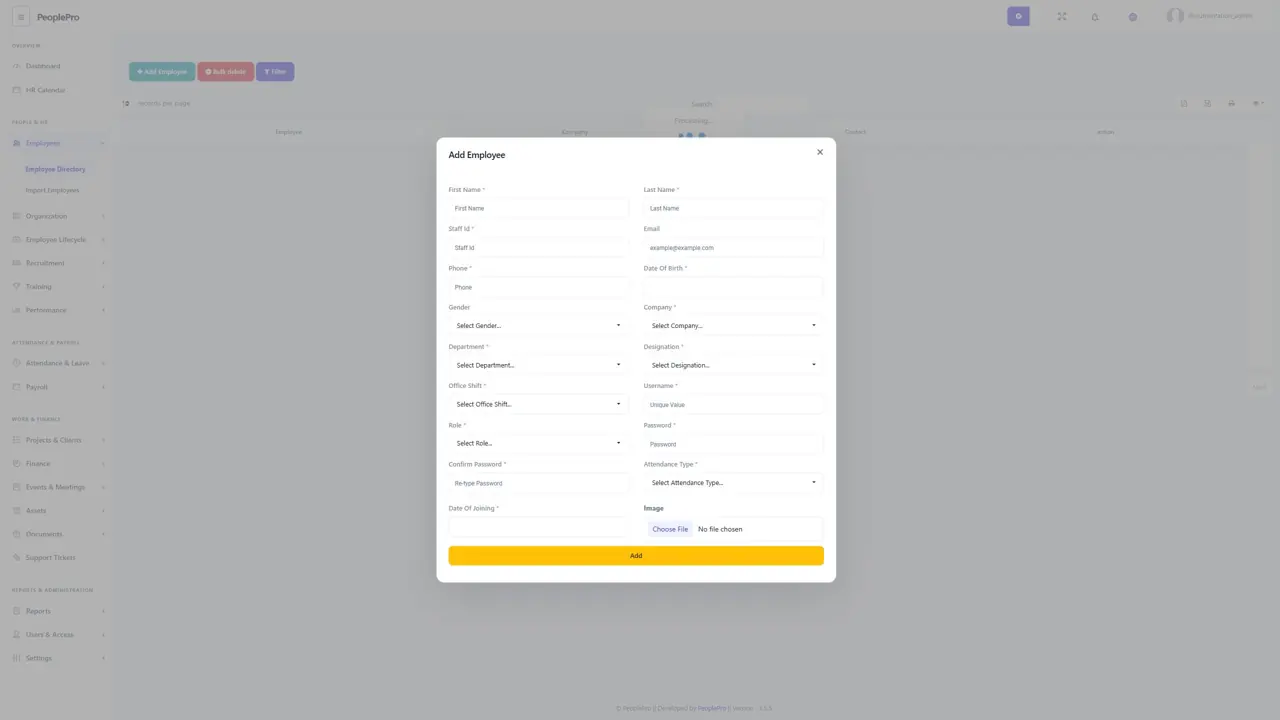
First check that its parent choice is selected: for example, choose a company before a department, then choose a department before a designation. Confirm that the related record exists and that your account can access its company. For imported employees, names must match the existing setup exactly. Ask an administrator to review permissions if the expected option is still missing.
When an attendance result looks incorrect
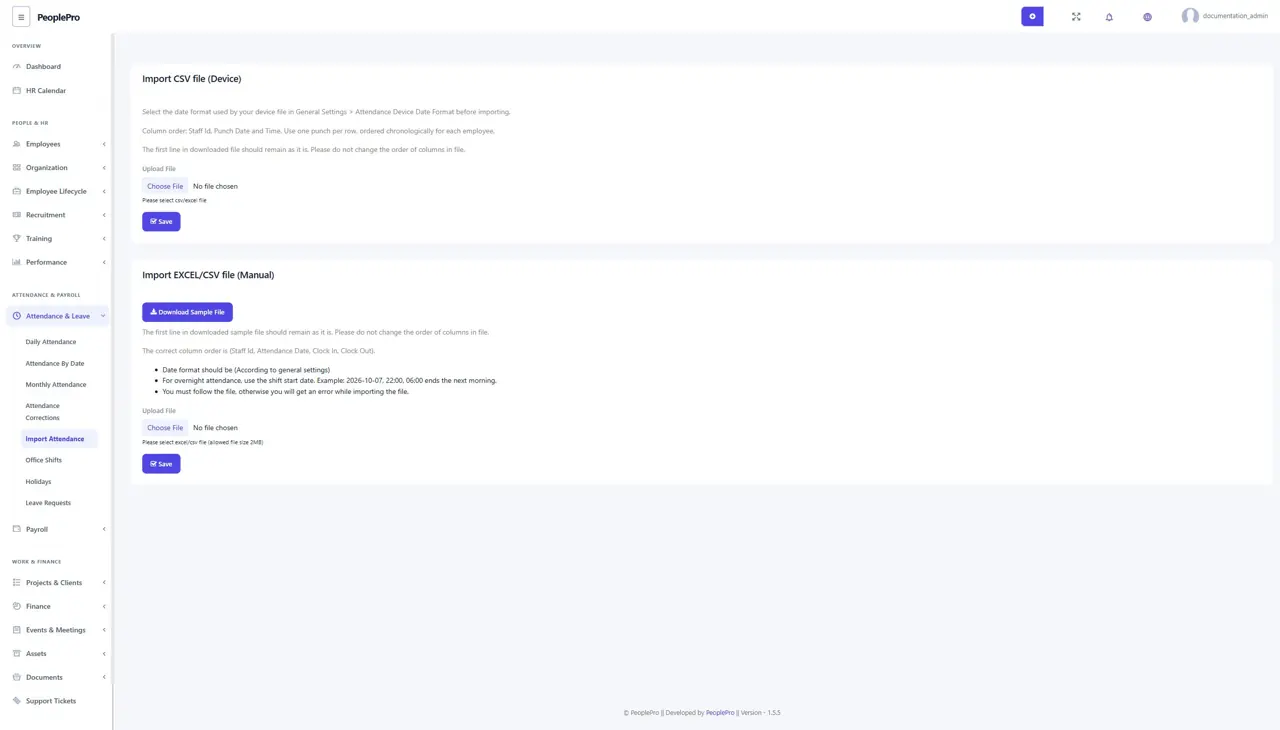
Check the employee staff ID, assigned shift, time zone, attendance date and imported file format. For overnight work, use the day the shift begins and retain the following morning's clock-out. Check for missing or duplicate punches before using Attendance Corrections. Review the final attendance report again before using it for payroll decisions.
When a page or action is unavailable
A missing menu or unavailable action may reflect your permission role or company access. Ask an administrator to review both. If the page displays an error instead of an access message, note what you were doing and contact the person maintaining your installation. Avoid repeating a payment, import or installation submission until its earlier result has been checked.