
Reusable Project Templates and Milestones
Open Projects & Clients > Project, then Project Templates.
Last updated: 16 November 2026 · Product version: not specified in the supplied guide
Save a reusable project structure
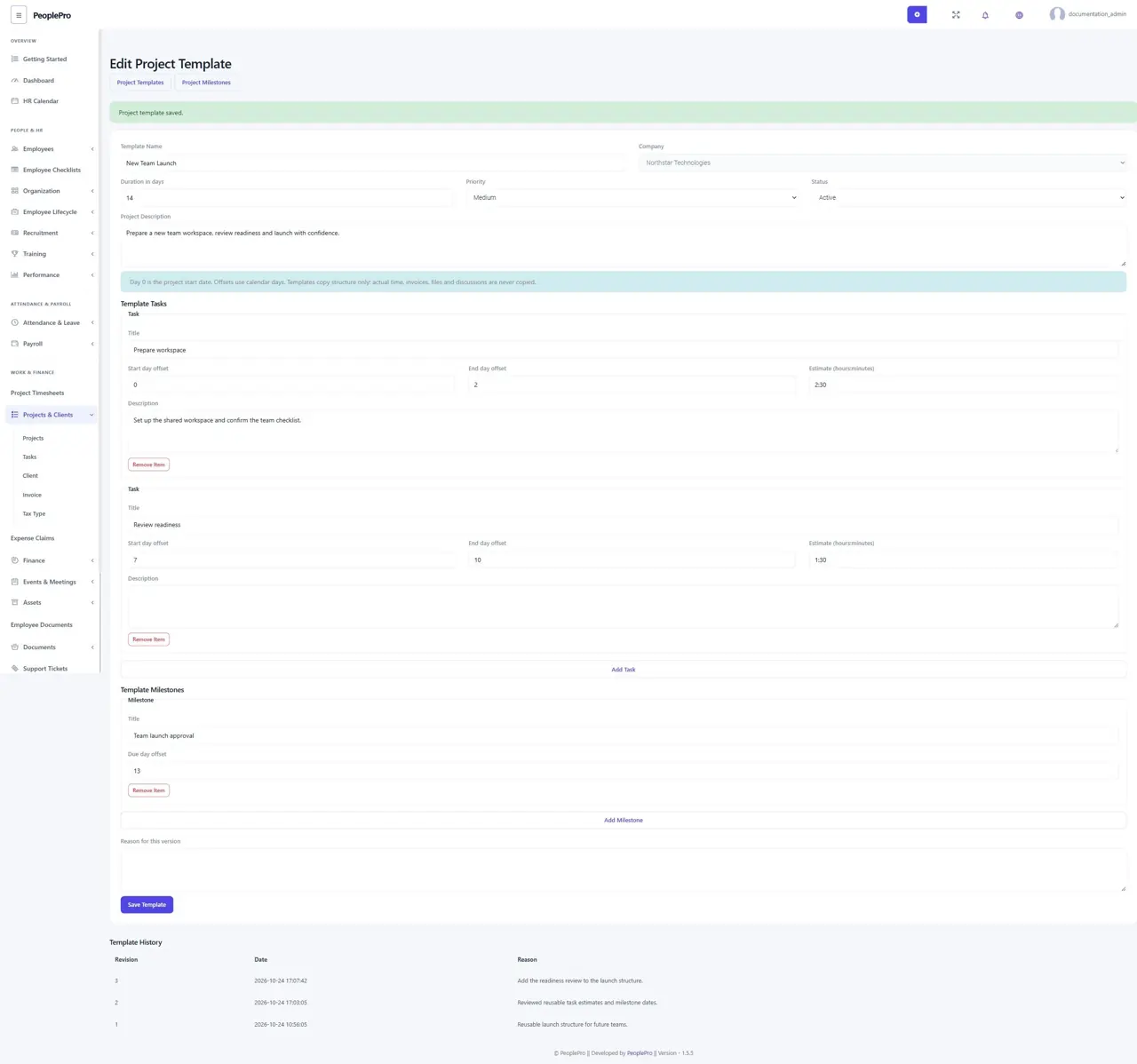
Open Projects & Clients > Project, then Project Templates. Select Create Template, choose the company and give it a clear name. Enter the project description and duration, add task titles, descriptions, estimates and day offsets, and add milestone titles and due-day offsets. Offset 0 is the first project day. Keep every task and milestone within the project duration. Save with an explanation. Each edit keeps an earlier version, so you can understand how the template changed.
Start a project from a saved template
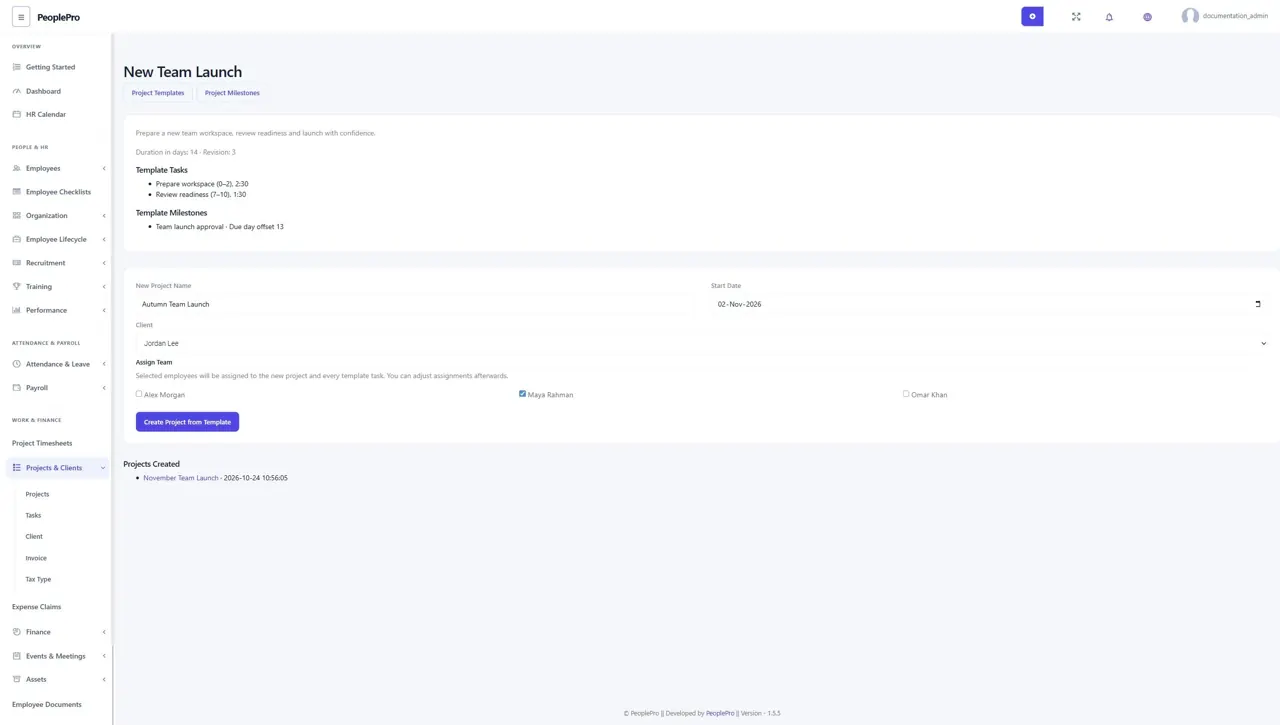
Select Preview and Use for an active template. Choose the start date, enter the new project title and select a client and active team members from the same company. Review the dates before creating the project. The selected people are assigned to its tasks. The new project starts with fresh task progress and milestone status; previous time, invoices, messages and attachments are not copied. If a template changed while the page was open, reload and review its latest version.
Follow project milestones
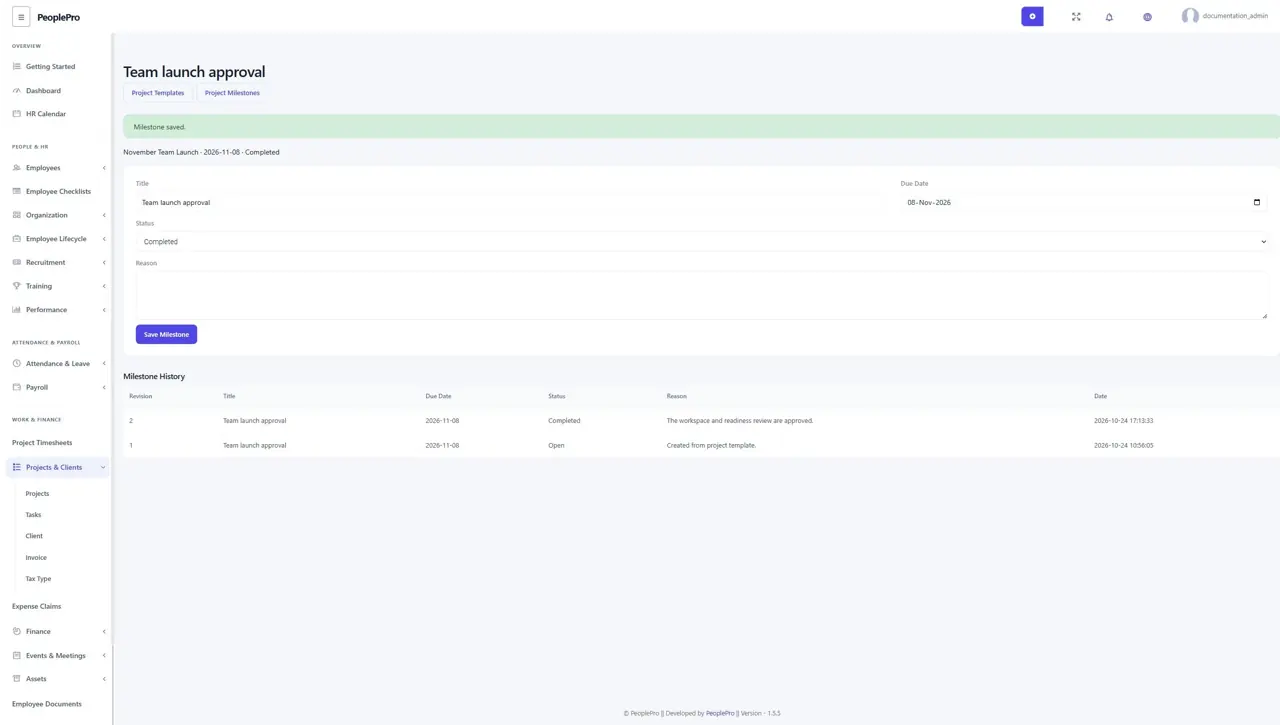
Open Project Milestones from the project planning links or My Work. Review the project, due date and milestone status. Authorized project editors can record completion, cancellation or a revised deadline with a reason. The page retains each change. Completing a milestone does not automatically complete its tasks or change project progress, attendance or payroll.
Retain completed project evidence
Keep project templates inactive when they should no longer start new work. Existing projects retain their original template reference and milestones. A project with retained milestones cannot be removed using ordinary deletion. Employees see assigned projects and milestones; clients see only the project information their account is allowed to read.