
Getting Started and Personal Work
Administrators can open Getting Started from the sidebar.
Last updated: 16 November 2026 · Product version: not specified in the supplied guide
Check the setup for each company
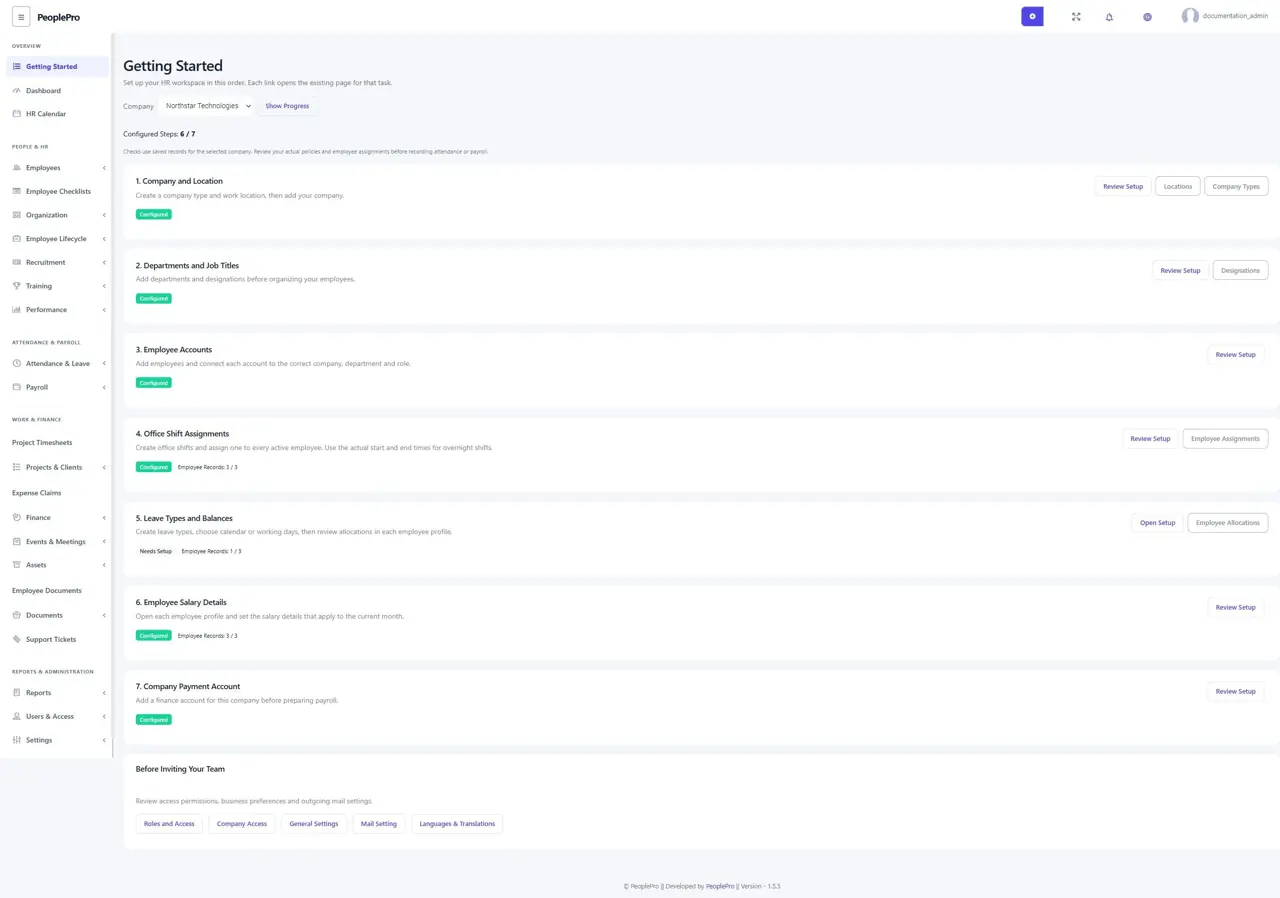
Administrators can open Getting Started from the sidebar. Choose a company and select Show Progress. The seven steps check its company/location, organization structure, employee accounts, shift assignments, leave allocations, salary details and payment account. Open Setup takes you to the normal page for that task; Review Setup lets you inspect records already present. A completed check confirms that records exist, so still review whether they match your real policies.
Use the employee My Work shortcuts
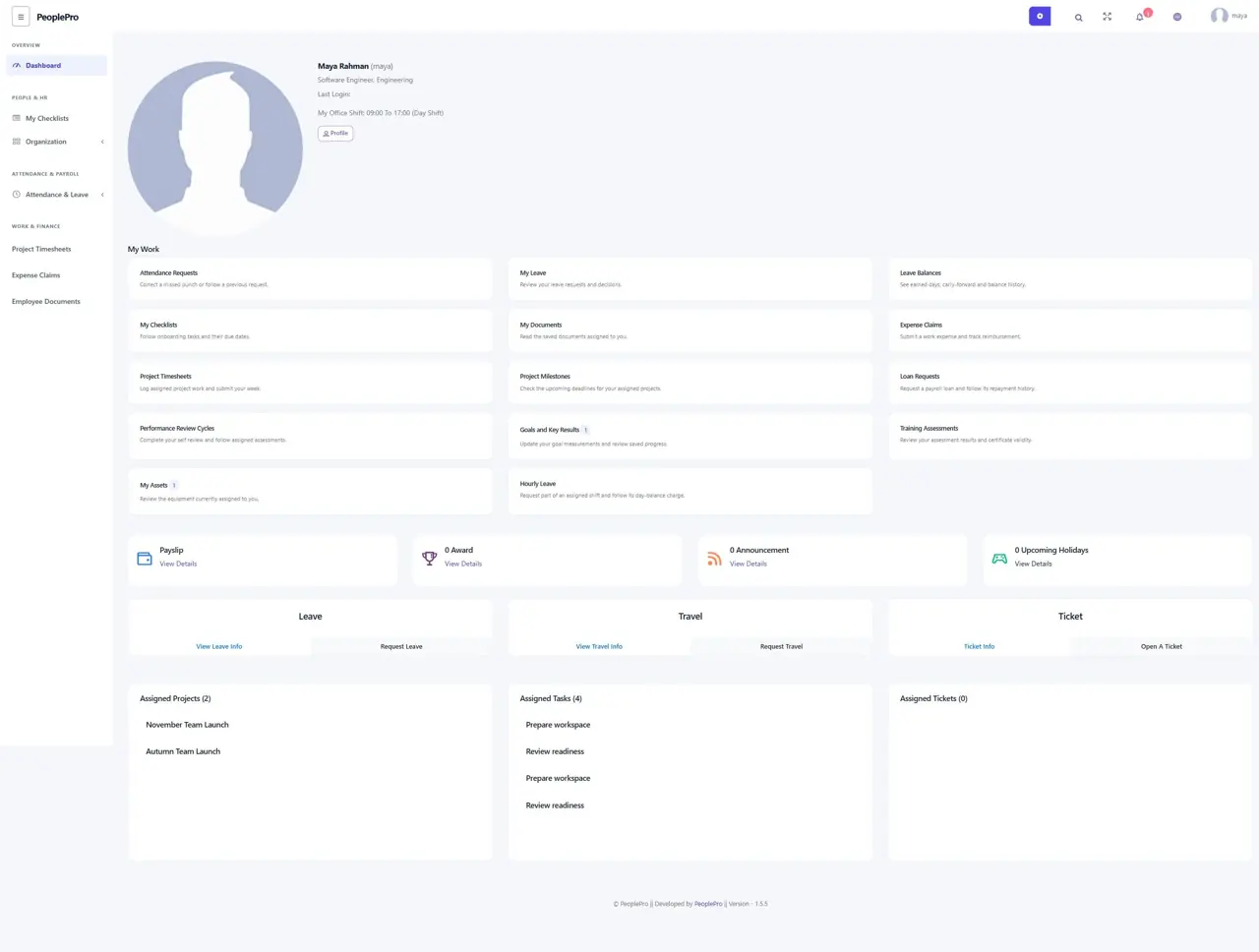
The employee dashboard now brings personal requests and outstanding work together. My Work opens attendance requests, leave, checklists, assigned documents, expense claims and project timesheets. A number highlights open records for that employee. Available shortcuts follow the workspace package and access rules. These are personal counts, rather than totals for the whole company.
Understand an empty page
An empty list means no matching records are available to your account. Check the selected company, status and list view first. Employees need an active employee profile to submit their own work. If an expense category, document template or project is unavailable, ask the responsible administrator to prepare it or assign it to you. Creating a company and assigning employees, shifts and roles first makes the later forms easier to use.