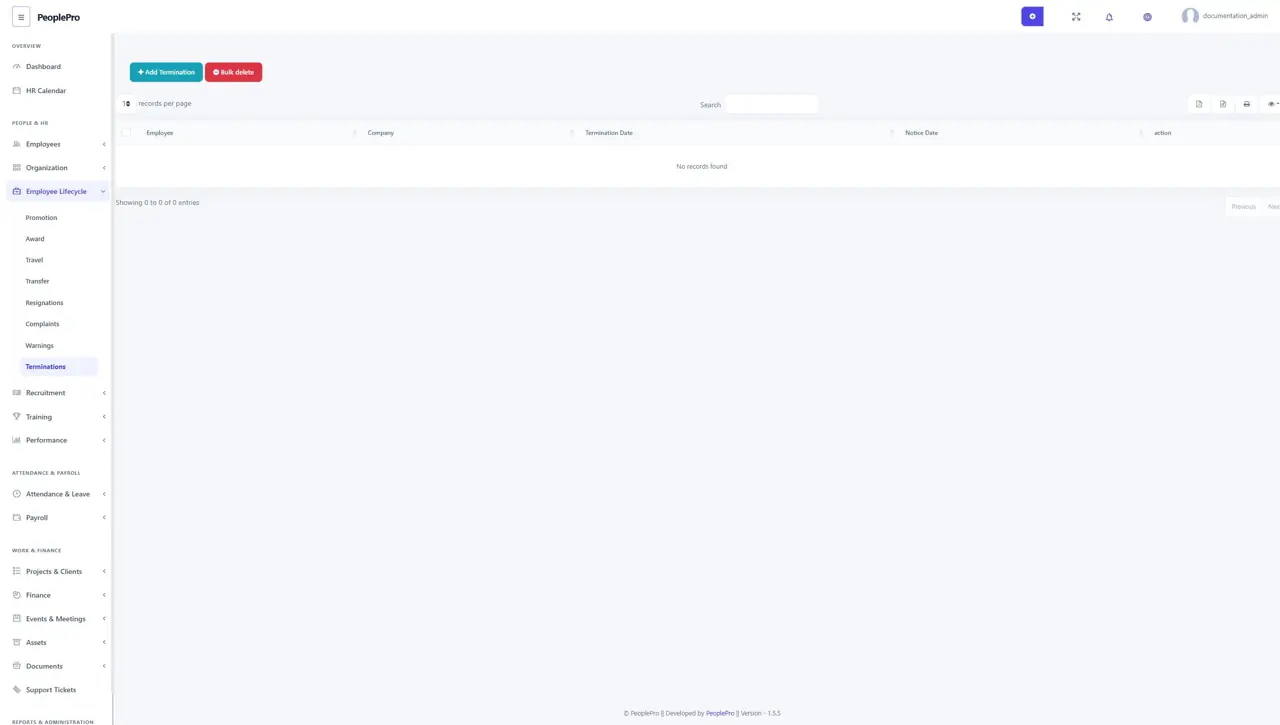
Employee Lifecycle
Open Employee Lifecycle > Promotion to record an employee's promotion.
Last updated: 16 November 2026 · Product version: not specified in the supplied guide
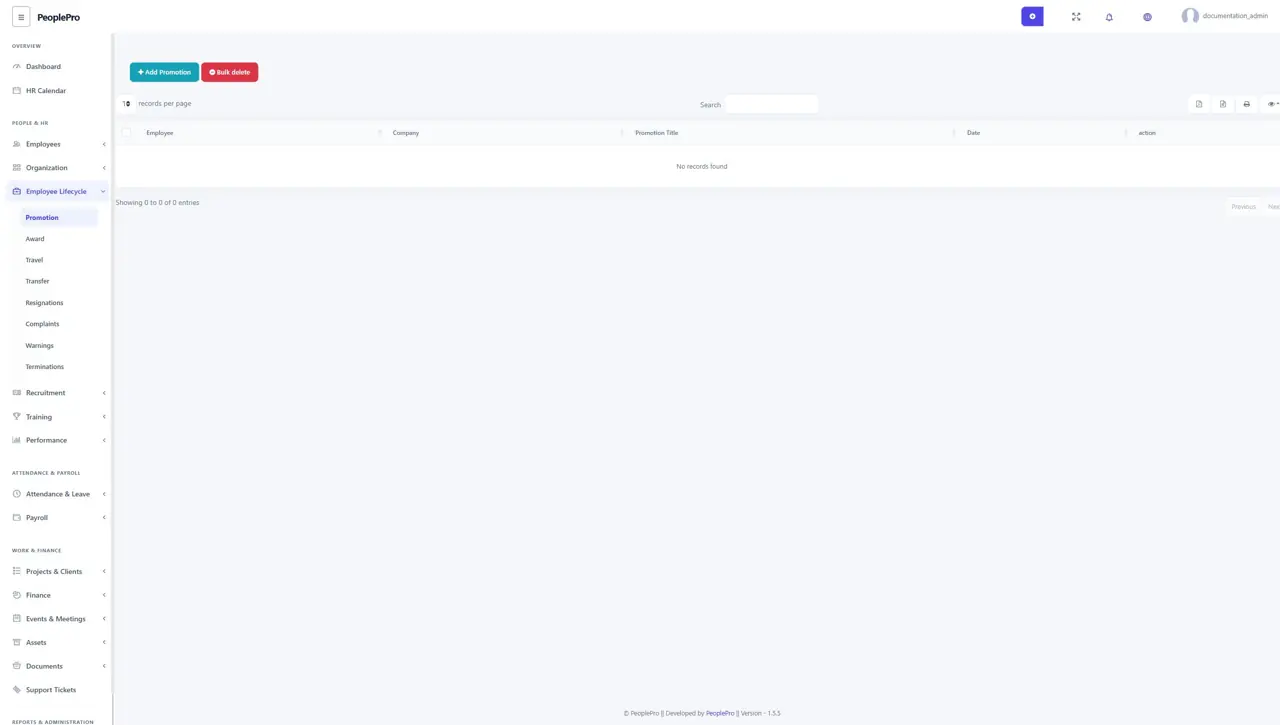
Promotion
Open Employee Lifecycle > Promotion to record an employee's promotion. Select Add Promotion, choose the company and employee, and complete the new designation, effective date and remarks requested by the form. Review the employee and date before saving. Use the history to understand when career changes were recorded.
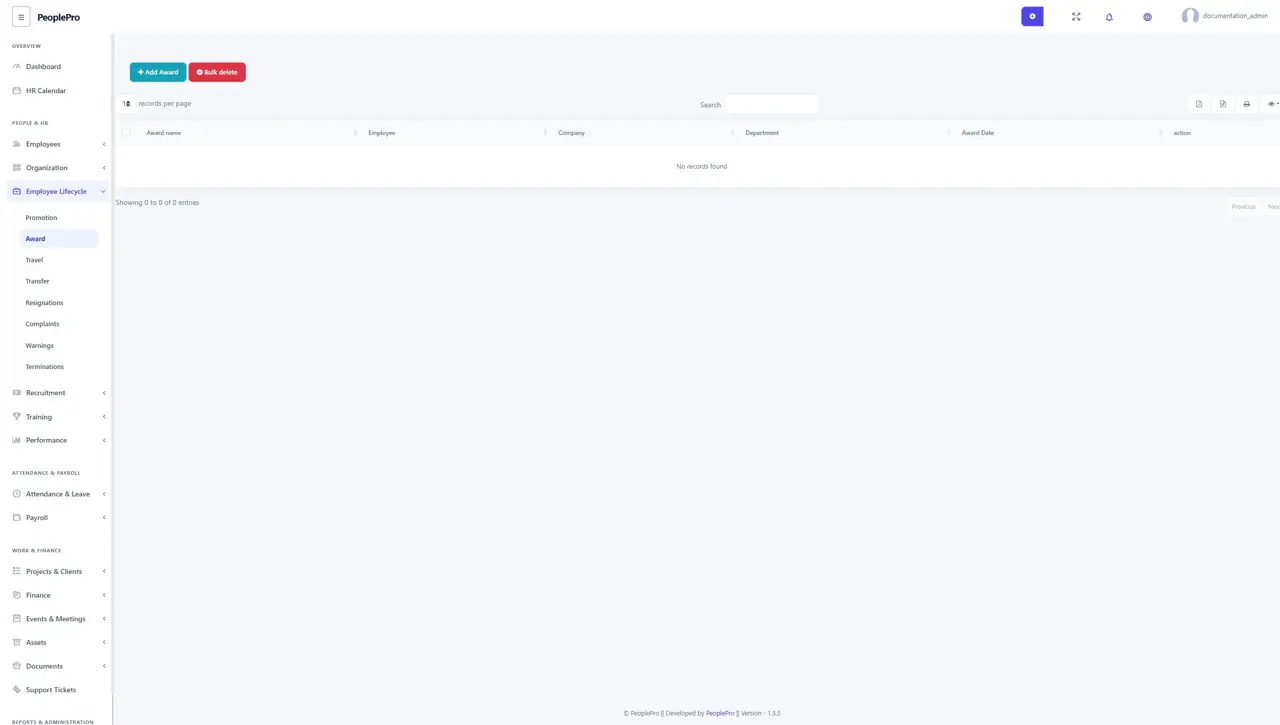
Award
Open Employee Lifecycle > Award to recognize an employee. Select Add Award, choose the employee and award type, and complete the date, amount, gift or description fields offered by the form. Award types can be maintained in Settings > Variable Type. Keep each award as a separate record so it remains easy to find.
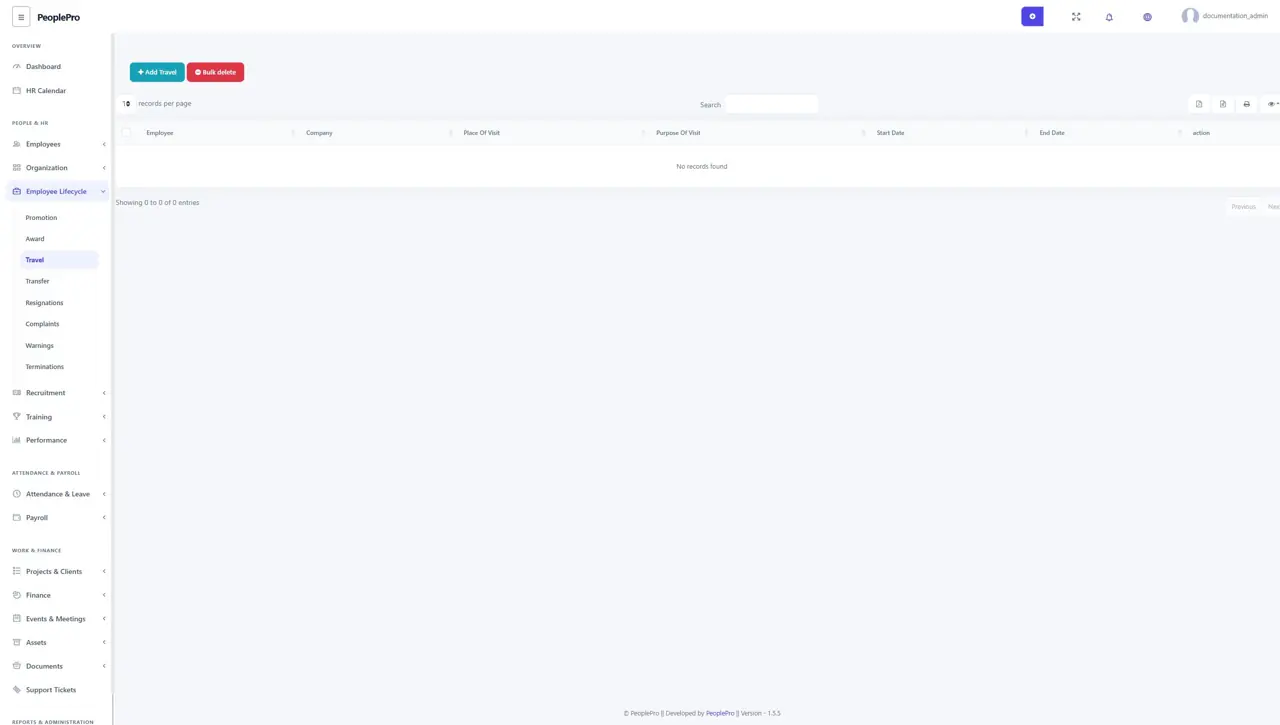
Travel
Open Employee Lifecycle > Travel to record a work-related trip. Add the employee, travel dates, destination, purpose and the other details requested. Review any approval or status controls available to your role. The list helps HR follow travel requests and maintain a history of business trips.
Employee transfers
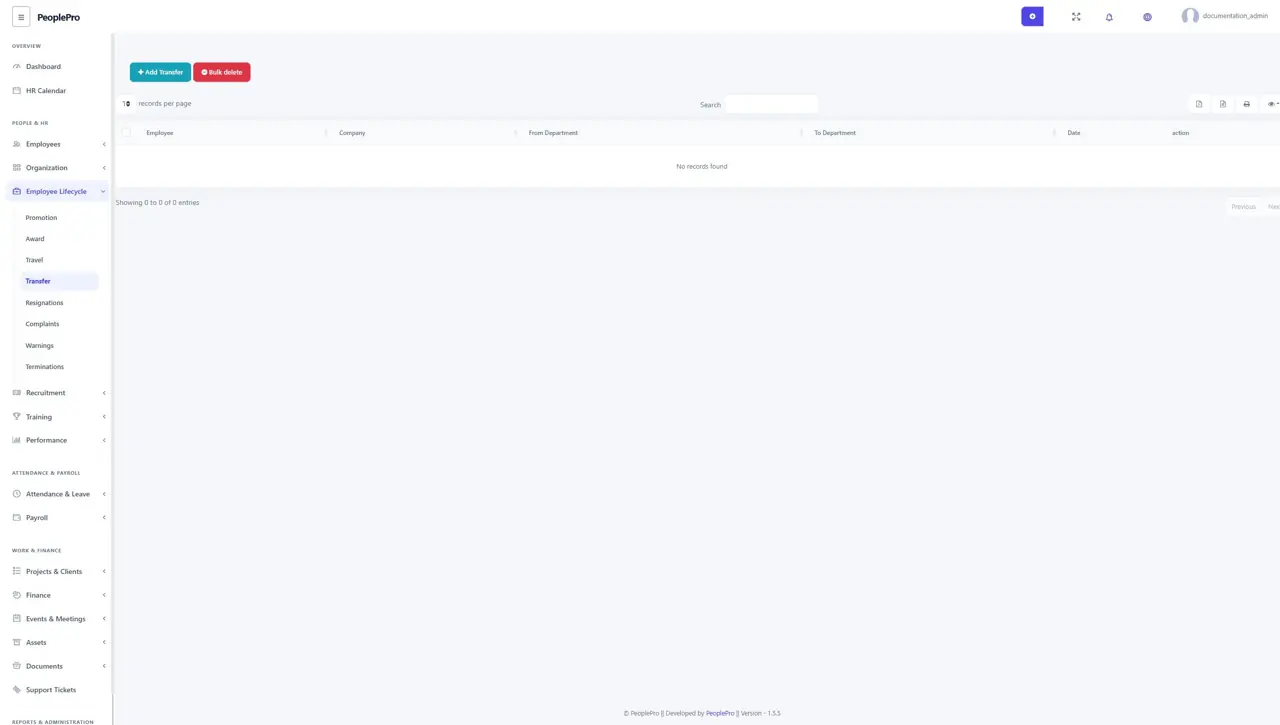
Open Employee Lifecycle > Transfer to record an employee transfer. Select the employee and complete the destination department or location, date and reason shown in the form. Check the company context and effective date before saving. Review the employee's basic information after completing any organizational change.
Resignations
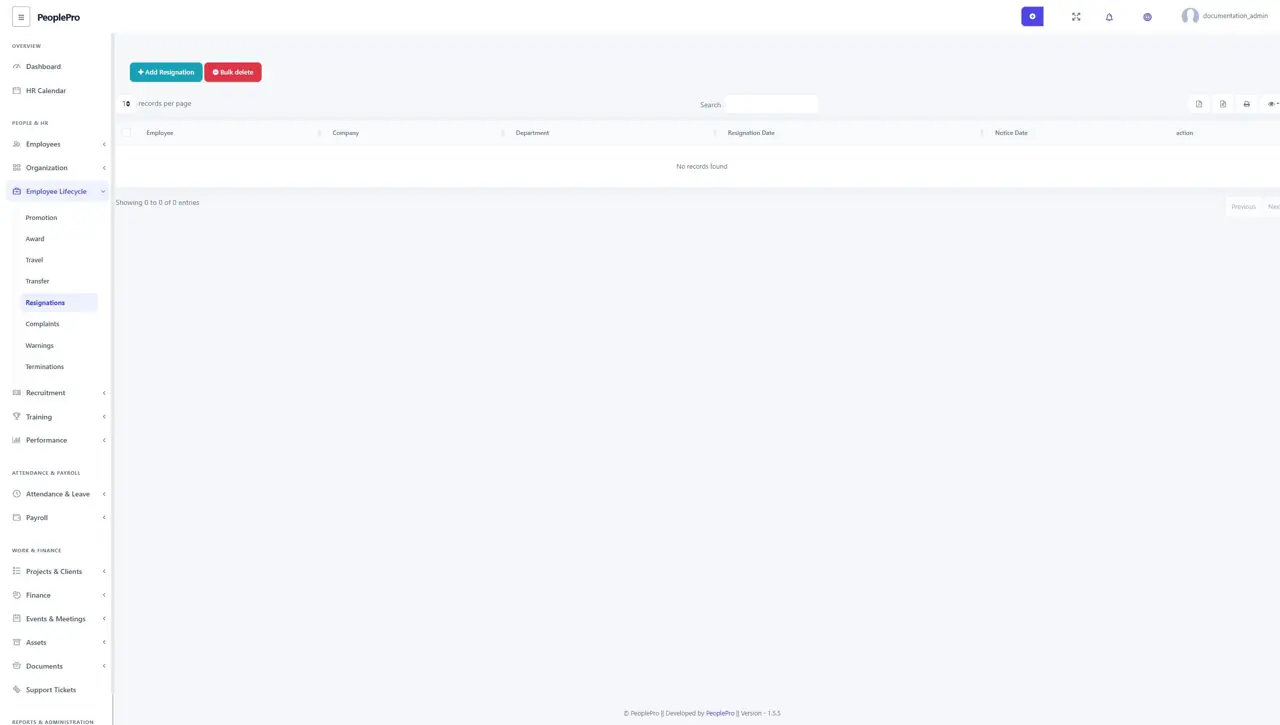
Open Employee Lifecycle > Resignations to maintain resignation records. Select Add Resignation, choose the employee and enter the notice date, resignation date and reason. Follow your organization's approval and offboarding process before changing the employee's account access or employment status.
Complaints
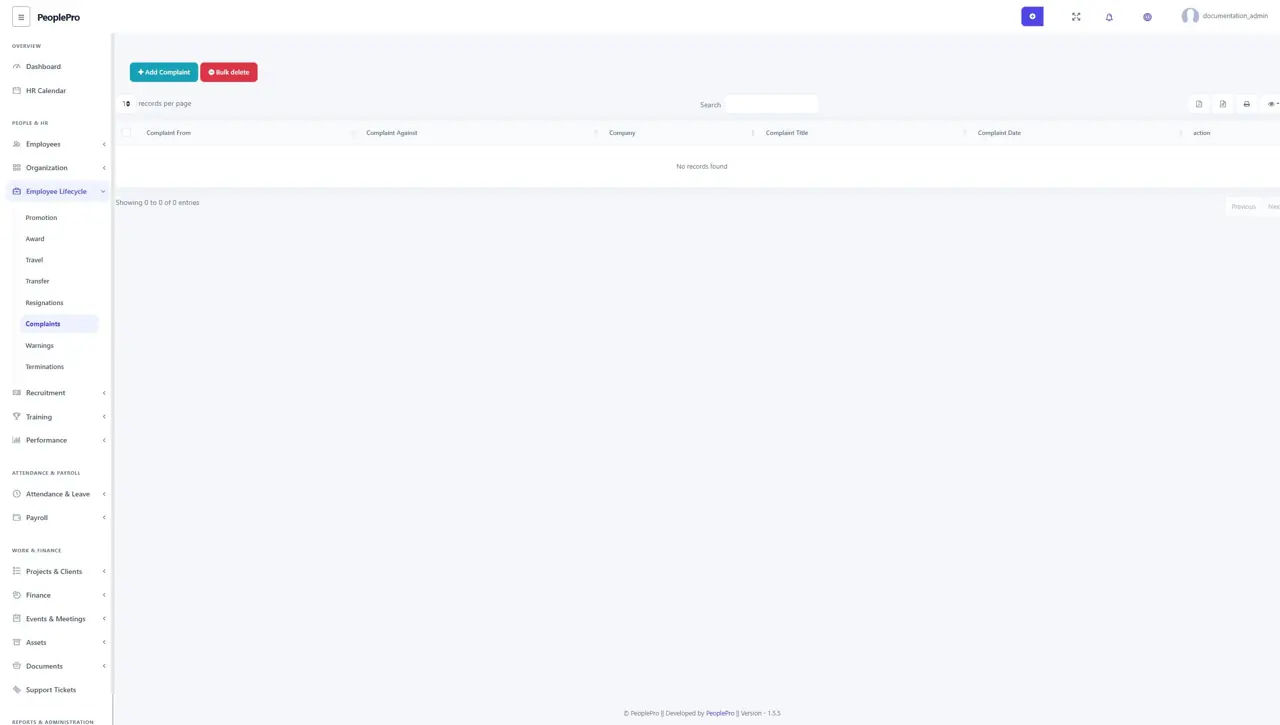
Open Employee Lifecycle > Complaints to record workplace complaints. Select Add Complaint and complete the employee or parties, subject, date and description fields. Keep the description factual and give access only to the people responsible for handling the matter. Use the row actions to maintain the record as the matter progresses.
Warnings
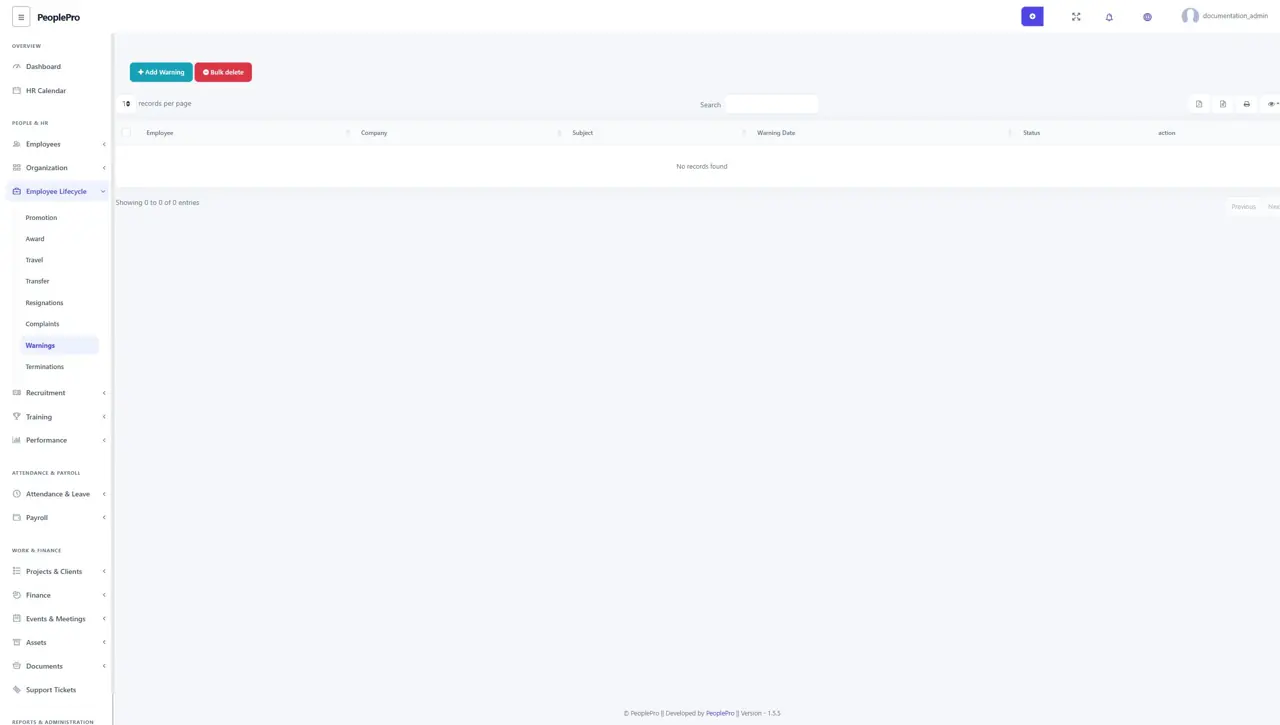
Open Employee Lifecycle > Warnings to keep formal employee warning records. Add the employee, warning type, subject, date and description requested by the form. Warning types are maintained in Variable Type settings. Review the wording and employee identity before saving the record.
Terminations
Open Employee Lifecycle > Terminations to record the end of employment. Select the employee and enter the termination type, dates and reason. Complete your organization's offboarding steps separately, including final salary review and access changes. Keep the record for authorized HR reference.