
Invoicing Approved Project Time
Open Project Timesheets > Time Billing, or use the Time Billing shortcut beside Add Invoice.
Last updated: 16 November 2026 · Product version: not specified in the supplied guide
Prepare approved billable work for an invoice
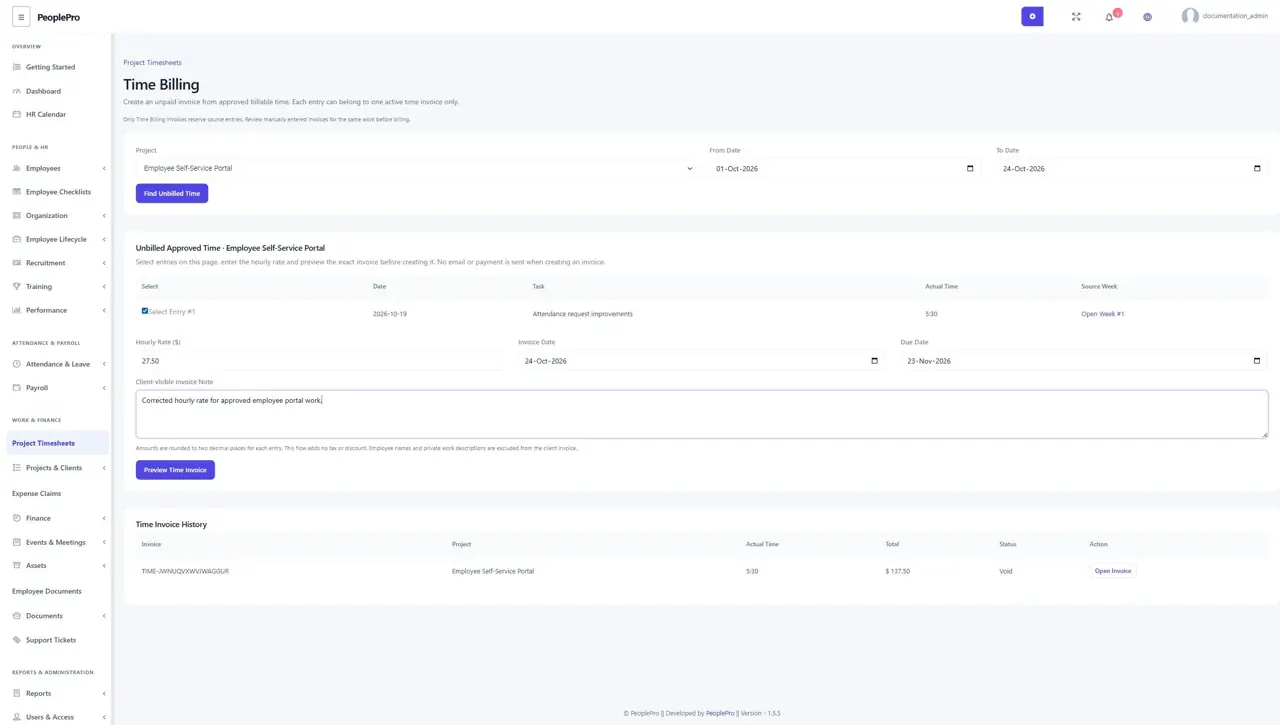
Open Project Timesheets > Time Billing, or use the Time Billing shortcut beside Add Invoice. Creating an invoice requires the project-timesheet reviewer rights together with View Invoice and Add Invoice access. Choose a project with a client from the same company, select a date range of up to 93 days and choose Find Unbilled Time. Only approved, active Billable entries that are not on another active time invoice appear. Draft, removed, Non-billable and Unclassified work is excluded. Existing historical time is never automatically changed to Billable.
Select time and enter the agreed hourly rate
Select the entries on the displayed page, enter the hourly rate in the workspace currency and set the invoice and due dates. The page shows up to 50 entries; a single submission accepts at most 100 entries. The hourly rate must be from 0.01 to 999999.99 with at most two decimal places. The invoice date cannot precede the selected work or be in the future; its due date must be on or after the invoice date. A Client-visible Invoice Note appears on the final invoice, so include only information intended for the client.
Check the exact amount before creating the invoice
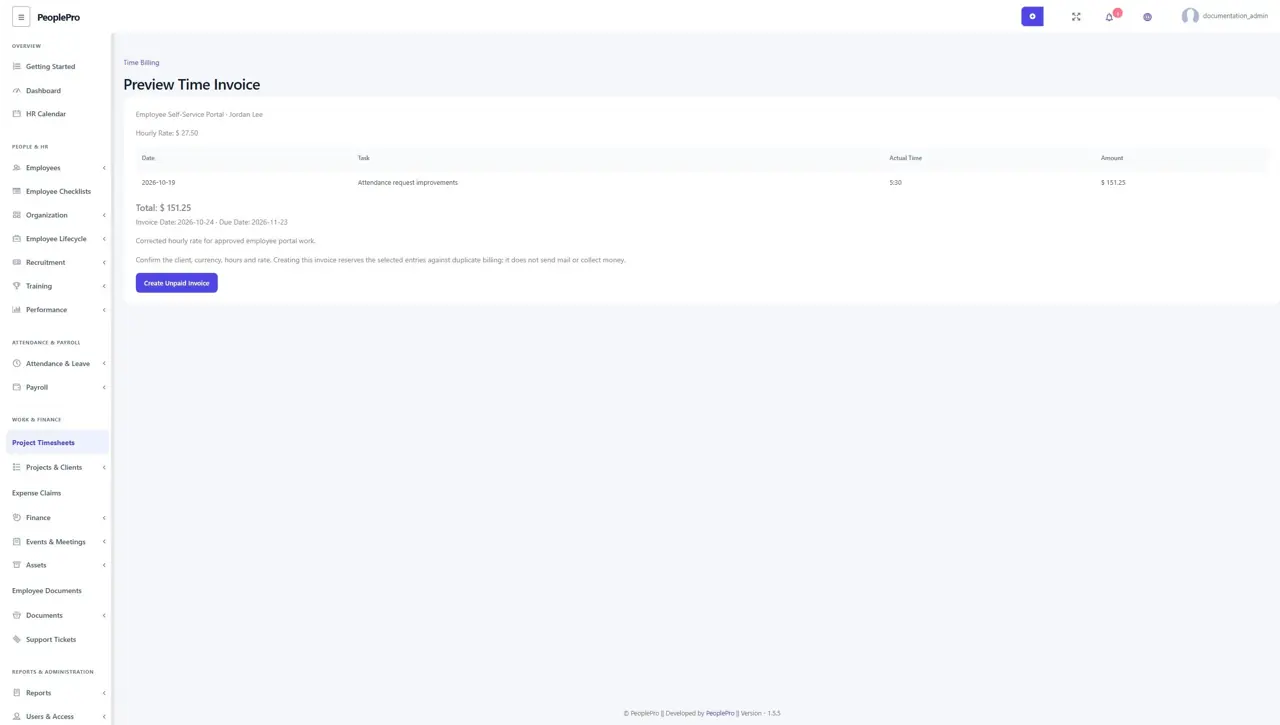
Select Preview Time Invoice. The preview shows the client, saved source minutes, hourly rate, work dates and total. Each time entry is calculated from its complete minutes and rounded to two decimal places; the invoice total adds those rounded lines. Tax and discount are zero in this time-billing flow. Check the client, currency, hours and rate before selecting Create Unpaid Invoice. If time, the client or currency settings changed after you opened the page, reopen the selection instead of submitting an old preview.
Create and open an unpaid time invoice
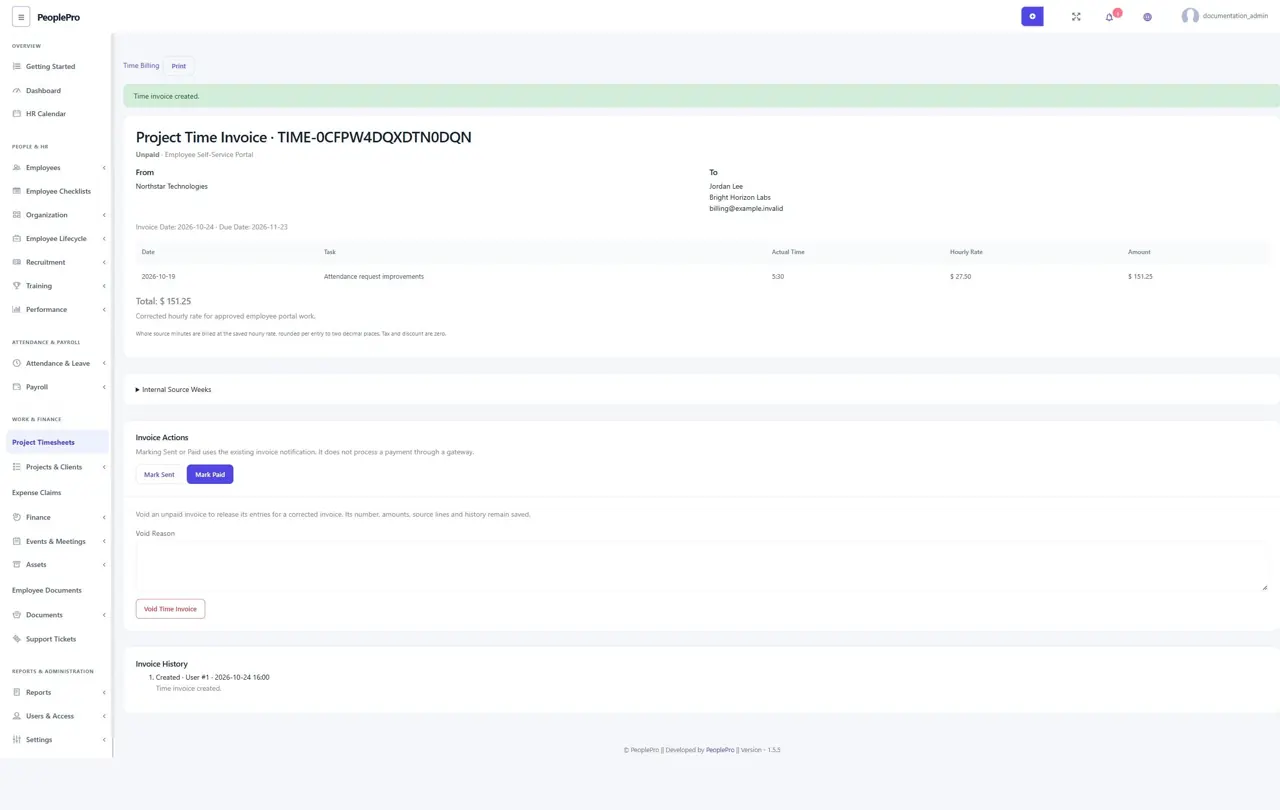
Create Unpaid Invoice saves the invoice in the ordinary invoice list and reserves its source entries against another active time invoice. Repeating the same submission does not create a duplicate invoice. Creation does not send an email, collect a payment or change payroll. Open Invoice shows the saved amount, currency, project and business contact details. Those snapshots remain stable if names or currency settings later change. Only invoices created through Time Billing reserve source entries: review any manually entered invoices for the same work before invoicing it again.
Share or print the client copy safely
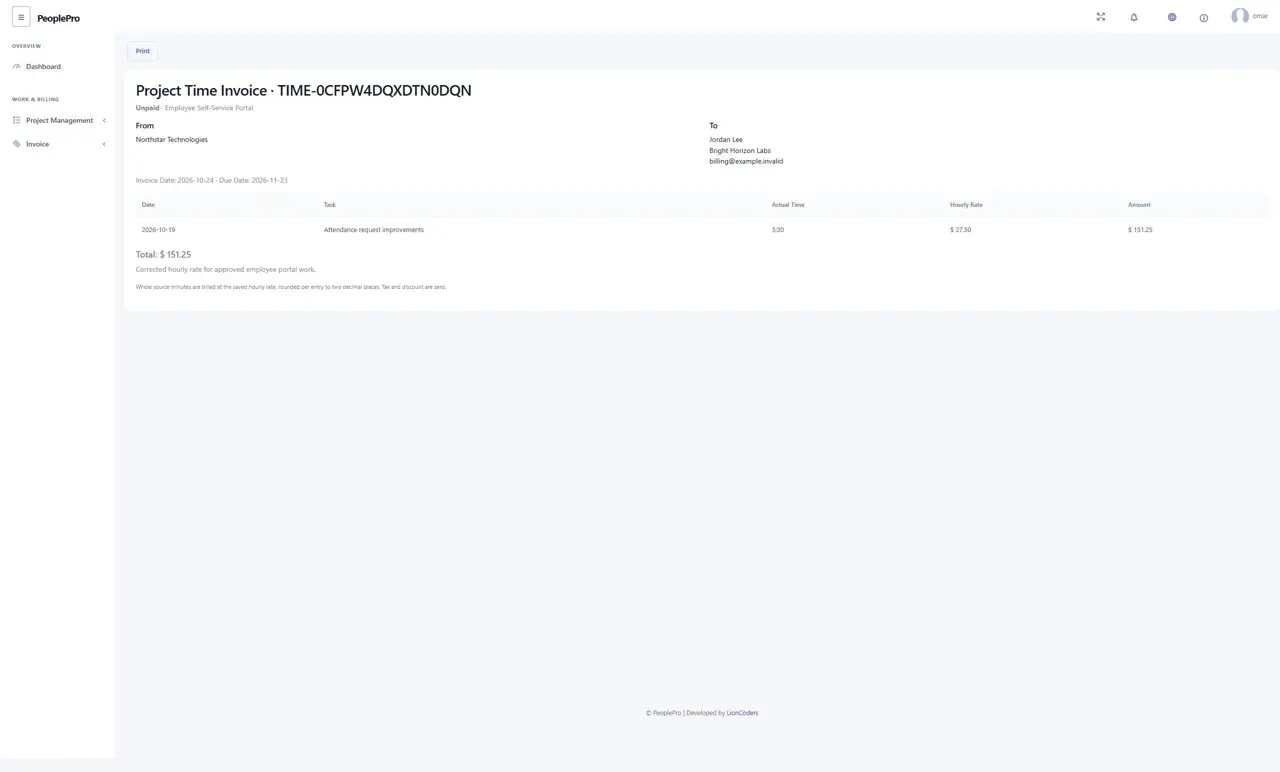
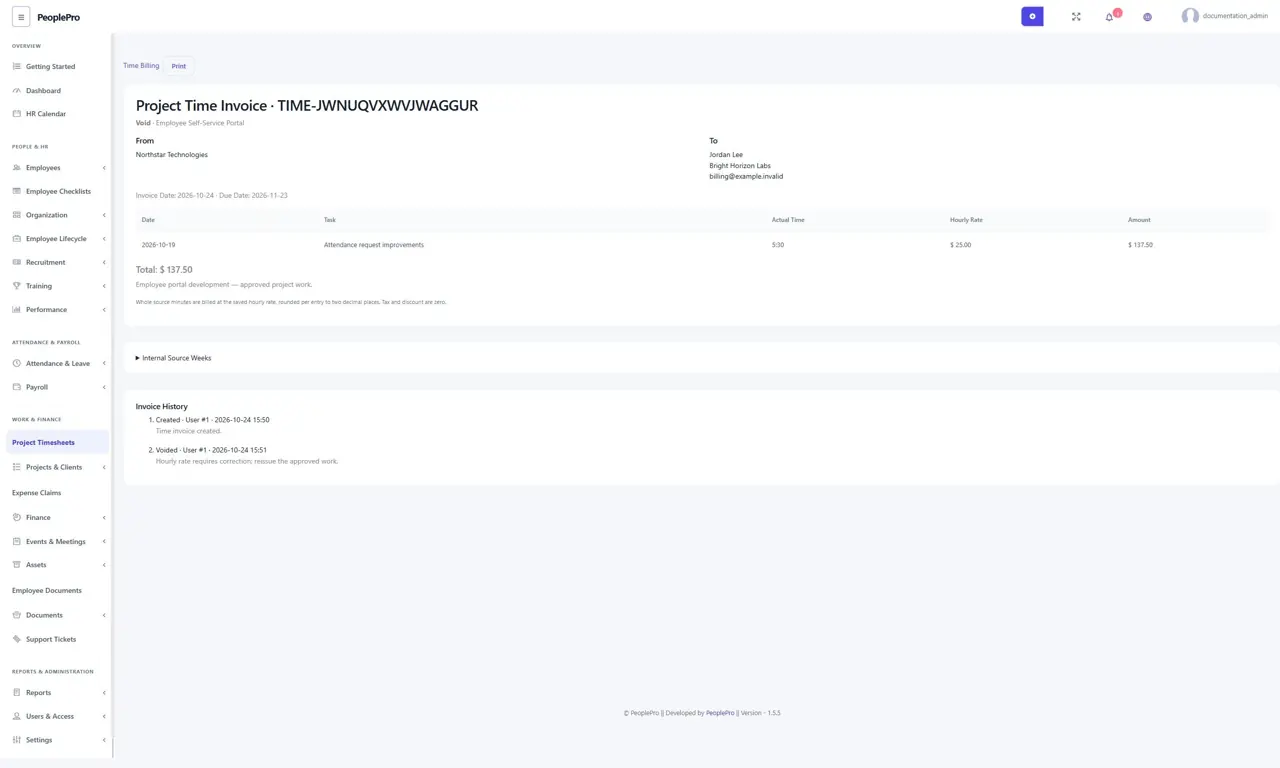
Use Print on the time invoice to print the invoice details. The client sees work dates, project/task titles, durations, rate, amounts, business contact details and the client-visible note. Employee names, private work descriptions, source-week links and internal decision history are excluded from the client copy. Authorized reviewers can separately expand Internal Source Weeks. The assigned client can open the invoice through the normal invoice link; another client or company cannot inspect it.
Correct an unpaid invoice while keeping its history
The saved time invoice cannot be edited or deleted through ordinary invoice actions. To correct an unpaid invoice, enter a Void Reason and select Void Time Invoice. The original invoice number, amount, source lines and reason stay in history, while its entries become available for a new corrected time invoice. Replaying the original create request still returns the original invoice. Voided invoices are excluded from the client unpaid list and due totals. A project with time-invoice history keeps its company/client, and linked clients/companies cannot be deleted; deactivate the client when appropriate.
Record sent or paid status with the usual invoice actions
Mark Sent and Mark Paid record the status and use the existing invoice notification; neither charges a payment gateway or posts a Finance payment. The client unpaid list includes sent unpaid invoices. Repeating the same status does not send duplicate notifications. Paid time invoices are locked and cannot be voided or reset through ordinary status actions. The client dashboard excludes void invoices and avoids adding time invoices saved in another currency to its current-currency amount cards; open each invoice to review its saved currency.