
Project Timer
Open Project Timesheets from the sidebar or your personal My Work shortcut, then choose Project Timer.
Last updated: 16 November 2026 · Product version: not specified in the supplied guide
Start timing assigned project work
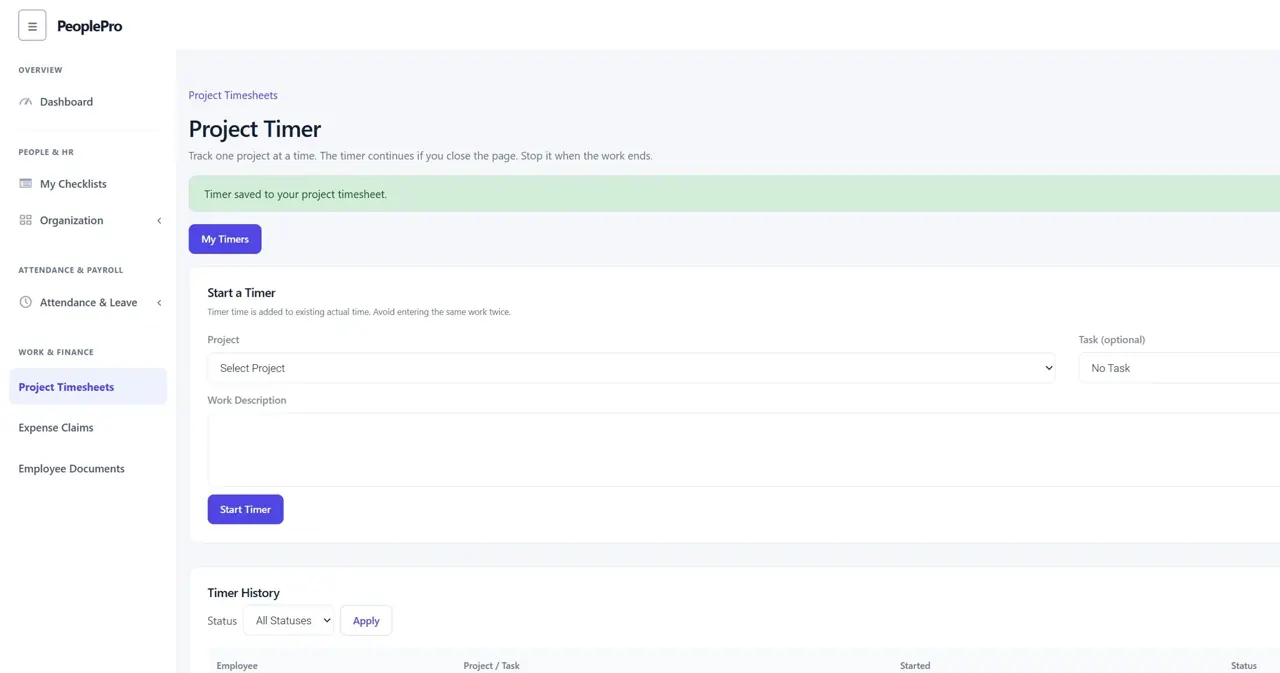
Open Project Timesheets from the sidebar or your personal My Work shortcut, then choose Project Timer. Select a project assigned to you, optionally choose an assigned task, describe the work and select Start Timer. You need an active employee profile eligible to log project time. Only one timer can run for your account at a time, including across different browser tabs. Starting a timer does not create a time entry or record attendance.
Follow a running timer
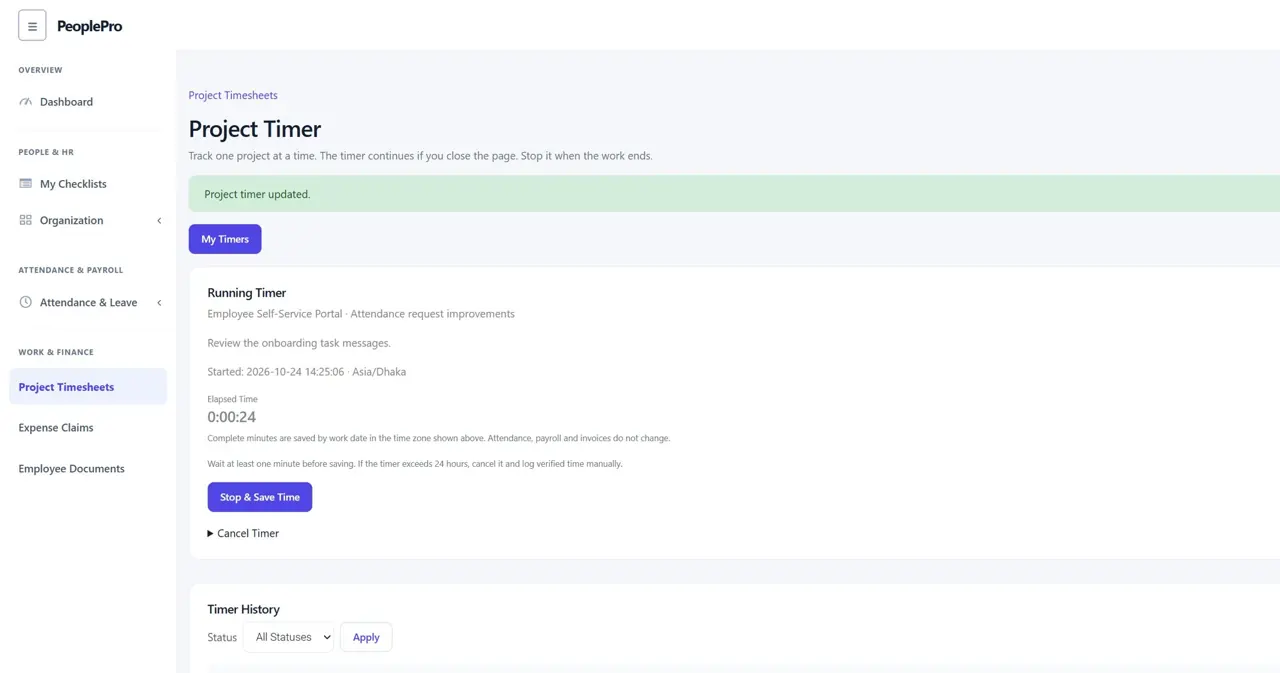
My Timers shows the selected project, task, work description, start time, saved time zone and elapsed time. The timer keeps running if you close the page or sign out. Return to the page when you finish working. Timer time is added to other actual project time, so avoid logging the same work manually as well. Wait at least one minute before saving. A timer left running for more than 24 hours must be cancelled; enter the verified duration through Add Actual Time instead.
Stop and save time, including overnight work
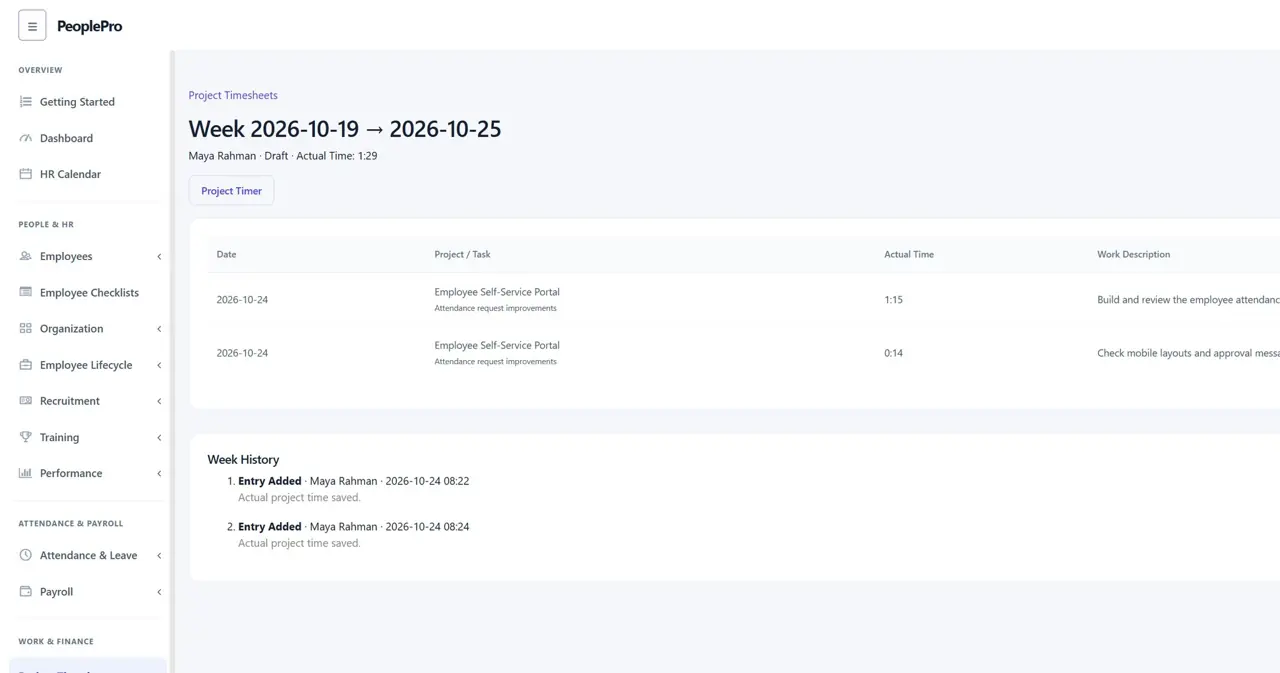
Select Stop & Save Time to add complete elapsed minutes to your normal project timesheet. The server calculates the duration. Work across midnight is split by calendar work date using the time zone saved when the timer started. A Sunday-to-Monday session can create entries in two weekly timesheets. The total complete minutes are retained when distributing minutes across a date boundary. Repeating Stop does not create duplicate entries. If an assignment changed, a target week is locked or a daily total would exceed 24 hours, the save fails without adding partial entries. Correct the issue and retry, or cancel the timer and enter verified time manually.
Cancel your own or an abandoned team timer
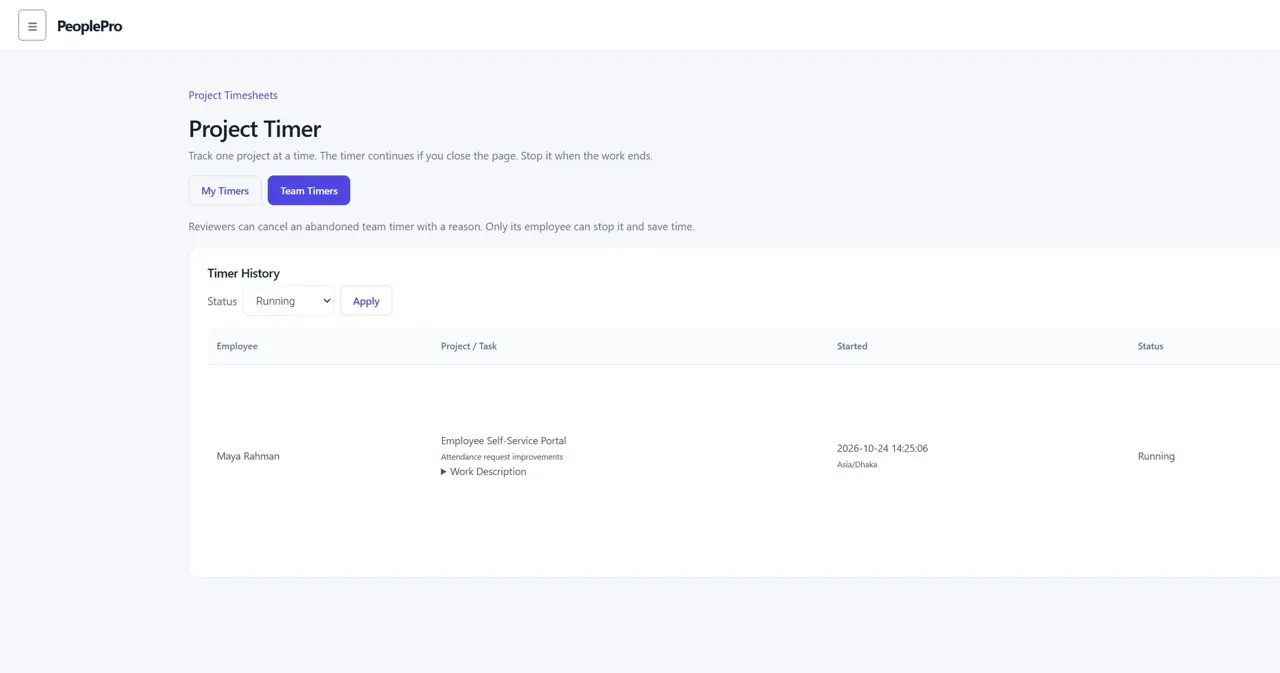
To discard a running timer, expand Cancel Timer, enter the reason and select Cancel Without Saving Time. Cancellation retains the timer history and creates no time entry. Authorized project-timesheet reviewers can open Team Timers, inspect the employee and project, and cancel an abandoned timer with a reason. They cannot stop someone else's timer to record time on that employee's behalf. Ordinary employees see their own timers; company access and the SaaS package continue to limit access.
Review the saved week and close outstanding timers
Timer History shows Running, Stopped or Cancelled records and the originally recorded duration. Open Week links to the saved weekly timesheet. Saved entries follow the normal draft editing, submission and independent approval rules; later manual corrections can change the current weekly total while the timer retains its original record. Stop or cancel an employee's running timer before submitting or approving a week, moving that employee to another company, changing employment status or finalizing offboarding. Timer history protects employees, projects and tasks from normal deletion. Administrators can inspect covered changes under HR Audit Trail > Project Timers. Timers do not change task estimates, attendance, payroll or invoices.