
Leave Submission Rules and Supporting Documents
Open Settings > Variable Type > Leave Type.
Last updated: 16 November 2026 · Product version: not specified in the supplied guide
Set advance notice and supporting-document rules
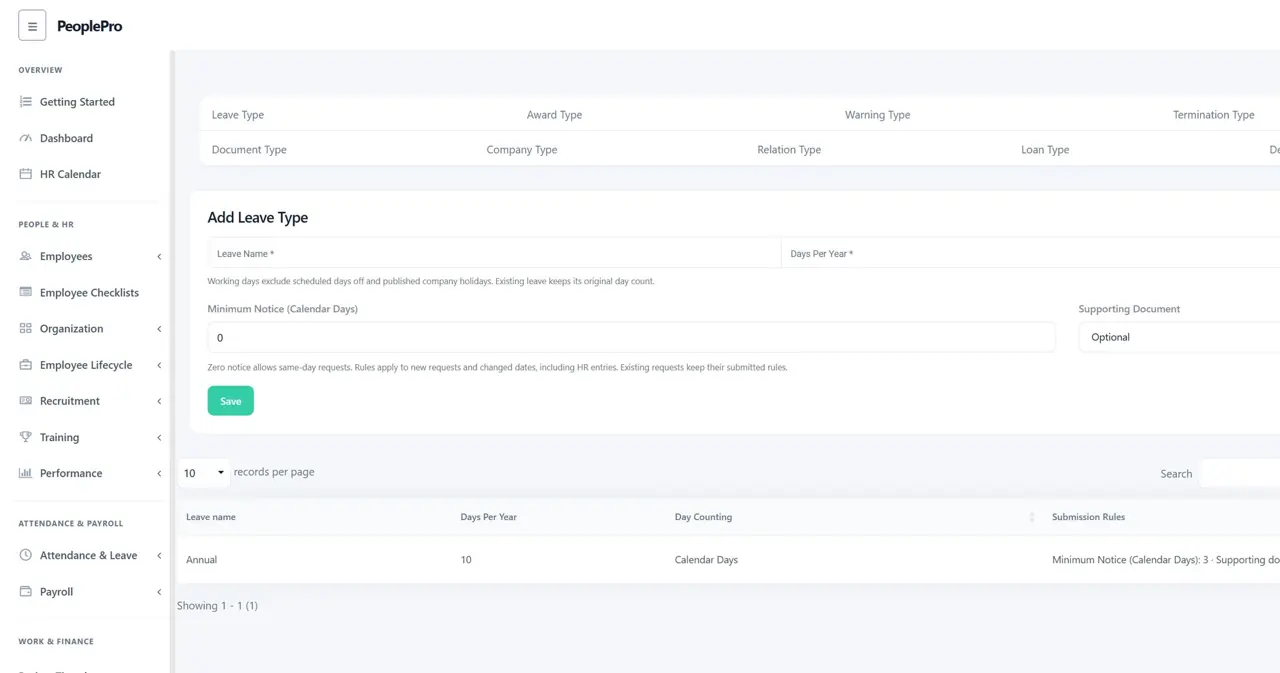
Open Settings > Variable Type > Leave Type. When adding or editing a type, set Minimum Notice (Calendar Days) from 0 to 365 and choose whether a Supporting Document is Optional or Required. Zero allows a same-day request. For example, a three-day notice on Monday permits a start date on Thursday or later. Notice counts calendar days, even when the leave duration uses Working Days. The same submission rules apply to employee and HR entries. Existing types start at zero notice with optional documents; configure each type to match your company policy.
Check the rules and attach a document
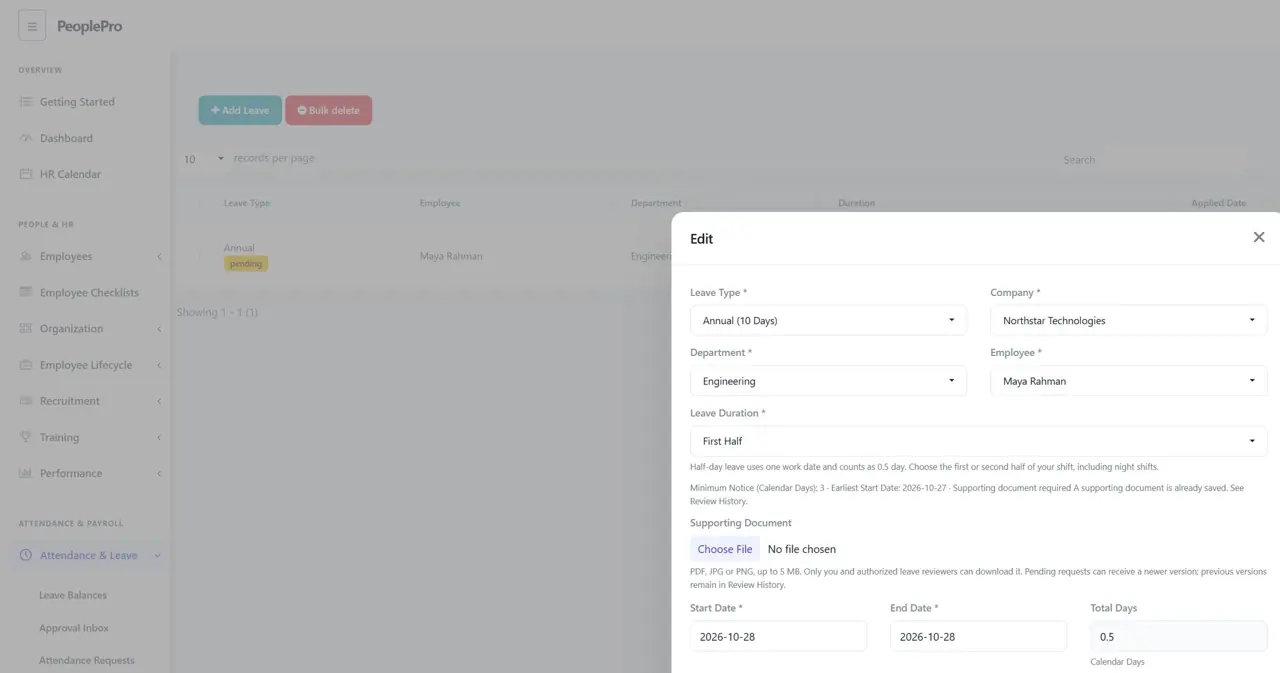
Open Request Leave on your employee dashboard, Add Leave in Leave Requests, or the leave form in HR Calendar. Choose the employee, type and dates to see the earliest permitted start date and whether a supporting document is required. Attach one PDF, JPG or PNG of up to 5 MB, enter the reason and submit once. The server checks both the notice period and required document. If the start date is too soon, choose a permitted date or ask HR which leave type applies to your situation.
Read supporting documents privately
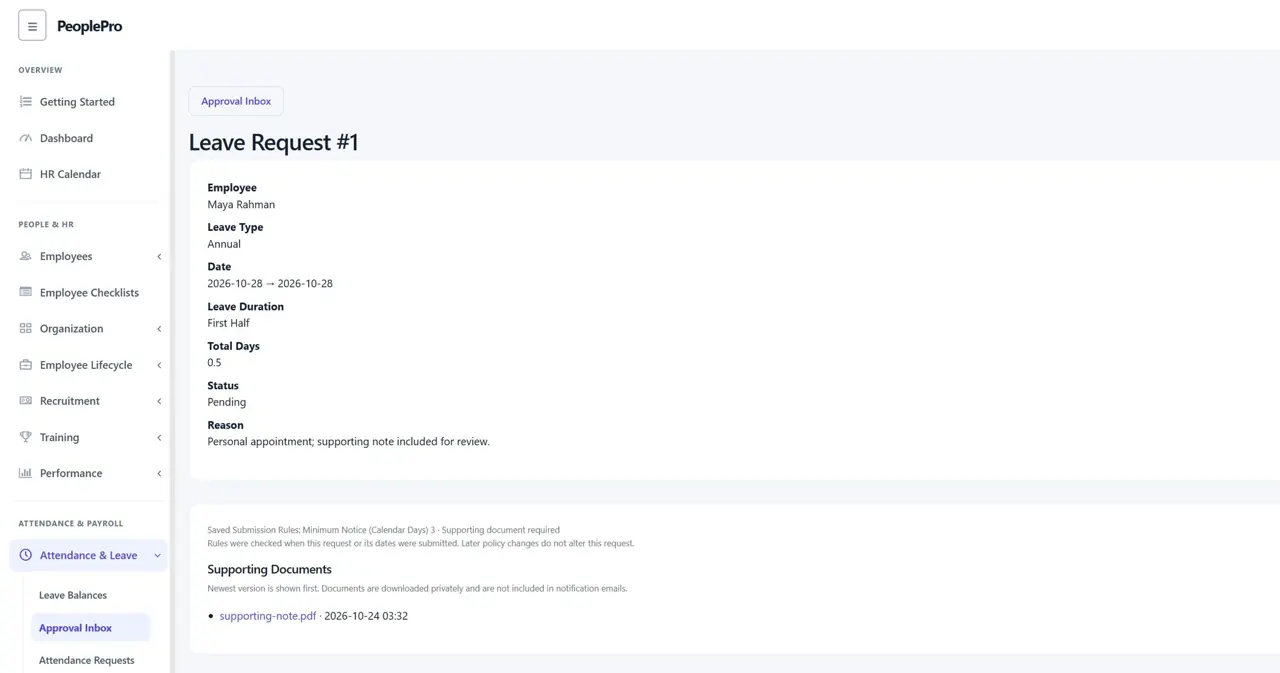
Open Review History for the request. Supporting Documents lists the saved files, with the newest version first. Select a filename to download it. The requester and authorized leave reviewers can download the documents; a general leave-list viewing permission does not open these files. Company access and SaaS package limits continue to apply. Files are kept in private storage and are not attached to notification emails.
Add a newer document before a decision
If a pending request needs a corrected supporting document, ask authorized HR to open Edit and upload the new file. An existing document does not have to be uploaded again for an ordinary edit. Up to five document versions can be retained on one leave request. Previous versions remain in Review History. Once a request has been approved or rejected, new supporting files cannot be added through the normal editor. A reviewer with an older page must reload after evidence changes before deciding.
Understand which rules apply to an existing request
Review History shows the Saved Submission Rules checked when the request or its dates were submitted. A later change to the leave type does not block an ordinary review of that saved request. Requests created before this feature remain reviewable without a new notice period or mandatory file. Changing the employee, type, dates or leave duration checks the current rules again; a request containing supporting files cannot be moved to another employee. Approval still follows the normal balance and no-self-review checks. These rules do not change attendance punches or recalculate payroll.