
Notification Preferences and Delivery Status
Open Notification Preferences from the account menu.
Last updated: 16 November 2026 · Product version: not specified in the supplied guide
Choose channels for your own account
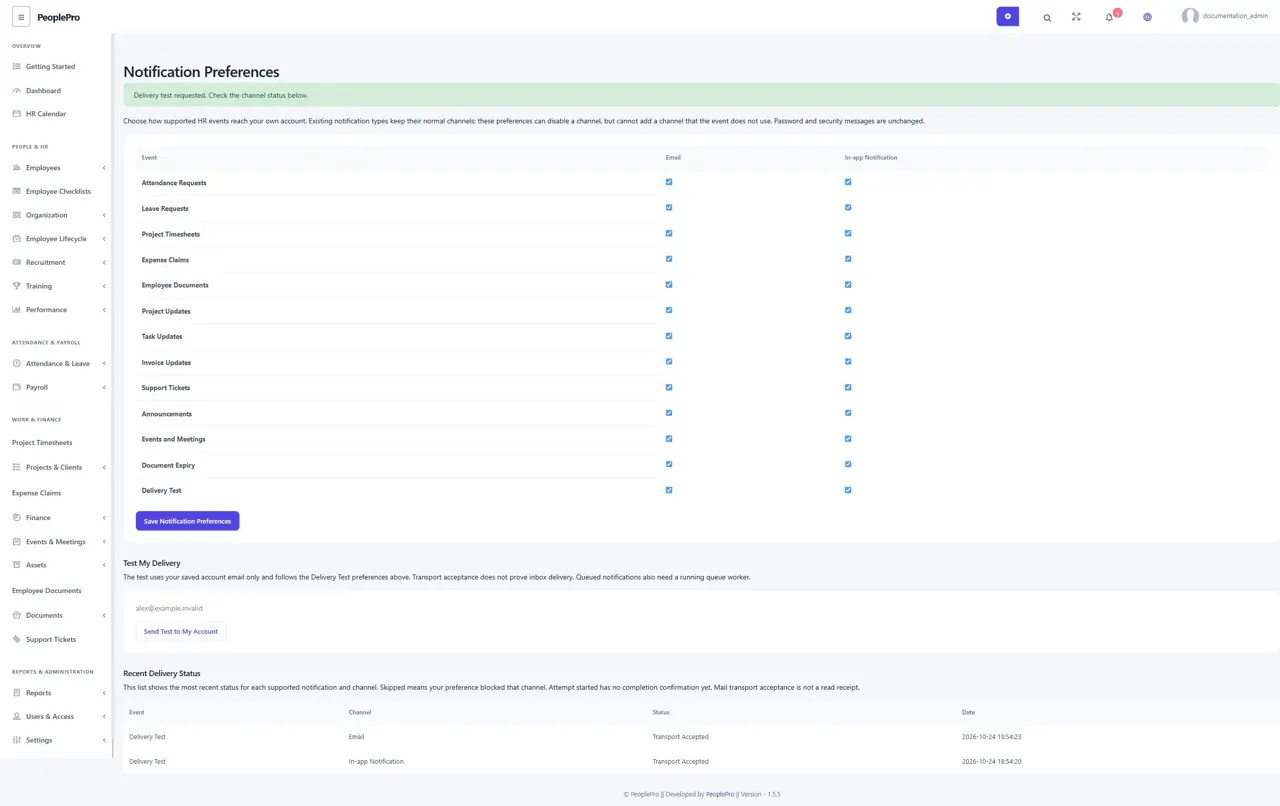
Open Notification Preferences from the account menu. Supported HR events offer Email and In-app Notification choices. Untick channels you do not want and save the complete form. A preference can disable a channel that an event already uses; it cannot add email to an event that normally has no email channel. Password and security messages keep their normal behavior.
Send a controlled delivery test
Review Delivery Test preferences, then choose Send Test to My Account. The test uses your saved account email only. Check Recent Delivery Status afterwards. A short rate limit and saved submission token prevent repeated clicks from sending uncontrolled duplicate tests. Ask an administrator to correct your account email or mail settings if necessary.
Read delivery status honestly
Transport Accepted means the configured channel accepted the operation; it is not proof that a message reached an inbox or was read. Skipped by Preference means your choice stopped that channel. Attempt Started or No Transport Confirmation is not a completed delivery. Failed results need mail-setting/provider review. Queued notifications also need a working queue worker. The guide screenshot uses fictional accounts and an in-memory mail transport.