Projects, Tasks, Clients and Invoices
Open Projects & Clients > Client and select Add Client.
Last updated: 16 November 2026 · Product version: not specified in the supplied guide
Clients
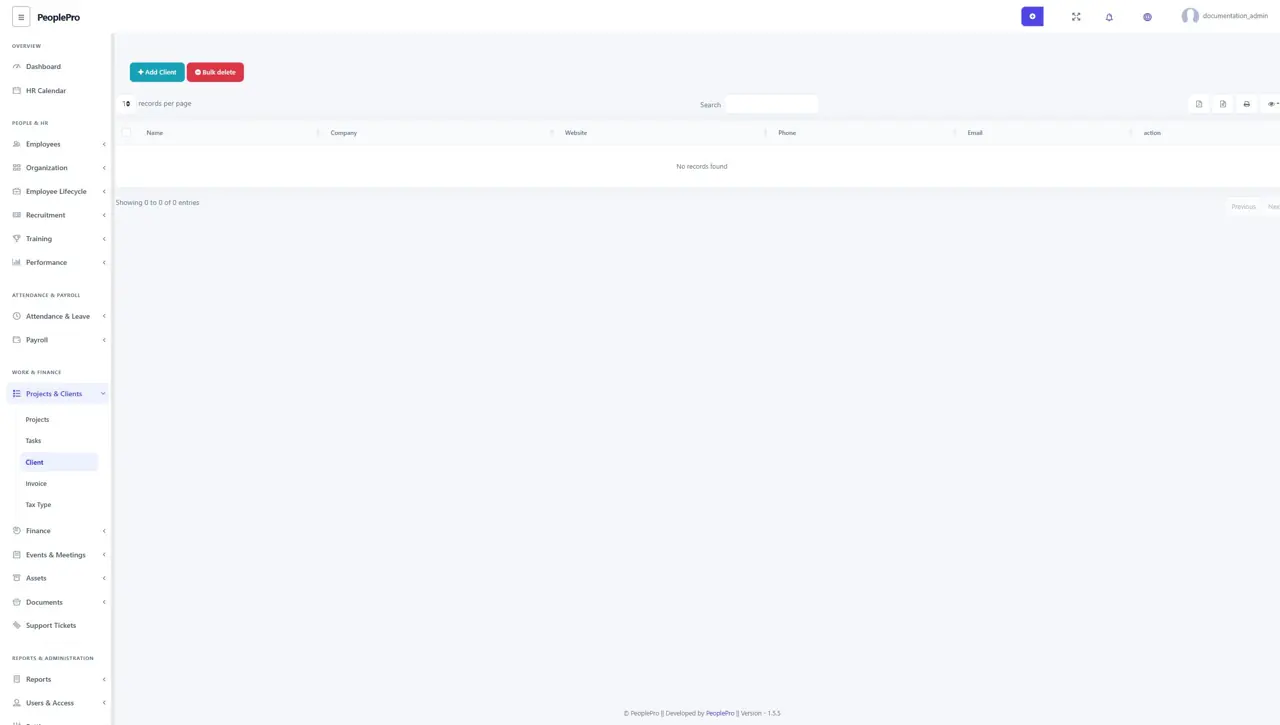
Open Projects & Clients > Client and select Add Client. Complete the client name, contact, company and account details offered in the form. Save clients before selecting them in projects. Where company ownership is managed separately, use Company access settings to ensure that only the intended company's users can access the record.
Projects
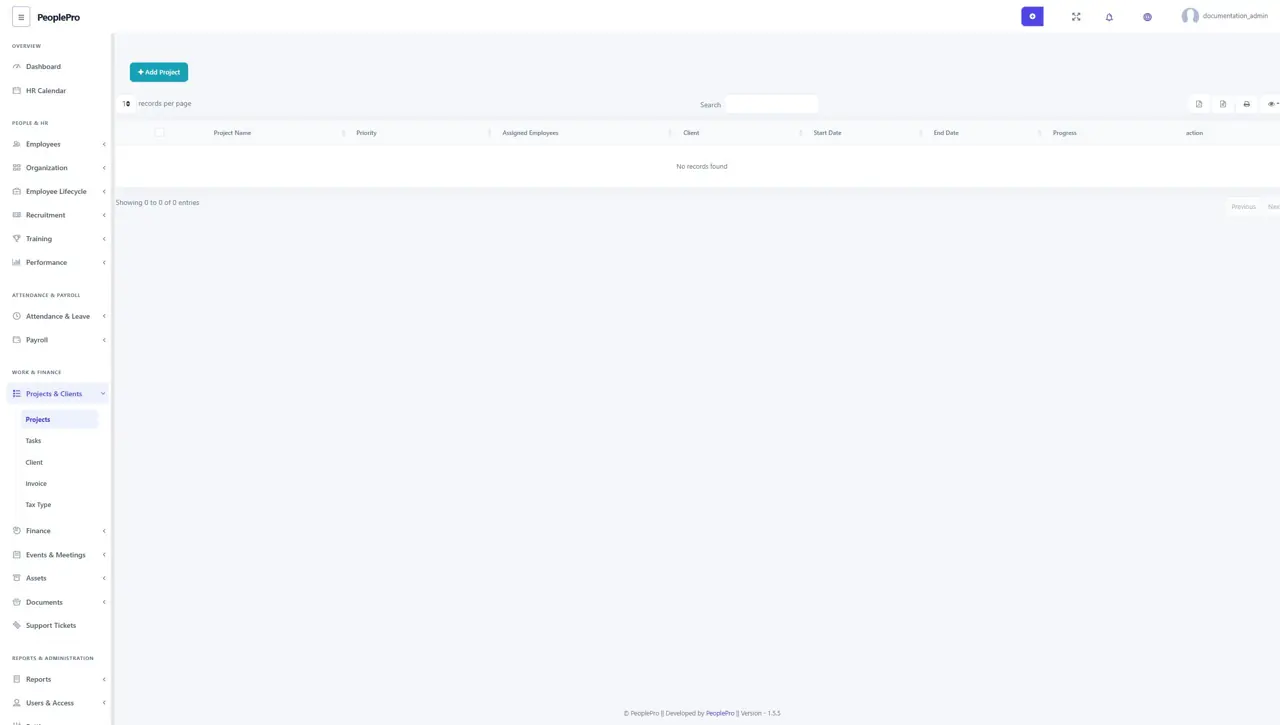
Open Projects & Clients > Projects and select Add Project. Enter the project name, client, dates, priority, description and assigned employees requested by the form. Save the project and use its details or action controls to follow progress. Keep assigned employees and completion information current so the project list and reports remain useful.
Tasks
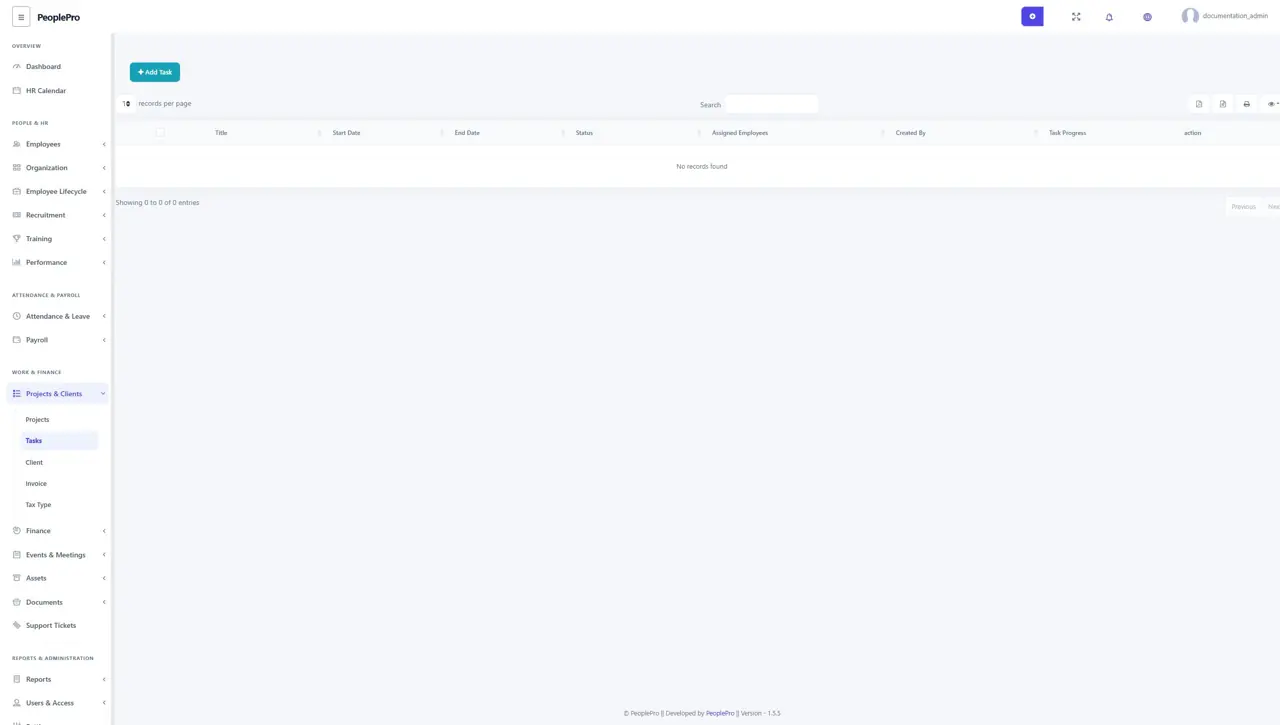
Open Projects & Clients > Tasks and select Add Task. Enter the task title, related project, dates, status and assigned employees. Update progress as work advances and mark the task appropriately when finished. Employees can review their assigned work through the areas available to their account.
Invoice tax types
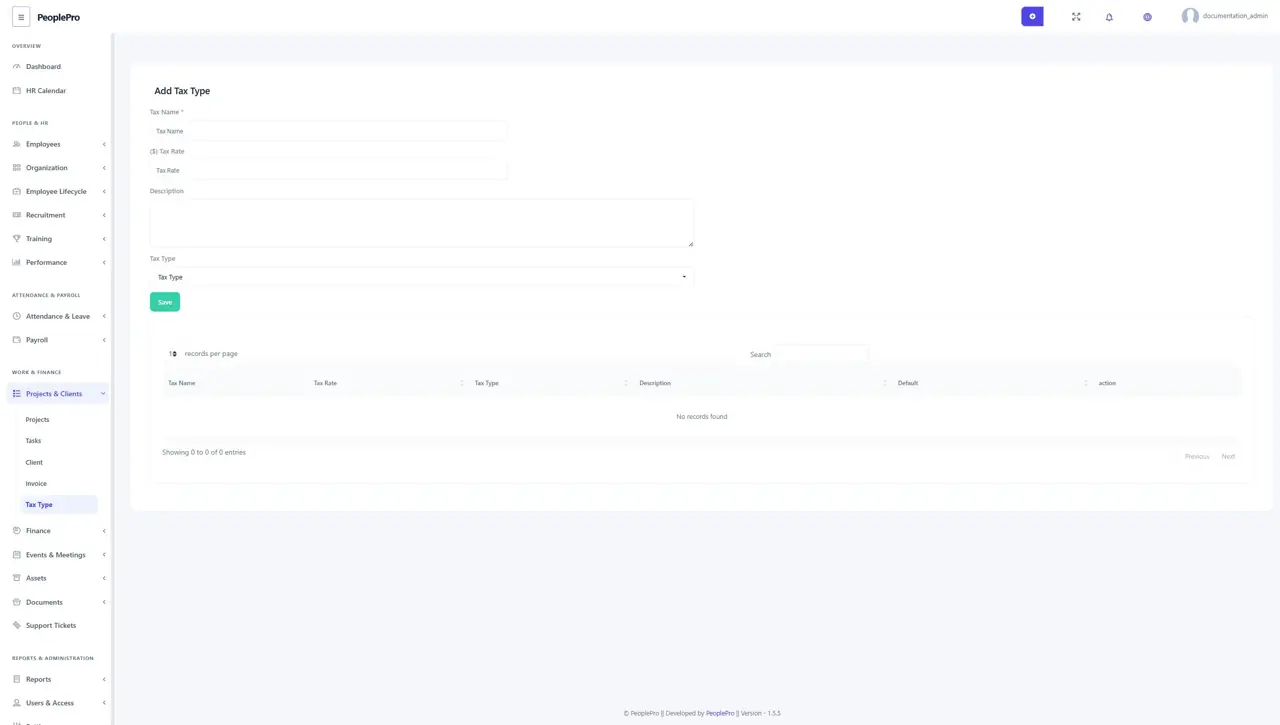
Open Projects & Clients > Tax Type to define tax labels and rates used on invoices. Add the relevant name and rate shown in the form. Review these values against your business requirements before using them on an invoice. Changing a tax definition should be followed by checking the invoice calculation you are preparing.
Invoice list
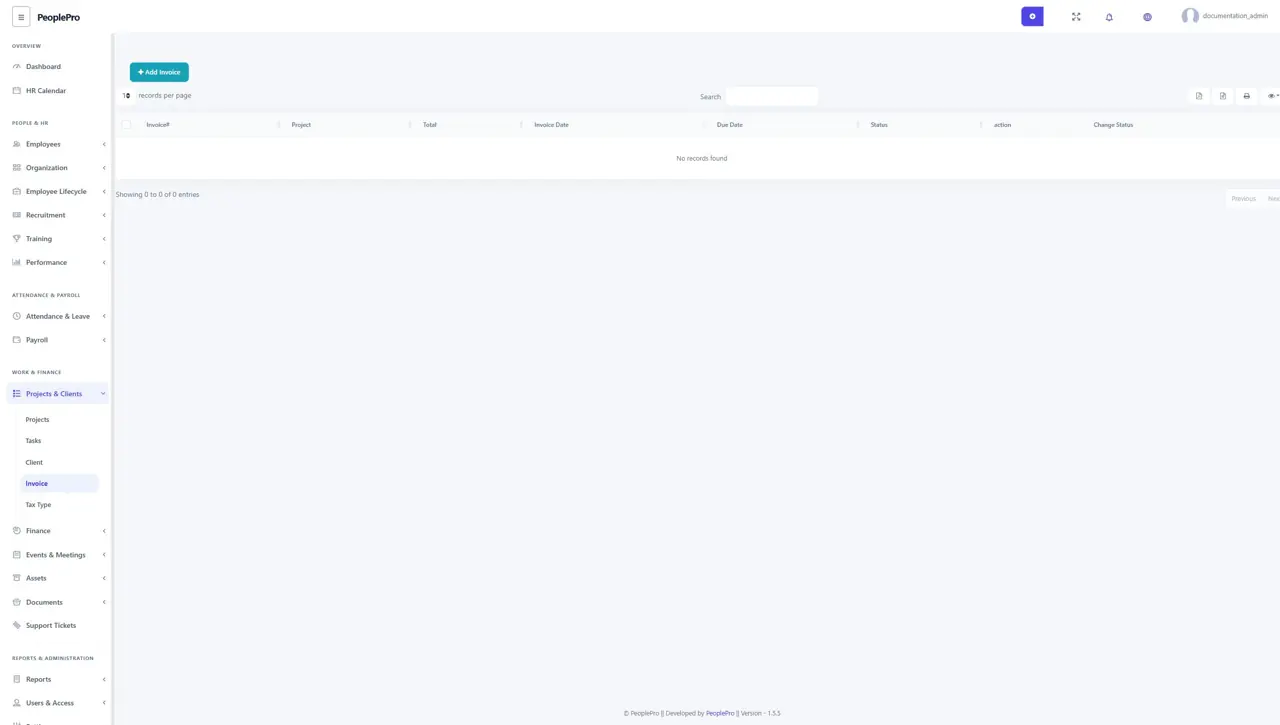
Open Projects & Clients > Invoice to find invoices and review their status and available actions. Select Add Invoice to prepare a new invoice. Use the search and filters offered to locate an invoice for a project or client. Open the relevant record to review its line items and totals before using its print or download action.
Create an invoice
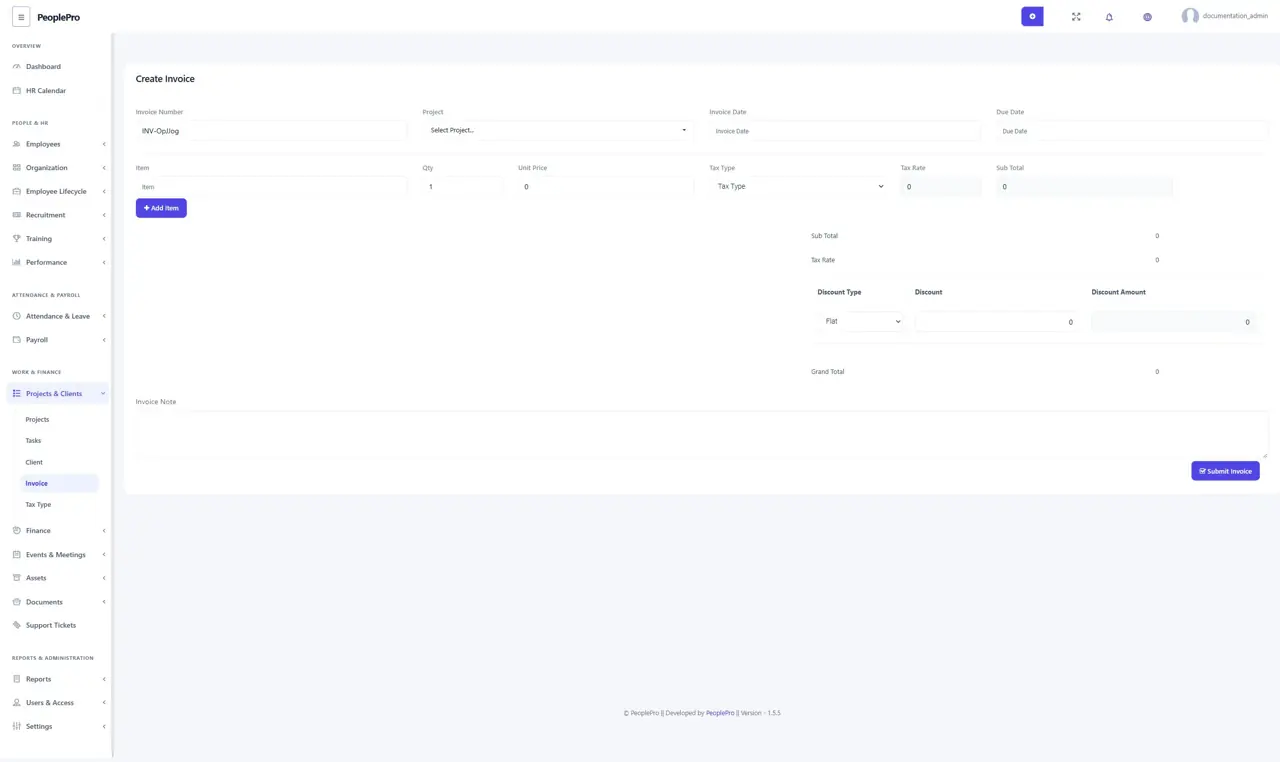
Enter the invoice number, project, invoice date and due date. Add each item with its description, quantity, unit price and applicable tax. Add more rows when needed. Review the subtotal, tax, discount type, discount amount and grand total, then add a note if useful. Submit the invoice only after checking the customer and amounts. Use the invoice list to review the saved result.