CRM Setup, Customers and Leads
Open CRM under Customers & Sales in the sidebar.
Last updated: 16 November 2026 · Product version: not specified in the supplied guide
Find your way around the CRM workspace
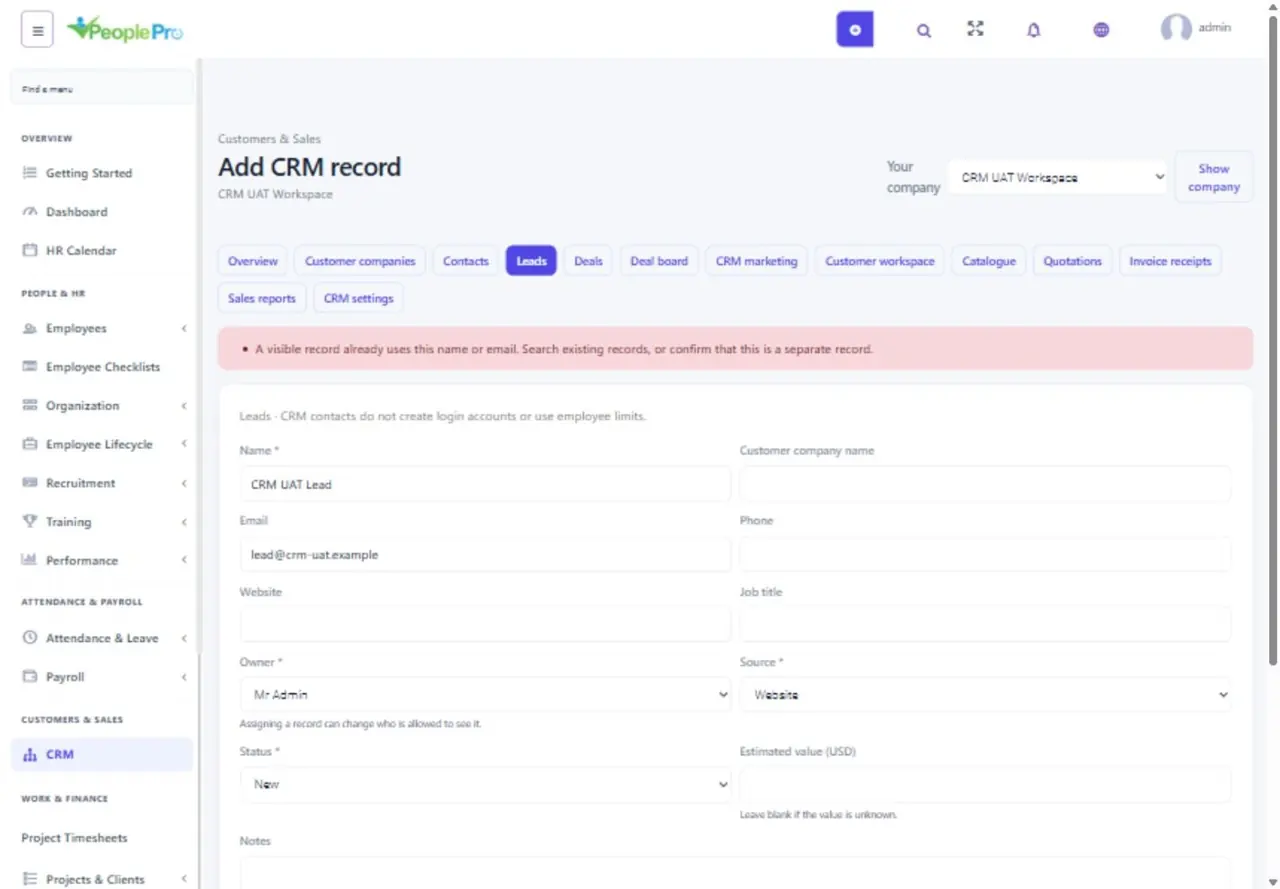
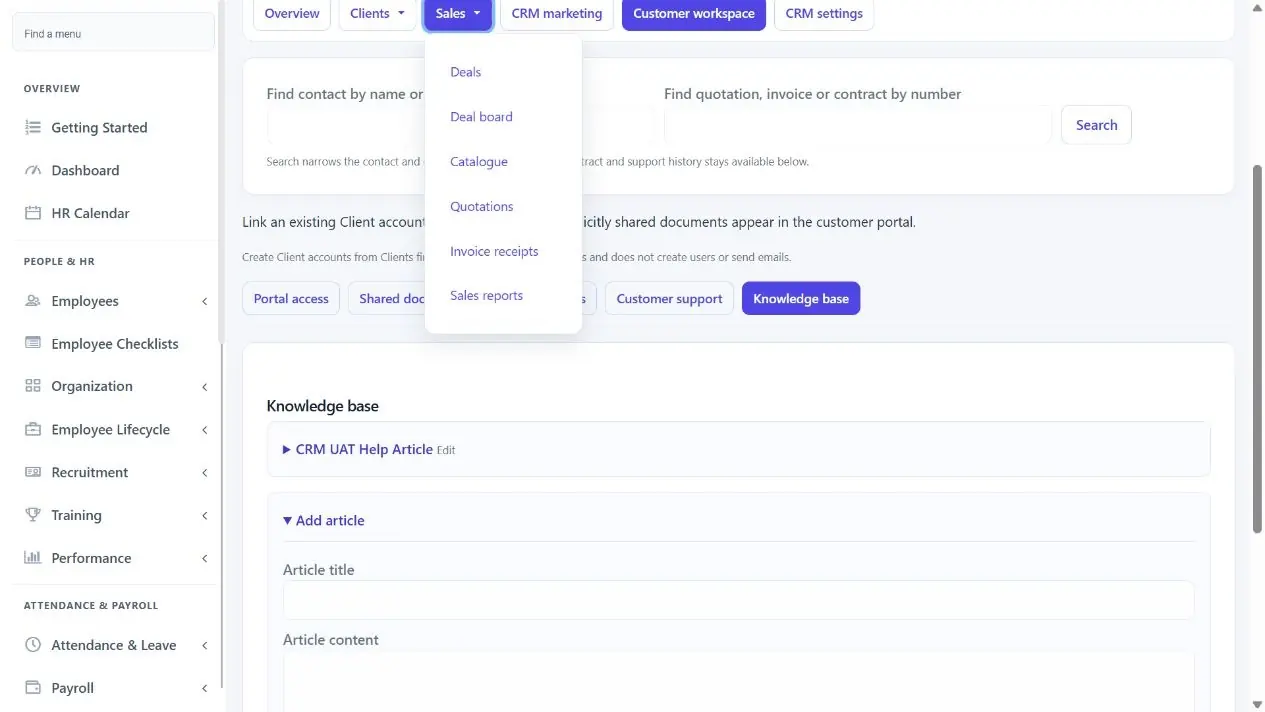
Open CRM under Customers & Sales in the sidebar. Overview shows the current company, your follow-ups and sales summaries. Open Clients for Customer companies, Contacts and Leads. Open Sales for Deals, Deal board, Catalogue, Quotations, Invoice receipts and Sales reports. CRM marketing, Customer workspace and CRM settings have their own shortcuts.
The selected destination is highlighted. Available menus follow your access rights. If you can work in more than one company, choose Your company and select Show company. With one available company, its name appears in the heading without an extra selector. Always check this name before adding a record.
Start a company CRM workspace
Start with an existing company in Organization. Open CRM, then CRM settings, choose the company, enable its CRM workspace and choose the sales currency. Complete this before entering sales records. If no company is available, use the setup guidance instead of trying to create a customer first.
Your administrator grants company access and the CRM actions in Roles And Access. SaaS tenants also need a package that includes those actions. A package enables the feature for the tenant; the company setting and staff role still control its use. Currency becomes locked once leads, deals or sales documents exist, so check it carefully before saving the first records.
Choose the owner and understand restricted records
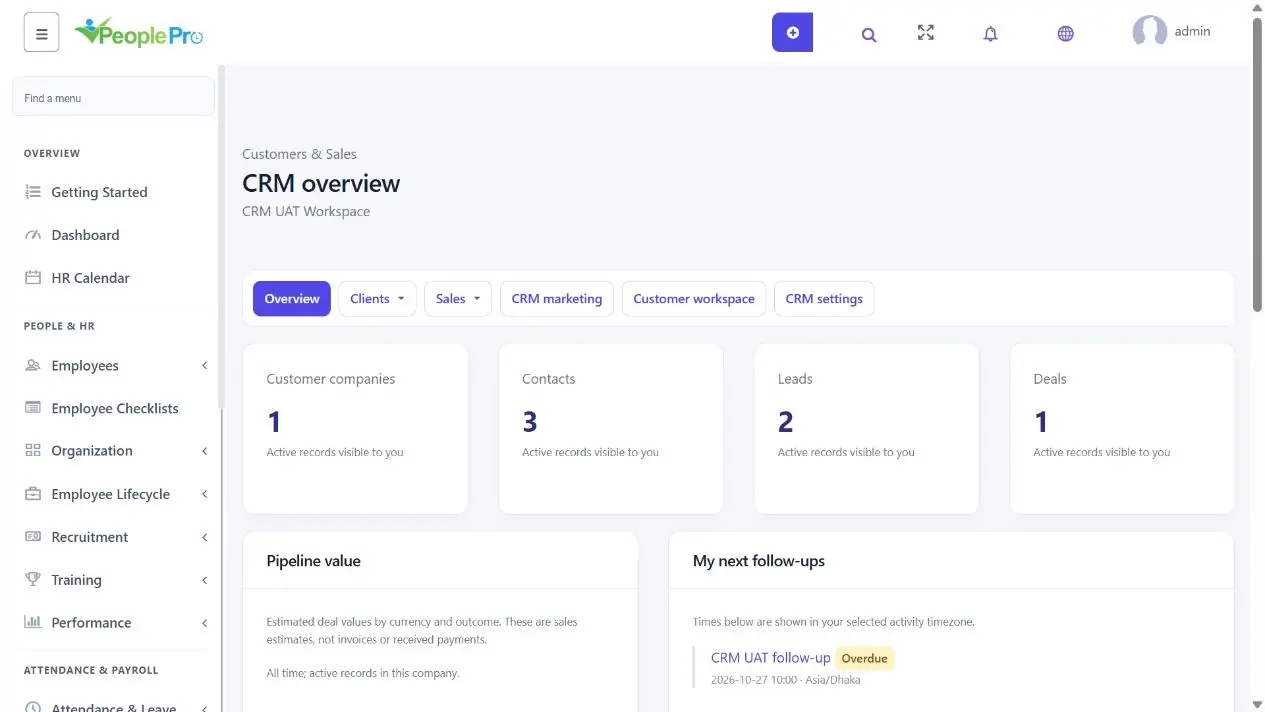
An owner is the staff member responsible for following up the record. Select an eligible colleague when adding or editing a customer company, contact, lead or deal. Your role may show only records assigned to you; this is expected when company-wide viewing is not granted.
Keep related records in the same company. A contact can belong to a customer company, and a deal can link to its contact and originating lead. Changing a company in the header changes the workspace you are viewing; it does not move records to another company.
Keep customer companies and contacts connected
Customer companies represent the businesses you work with. Contacts represent the people at those businesses. Add an owner and useful contact details, then connect a contact to the right customer company. Edit a record to keep its details current. Linked records retain their history, so archive or reassign dependants before archiving their parent.
Convert a qualified lead into an opportunity
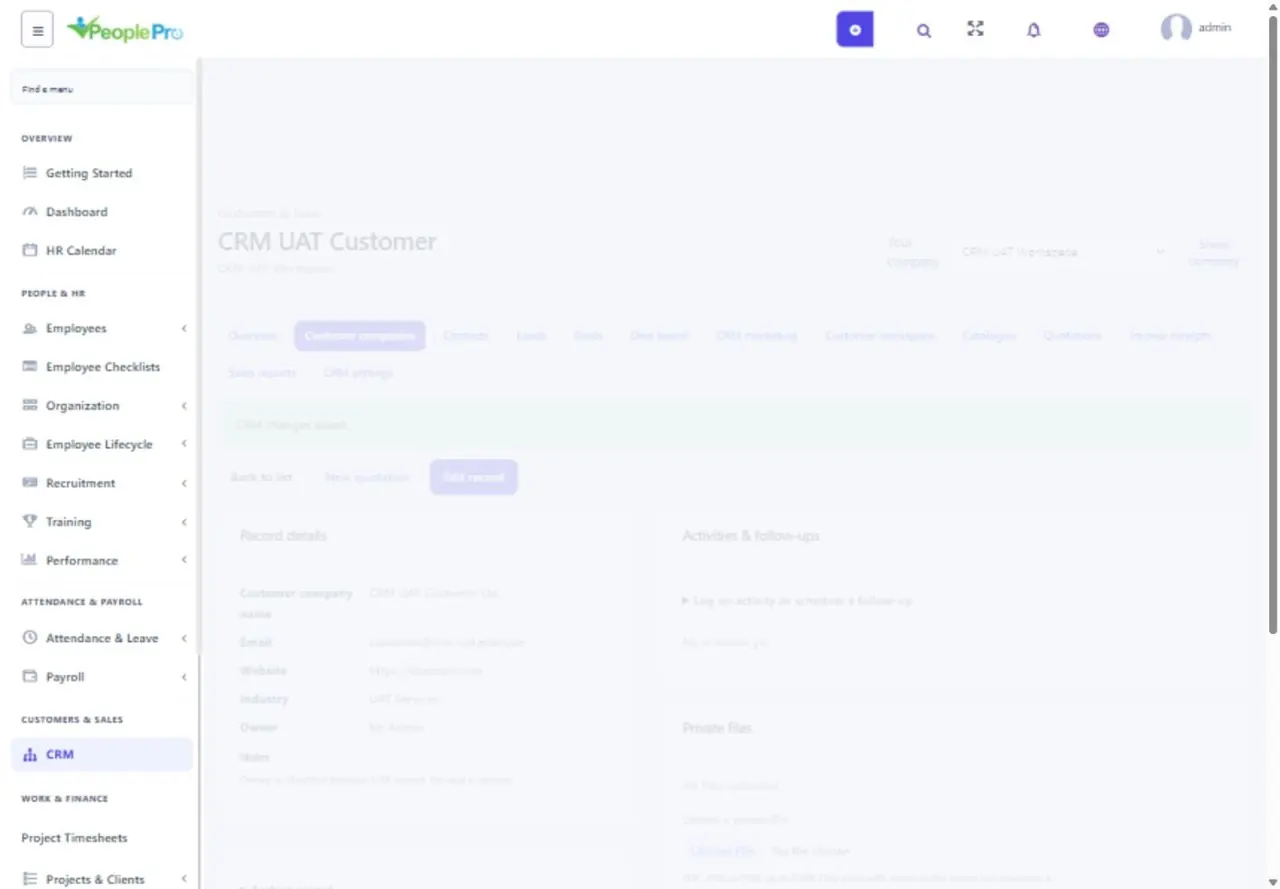
Use Leads to record new enquiries, source, owner, status and estimated value. Review duplicate warnings before continuing. When ready, convert the lead into a customer company, contact and deal, or select matching existing records. The original lead remains in history and shows its conversion. Conversion does not send email or create an invoice.