Installing the Optional SaaS Addon
PeopleProSaaS is a separately licensed addon.
Last updated: 16 November 2026 · Product version: not specified in the supplied guide
Prepare for SaaS addon installation
PeopleProSaaS is a separately licensed addon. This chapter covers the addon upload and setup entry point; platform administration belongs to the separate SaaS guide. Obtain the compatible addon ZIP and your PeopleProSaaS purchase code. Keep a complete backup of the current database, application configuration, files and uploads. Open Settings > SaaS Addon as the PeoplePro owner. The page checks the domain before offering installation: move PeoplePro to a main domain at its root if it currently uses a subdomain or subfolder.
Upload the addon
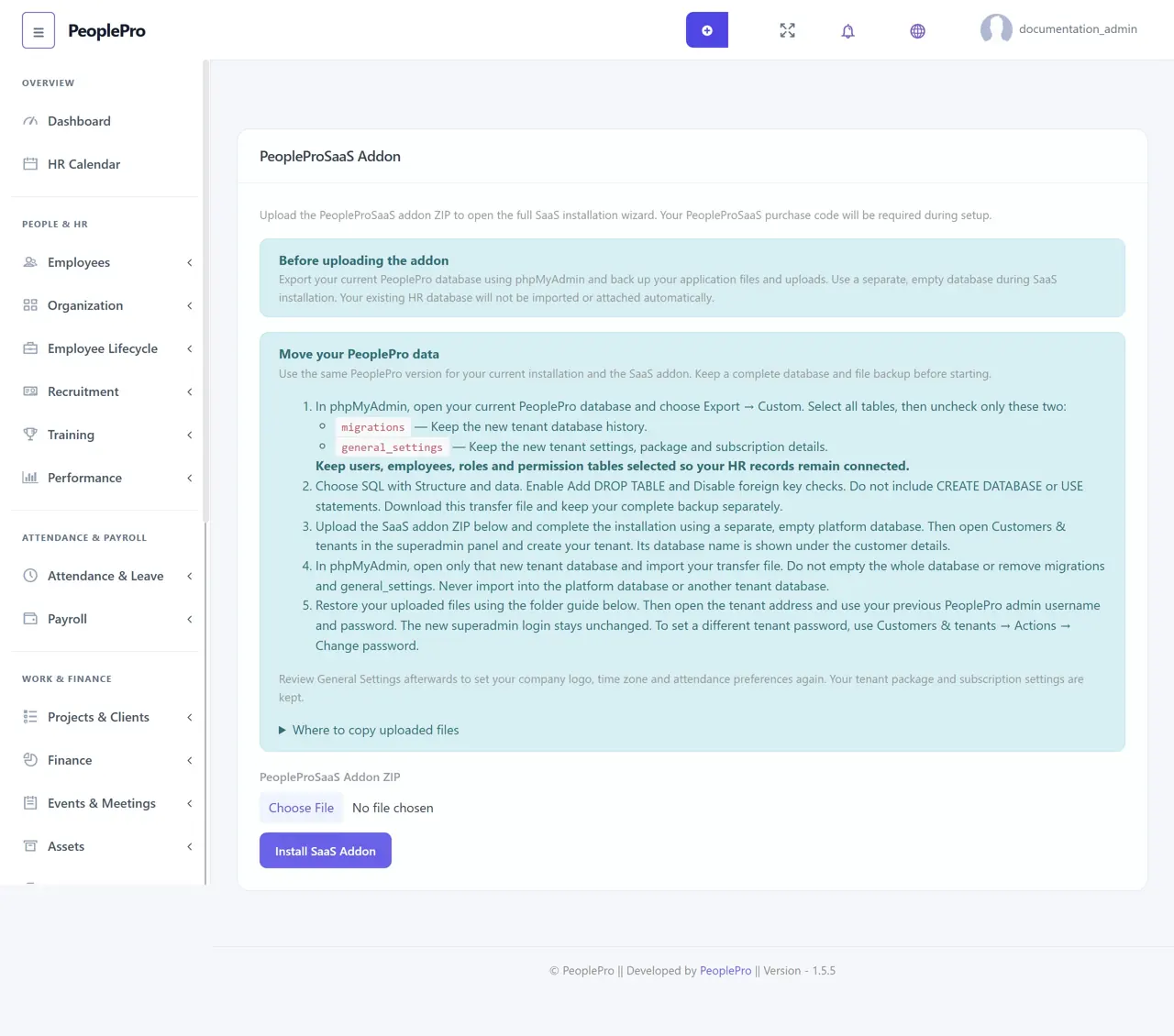
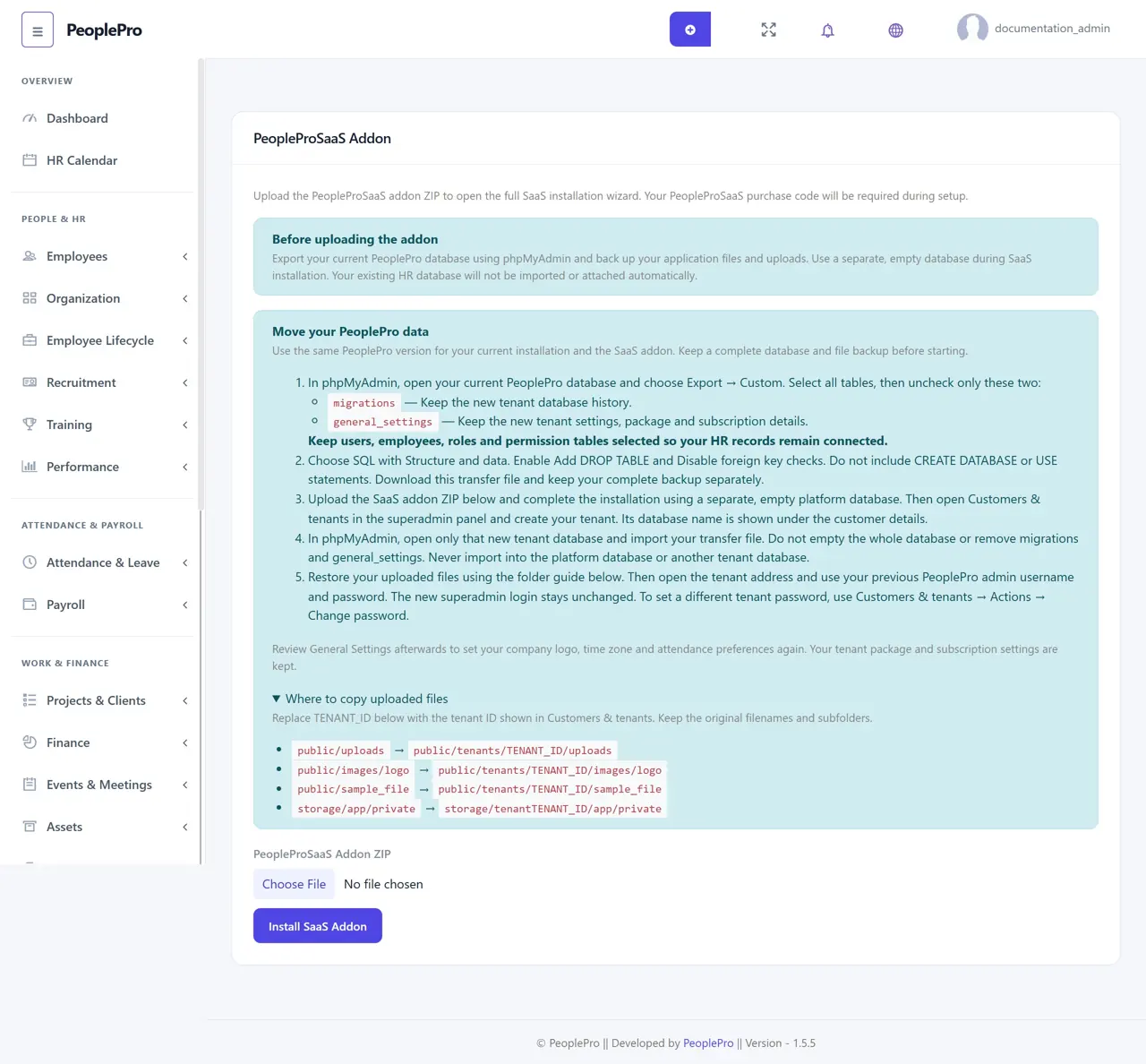
Choose the supplied PeopleProSaaS Addon ZIP and select Install SaaS Addon once. A purchase code is not entered on this upload page; it is required later in the SaaS setup wizard. Read the backup and data-transfer instructions before uploading. Extraction can take a few minutes depending on the server and archive size. Installing the addon code does not activate SaaS or automatically move your HR database. When installation finishes, select Configure SaaS.
Move your existing PeoplePro data
Read Move your PeoplePro data on the addon upload page before conversion. Keep a full backup, and use this transfer only for the same PeoplePro version. In phpMyAdmin, export the existing database tables except migrations and general_settings; keep users together with the related employee, role and permission tables. After SaaS setup, create a new tenant and import only the selected tables into that tenant database without clearing the entire database. Retain its new migrations and general_settings tables so its schema history and SaaS subscription settings remain intact. Restore the uploads using the file locations shown on the addon page. Sign in at the new tenant address with the previous PeoplePro administrator account and review General Settings. Ask the person responsible for hosting to assist if you are unsure which database or files belong to the tenant.
Addon setup: welcome
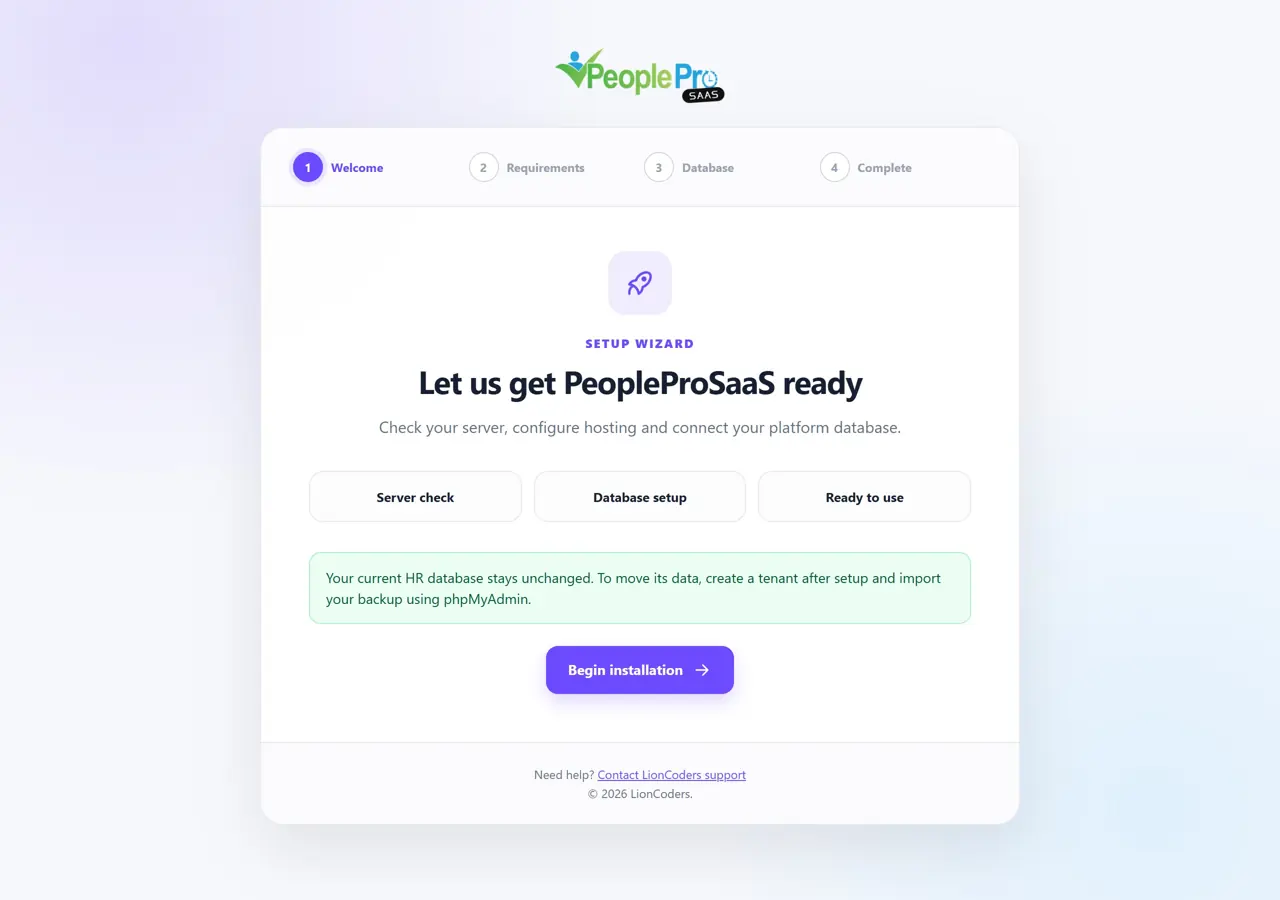
Select Configure SaaS to open the full SaaS installation wizard. Read the introduction before continuing. Use a main domain such as example.com for the central platform; a platform subdomain or subfolder is not accepted. Customer addresses such as company.example.com are supported after configuration. The wizard creates the new SaaS platform and does not automatically attach or import the existing PeoplePro database.
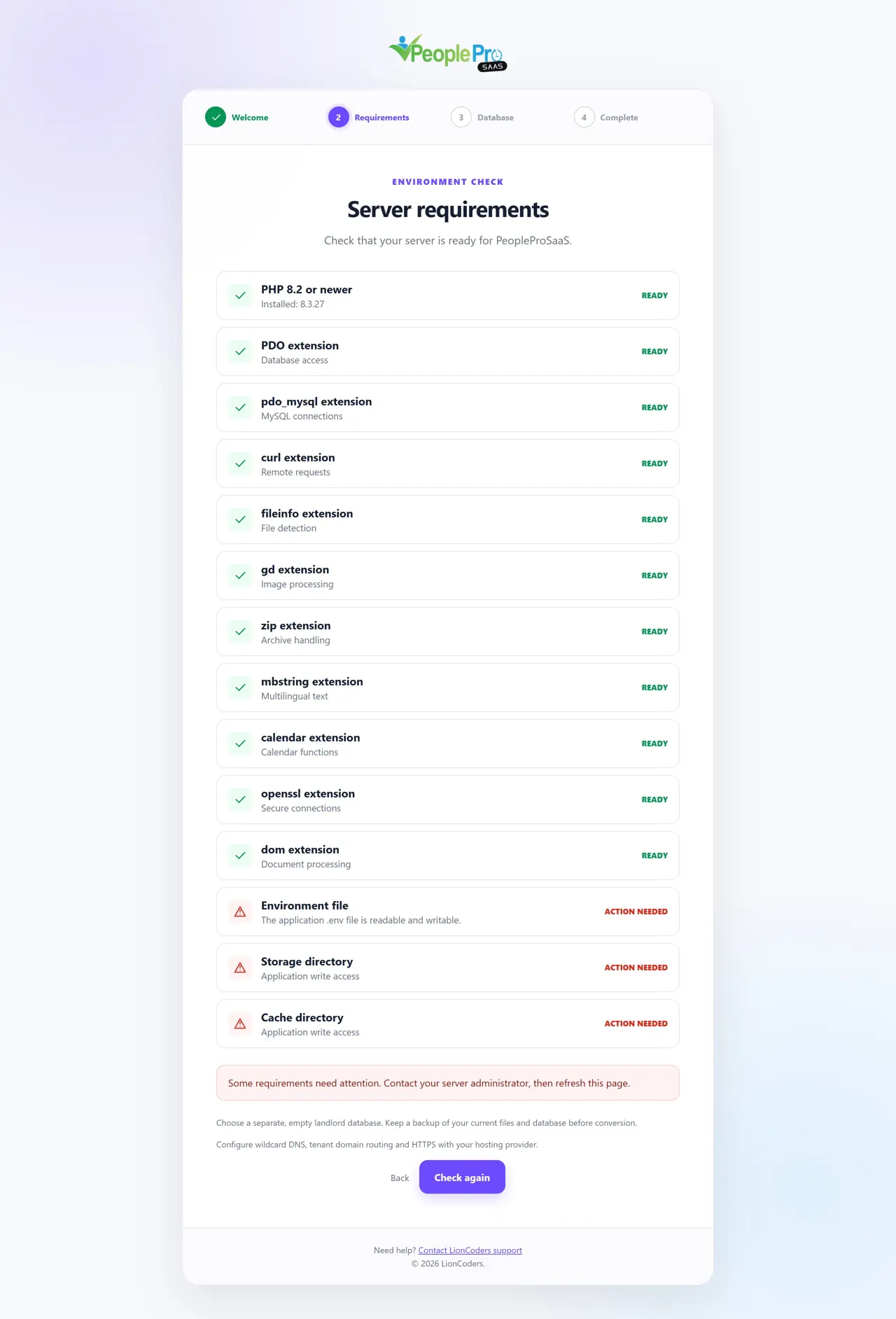
Addon setup: requirements
Review the PHP, extension and file-permission checks. Resolve any Action needed item with your hosting provider. Prepare a separate empty platform database, your PeopleProSaaS purchase code, outgoing mail and the intended tenant domain routing. Keep the original PeoplePro database and its backup separate from the new platform database.
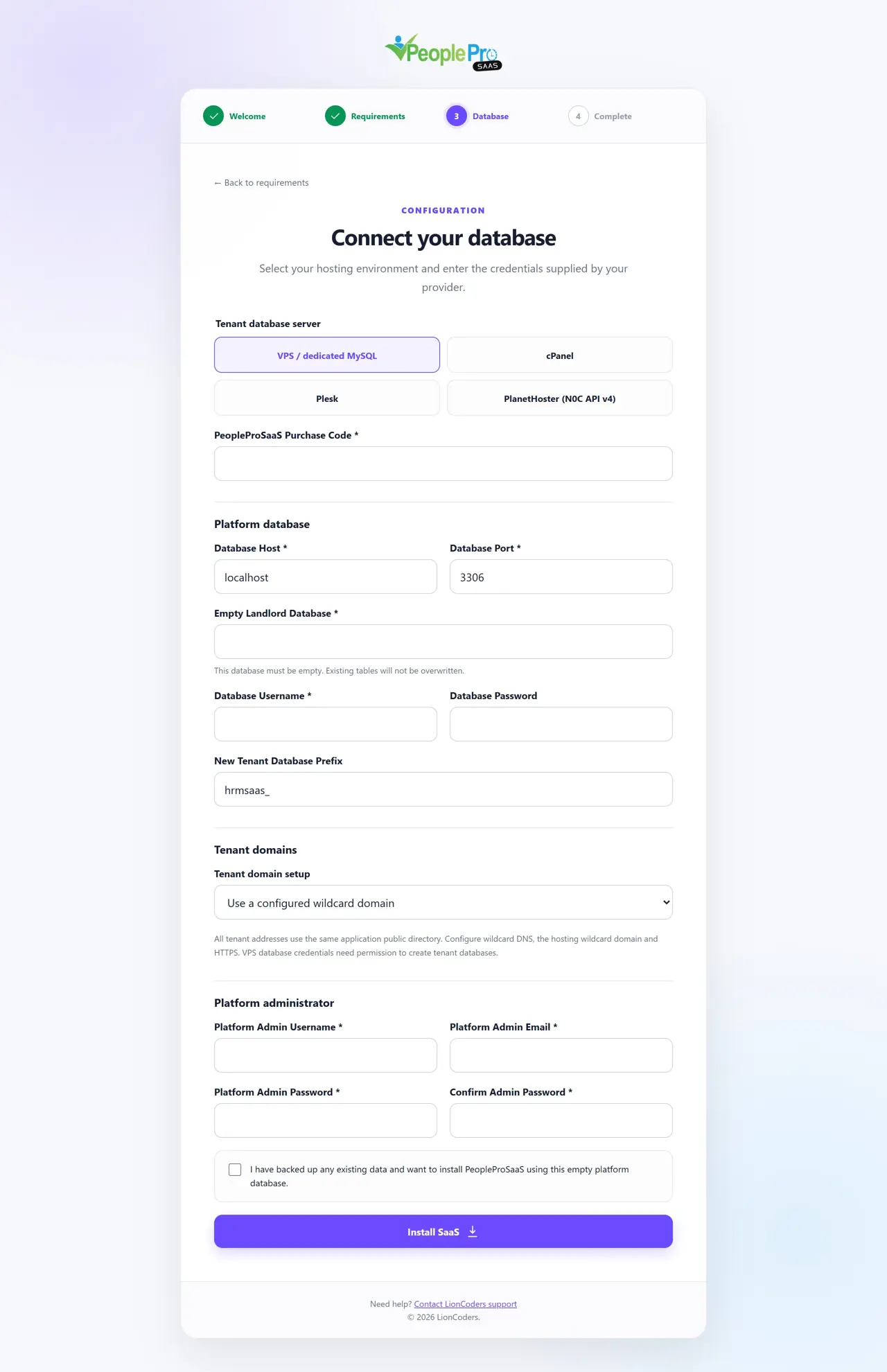
Addon setup: purchase, database and administrator
Enter your PeopleProSaaS purchase code, the empty platform database connection and the new platform administrator details. The wizard detects the central domain from the address you opened; there is no Central URL or First tenant subdomain field. Select VPS / dedicated, cPanel, Plesk or PlanetHoster and provide the required hosting details. Review the confirmation and submit once. The purchase code is verified for the detected domain before database setup begins. Do not enter the old PeoplePro HR database as the platform database.
Addon setup: completion
When setup reports success, choose Open Platform Login and sign in using the platform administrator credentials you just created. Review hosting, mail and packages before inviting customers. Create customer workspaces from Customers & tenants or configured signup. If transferring your previous HR records, follow the instructions you reviewed on the addon upload page. The existing HR database is not automatically registered as a first tenant. Detailed SaaS administration belongs in the separate PeopleProSaaS guide.