Events, Assets, Documents and Support
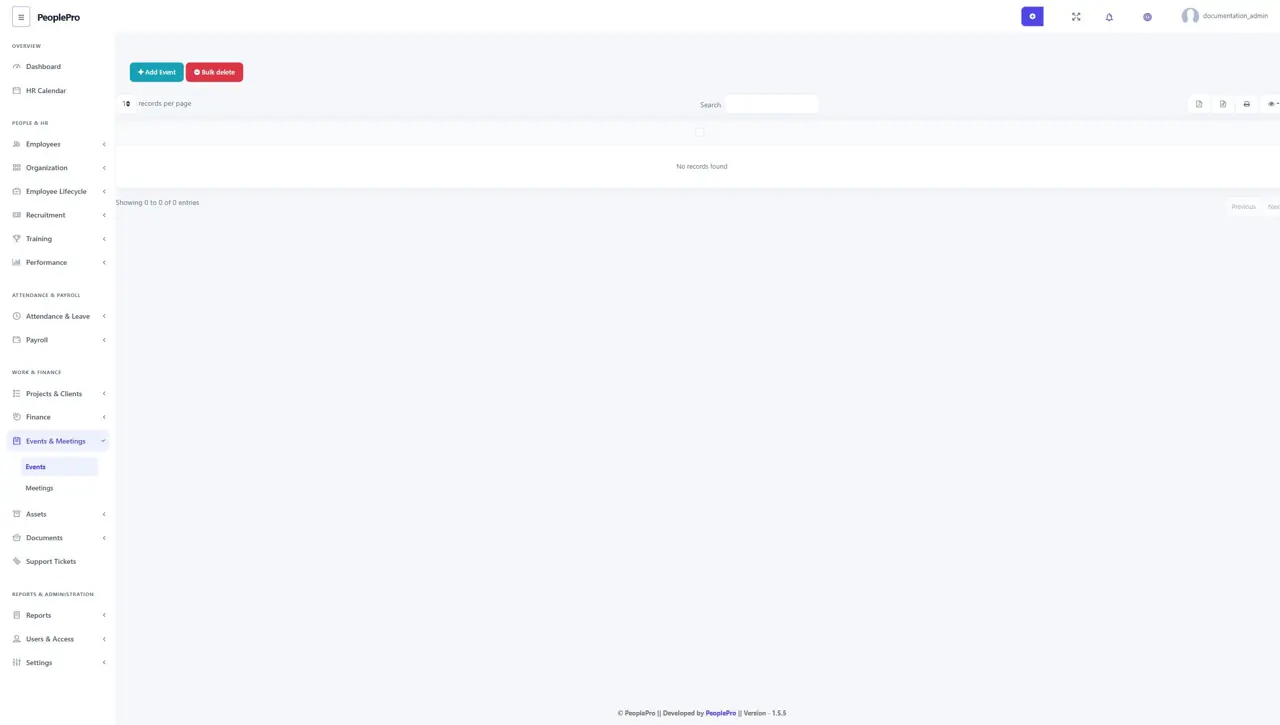
Open Events & Meetings > Events and select Add Event.
Last updated: 16 November 2026 · Product version: not specified in the supplied guide
Events
Open Events & Meetings > Events and select Add Event. Enter the title, company or participants, dates and description requested by the form. Review the schedule before saving. Relevant events can also appear in the HR Calendar, helping your team see planned activities.
Meetings
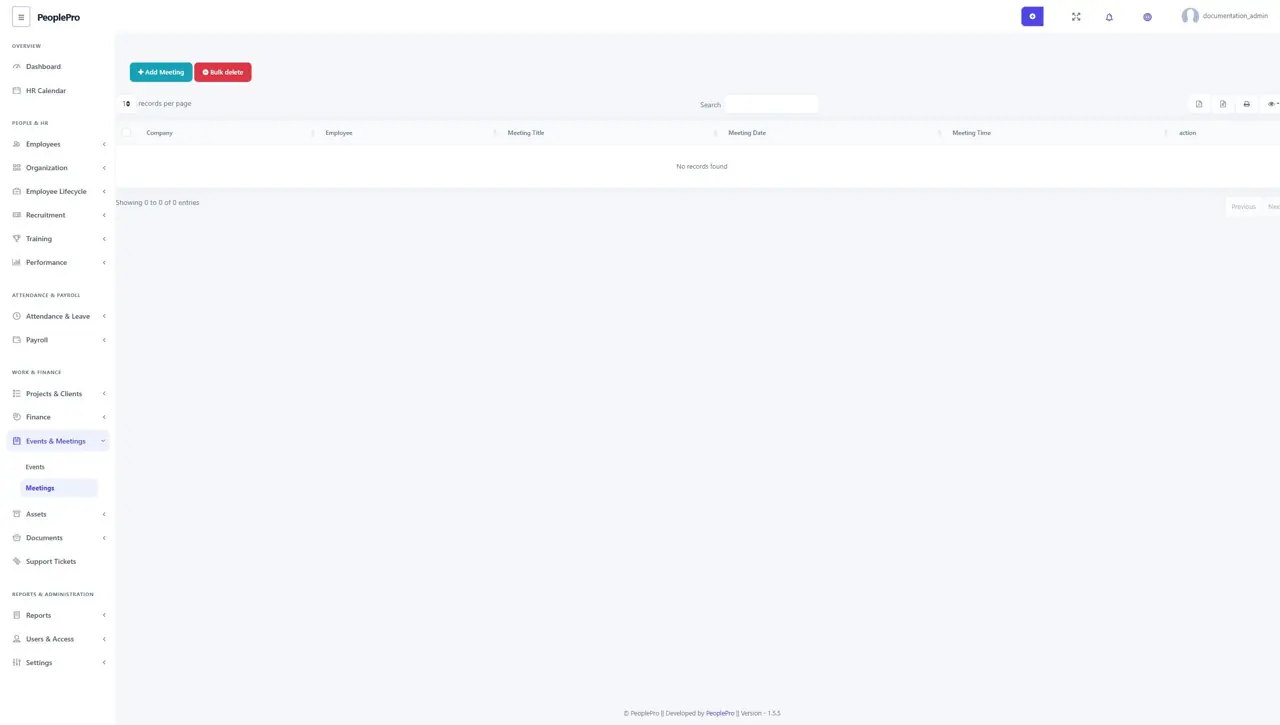
Open Events & Meetings > Meetings and select Add Meeting. Choose the intended company or participants and complete the date, time, location and agenda details offered. Keep the record current if the meeting is rescheduled. Review the HR Calendar to see it alongside other activities.
Asset categories
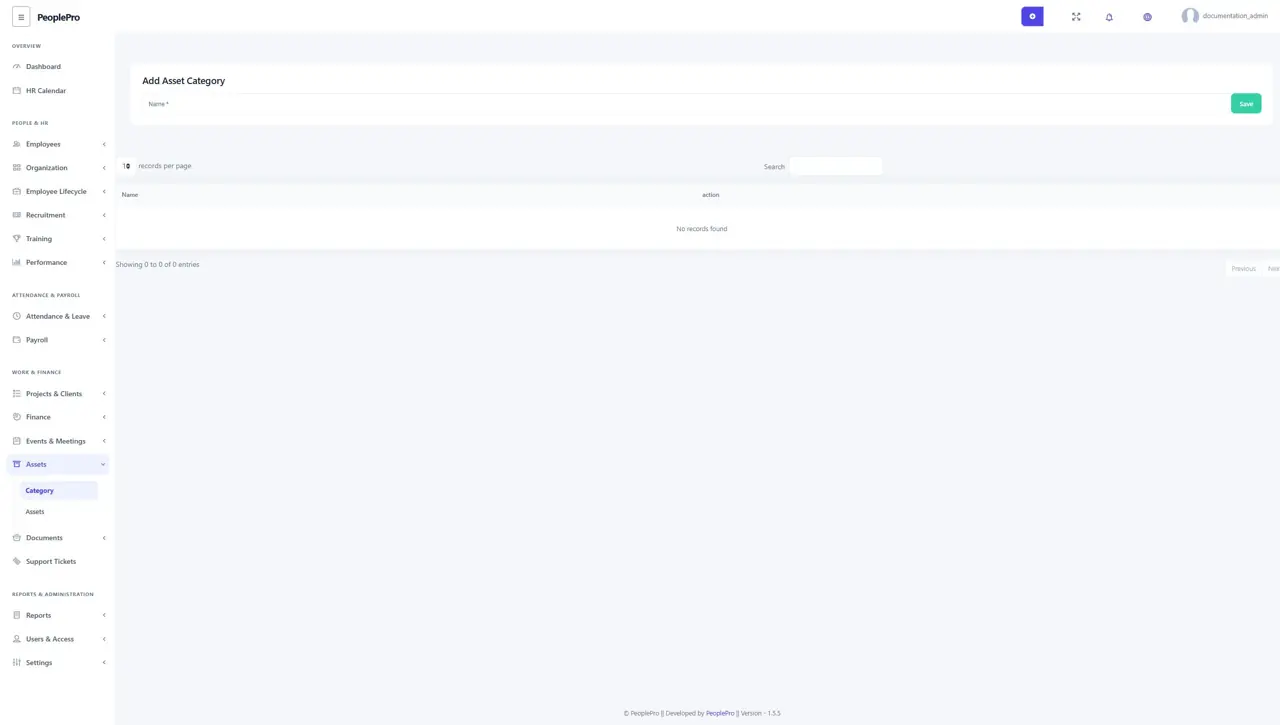
Open Assets > Category to define asset categories such as Laptop, Furniture or Mobile Phone. Add a clear category name before creating assets that use it. Consistent categories make the asset list easier to search and maintain.
Assets and employee assignments
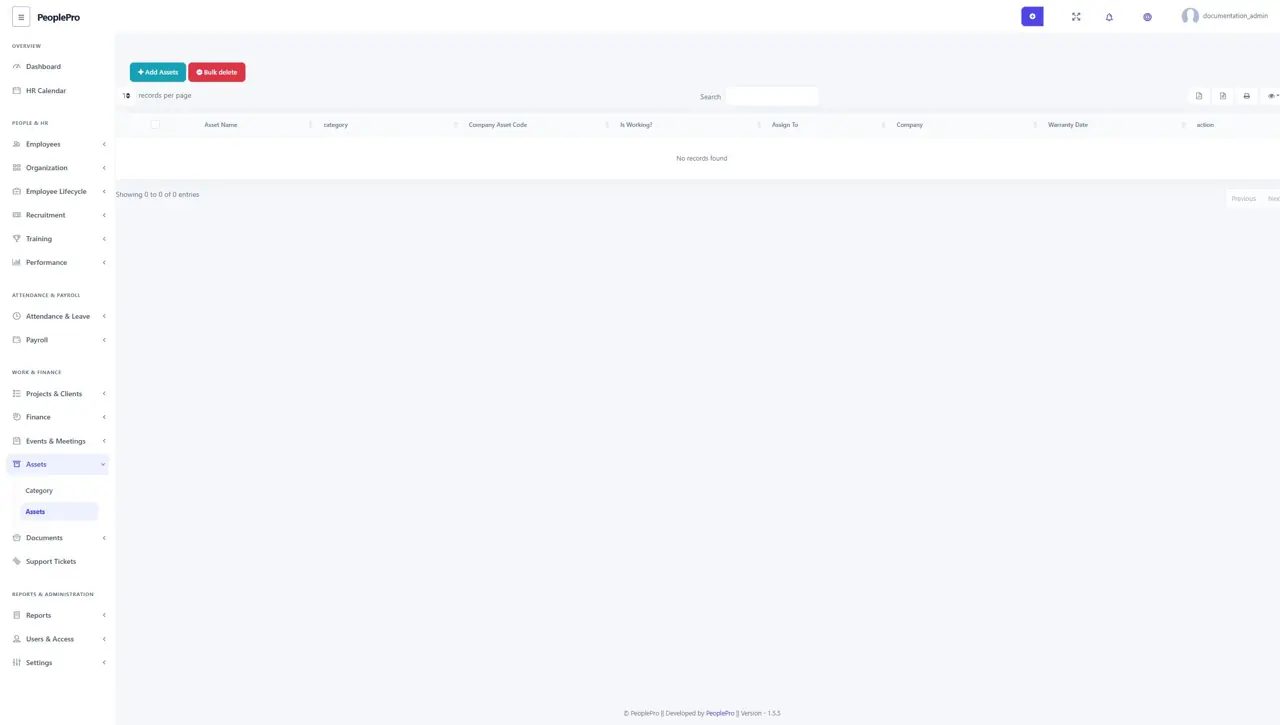
Open Assets > Assets and select Add Assets to register an item. Enter its name, category, company asset code, working condition, company and warranty details. Assign the asset to the appropriate employee where the form allows it. Update the assignment when equipment is returned or reassigned.
File Manager
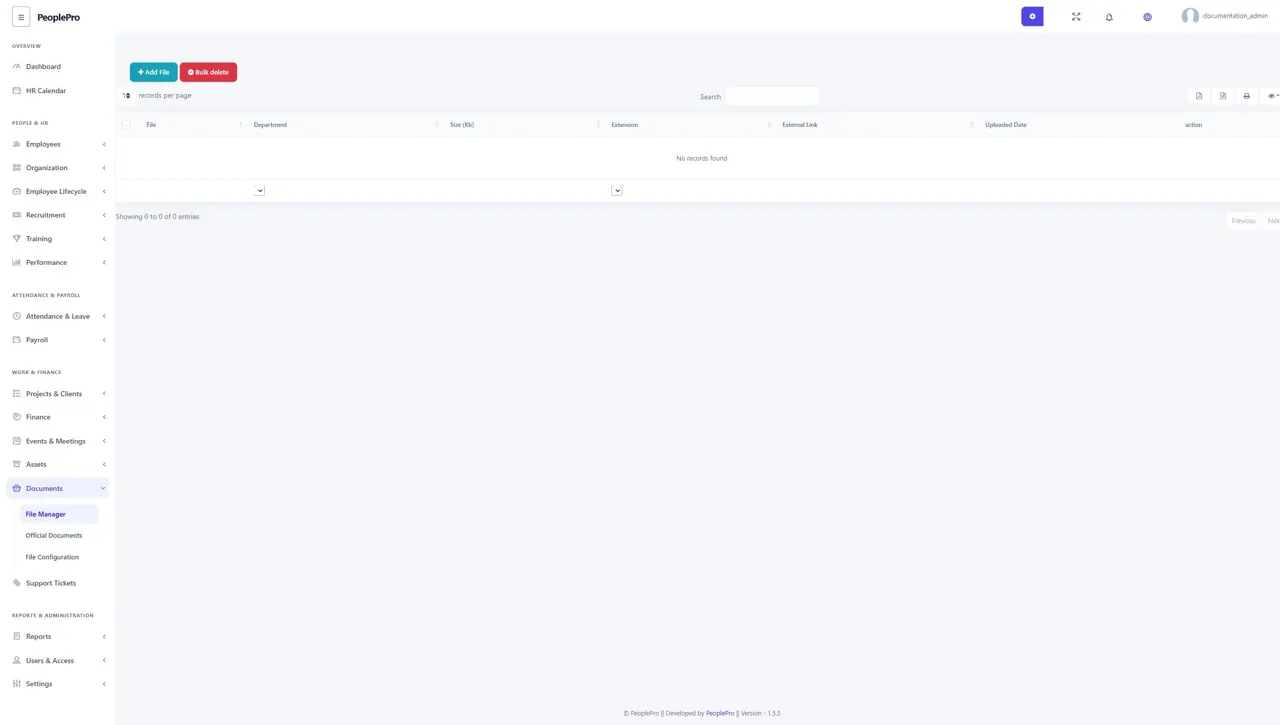
Open Documents > File Manager to upload and organize business files. Select Add File and complete the document title, description, company or access fields offered. Choose the permitted file and save. Use the file list to locate and maintain uploaded material. Check File Configuration if an intended extension or size is rejected.
Official documents
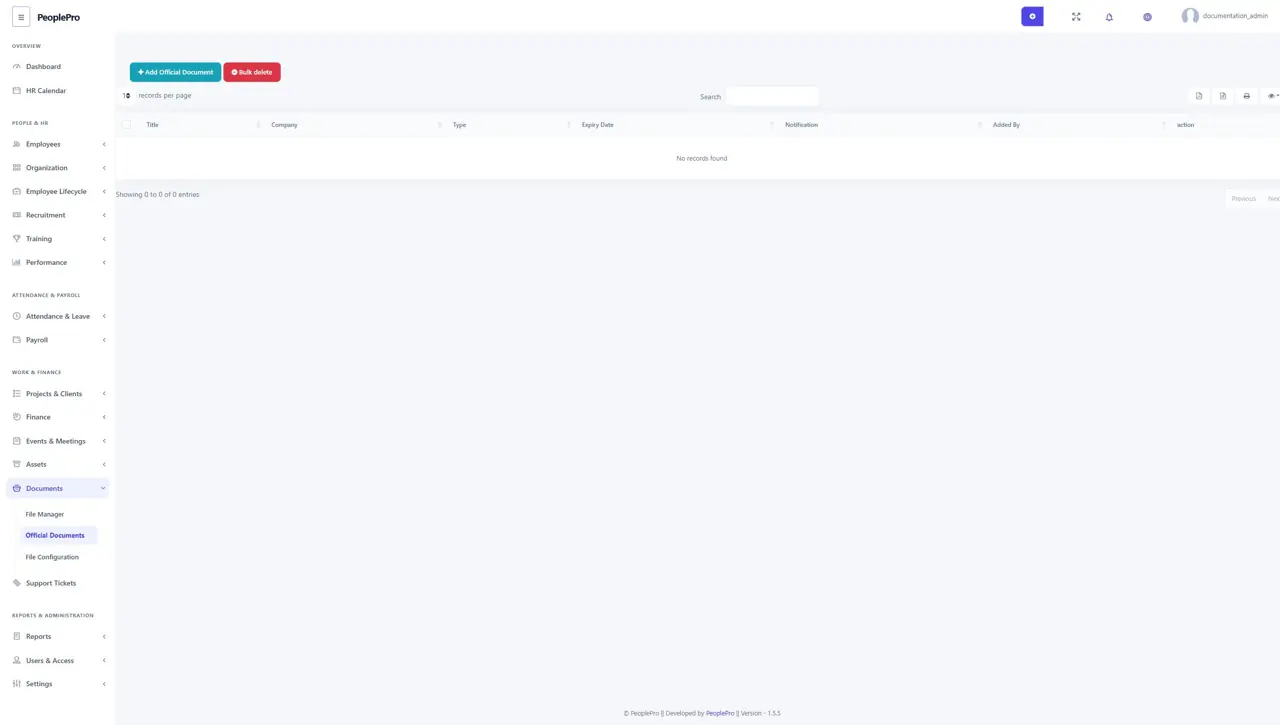
Open Documents > Official Documents for formal company documents. Add the document name, company and the other details shown in the form, then attach the file. Use a clear name that helps authorized users distinguish the document from earlier versions or unrelated records.
File upload configuration
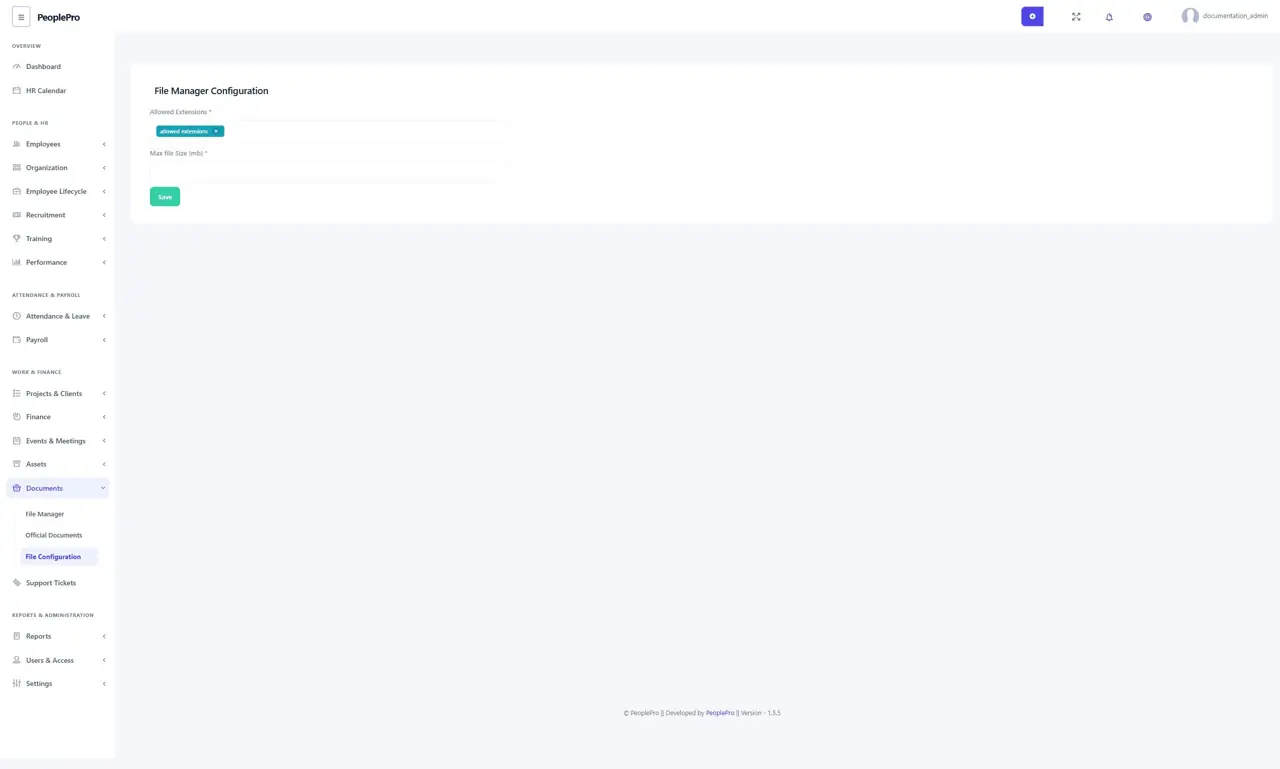
Open Documents > File Configuration to control the allowed upload extensions and maximum file size in megabytes for the file manager. Enter only the formats your organization needs and select the save control. If an upload fails, check both this setting and your hosting provider's PHP upload limits.
Internal support tickets
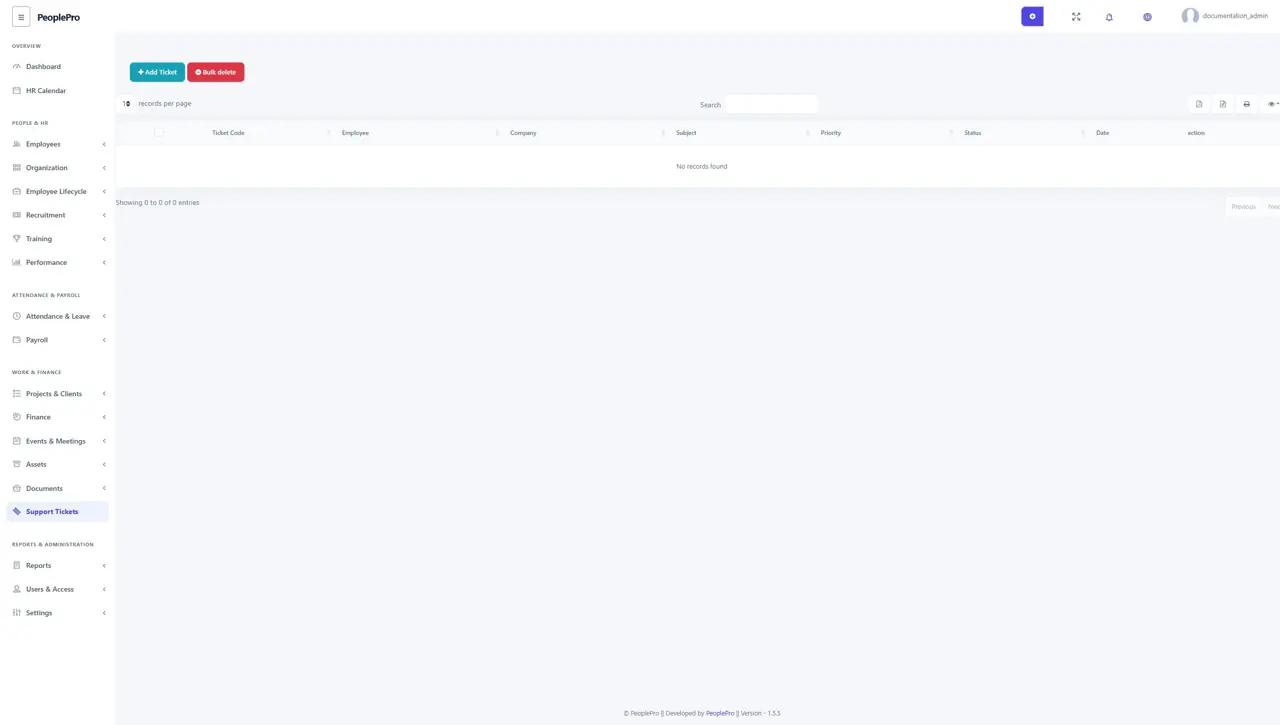
Open Support Tickets to report an internal issue or request help. Select Add Ticket and enter the subject, priority, company or employee and description requested. Authorized users review the ticket and use the available actions to maintain its status and conversation. Include enough detail for the person resolving the issue to understand what happened. These are PeoplePro workspace tickets.