
Employee Self-Service
Employees sign in through the same PeoplePro login page using their own account.
Last updated: 16 November 2026 · Product version: not specified in the supplied guide
Employee dashboard
Employees sign in through the same PeoplePro login page using their own account. Their dashboard shows personal details, designation, department, office shift, payslip and award links, announcements and upcoming holidays. It also brings assigned projects, tasks and tickets together. Their menu is limited by permissions and company access; it is normal for it to differ from an administrator's menu.
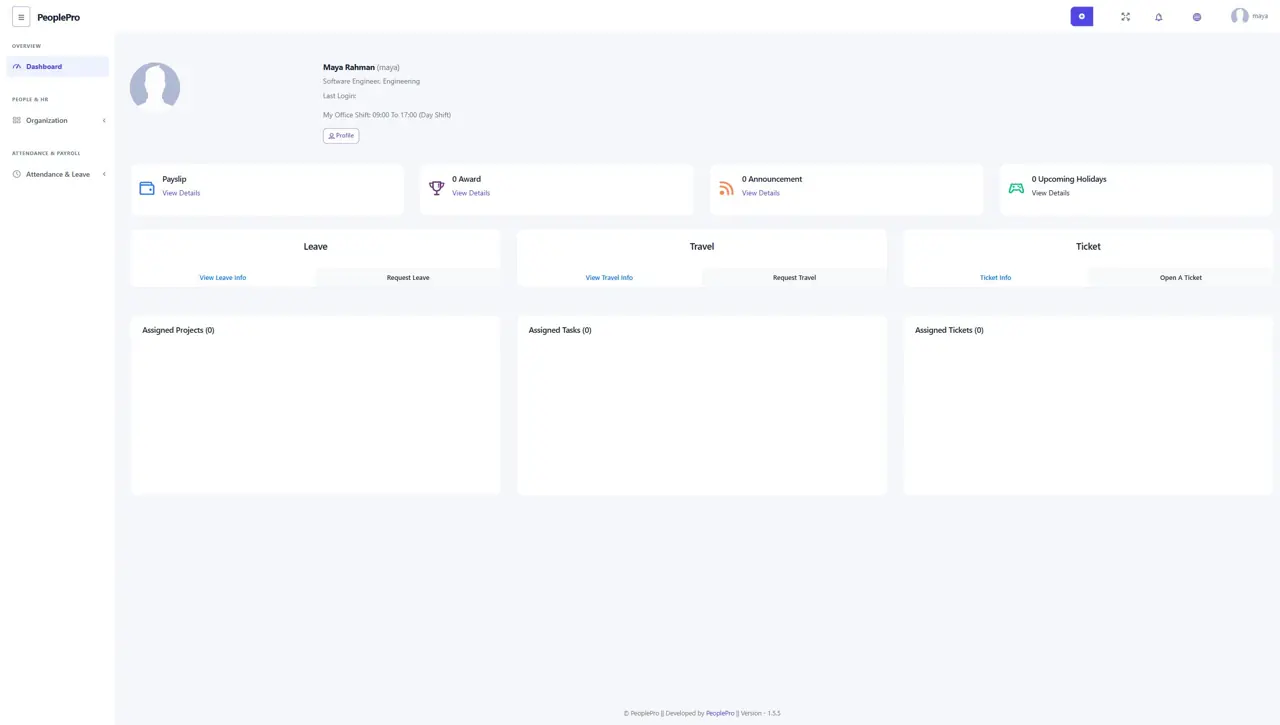
Request leave from the employee dashboard
Select Request Leave in the Leave panel. Complete the leave type, dates and reason requested by the form, review the details and submit. Use View Leave Info to review your requests and their status. Submitting a request does not mean it has been approved; an authorized reviewer follows the organization's leave process.
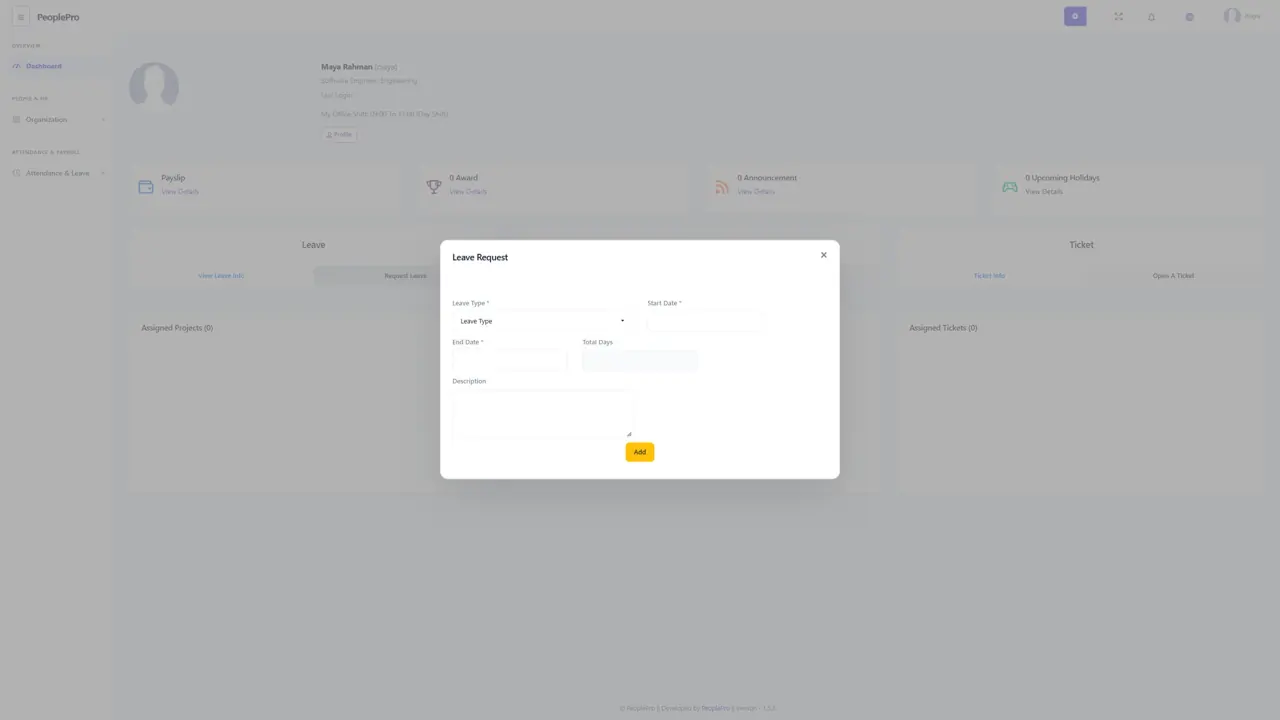
Request travel from the employee dashboard
Select Request Travel in the Travel panel. Enter the trip details, destination and dates requested, then review and submit. View Travel Info opens your travel records. Keep the request aligned with your company's travel and approval policy.
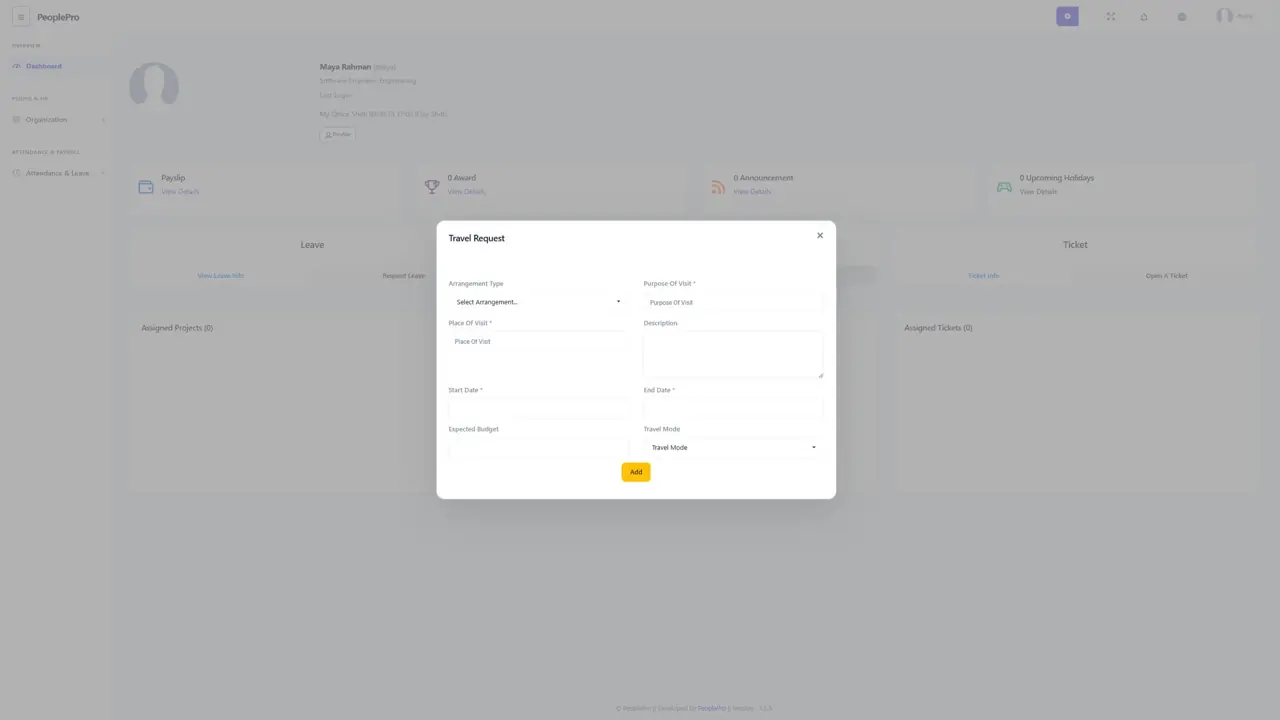
Open a ticket from the employee dashboard
Select Open A Ticket in the Ticket panel. Enter a clear subject, priority and description and complete the other required fields. Submit the request and use Ticket Info to review it later. Explain what happened and what help you need so the responsible person can act on it.
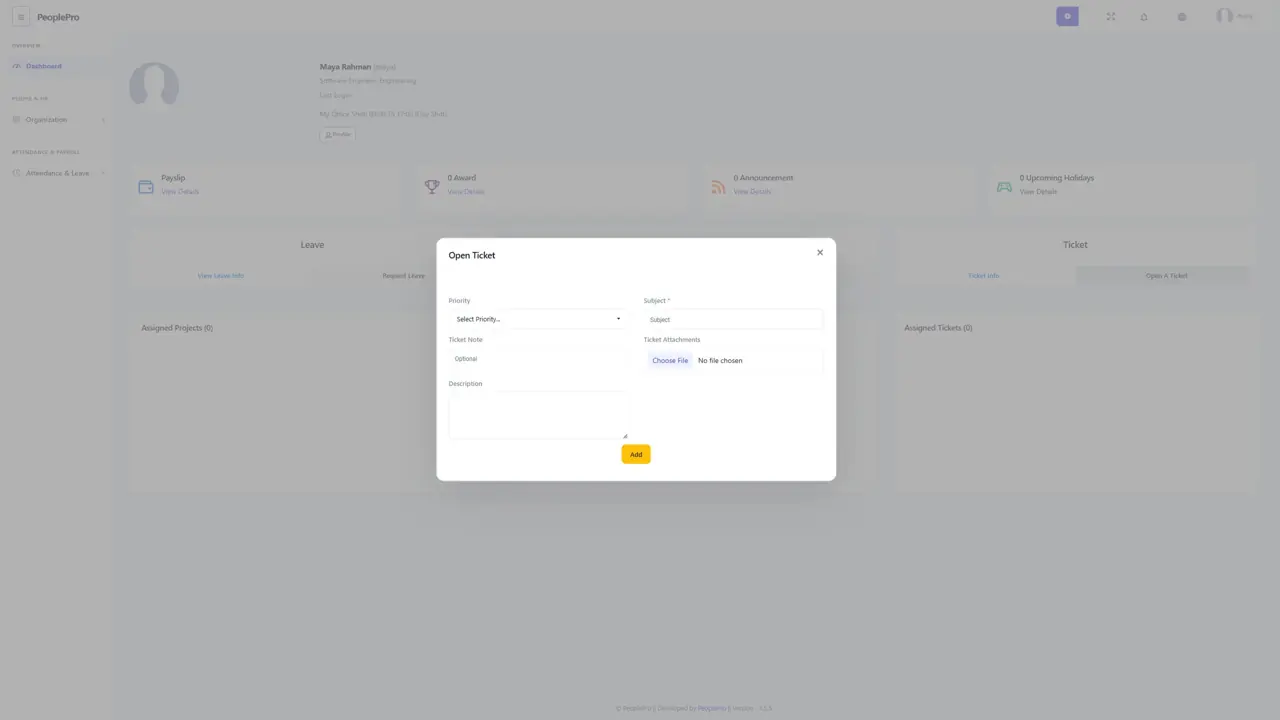
Personal records, payslips and assigned work
Use Profile to open the personal information and records available to you. Payslip links lead to your salary payment documents. Use the assigned projects, tasks and tickets areas to review your work. Access depends on your role; contact HR if an item you need is unavailable. Personal profile and leave screens are described in the employee-record chapters of this guide.