Attendance Requests and Working-Day Leave
Open Attendance Requests from My Work or Attendance & Leave.
Last updated: 16 November 2026 · Product version: not specified in the supplied guide
Ask for a missed punch or a time correction
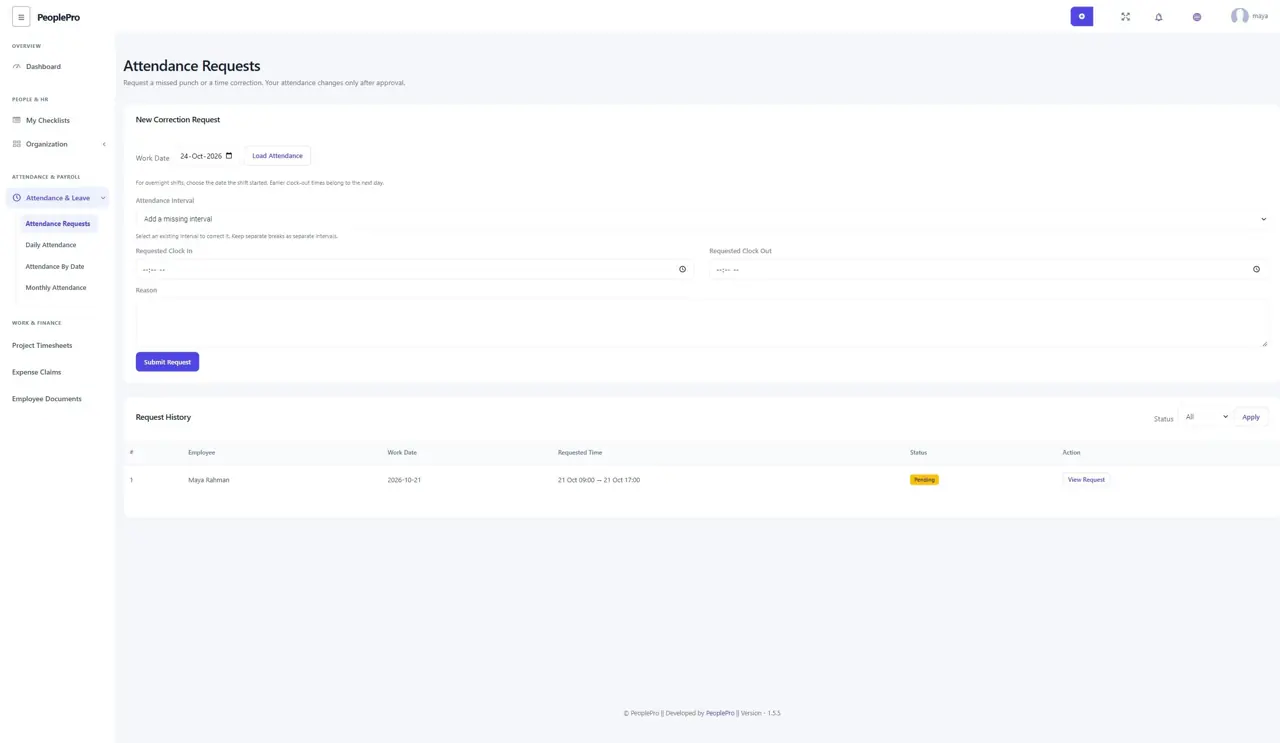
Open Attendance Requests from My Work or Attendance & Leave. Choose the work date, enter the actual clock-in and clock-out, and explain what happened. If several attendance intervals exist, select the one that needs correction and keep separate breaks as separate intervals. Submit once. The request does not change attendance immediately; authorized HR must review it.
Request a correction for a night shift
For work that starts on one day and finishes the next morning, choose the date the shift started. For example, use Monday for a Monday 22:00 to Tuesday 06:00 shift. An earlier clock-out time is treated as the following day according to the assigned shift. Explain the correction clearly. Future punches, conflicting intervals and duplicate pending requests for the same work date are rejected.
Follow the decision and original attendance
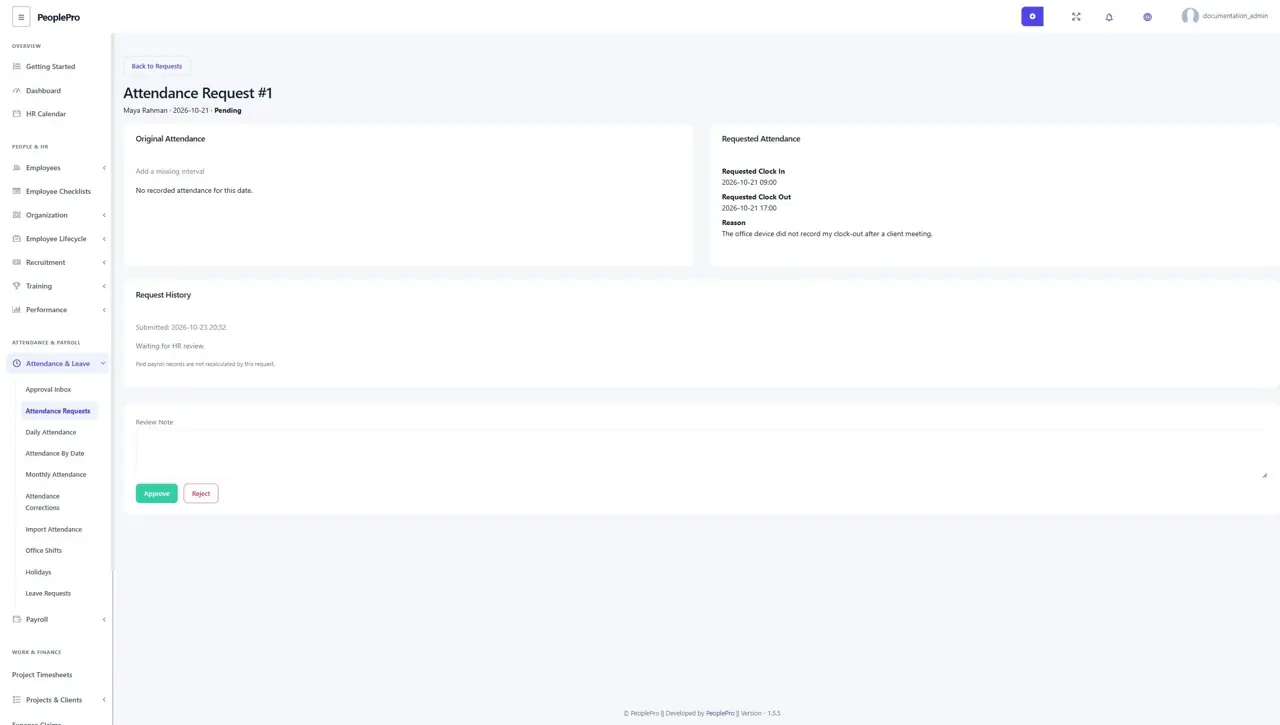
Open a request to compare the original attendance with the requested time. The page retains the reason, reviewer and decision history. HR can approve or reject with a note. If attendance or the assigned shift changed after submission, HR must review the new situation instead of applying an outdated request. An approved correction does not recalculate an already-paid payroll record.
Review team correction requests
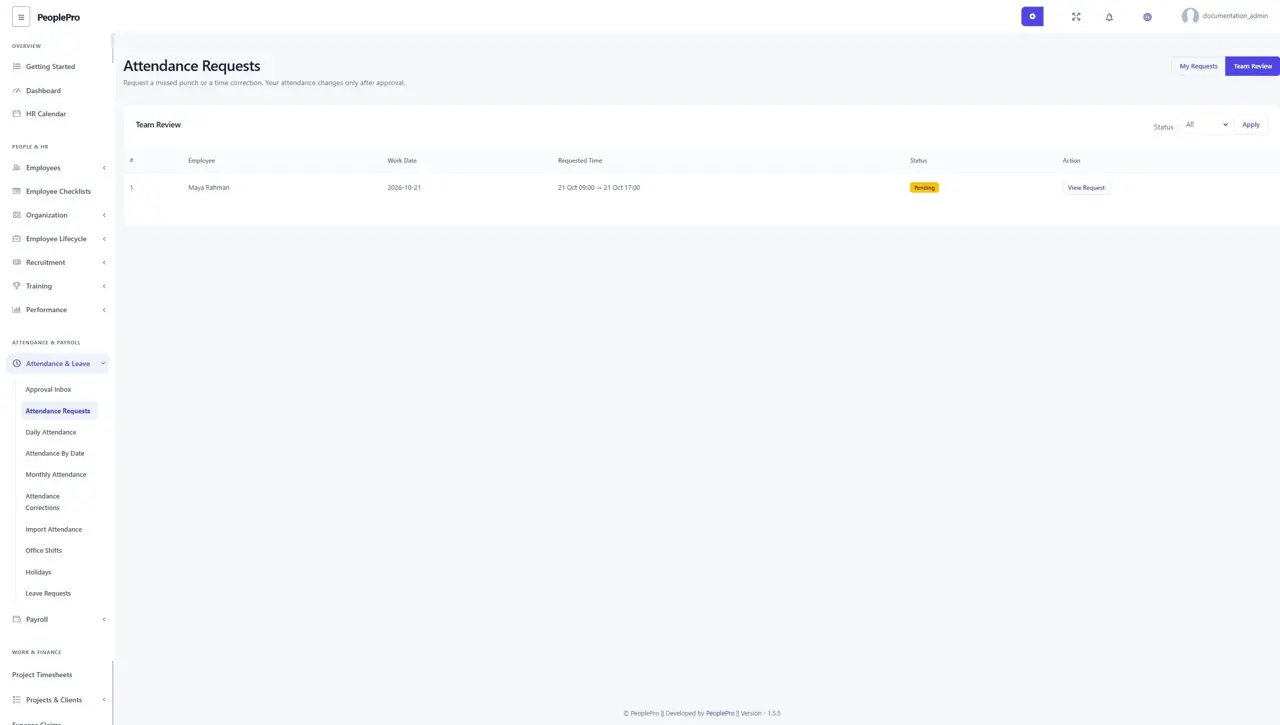
An authorized attendance reviewer can switch from personal requests to Team Review. Open the intended record and inspect the work date, employee, original interval and requested interval before deciding. A reviewer cannot approve their own request. Company access and package restrictions still apply; a role permission alone does not open another company.
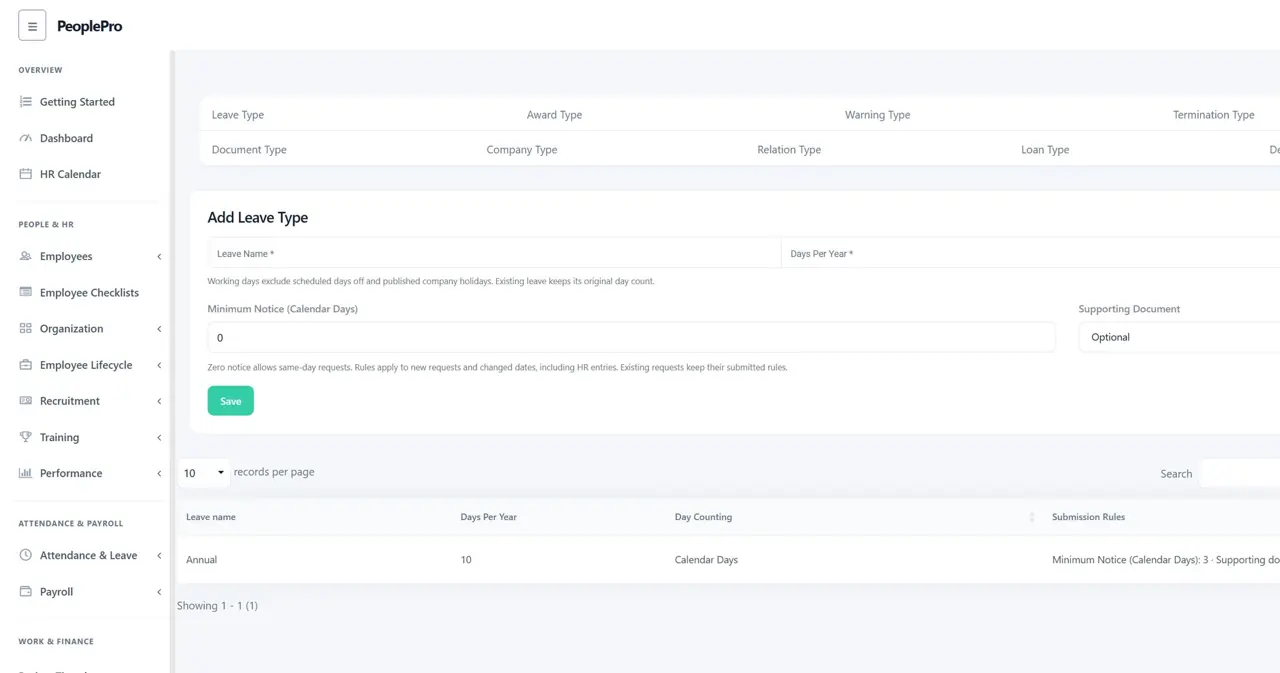
Choose how a leave type counts days
Leave types can use Calendar Days or Working Days. Calendar Days count the requested date range as usual. Working Days use the employee assigned shift days and published holidays for that company. Review the calculated preview before submitting leave. Existing saved leaves keep their recorded day calculation when a holiday or policy is changed later; changing a type does not silently rewrite old leave balances.