Billable Time and Workload Planning
When adding or editing a draft time entry, choose Billable or Non-billable under Time Type.
Last updated: 16 November 2026 · Product version: not specified in the supplied guide
Choose the type of actual project time
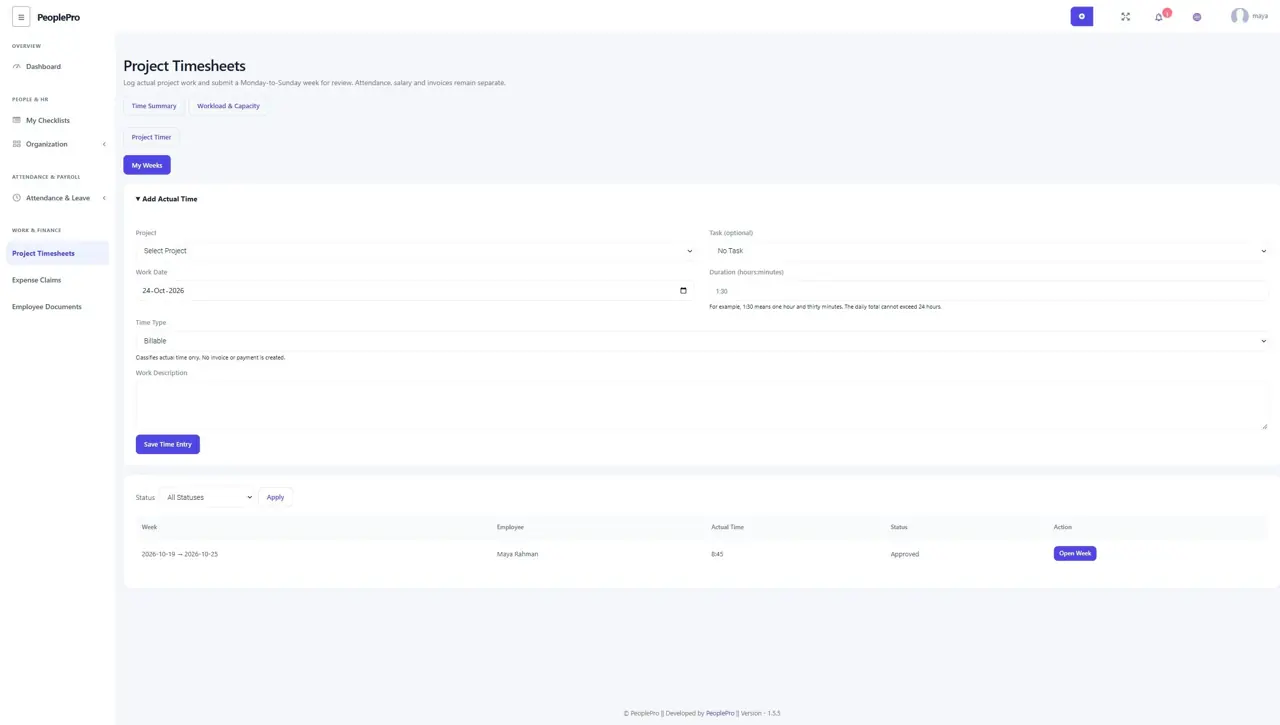
When adding or editing a draft time entry, choose Billable or Non-billable under Time Type. New forms start with Non-billable; review this choice before saving. The label records how the work should be categorized and does not create a charge, invoice or payment. Existing records stay Unclassified after an upgrade. If an old draft entry needs editing, choose its type explicitly. Submitted weeks must be withdrawn before editing, and approved weeks stay locked.
Carry the time type through a project timer
The Start Timer form includes the same Time Type choice. That choice is saved when the timer starts and follows every time entry created when it stops, including work split across midnight or two weeks. An older running timer that had no saved type remains Unclassified. The timer history retains its original type even if a draft time entry is later corrected. Repeated Start or Stop requests do not create duplicate work.
Review billable and non-billable totals
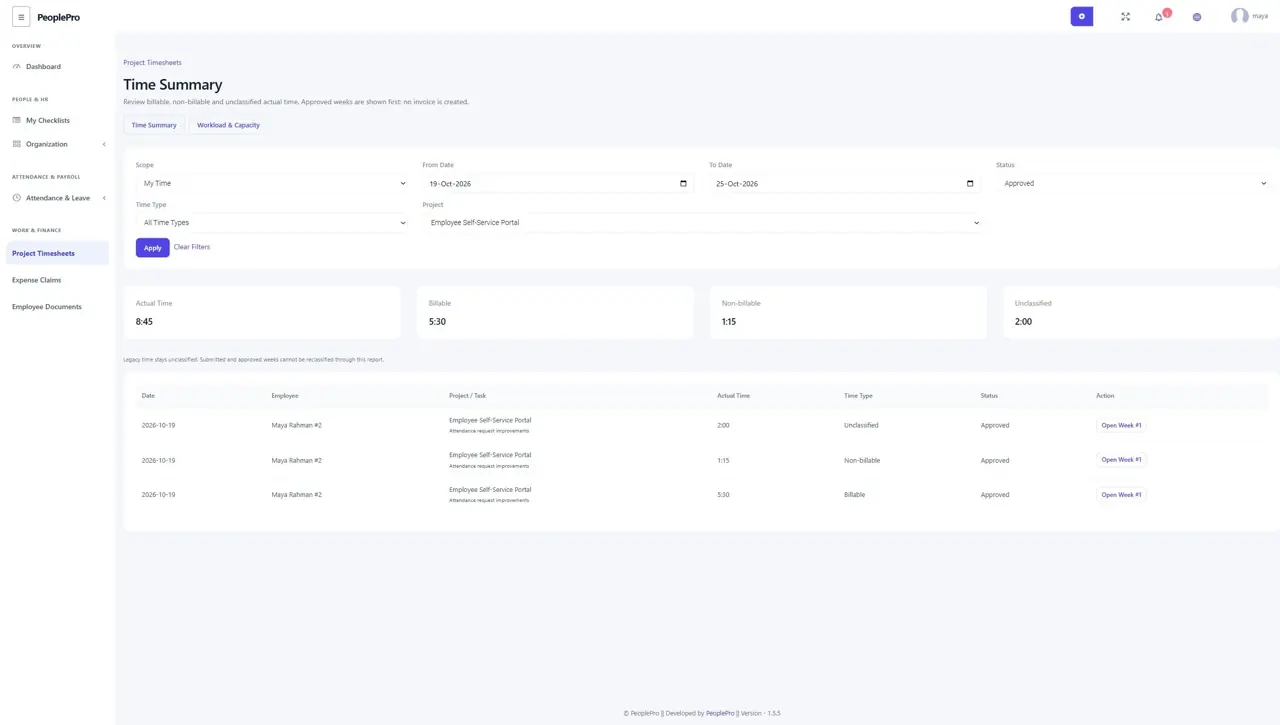
Open Project Timesheets > Time Summary. My Time shows your own records. Authorized reviewers can choose Team Time within their company access. Select a date range of up to 93 days, the project, time type and weekly status; reviewers can also narrow the results to an employee. Approved weeks are shown by default. The four totals follow the selected filters, and Open Week leads to the full saved timesheet. Removed entries and running timers are excluded. Unclassified time is shown separately and is never silently counted as billable.
Set available hours for an employee week
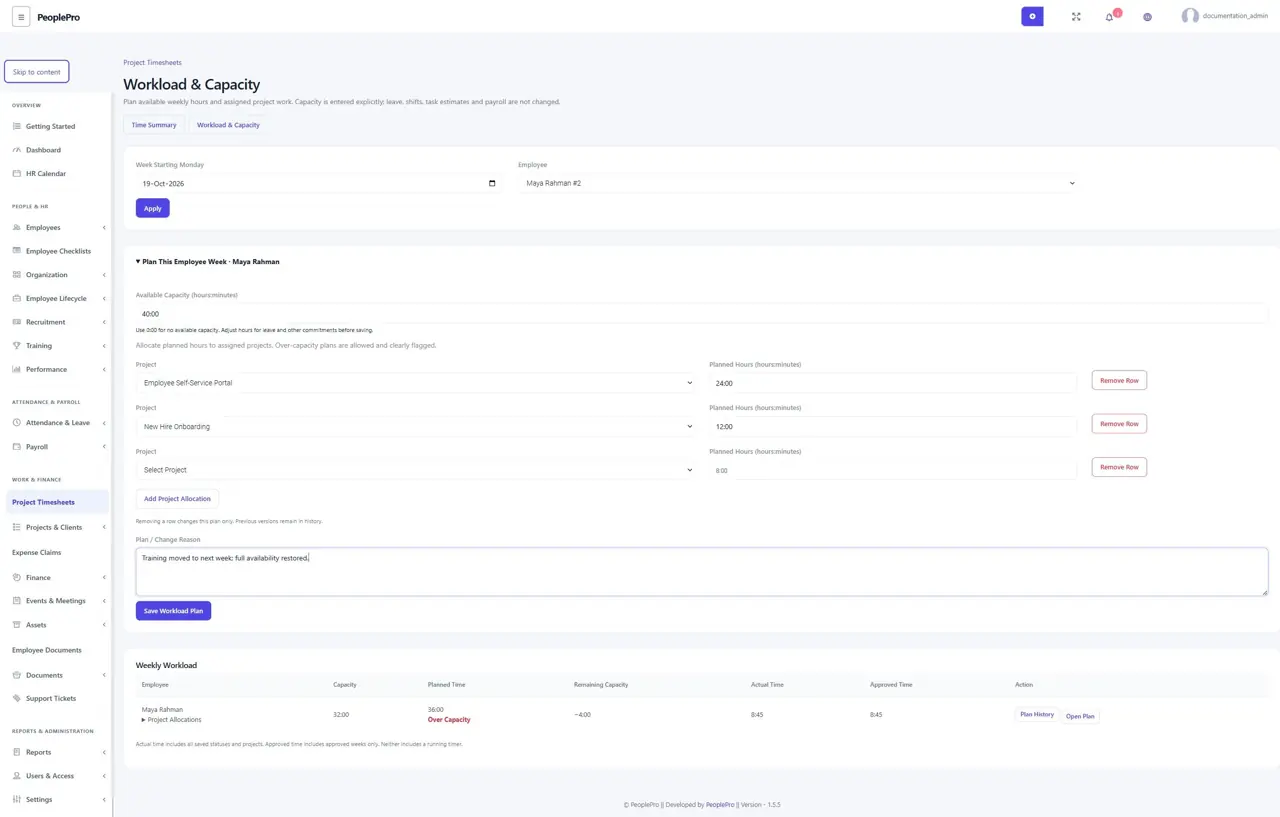
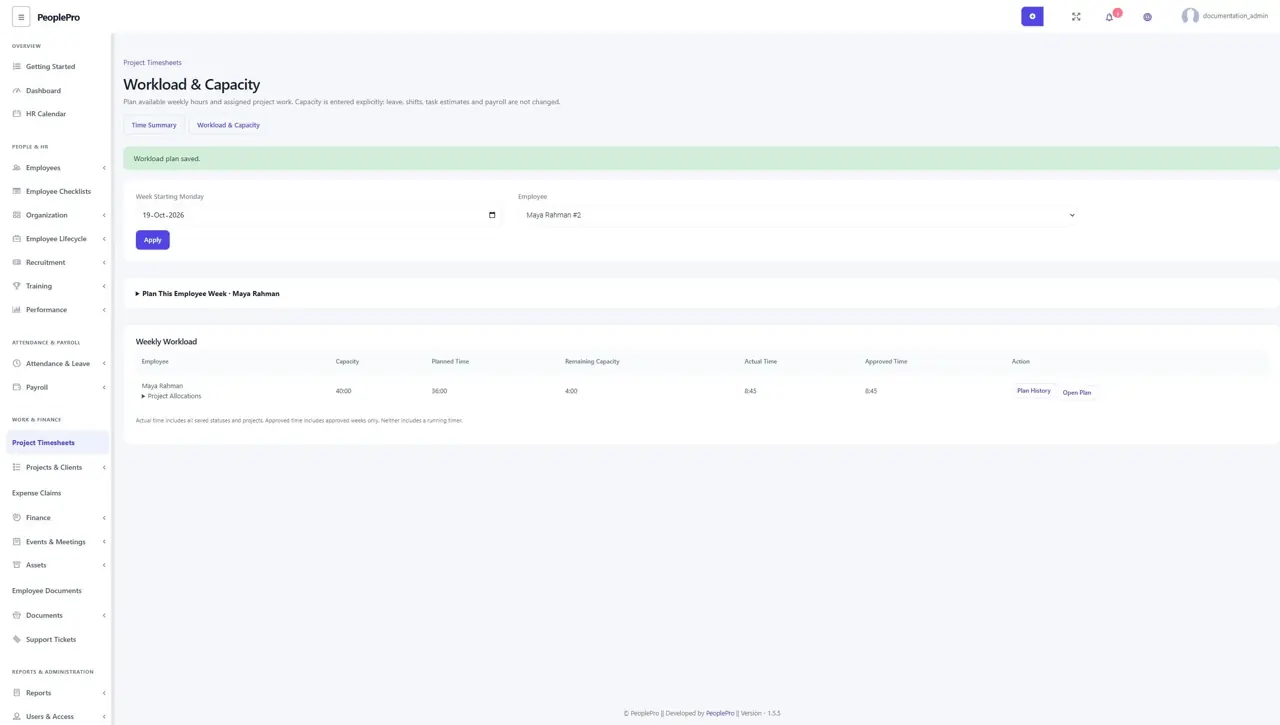
Open Project Timesheets > Workload & Capacity. A project-timesheet reviewer selects an active employee and a Monday week start, then expands Plan This Employee Week. Enter available hours as hours:minutes, for example 40:00. Use 0:00 when no time is available. Adjust availability for leave, training, meetings or other commitments yourself before saving. PeoplePro does not infer capacity from shifts or deduct leave automatically. You can plan the current week and up to 52 weeks ahead; past plans are read-only.
Allocate hours to assigned projects
Use Add Project Allocation to add a project and its planned hours. Only projects assigned to this employee in the same company are accepted. Enter each project once; use Remove Row to leave it out of the revised plan. You can save up to 50 project allocations, with a total of no more than 168 hours in one week. You may plan more than the available capacity: the overview clearly marks Over Capacity and shows the shortfall. Add a reason, then select Save Workload Plan. If another reviewer changed the plan, reopen it before saving again.
Compare the plan with saved actual work
Weekly Workload shows available Capacity, Planned Time, Remaining Capacity, Actual Time and Approved Time. Remaining Capacity compares planned work with entered availability; it is not a remaining budget or an attendance balance. Actual Time includes all saved weekly statuses and all projects for that employee and work week, while Approved Time includes approved weeks only. Neither includes a running timer. Employees without a saved plan have no assumed capacity. Ordinary employees can read their own plans but cannot change capacity or inspect another employee.
Keep explained plan changes and previous versions
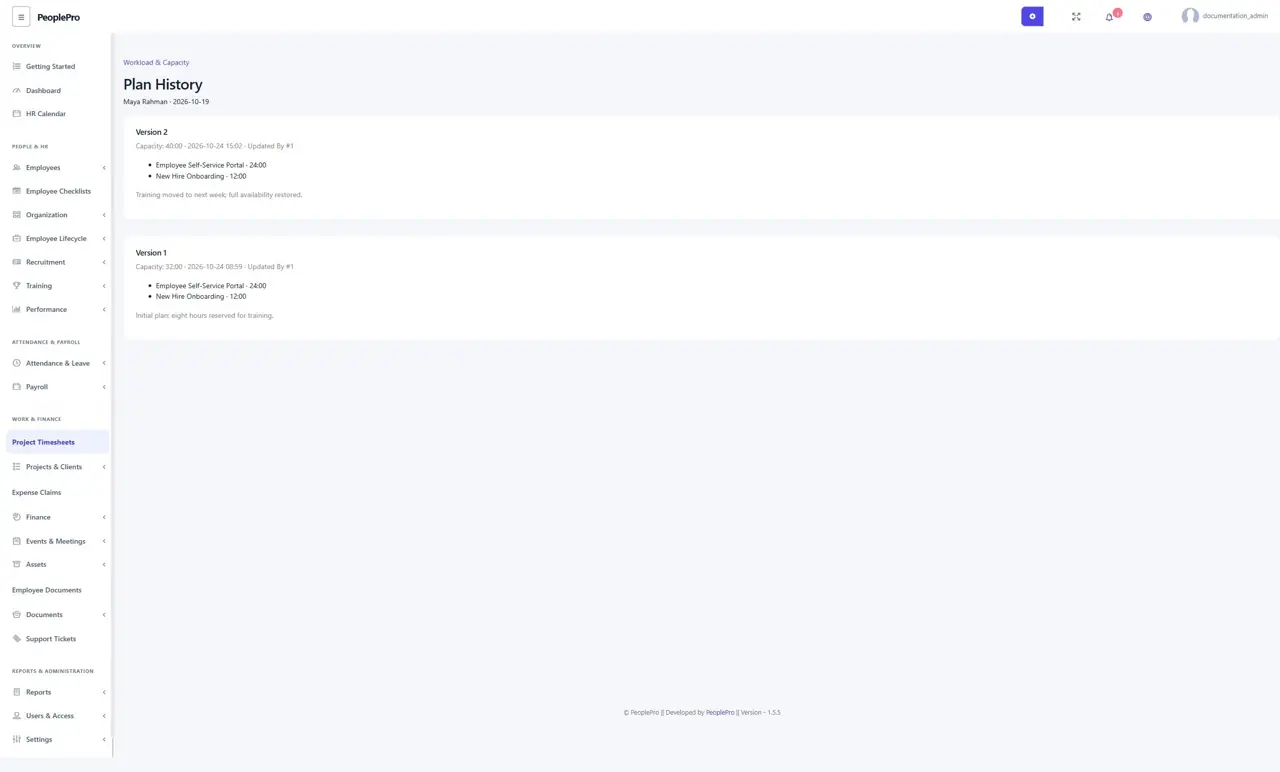
Plan History keeps each saved capacity, project allocation and change reason with its version, time and actor reference. Updating or clearing allocations creates a new version rather than deleting the previous record. Plans retain their company and employee-name snapshot after a later company move; new-company work does not mix into an old-company plan. Normal employee deletion is blocked when planning history exists, so use the usual employment lifecycle process. Authorized administrators can also find the limited change record under HR Audit Trail > Project Workload. Planning does not change task estimates, attendance, leave balances, salary or invoices.