
Hiring Pipeline, Scorecards and Offers
Open Recruitment > Hiring Pipeline.
Last updated: 16 November 2026 · Product version: not specified in the supplied guide
Follow applications through the hiring stages
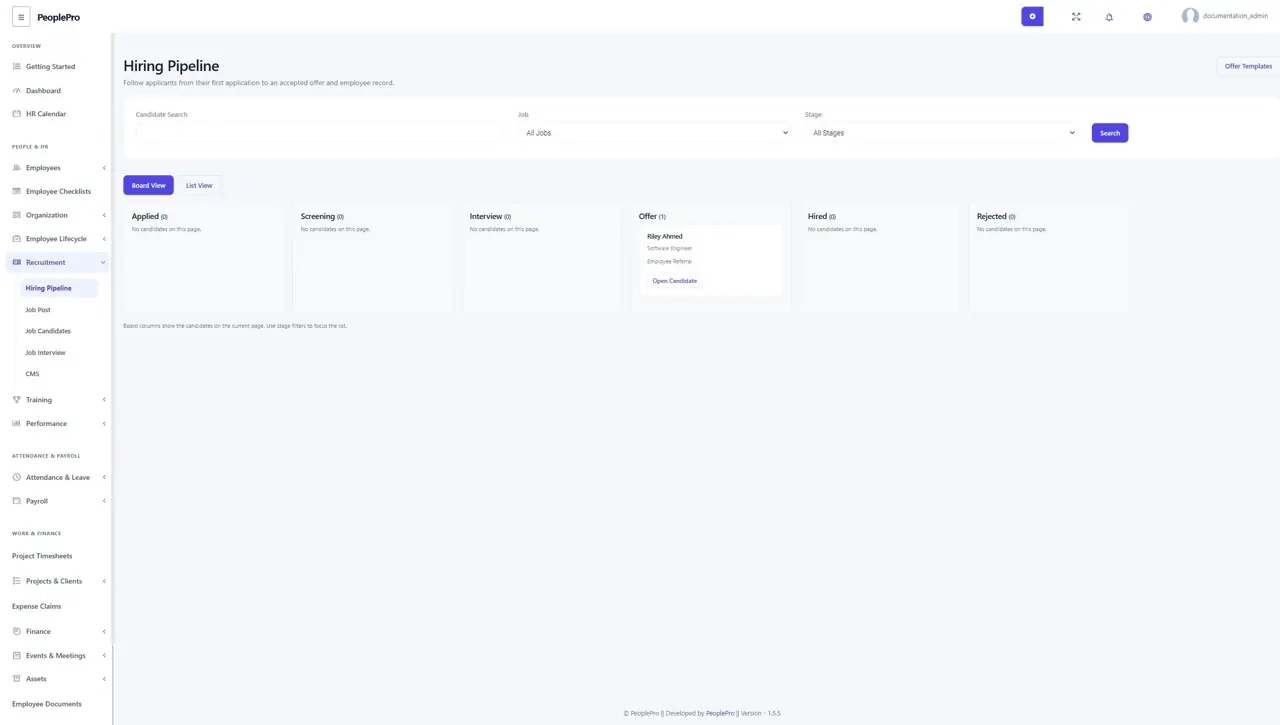
Open Recruitment > Hiring Pipeline. Board View groups candidates by stage; List View makes it easier to search. Filter by job, stage or candidate name/email. Board columns show the current page of candidates, so use the filters and pagination for a larger recruitment campaign. Open Candidate to review an application. The stage changes through its form, rather than by dragging a card.
Record the source and next stage
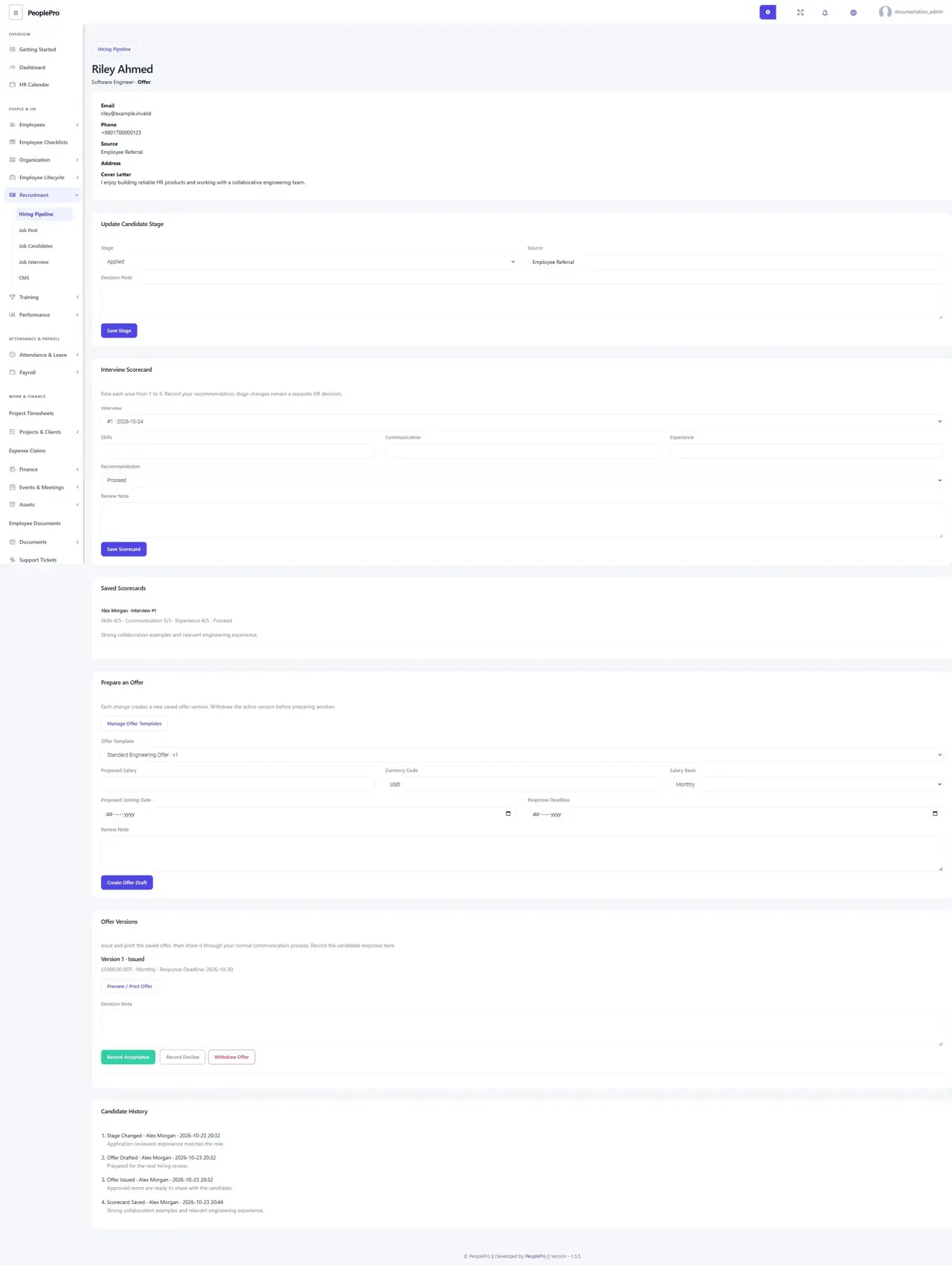
Authorized recruitment staff can record the candidate source, move an application through screening/interview or rejection, and add a reason. An active offer must be withdrawn before moving the candidate back to another stage. Candidates linked to employees and records with hiring history are retained. A job with candidates/interviews cannot be deleted; close the job instead.
Add an interview scorecard
After an interview is scheduled, an assigned interviewer with candidate/interview access can save their own skills, communication and experience scores, recommendation and notes. Recruitment managers can review the scorecards together. Ordinary readers do not see other interviewers private scorecards or offer salaries. Scores help a person make the decision; PeoplePro does not automatically select or reject candidates from the ratings.
Create and issue an offer version
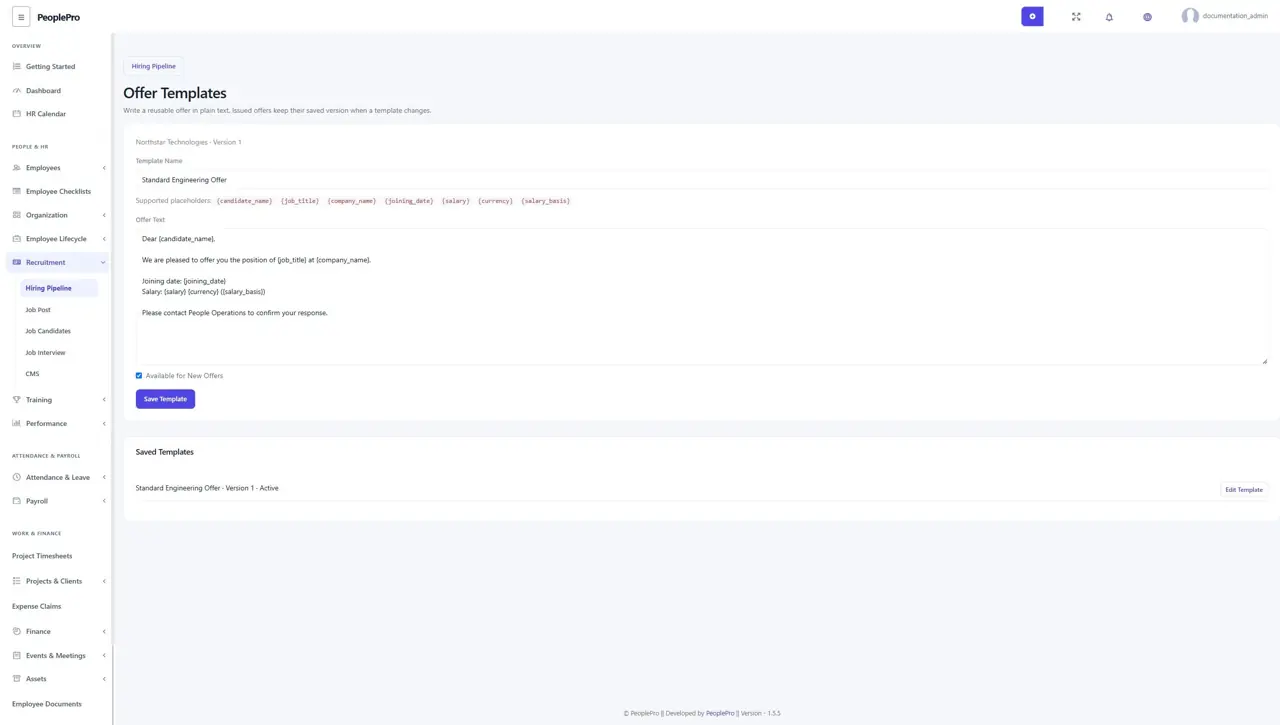
Open Offer Templates and write the offer in plain text using the listed placeholders. On the candidate page, choose a template, salary, currency, monthly/hourly/annual basis, joining date and response deadline. Create a draft, review it and issue it. Issued offers retain their saved wording and terms when the template changes. Use Preview / Print Offer and your browser print options to print or save a PDF, then share it through your usual communication process.
Record the response and create the employee
Record acceptance, decline or withdrawal with a note after communicating with the candidate. An expired offer must be withdrawn and replaced. After acceptance, Create Employee from Candidate opens the normal employee form with available contact details and joining date. Complete the department, designation, shift, staff ID and login details. Submission creates one linked employee and respects SaaS account limits. Set salary in the employee profile separately; the offer amount is not silently treated as a payroll salary.
Give the hiring team the right access
Managing stages and offers requires Job Candidates viewing and Job Post editing rights for the accessible company. Employee handoff also requires permission to add employees. Assigned interviewers need candidate/interview viewing access to submit their own scorecards. The interview form can record a meeting with Send Email Invitations switched off when mail delivery is not configured. Turning it on queues invitations only after the interview is saved.