Reports
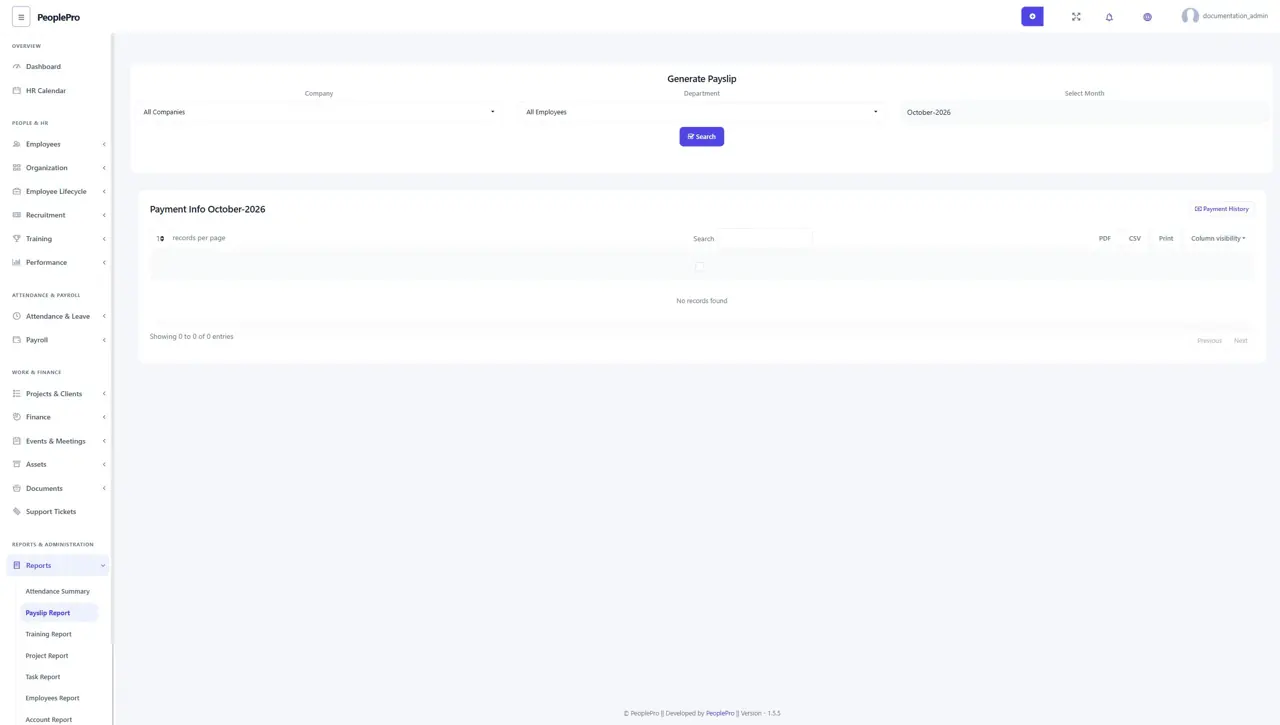
Open Reports > Payslip Report to review salary payments for a selected period.
Last updated: 16 November 2026 · Product version: not specified in the supplied guide
Payslip report
Open Reports > Payslip Report to review salary payments for a selected period. Choose the company and the available department or employee scope, select the month, then choose Search. Review the employee name, paid amount, payment month, payment date and payslip type. Use PDF, CSV or Print when you need a copy for an authorized colleague. An empty table means that no matching payment records were found; check the month, company and Payment History before assuming a salary has been paid. This report reviews recorded payments; it does not send money to employees.
Attendance summary report
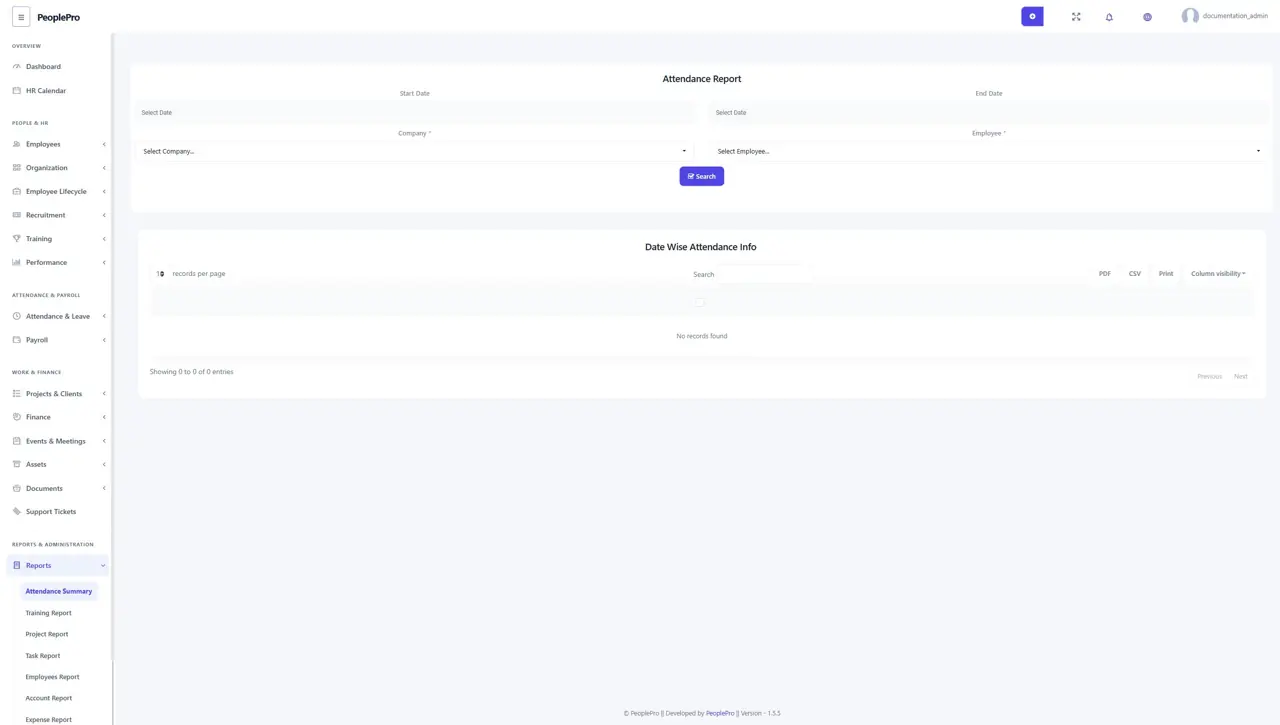
Open Reports > Attendance Summary. Select the company, employee and date or month filters offered, then run the search. Review attendance totals for the selected period before payroll or an HR review. Use the available export or print controls to share the result with authorized colleagues.
Training report
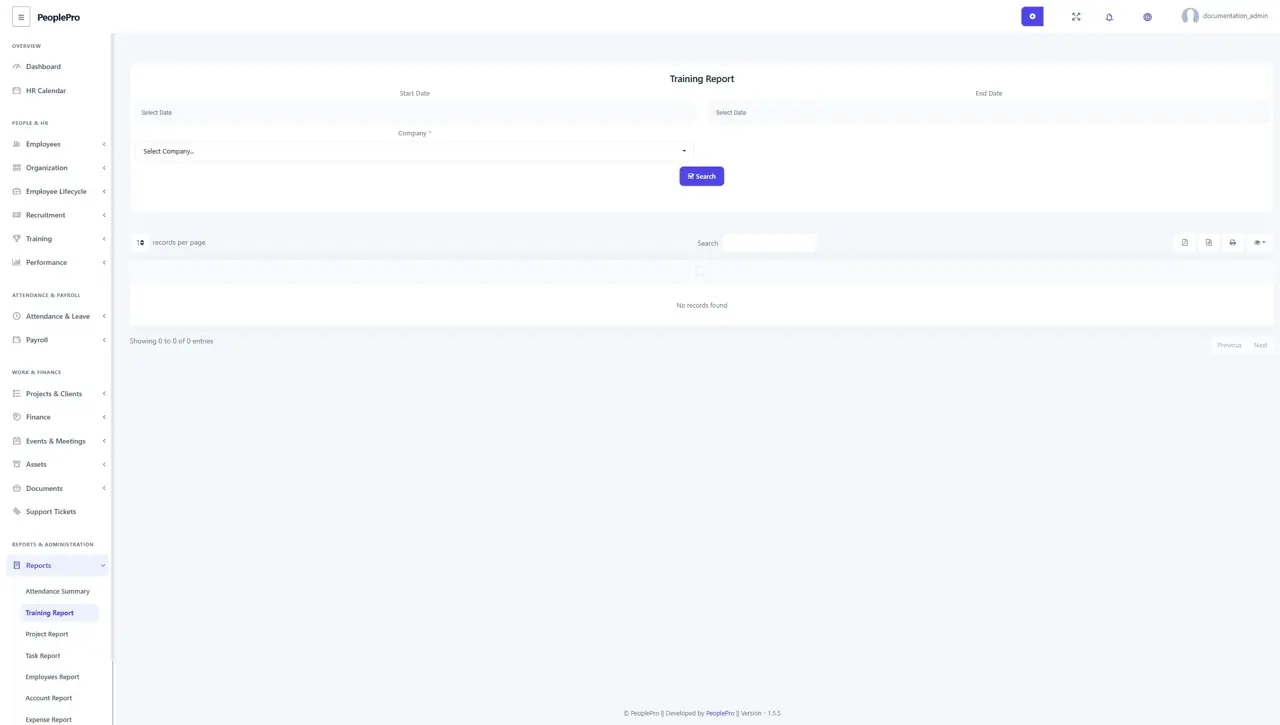
Open Reports > Training Report, choose the available company, employee, trainer or period filters, and select Search. Review the training records matching your selection. Use this report when checking participation and the training activity recorded by the organization.
Project report
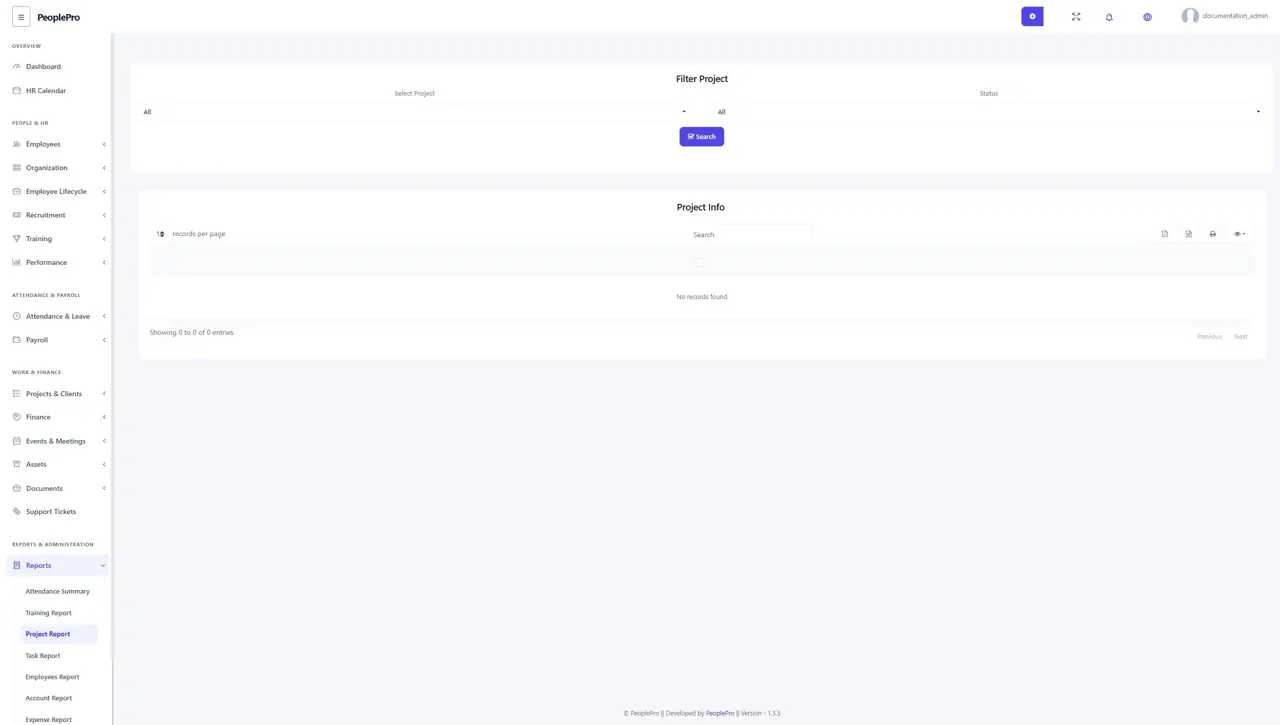
Open Reports > Project Report and select the relevant filters and period. Review the projects returned, including their status and progress information. Check the filters if an expected project is missing, then review the original project record if details need updating.
Task report
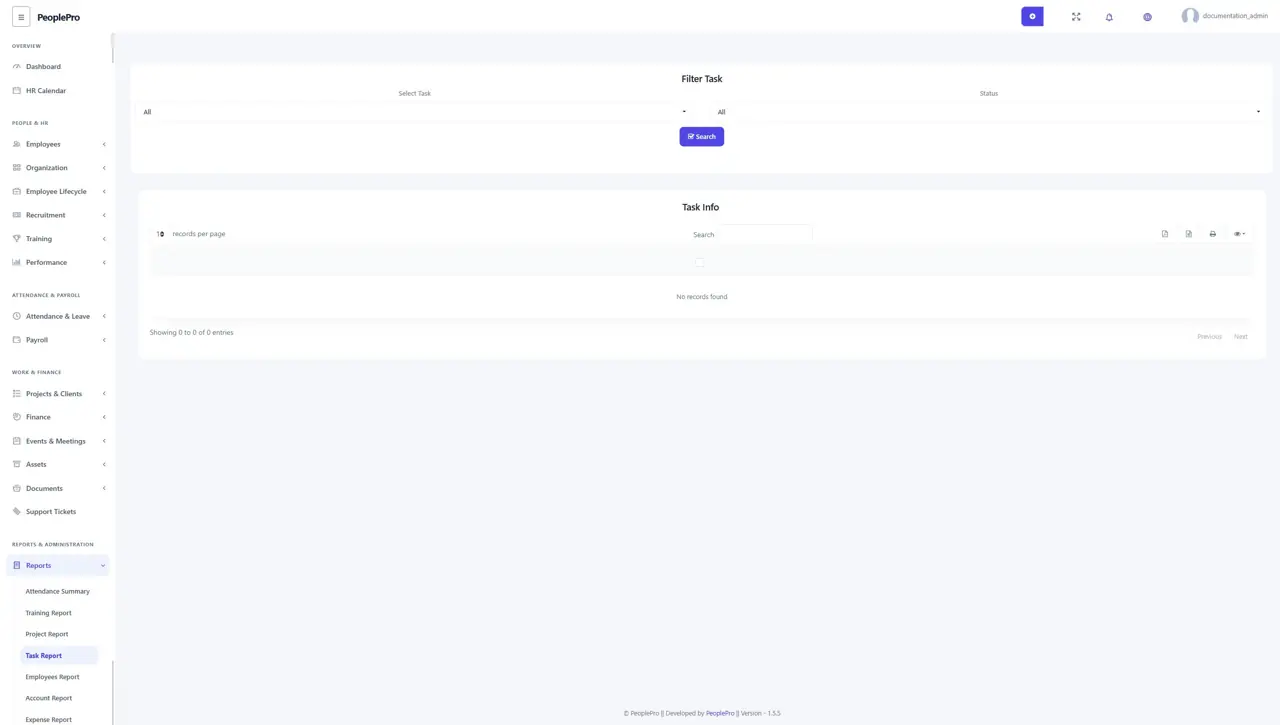
Open Reports > Task Report to review tasks for the selected scope. Set the available employee, project, status or date filters and run the search. Use the result to follow assigned work and completion. Update task records from the Tasks page when a status is outdated.
Employee report
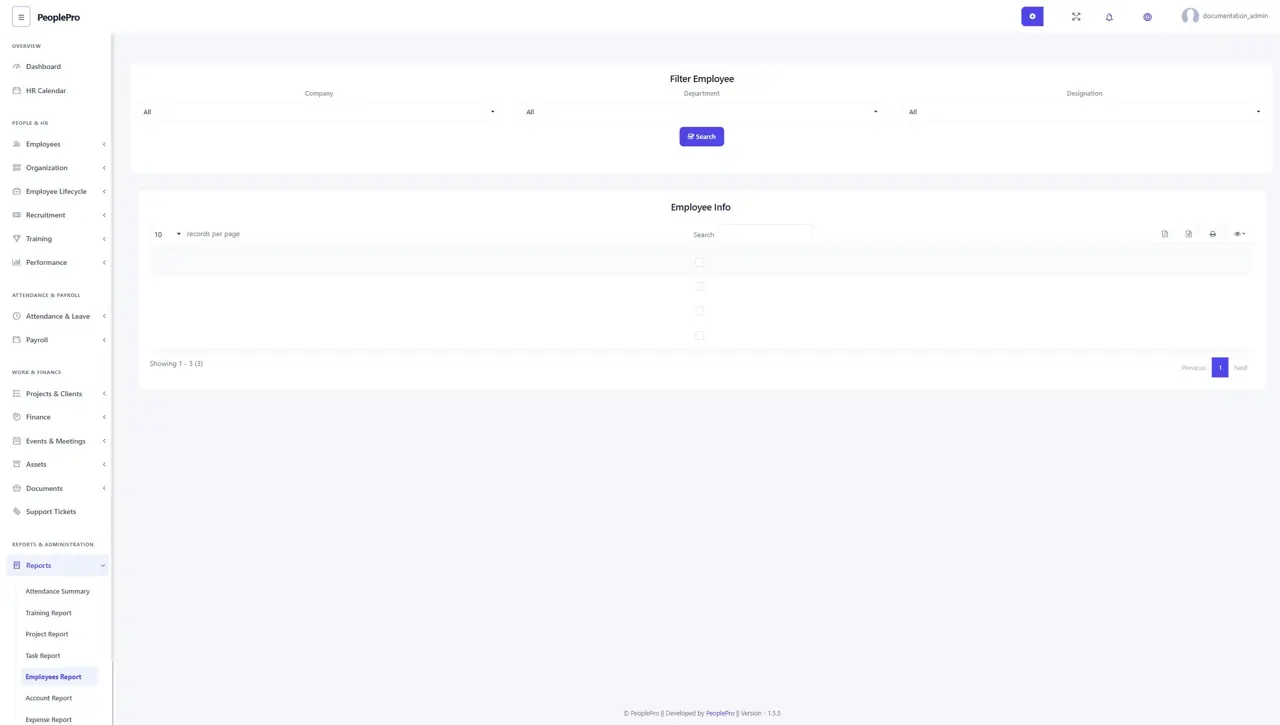
Open Reports > Employees Report to review employees for the selected company or organizational filters. Run the search after choosing the relevant options. Use the table and available exports when preparing an employee list, and share it only with people who need those records.
Account report
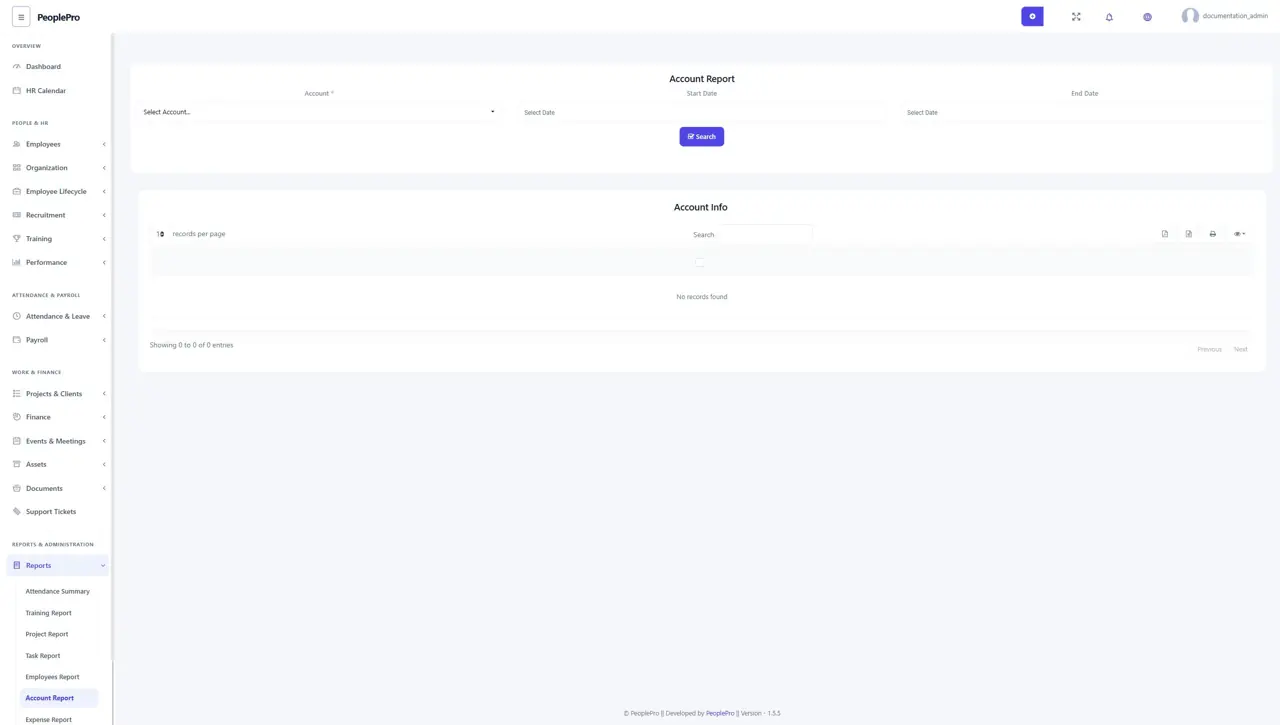
Open Reports > Account Report to inspect activity for a finance account and period. Select the account and dates offered, then search. Compare the result with supporting records when reconciling the account. An empty report can mean the selected period has no matching transactions.
Expense report
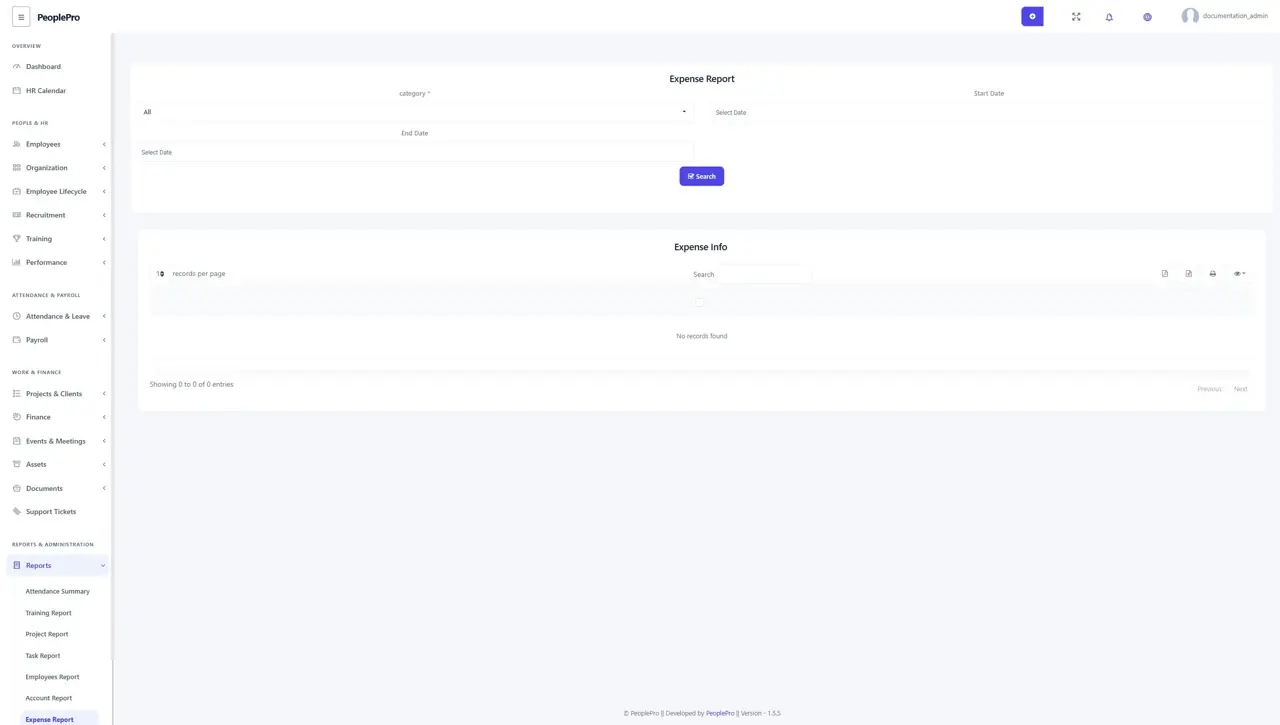
Open Reports > Expense Report, choose an expense type and date range, and run the search. Review the account, payee, category, reference and total shown. Use consistent expense types when entering records so this report can group the organization's spending meaningfully.
Deposit report
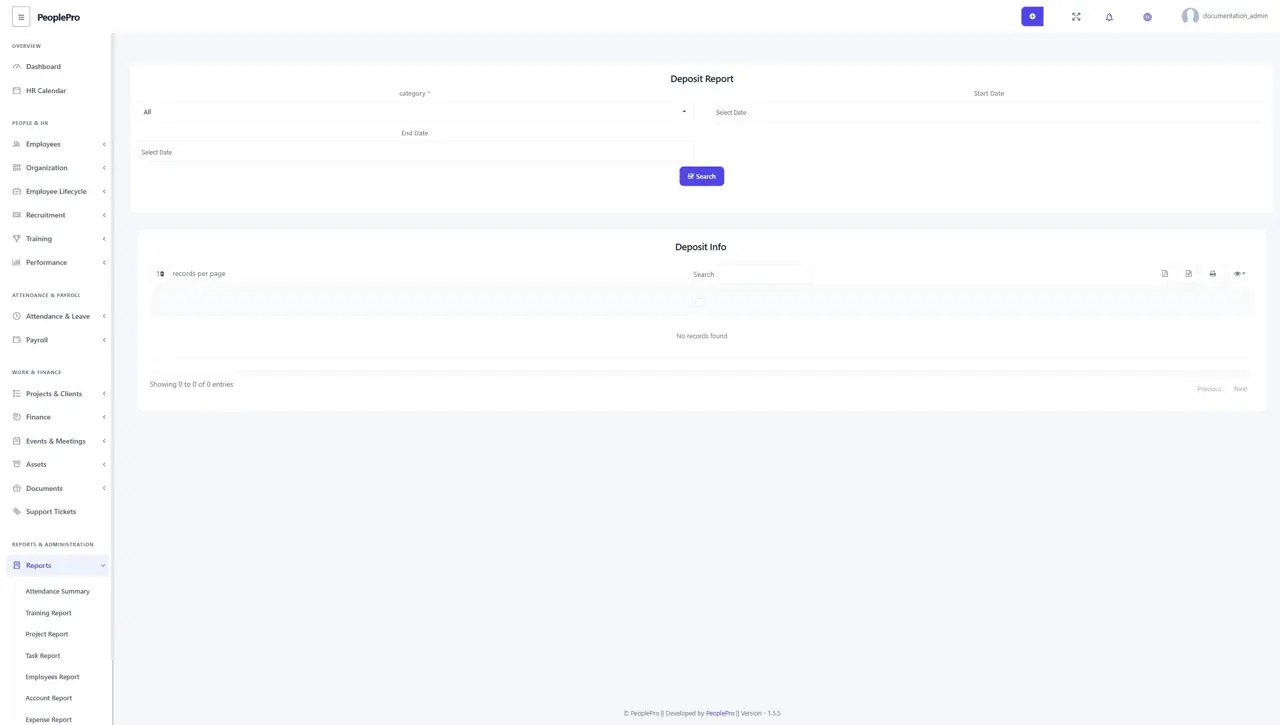
Open Reports > Deposit Report and choose the category and period. Run the search to review the incoming transactions and total for that selection. Use the source deposit record if a payer, account or reference needs correction.
Transaction report
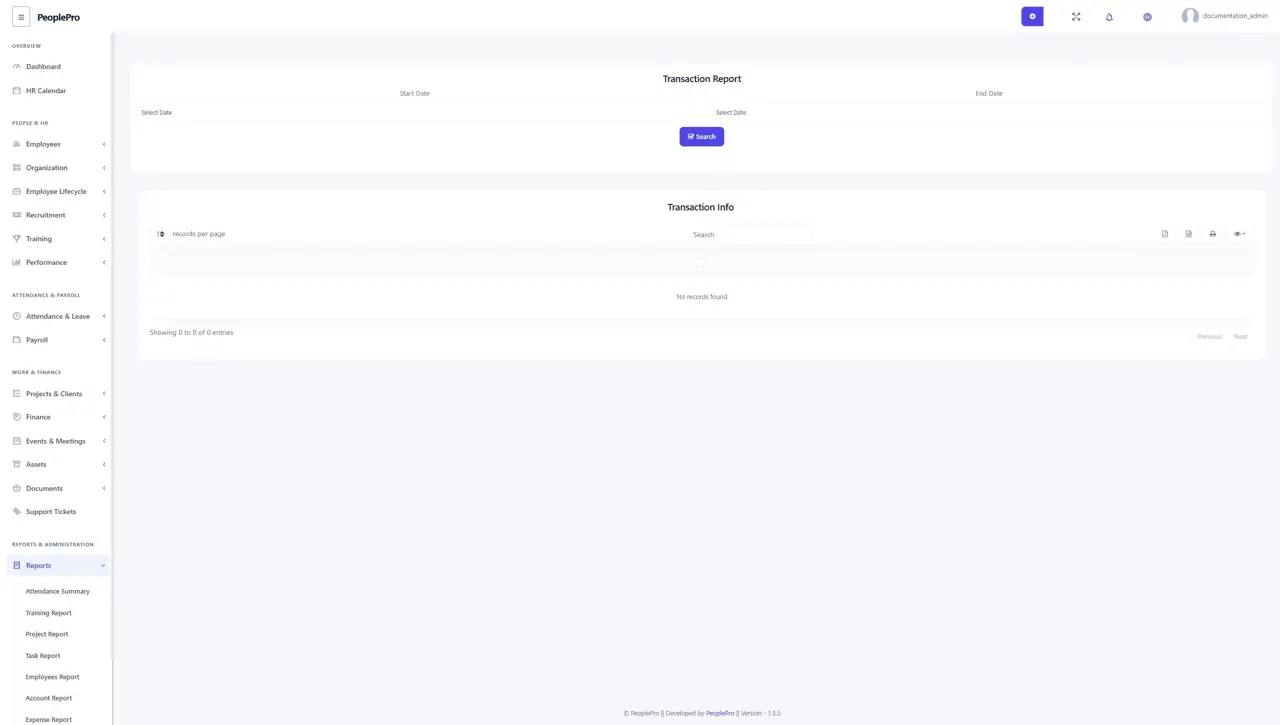
Open Reports > Transaction Report, enter the start and end dates, and select Search. Review the returned transaction dates, accounts, amounts, types and references. Use the available export or print controls after confirming that the date range is correct.
Pension report
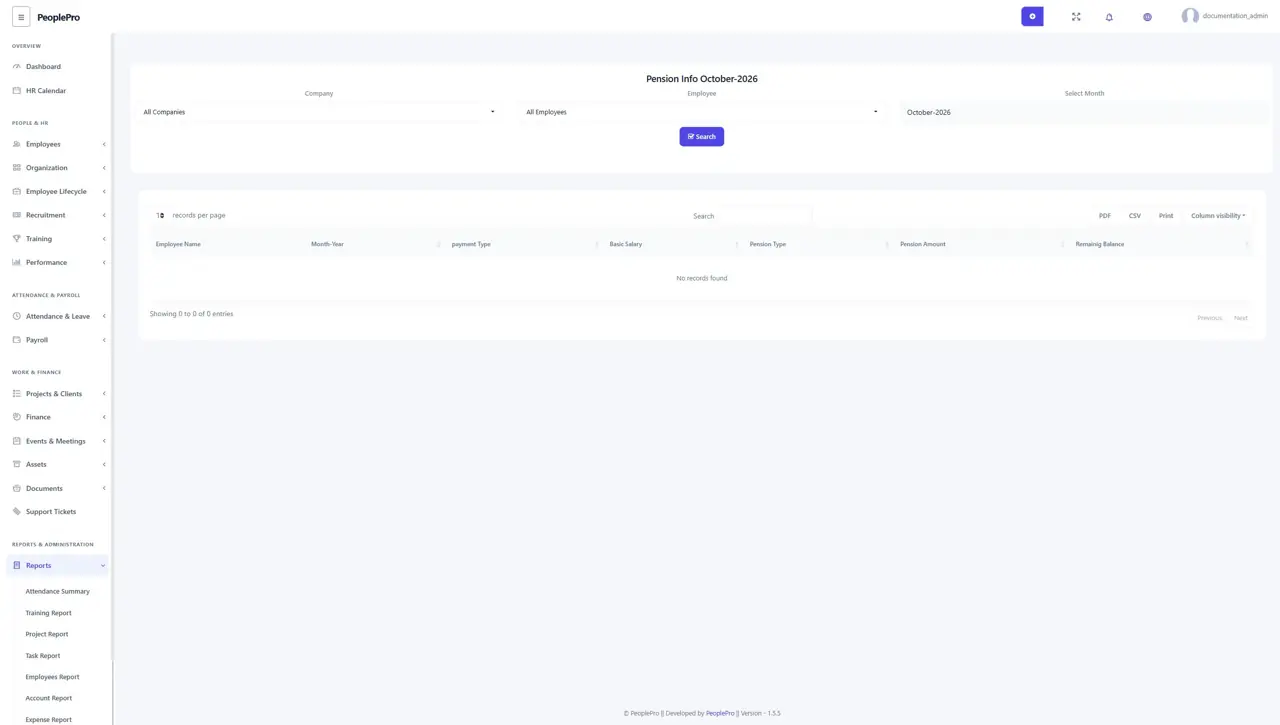
Open Reports > Pension Report and select the company, employee and month. Run the search to review pension information associated with salary payments, including the pension type, amount and remaining balance shown. Check the employee's pension setup and payroll record if a value is unexpected.