Reporting Lines and Organization Chart
Open Organization > Organization Chart, or use the Organization Chart link above the employee list.
Last updated: 16 November 2026 · Product version: not specified in the supplied guide
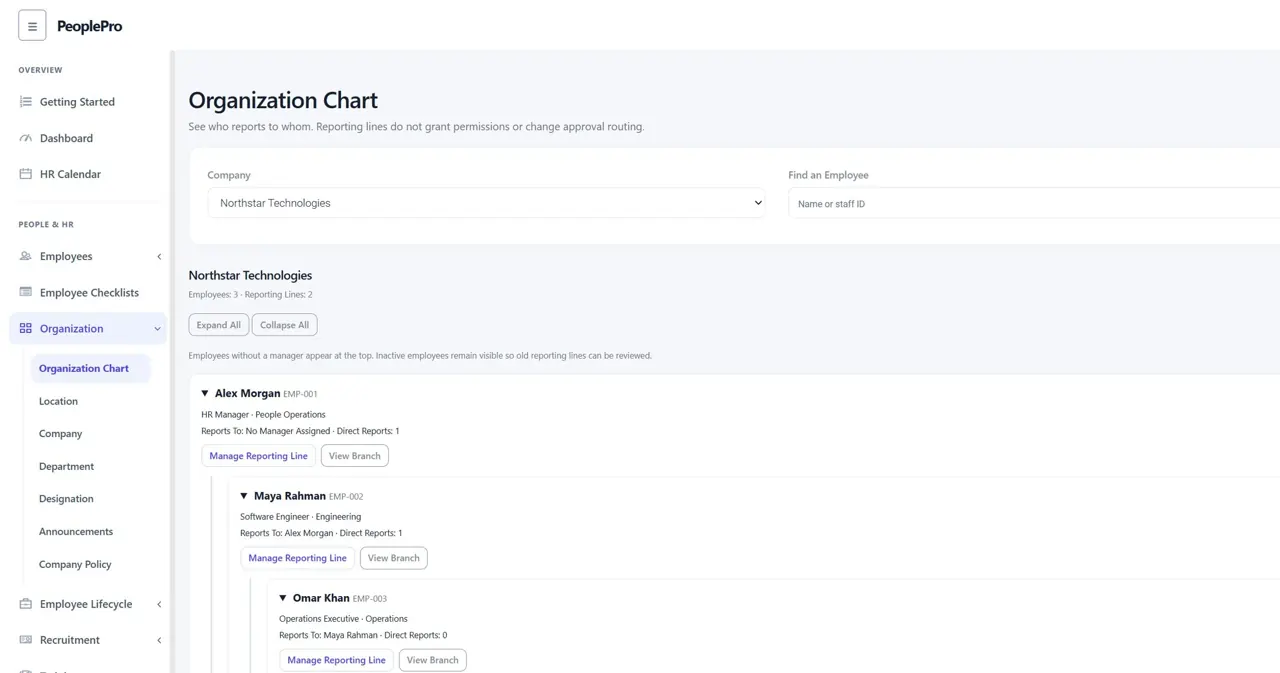
Open the company organization chart
Open Organization > Organization Chart, or use the Organization Chart link above the employee list. Choose a company and select Show. Each employee card shows their role, department, direct manager and number of direct reports. People without a manager appear at the top. Open or close an individual card, or use Expand All and Collapse All. Existing employees start without a reporting manager until authorized HR assigns one; department heads are not copied automatically.
Assign or change a direct manager
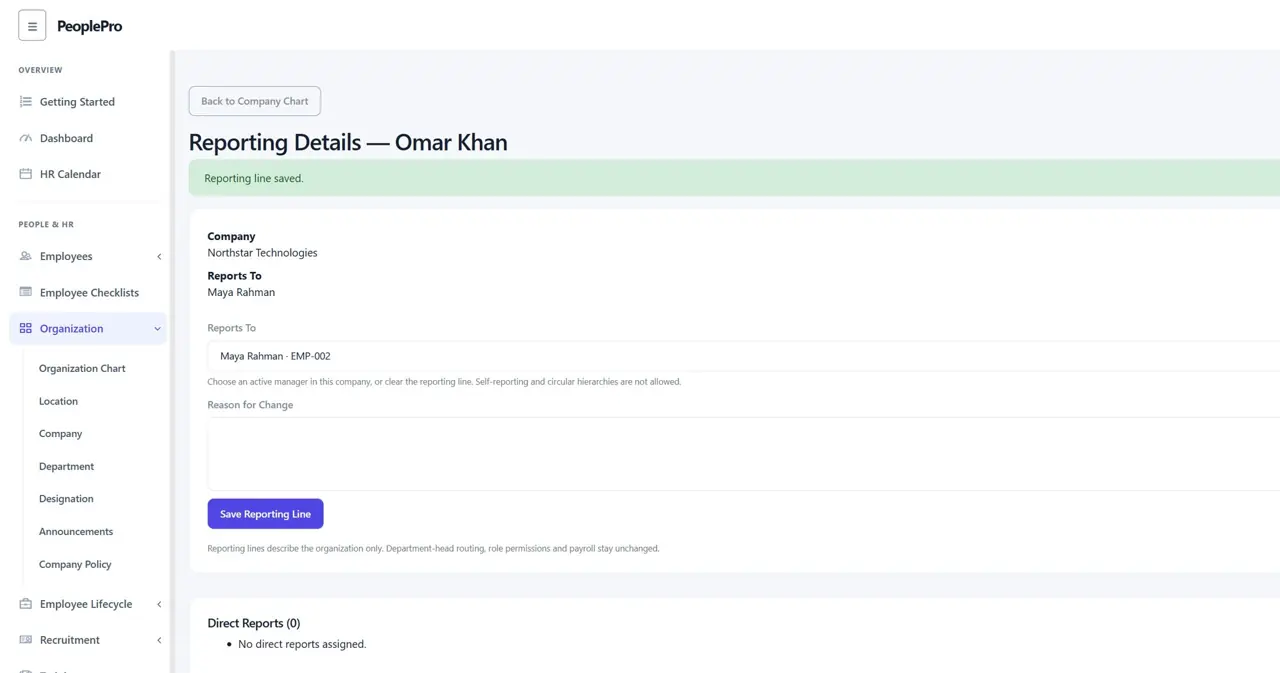
Choose Manage Reporting Line on an employee card, or Reporting Details on the employee profile. Select Reports To, enter a reason and select Save Reporting Line. The dropdown offers active employees in the same company. A manager may belong to a different department in that company. Choose No Manager Assigned to clear the relationship. An employee cannot report to themselves or to someone below them in their reporting branch. If the page is out of date, reload it and review the current manager before saving again.
Find employees and open a reporting branch
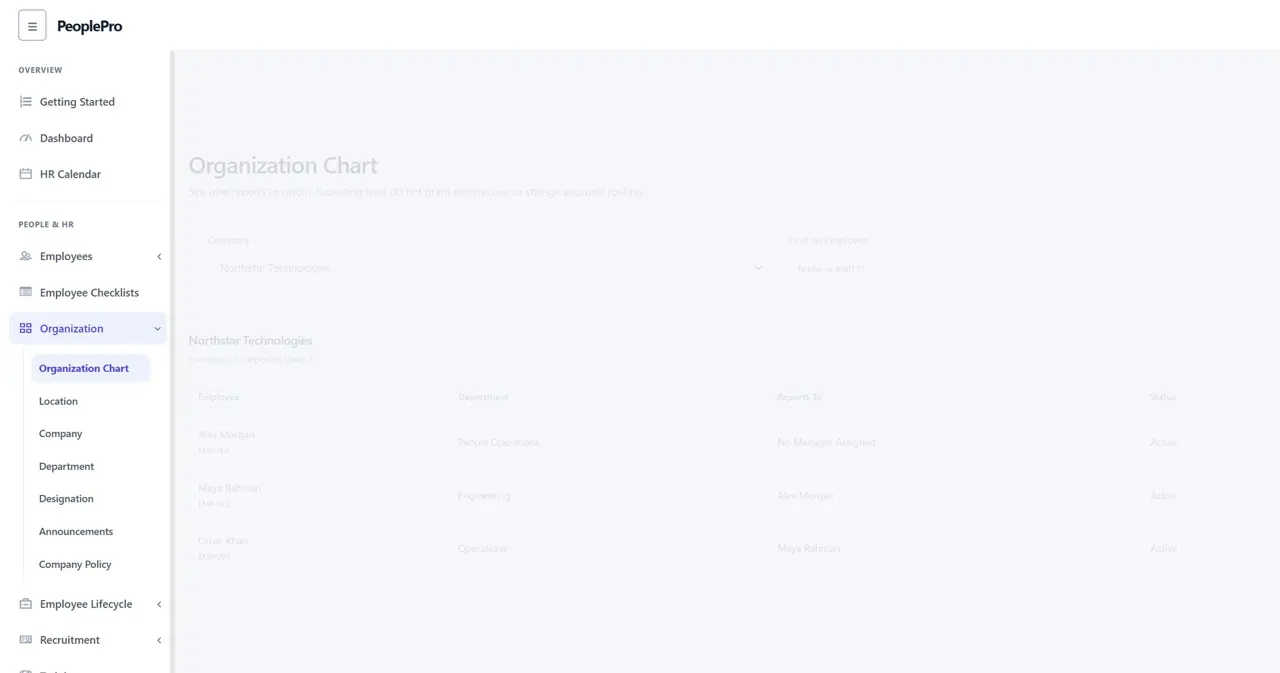
Use Find an Employee to search by name or staff ID. Search results use List View, which shows the manager and status of each matching employee. Open View Branch to see that person and their reporting team. The visual chart displays up to 400 people and nine levels at one time. Open a branch to continue through deeper levels, or use the paginated List View to find people outside the displayed chart. Clear Filters returns to the company selection and unfiltered chart.
Understand viewing and editing access
Organization Chart requires the existing employee-details viewing permission. Changing a manager also requires the employee-details modification permission. Company access still limits the records available, and a SaaS package must include employee details. The chart shows names, staff IDs, roles and departments; salary, private contact details and documents are not included. Administrators can review recorded changes and their reasons under Settings > HR Audit Trail using Reporting Lines.
Review reporting lines when someone leaves or moves company
Inactive and departed employees remain visible with a status label, and a warning identifies an inactive manager. Reassign direct reports when a manager leaves. An inactive employee can have an old reporting line cleared, but cannot be assigned a new manager until their employment record is active again. Before deleting a linked employee or changing their company, clear their own manager and reassign their direct reports. Normal offboarding retains the relationship for review rather than silently choosing a replacement.
See your own manager on the employee dashboard
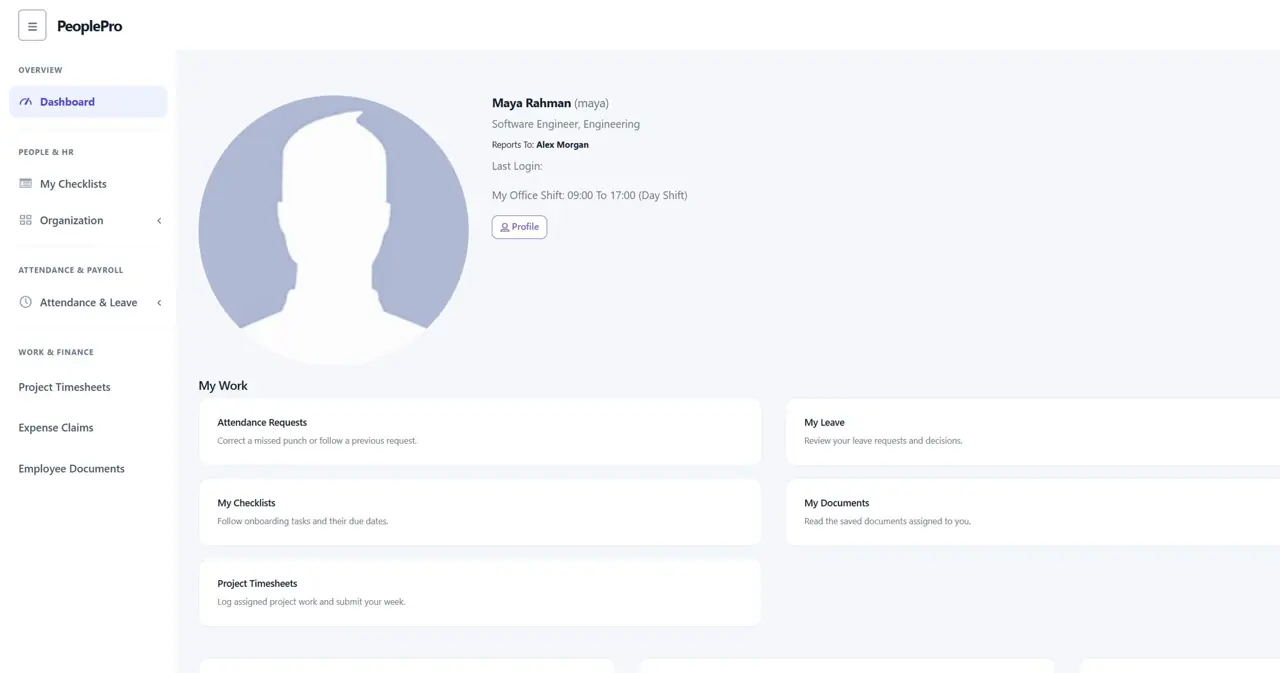
Employees with a saved reporting manager see Reports To on their personal dashboard, below their name and designation. This does not automatically allow them to browse the full company chart. Reporting lines describe the organizational structure; they do not grant role permissions, make a person a leave approver, change department-head approval routing or recalculate payroll. Continue setting those responsibilities through the existing role and department settings.