
Employee Expense Claims and Reimbursement
Open Expense Claims > My Claims and expand Submit an Expense Claim.
Last updated: 16 November 2026 · Product version: not specified in the supplied guide
Submit a work expense with a private receipt
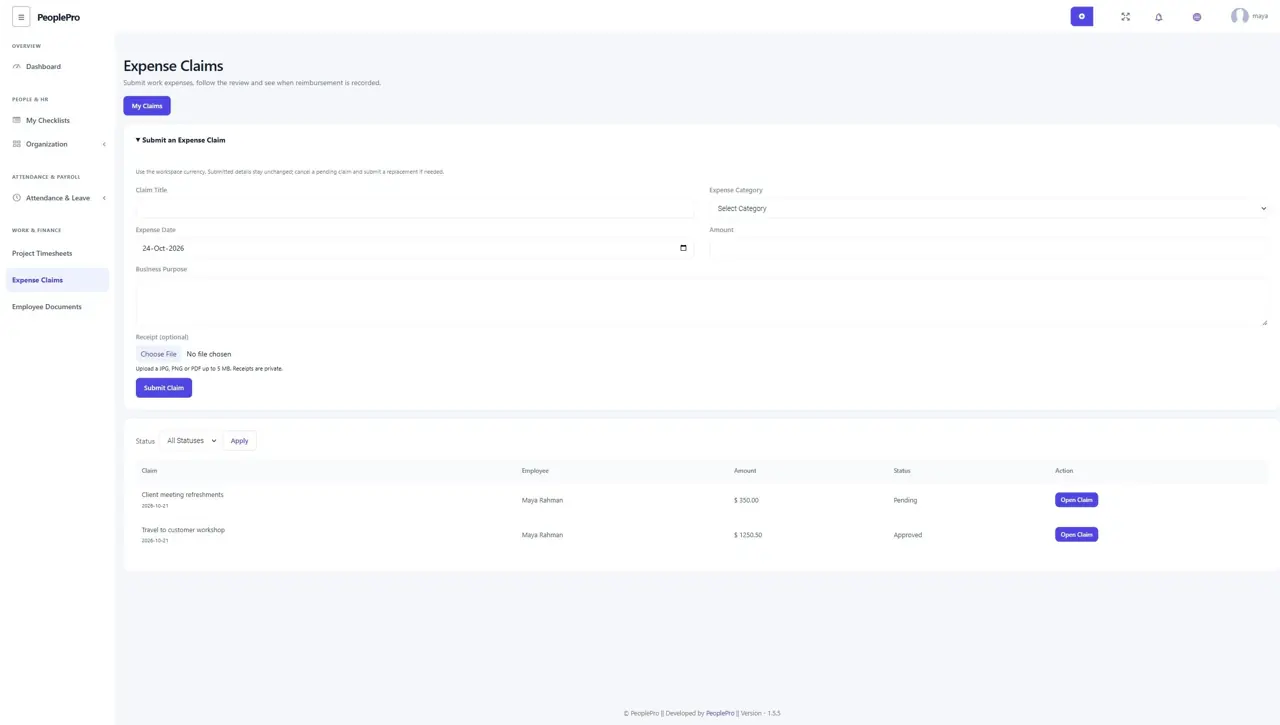
Open Expense Claims > My Claims and expand Submit an Expense Claim. Enter a clear title, company expense category, past/current expense date, amount in the workspace currency and business purpose. Optionally attach a JPG, PNG or PDF receipt up to 5 MB. Submit once and follow the claim status. Submitted details stay unchanged; before reimbursement, cancel an incorrect claim and submit a replacement.
Review a team claim
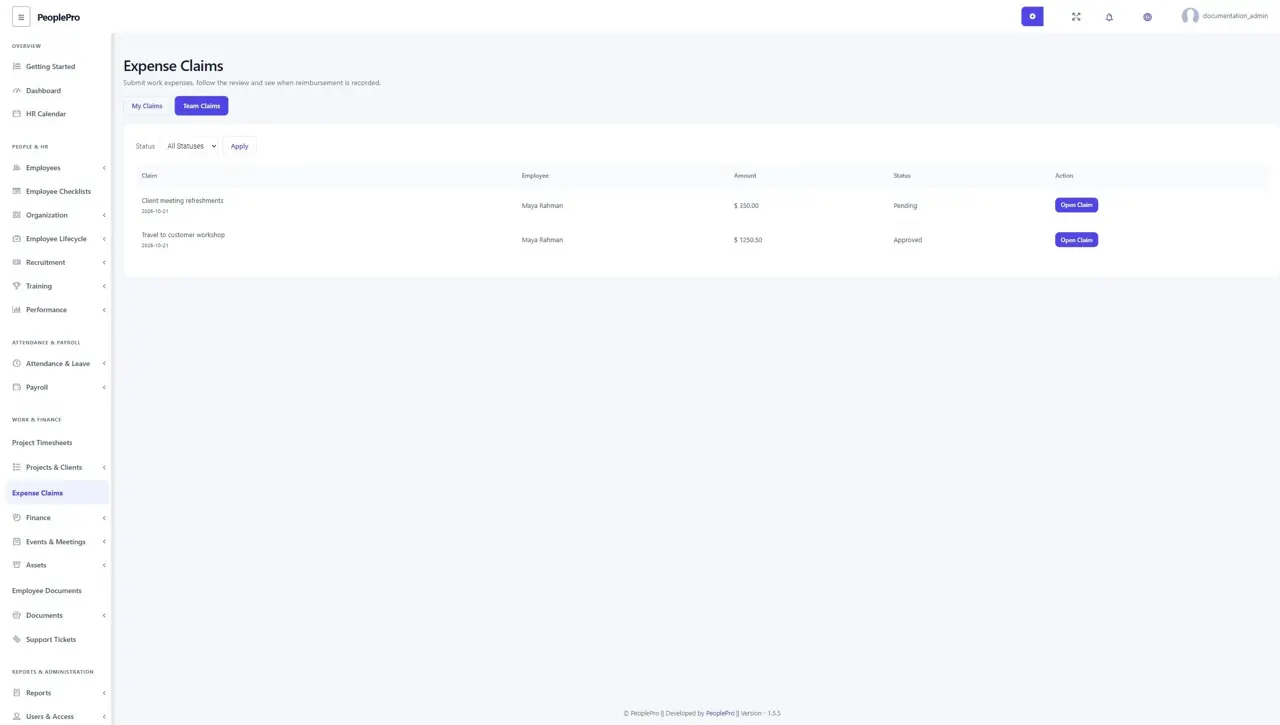
An expense reviewer can choose Team Claims or the expense tab in Approval Inbox. Open the claim, inspect its purpose and receipt, and approve or reject with a note. A person cannot approve their own claim even if their role normally reviews expenses. Approval records the decision but does not deduct an account balance.
Record a reimbursement through Finance
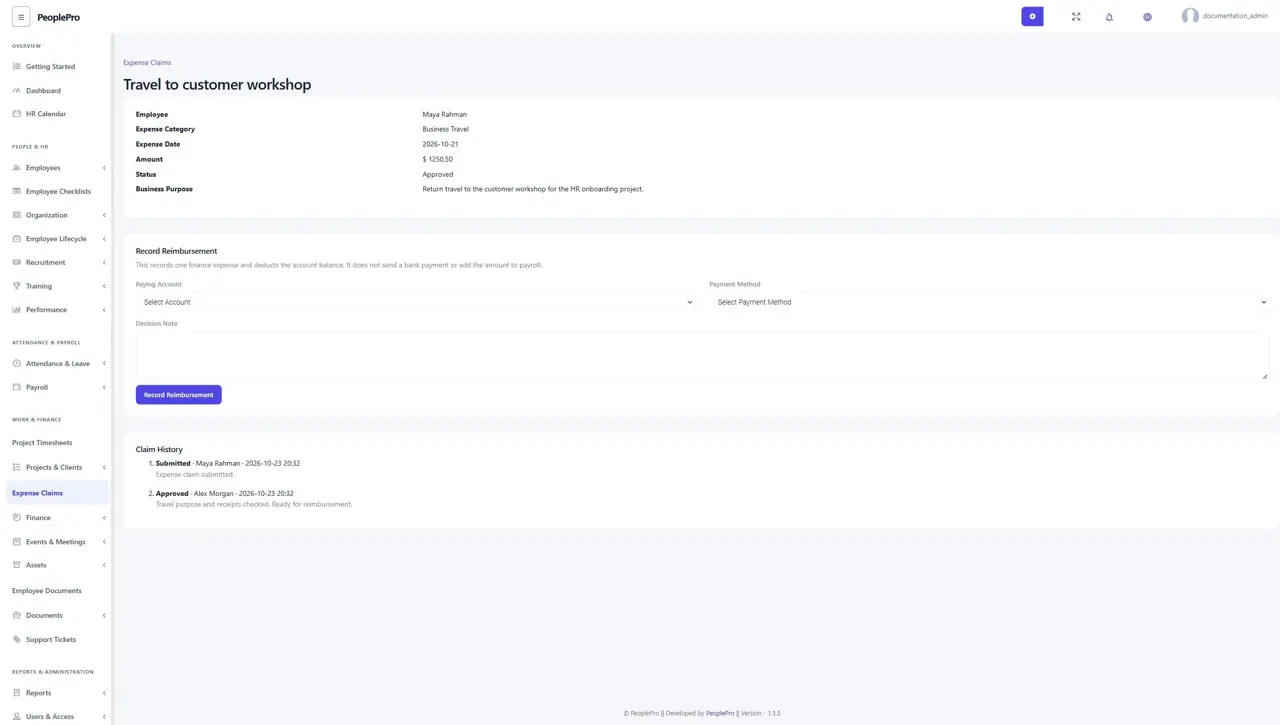
For an approved claim, an authorized finance user chooses the same-company paying account and payment method, enters a note and selects Record Reimbursement. PeoplePro creates one finance expense and deducts the account balance together. Insufficient funds leave the claim approved and unpaid. Repeated successful submissions do not pay it twice. This records the reimbursement in PeoplePro; it does not send a bank payment or add the claim to payroll.
Keep the reimbursement history intact
The claim history records submission, review, cancellation and payment. The employee, permitted reviewer and finance user can read its private receipt; another employee cannot. A paid claim retains its original finance entry, so ordinary Finance edit/delete actions cannot detach the history. Use your separate accounting adjustment process when a later correction is necessary. If the workspace currency changes before payment, review the unpaid claim before proceeding.