
Training Assessments and Completion Certificates
Open Training > Training List, then Training Assessments.
Last updated: 16 November 2026 · Product version: not specified in the supplied guide
Create a training assessment
Open Training > Training List, then Training Assessments. Choose a training course, assessment title, Quiz, Practical or Presentation, maximum score and passing percentage. Optionally set certificate validity in days; blank means no expiry date. This workflow records a manually assessed result. It does not deliver an online question bank or automatically grade answers.
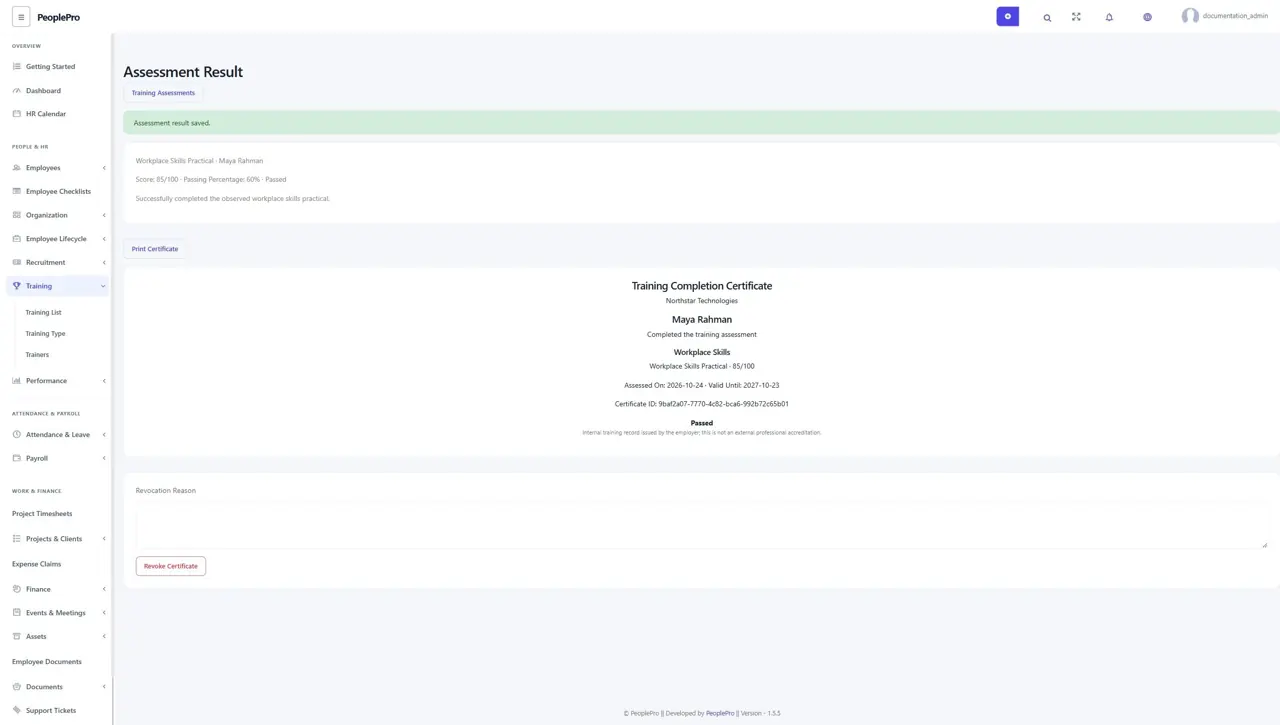
Record an observed assessment attempt
Select the assessment and an employee assigned to that training. Enter the score, assessment date and a useful note, then check them before saving. Scores cannot exceed the maximum and assessments cannot precede the training end. The assessor must be independent of the employee. Each attempt remains saved; use another attempt for a reassessment instead of overwriting the result.
View and print a completion certificate
A passing attempt receives an internal certificate ID, saved employee/company/training details and its validity dates. Employees can open their own results from My Work. Select Print Certificate for the certificate print view. This is an employer-issued internal training record, not an external professional accreditation.
Handle expiry or an incorrect certificate
The result shows Passed, Failed, Expired or Revoked as applicable. Authorized HR can revoke a passing certificate with a reason if its original record was wrong. The original score and certificate ID remain in history. Training with retained assessment evidence cannot be deleted through normal training controls.