Connect WooCommerce to SalePro and Run Manual Synchronization
Enable WooCommerce in SalePro, enter your WooCommerce API credentials, then run and review synchronization in a controlled order.
SalePro's WooCommerce connector is included with SalePro. It connects an existing WordPress/WooCommerce store to SalePro so you can synchronize supported catalogue and order data.
Step 1 — Enable WooCommerce#
Sign in as an administrator and open Settings → Modules / Features. Under Commerce, enable WooCommerce.
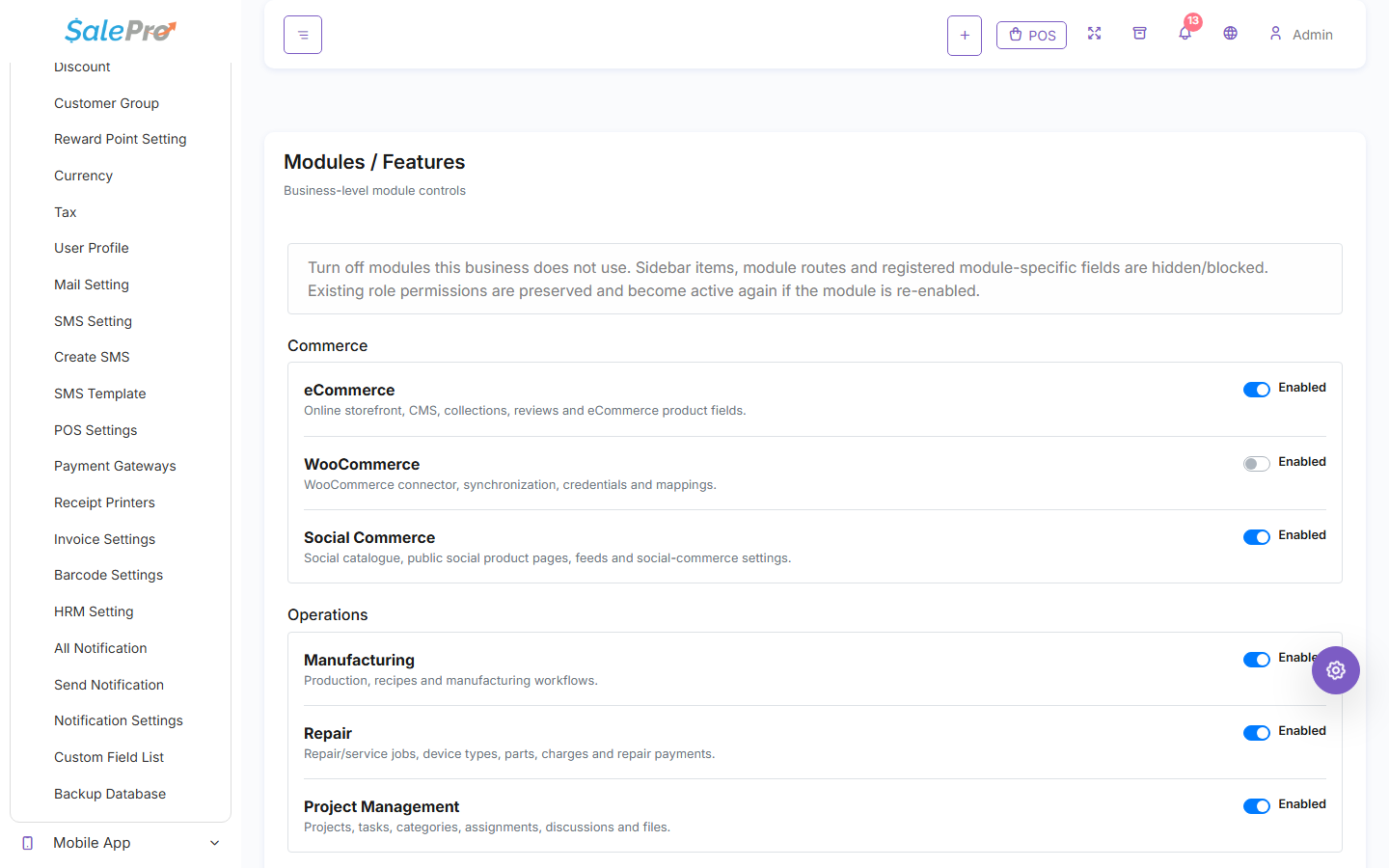
Refresh the admin panel. The WooCommerce menu should appear. If another staff member cannot see it, review that person's Roles / Permissions.
Step 2 — Create WooCommerce API credentials#
In WordPress/WooCommerce, create REST API credentials for the store account SalePro will use. Give the key only the access required for the synchronization you intend to run.
Keep the Consumer Key and Consumer Secret private. Do not send them in public support comments or screenshots.
Step 3 — Connect the store in SalePro#
Open WooCommerce → Settings in SalePro and enter:
- the WooCommerce store base URL, for example
https://store.example.com; - Consumer Key;
- Consumer Secret;
- any mapping/settings shown by your SalePro version.
Use the store's normal base URL. Do not append a WordPress REST endpoint to it unless the SalePro screen specifically asks for one.
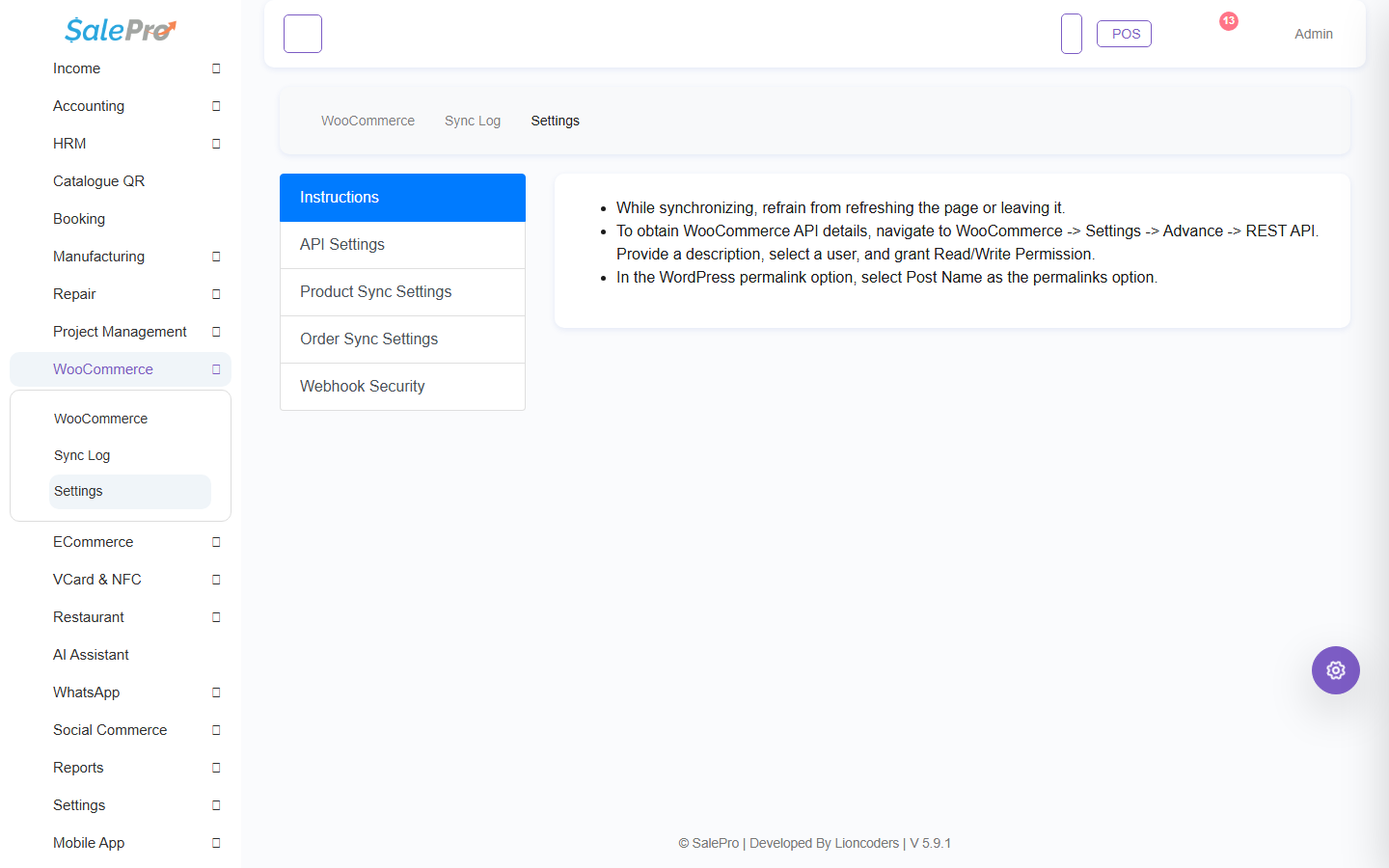
Save the settings and confirm SalePro can connect before attempting a large synchronization.
Step 4 — Synchronize in a controlled order#
For a new connection, use this order:
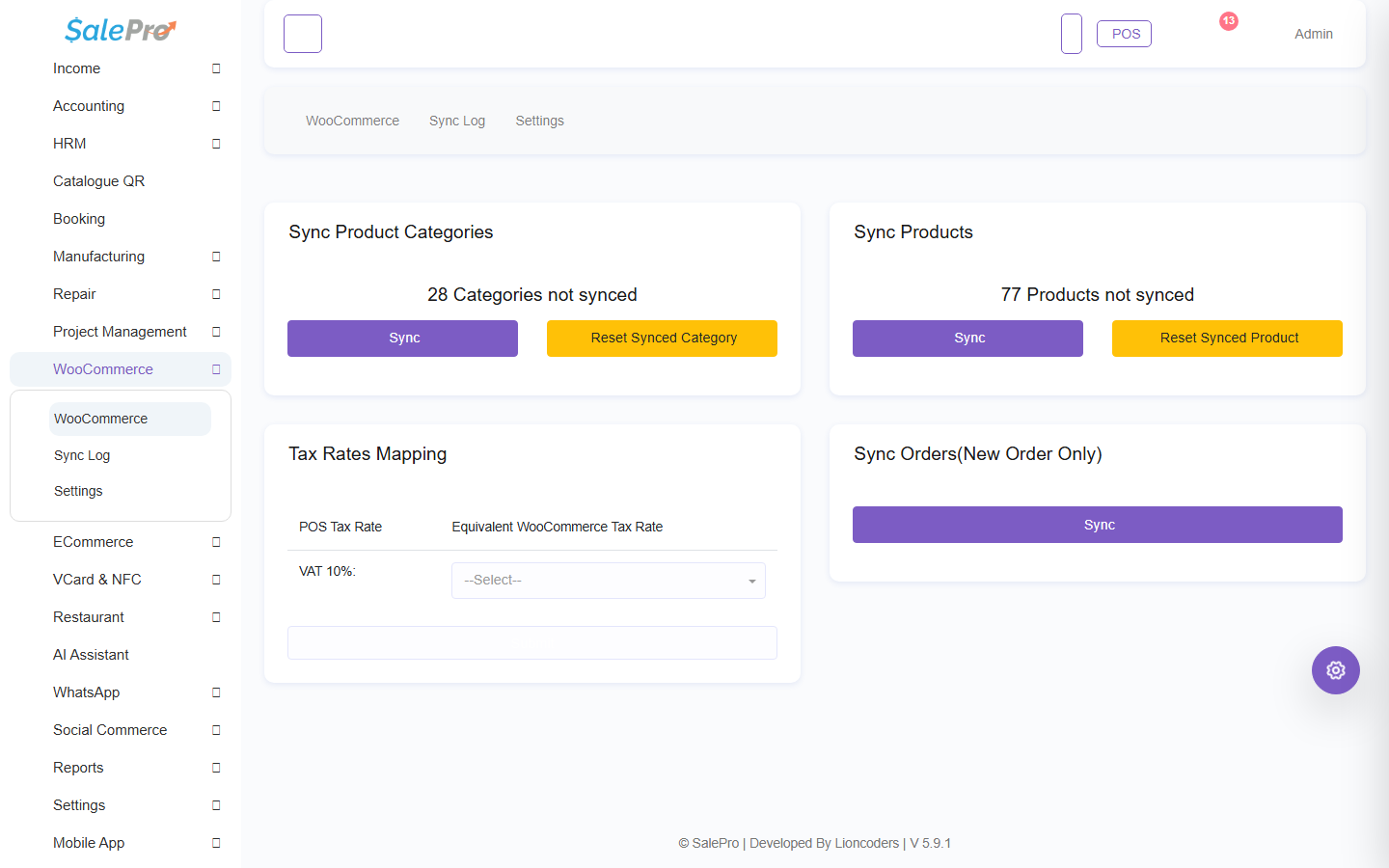
- Categories — synchronize or review category mapping first.
- Taxes — review tax mapping before products/orders depend on it.
- Products — synchronize products and review SKU/code, price, stock, variants, and conflicts.
- Orders — synchronize orders only after warehouse, customer, tax, currency, and payment settings are ready.
- Sync Log — review the result and investigate any failed/skipped items before repeating the sync.
Important operating note#
In the current documented workflow, synchronization is administrator-triggered rather than a guaranteed real-time two-way feed. Treat the Sync Log as part of the workflow and reconcile important stock/order changes after synchronization.
Before using the connector on a live store, test with a small product/order set and confirm that prices, taxes, warehouse stock, customers, payments, and order status appear as expected on both sides.
If something is unclear, tell support which guide and section you were following.