Configure India GST and Use the GST Register in SalePro
Configure your Indian GST registrations and tax data before transactions, then use SalePro's GST reports for operational review and reconciliation.
Step 1 — Enable India GST#
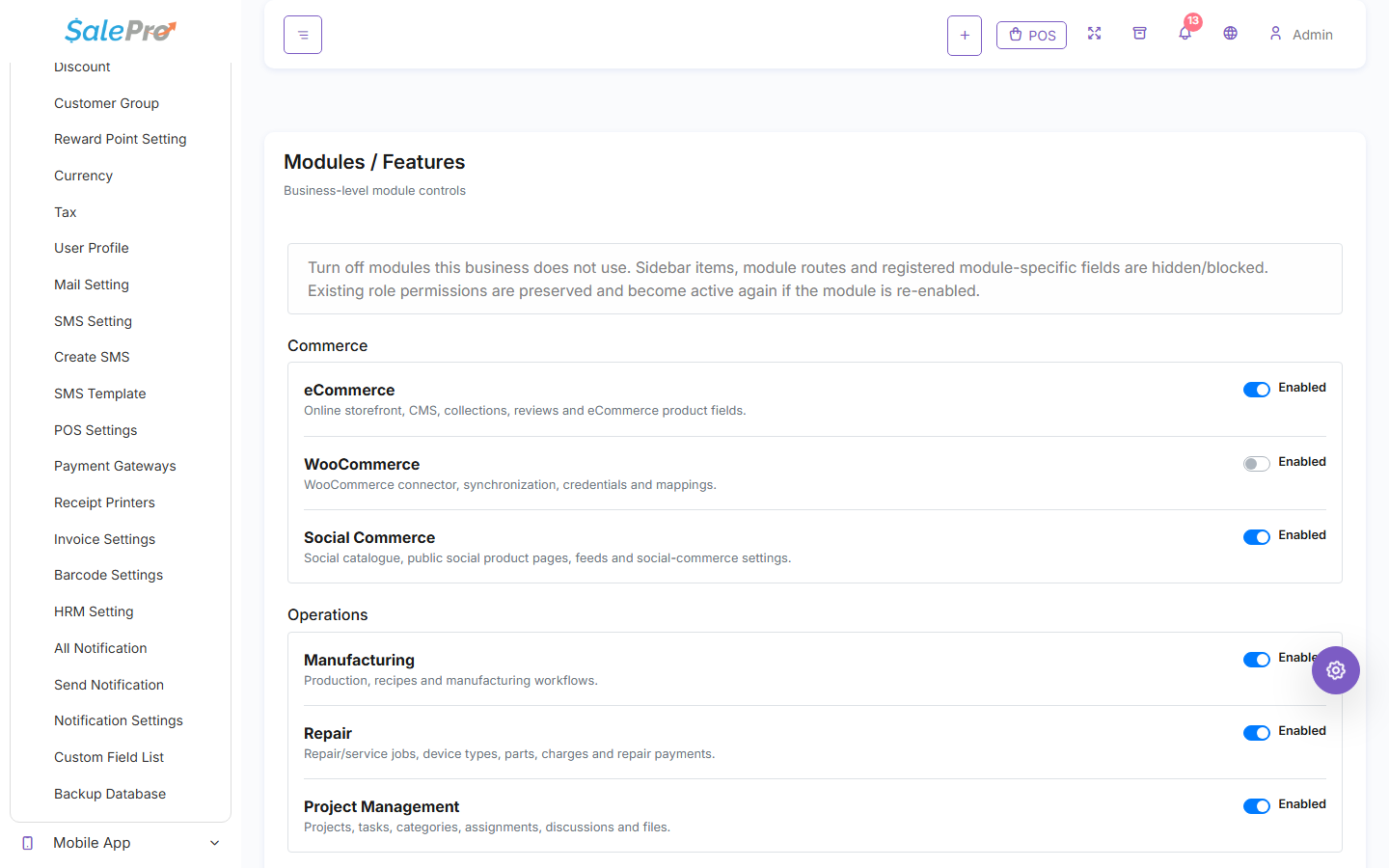
Sign in as an administrator and open Settings → Modules / Features. Enable India GST for the business, refresh the admin panel, and then configure GST before entering GST-sensitive transactions.
Step 2 — Configure GST information#
Set up the registrations, states, GSTINs, HSN/SAC codes, tax profiles, and customer/supplier tax information required by your business.
Review these carefully before posting live sales or purchases. Legal/tax details saved on transactions are intended to preserve what applied at the time of the transaction.
Step 3 — Use GST in daily transactions#
Create sales, purchases, expenses, and returns using the correct party, location, place of supply, item classification, and tax profile. Preview the tax result before saving when that option is available.
Step 4 — Review the GST registers#
Use the GST report to review output, input, and expense records by date and the filters provided by your version, such as warehouse/location, registration, party, and place of supply.
Exports/prints should be reviewed against your business records before filing. SalePro's GST report is an operational calculation and reconciliation aid; it is not a direct GSTN filing service.
If something is unclear, tell support which guide and section you were following.