Manage SalePro Users, Roles, Permissions, and Module Access
Create roles around job responsibilities, then give each user only the screens and actions they need.
Create roles around job responsibilities, then grant only the permissions needed for those responsibilities. Assign a warehouse where an employee should operate within one branch.
Permission layers#
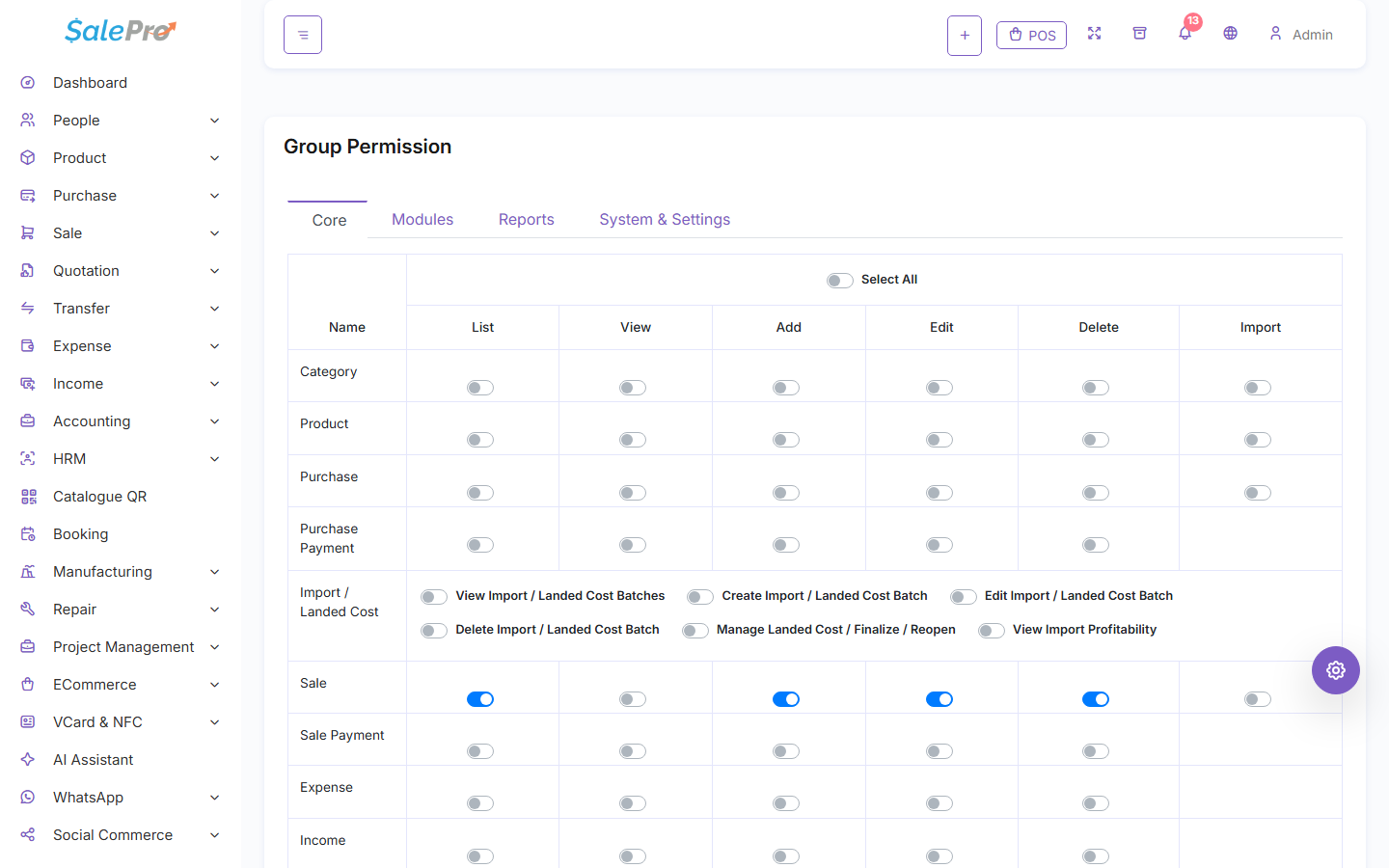
The role editor groups permissions by workflow and optional module. For an optional module, first enable the module for the business under Settings → Modules / Features, then give the role access to that module and the individual actions the user needs.
The role editor groups workflow and module permissions so access can be granted deliberately by responsibility.
Recommended process#
- Create the role.
- Grant view permissions first, then add/create/edit/delete/payment/export permissions deliberately.
- Give the role access to an optional module only when that job actually uses it.
- Create or edit the user, assign the role, and restrict the warehouse when required.
- Test with the actual role. Confirm that menus, direct URLs, reports, and warehouse identifiers are all restricted.
Changing a role does not change stock or accounting. It changes who can perform actions. Use the Activity Log when available to investigate changes.
If something is unclear, tell support which guide and section you were following.