Create Digital vCards, QR Codes, and NFC Links in SalePro
Enable the module, publish a person's vCard profile, then test the public URL, VCF download, QR code, and NFC link.
Step 1 — Enable vCard / NFC#
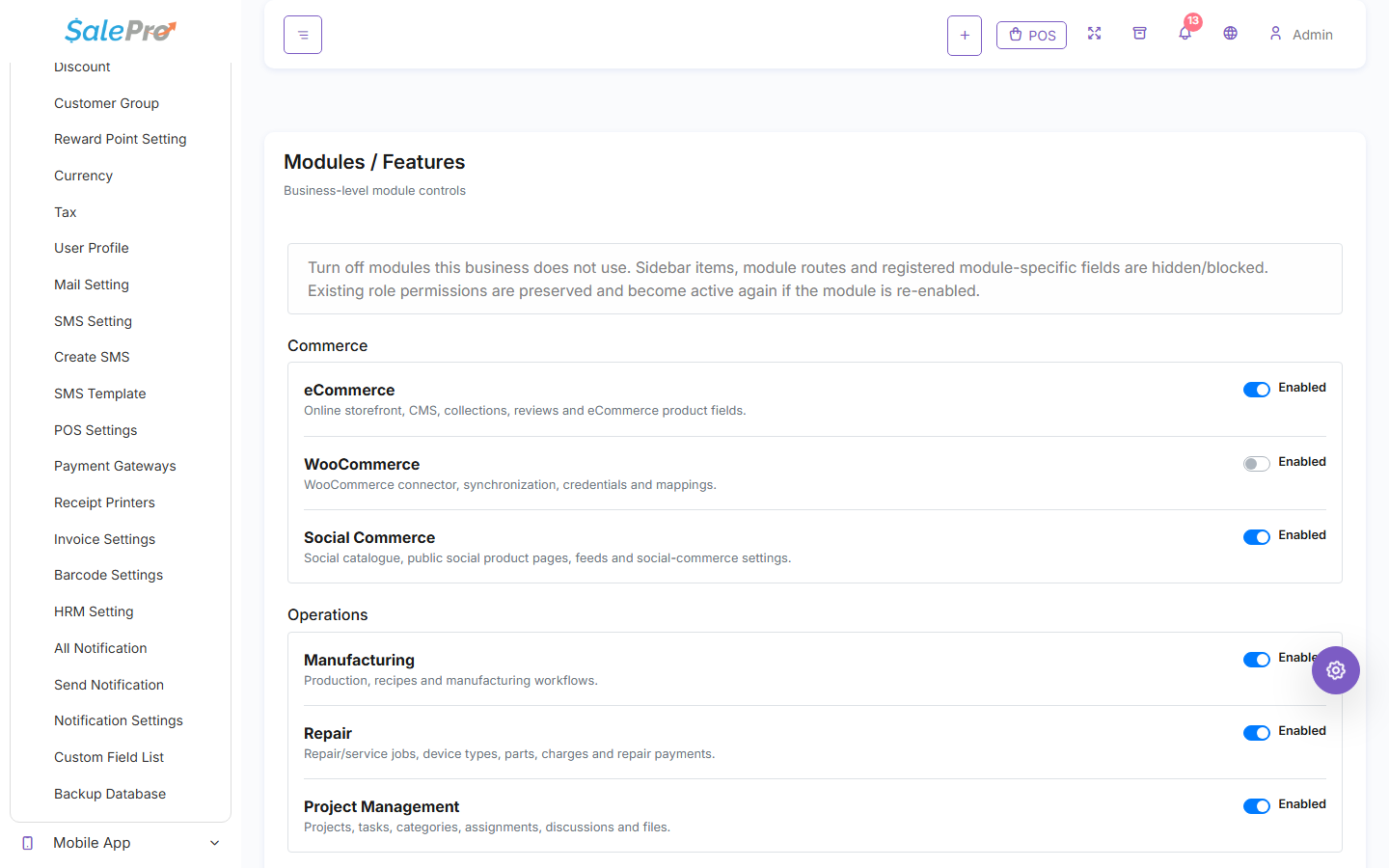
Sign in as an administrator and open Settings → Modules / Features. Enable vCard / NFC, refresh the admin panel, and give the users who manage profiles/cards access through Roles / Permissions.
Step 2 — Create and publish a profile#
Create a profile for the appropriate person, fill in the contact/public information, choose a unique public slug, and publish the profile.
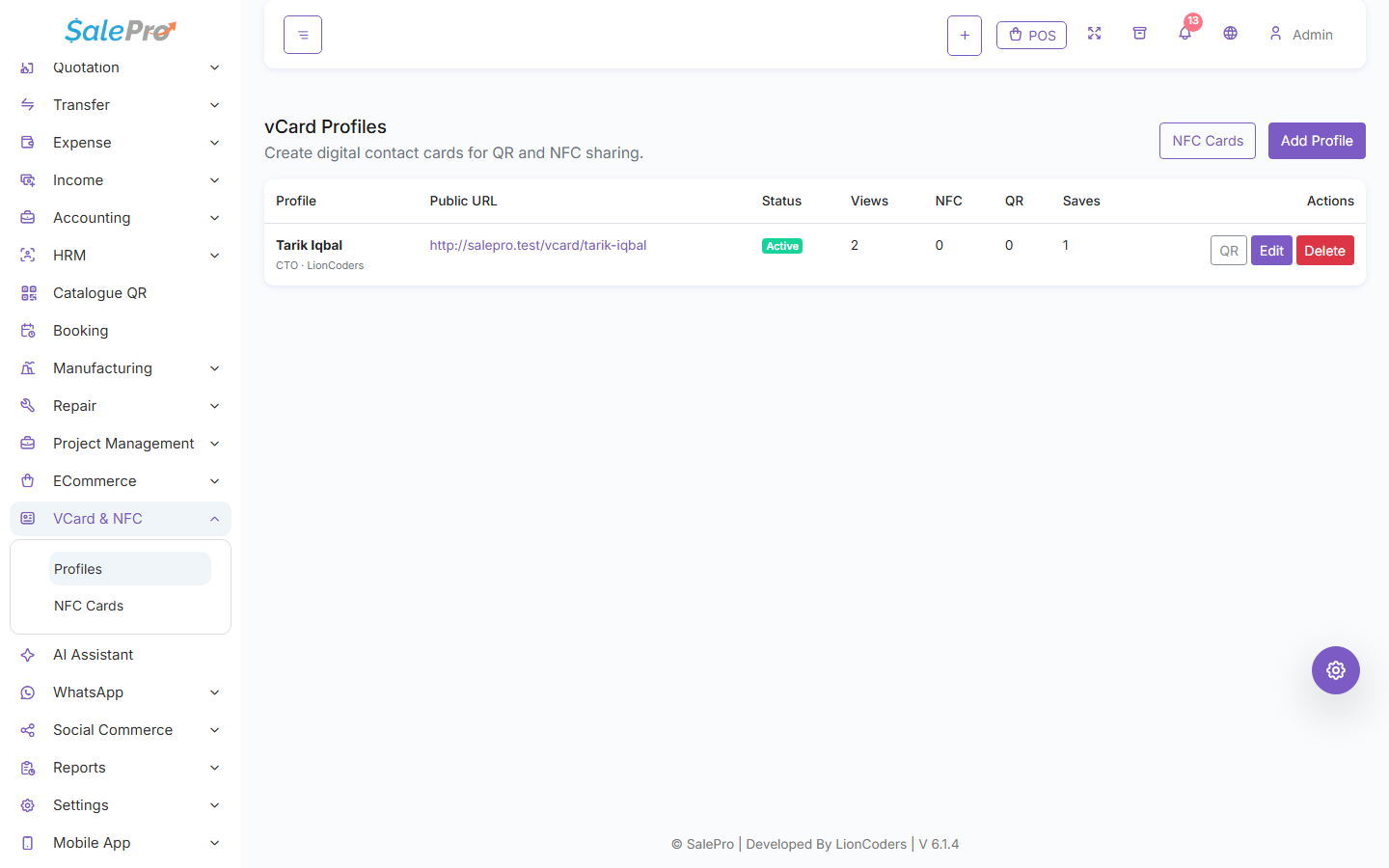
The profile list lets you review publication status, the public URL, engagement counts, and QR access.
Step 3 — Test every way the card will be shared#
Open the public profile in a browser, download the VCF/contact file, scan the QR code on a phone, and test the NFC link/token if you use one.
SalePro can provide the public link/QR/NFC destination, but physically writing an NFC tag and device-to-device NFC compatibility depend on the NFC hardware/app you use.
If something is unclear, tell support which guide and section you were following.