Manage Projects and Tasks in SalePro
Use Project Management to organize work, assign people and tasks, share files, and track progress inside SalePro.
Step 1 — Enable Project Management#
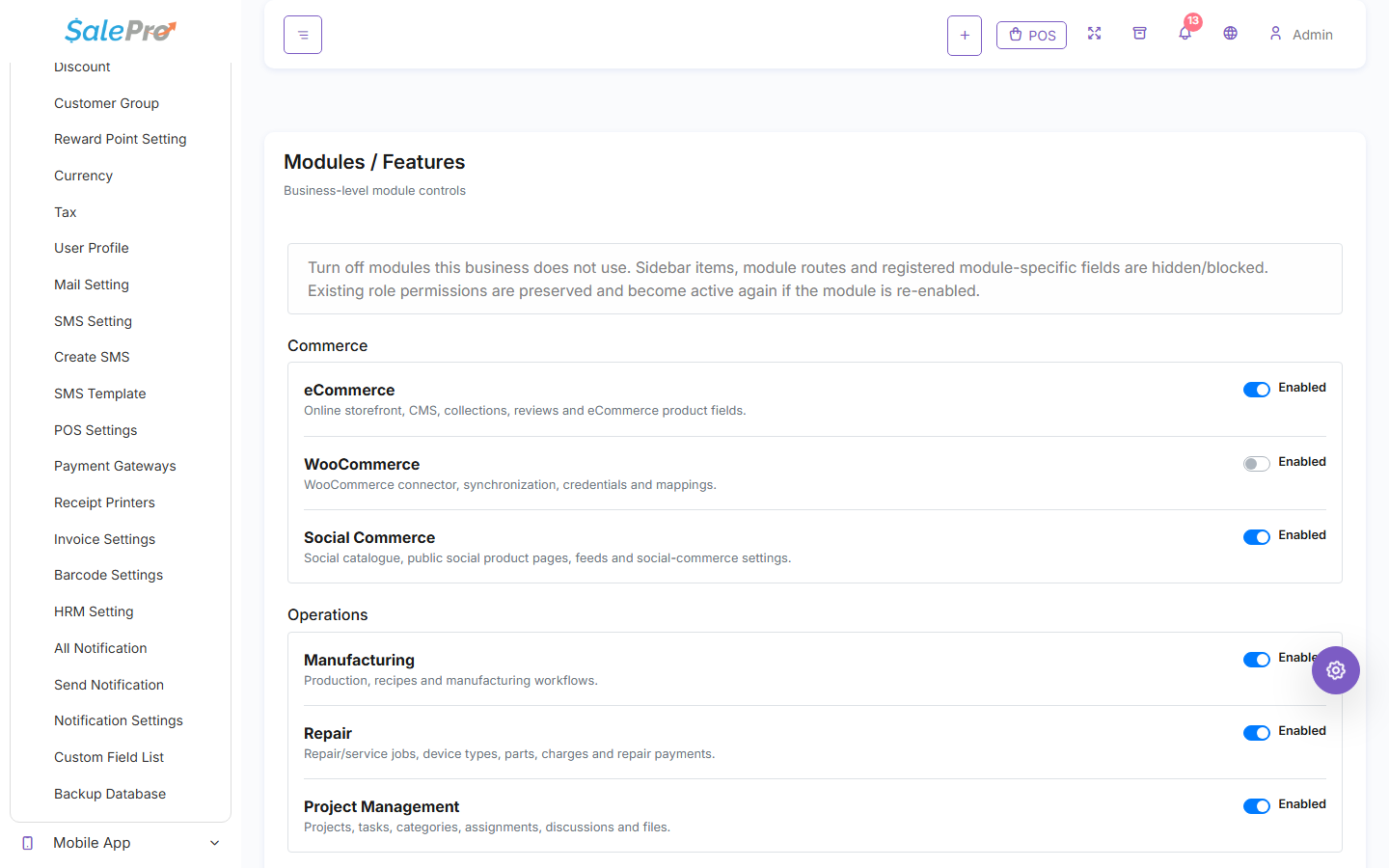
Sign in as an administrator and open Settings → Modules / Features. Enable Project Management, refresh the admin panel, and give project users access through Roles / Permissions.
Step 2 — Create the project structure#
Create the categories your team uses, then create a project with its customer/client, dates, members, and other project details shown by your version.
Step 3 — Add people, files, discussions, and tasks#
Assign project members, upload relevant files, use discussions where needed, and create tasks with owners, due dates, priorities/statuses, and clear descriptions.
Keep project progress current so the project page remains useful as a working hub rather than only a historical record.
Financial impact#
Project/task records are primarily for organizing work. Do not assume that changing a task/project status automatically creates accounting, stock, or customer transactions. Where your SalePro version provides project billing/invoice actions, review the resulting customer, tax, currency, and accounting transaction before relying on it operationally.
If something is unclear, tell support which guide and section you were following.