Publish Products with SalePro Social Commerce
Choose the products you want to publish, configure the public/social settings, then test the catalogue, feed, and order/WhatsApp journey.
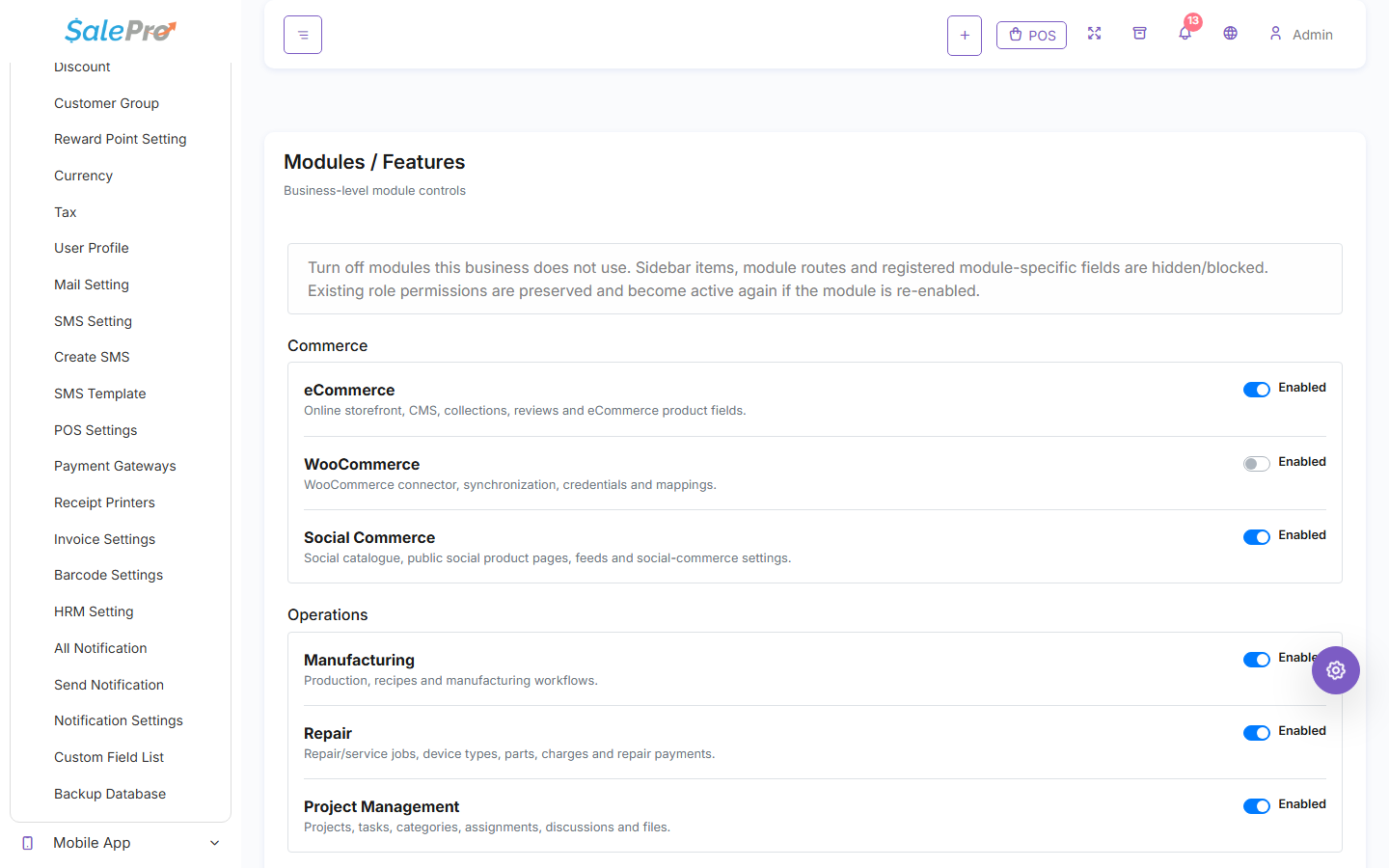
Step 1 — Enable Social Commerce#
Sign in as an administrator and open Settings → Modules / Features. Enable Social Commerce, refresh the admin panel, and give the relevant staff access through Roles / Permissions.
Step 2 — Prepare products for publishing#
Review the products you want customers to see. Make sure names, images, prices, stock/availability, category information, and descriptions are suitable for a public catalogue.
Step 3 — Configure Social Commerce#
Open the Social Commerce settings/screens available in your SalePro version. Configure the public catalogue/product-page information and any supported WhatsApp/order actions.
If you use a Meta/product feed, generate it and validate the resulting feed before submitting it to an external platform.
Step 4 — Test the public journey#
Open a published product page as a customer, check its image/price/availability, and test the supported order or WhatsApp action from beginning to end.
External platforms such as Meta/WhatsApp have their own account, feed, messaging, and policy requirements. SalePro can prepare its side of the workflow, but external approval/delivery depends on the third-party service.
If something is unclear, tell support which guide and section you were following.