Enable or Disable SalePro Modules
Administrators can enable only the modules a business uses, then control staff access through Roles and Permissions.
SalePro includes several optional business modules. You can turn on the modules your business actually uses and keep the others out of the day-to-day interface.
Open Modules / Features#
Sign in as an administrator and go to Settings → Modules / Features.
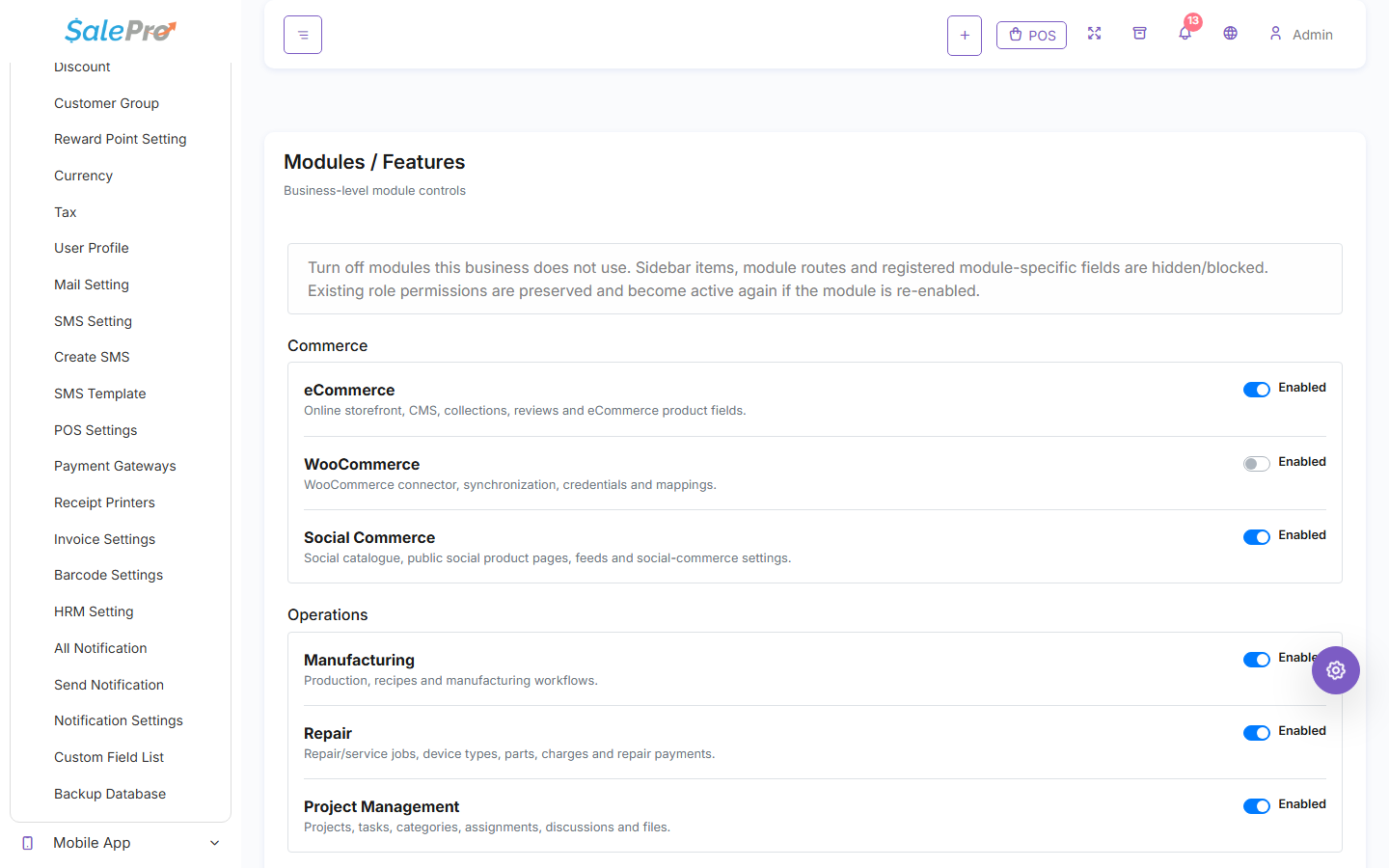
The screen groups modules by purpose. Depending on your SalePro version, you may see modules such as Ecommerce, WooCommerce, Social Commerce, Manufacturing, Repair, Project Management, Restaurant, India GST, AI Assistant, vCard/NFC, and others.
Enable a module#
- Find the module you want to use.
- Switch it to Enabled.
- Refresh the admin panel if its menu does not appear immediately.
- Open the new module menu and complete that module's own setup guide.
- If staff members will use it, review their Roles / Permissions and give them access to the screens and actions they need.
Enabling a module makes the feature available to the business. Role permissions then decide which users can see or use it.
Disable a module#
If the business no longer uses a module, return to Settings → Modules / Features and switch it off. Its menu and module-specific screens should no longer be available to normal users.
Before disabling a module that already contains business data, finish or review any open work first—for example pending repair jobs, production work, Ecommerce orders, or project tasks.
If a module menu is missing#
Check these in order:
- Business setting: Is the module enabled under Settings → Modules / Features?
- User role: Does the affected staff member have access to that module/screens?
- Session: Refresh the page or sign out and back in after changing access.
- Version/package: Confirm the feature is included in the SalePro version/package you are using.
Do not edit configuration files or database flags simply to force a menu to appear. Use the administrator screens whenever the feature is supplied through the normal SalePro interface.
If something is unclear, tell support which guide and section you were following.