Manage Repair Service Jobs, Parts, Charges, and Payments in SalePro
Create repair jobs, assign technicians, issue parts, add service charges, collect payment, and complete the job from one workflow.
Step 1 — Enable Repair#
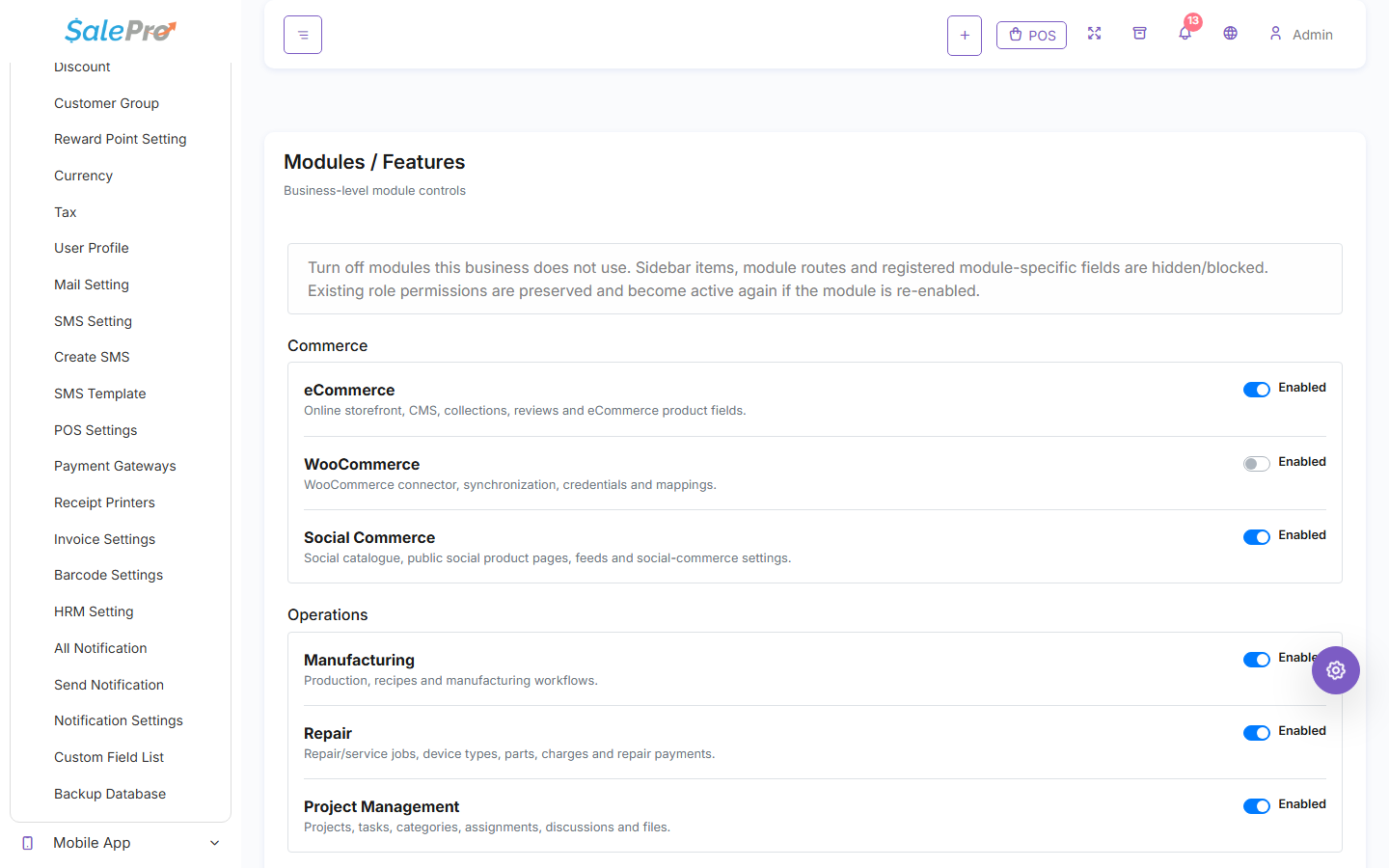
Sign in as an administrator and open Settings → Modules / Features. Enable Repair, refresh the admin panel, and give technicians/front-desk staff only the Repair screens and actions they need through Roles / Permissions.
Step 2 — Create the service job#
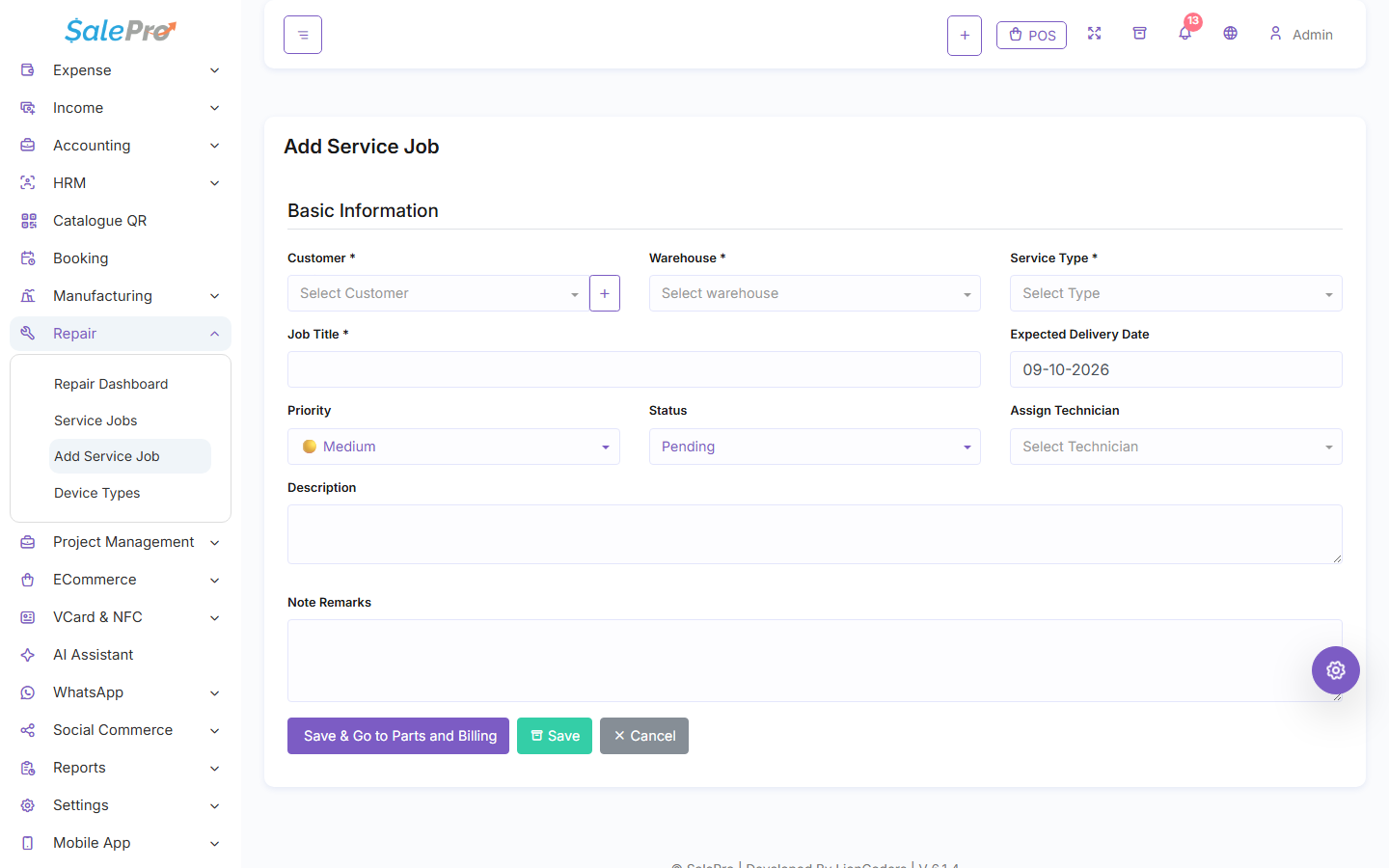
Create a job and select the customer and warehouse. Record the device/vehicle details, reported problem, priority, technician, expected dates, and other information your team needs to receive the item properly.
Step 3 — Add work, parts, and charges#
As the job progresses, add the parts used and any labour/service charges. Update the job status so front-desk staff and technicians can see where the repair stands.
Parts taken from stock should be issued from the correct warehouse. Review stock after a test job before using the module for live serialized/batch-sensitive items.
Step 4 — Collect payment and complete the job#
Record the customer payment using the appropriate SalePro account/payment method, complete the service job, and print or provide the customer document/receipt used by your business.
Before launch, test the full lifecycle: create job → assign technician → use a part → add charge → collect payment → complete job → verify stock and customer/accounting result.
If something is unclear, tell support which guide and section you were following.