Set Up SalePro Ecommerce from Module Activation to Your First Test Order
Follow the SalePro screens in order to turn on Ecommerce, prepare your catalogue and storefront, configure checkout, and place a complete test order.
SalePro Ecommerce is included with SalePro. You do not need to buy a separate regular Ecommerce add-on. On a fresh installation, an administrator first enables Ecommerce for the business, then configures the store from the eCommerce menu.
This guide follows the screens in the order a new store owner normally uses them. Interface labels can vary slightly by SalePro version, but the workflow is the same.
What you will do#
- Enable Ecommerce from Settings → Modules / Features.
- Confirm the eCommerce menu appears in the admin sidebar.
- Configure store identity, homepage, warehouse, order, and contact settings.
- Select a storefront theme/profile.
- Make the products you want to sell available online.
- Build the homepage, pages, menus, sliders, and collections.
- Configure payment methods and delivery areas.
- Open the public store and place a complete test order.
Step 1 — Enable the Ecommerce module#
Sign in with an administrator account and open Settings → Modules / Features. Under Commerce, find eCommerce and switch it to Enabled.
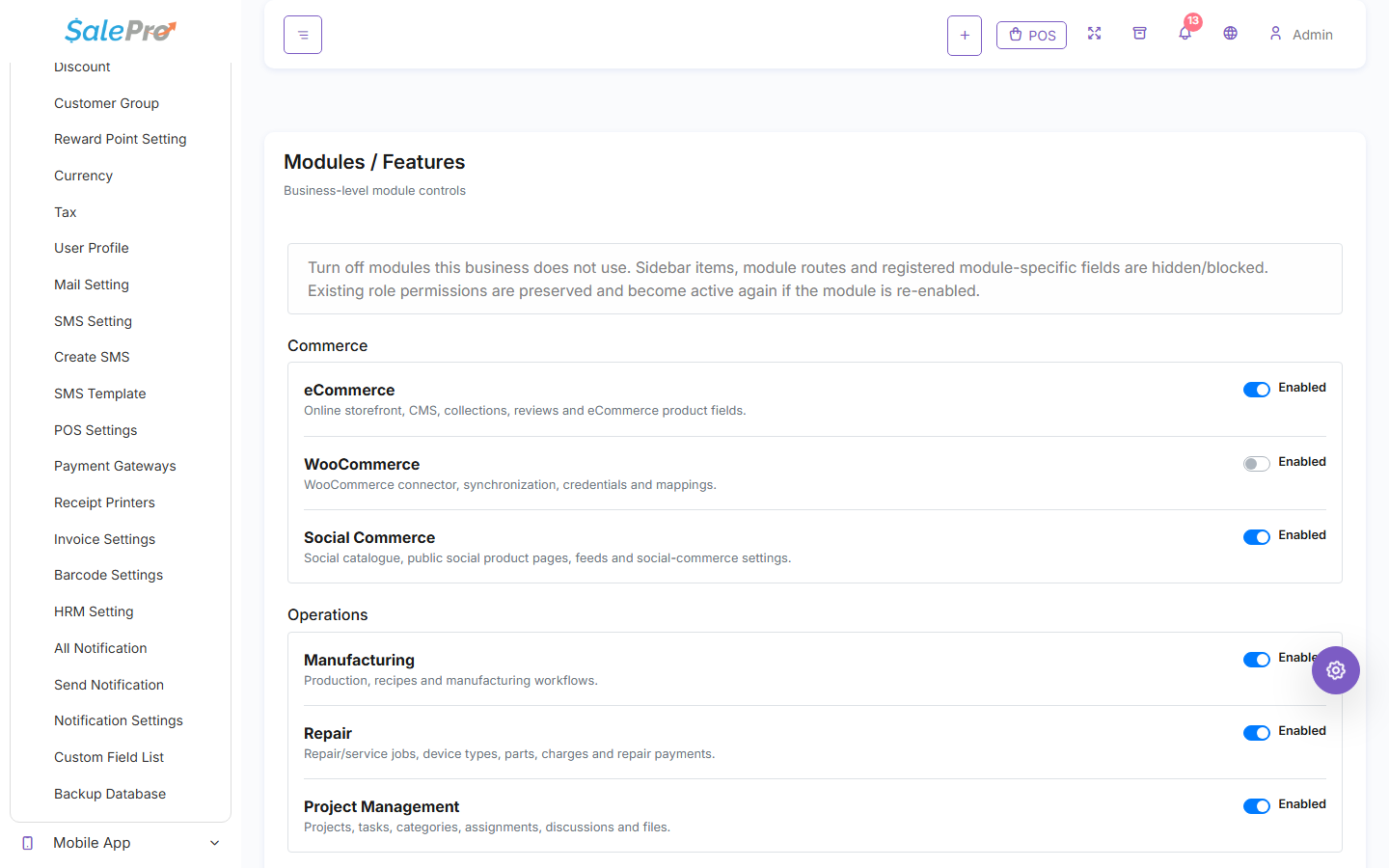
After enabling it, refresh the admin panel. A new eCommerce section should appear in the sidebar with the storefront-management screens.
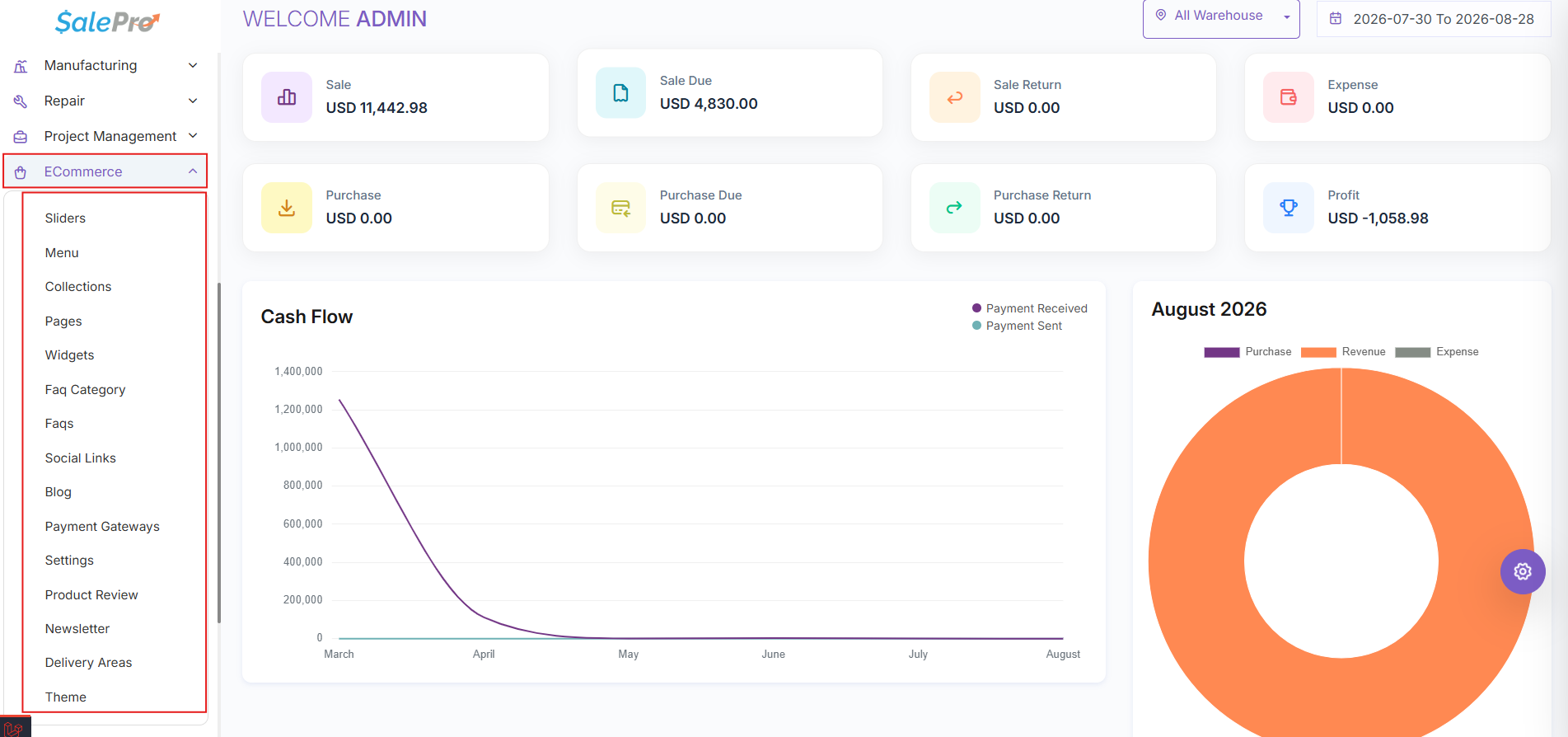
If the module is enabled but a staff member cannot see the Ecommerce menu, check that user's role in Roles / Permissions and allow the Ecommerce screens that person needs. You do not need to work with internal permission names or code-level settings.
Step 2 — Configure the store before adding content#
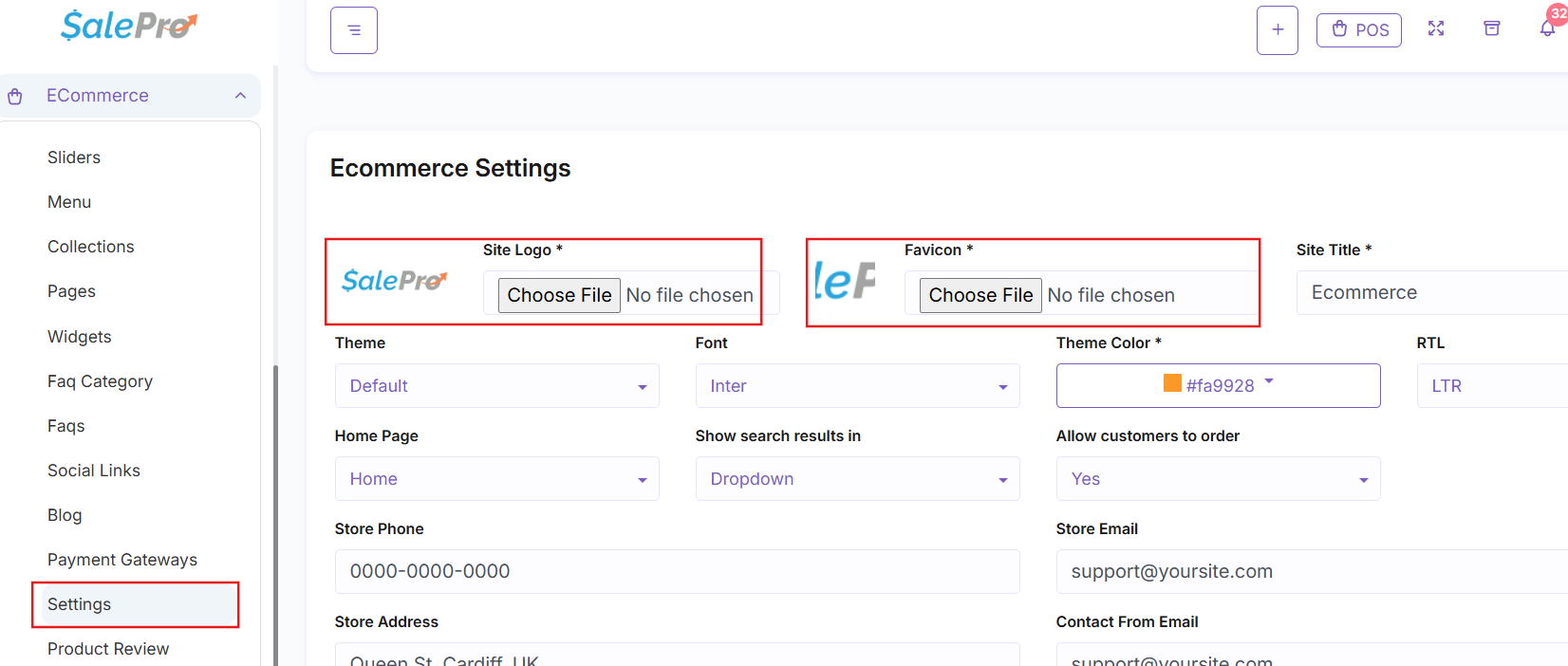
Open eCommerce → Settings first. This is the control centre for the online store.
Start with the customer-facing identity:
- upload the store logo and favicon;
- choose the available storefront style, font, and theme colour;
- select the page that will be used as the homepage;
- enter the store phone, email, address, and contact-from email;
- review how search results and ordering should behave.
Then review the operational settings further down the same page. In particular, choose the Default Warehouse and Default Biller used by the store and review shipping/order options.
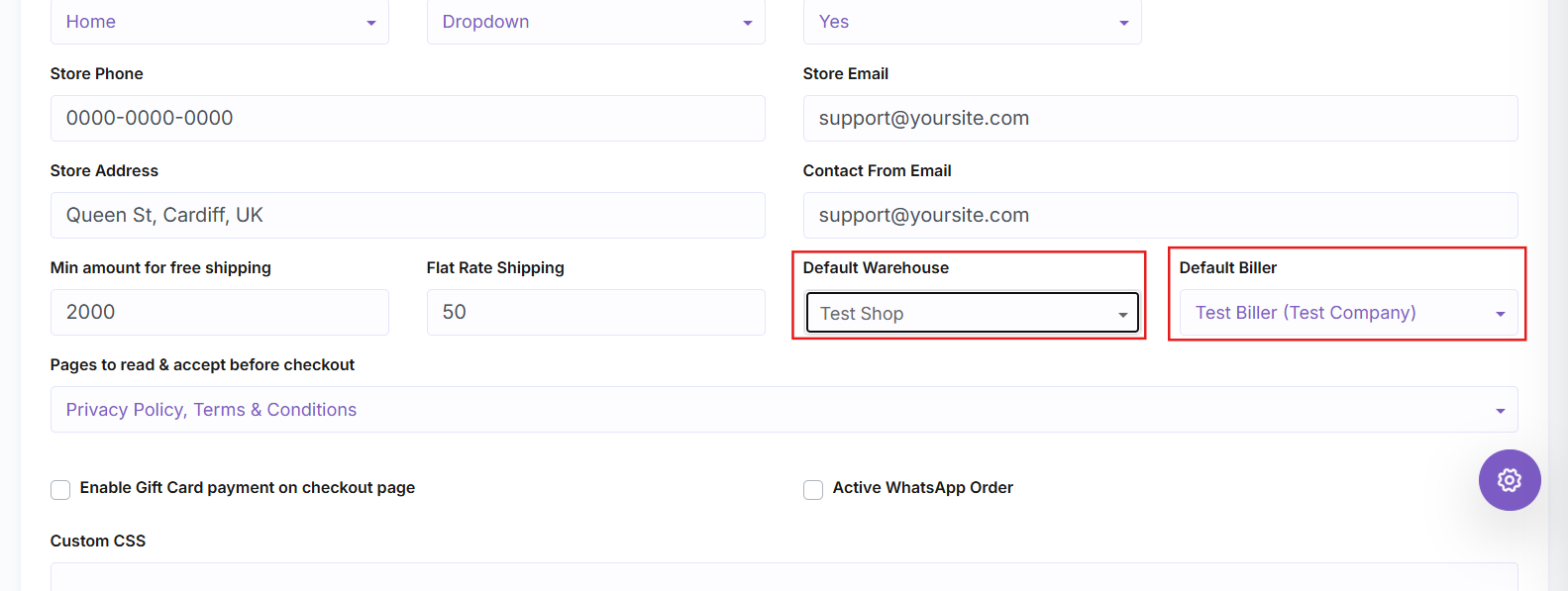
The default warehouse is especially important because it affects which stock the online store can offer. Save the settings before moving to the next step.
Step 3 — Choose the storefront theme#
Open eCommerce → Theme. Review the storefront profiles/themes available in your SalePro version and activate the one you want to use.
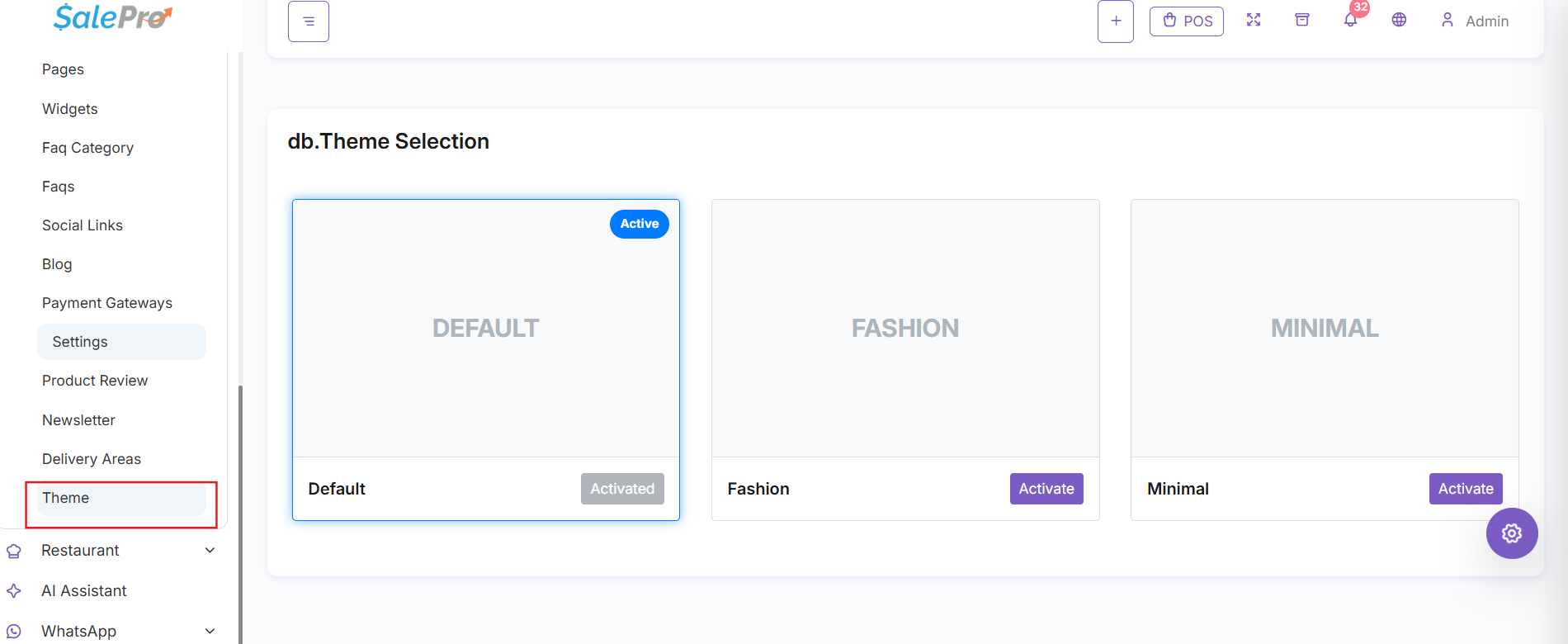
You can change the theme later, so for the first setup choose the closest layout, finish the store configuration, and then refine branding and content.
Step 4 — Make products available online#
Your Ecommerce store uses the same SalePro products and inventory as the rest of the system. You do not create a second catalogue just for the website.
Open Products, create or edit a product, and review the online-selling controls. Depending on the product and SalePro version, look for options such as Sell Online, Ecommerce availability, and In Stock.
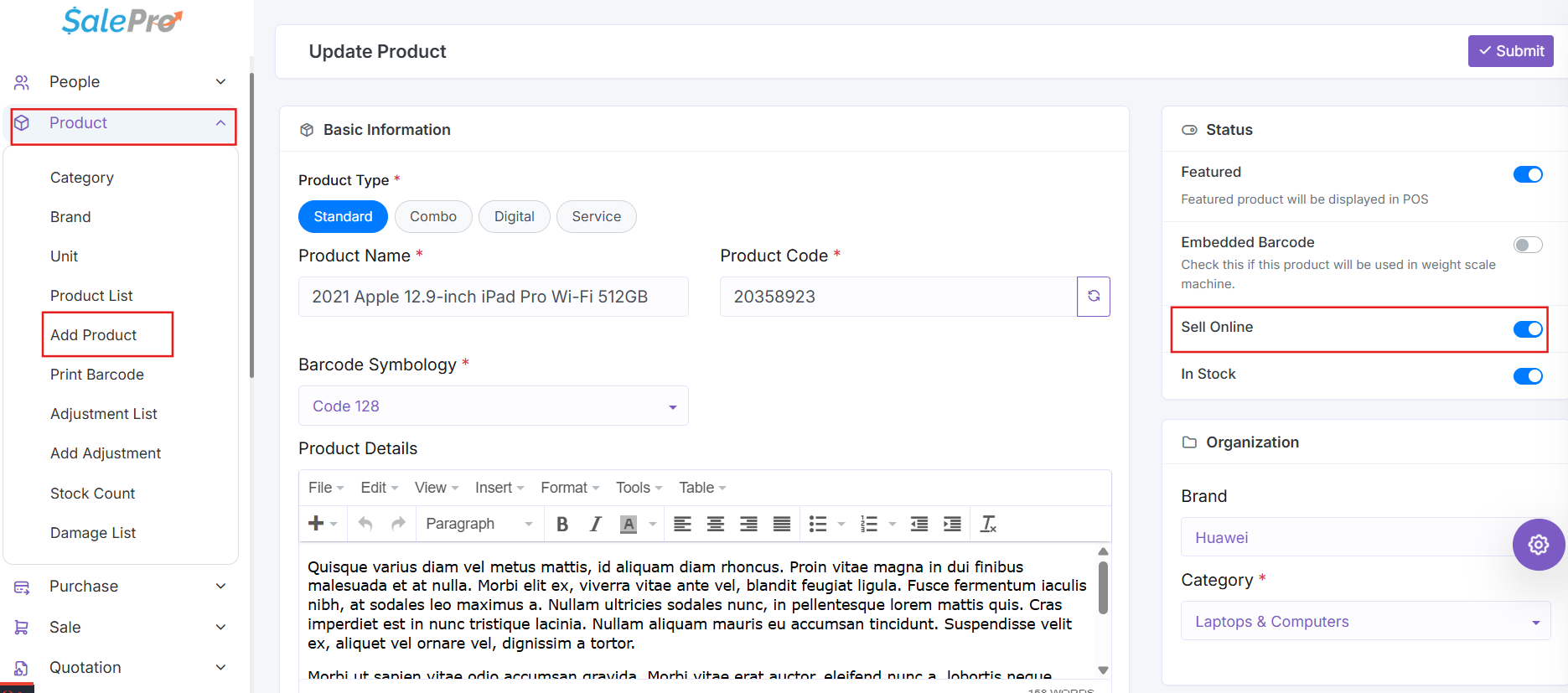
Before publishing a product, verify:
- the product is active and allowed for online selling;
- selling price and tax are correct;
- category and brand are appropriate;
- product images are present;
- variants have valid prices and stock where applicable;
- stock is available in the warehouse used by Ecommerce;
- the product description is suitable for customers, not only internal POS users.
If a product appears in SalePro but not in the storefront, check these items before changing anything else.
Step 5 — Build the customer-facing storefront#
Once the store settings and products are ready, build the pages customers will see.
Add homepage sliders#
Open eCommerce → Sliders and add the promotional images you want to use. Give each slider a title, optional link, display order, and the requested desktop/tablet/mobile images.
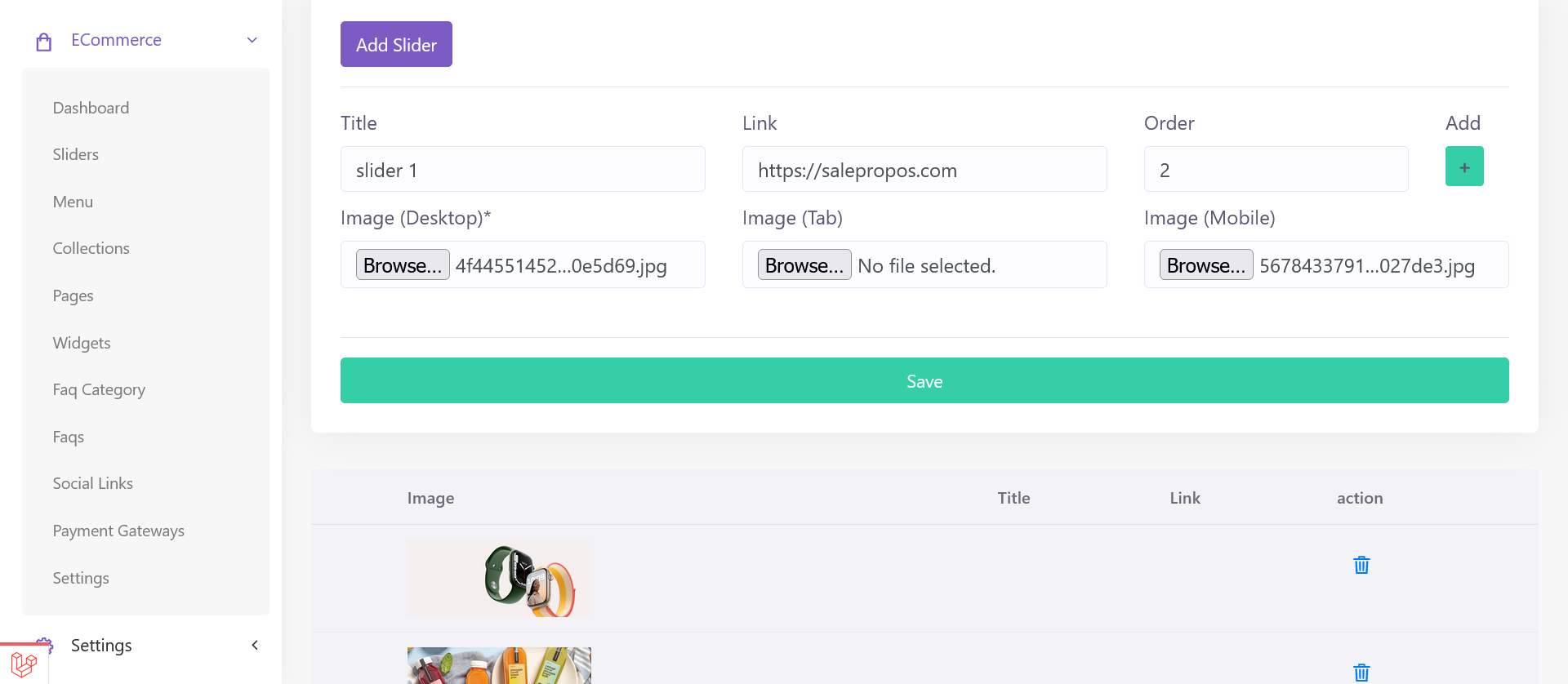
Creating a slider makes it available to the storefront. If your homepage uses a page/widget builder, also place the slider in the homepage layout.
Create collections#
Open eCommerce → Collections to build curated product groups such as New Arrivals, Featured Products, Summer Sale, or Staff Picks. Collections can contain products from different SalePro categories and are useful for merchandising the homepage.
Create pages#
Open eCommerce → Pages. Create the pages your store needs—for example Home, About Us, Contact Us, FAQ, Privacy Policy, and Terms & Conditions.
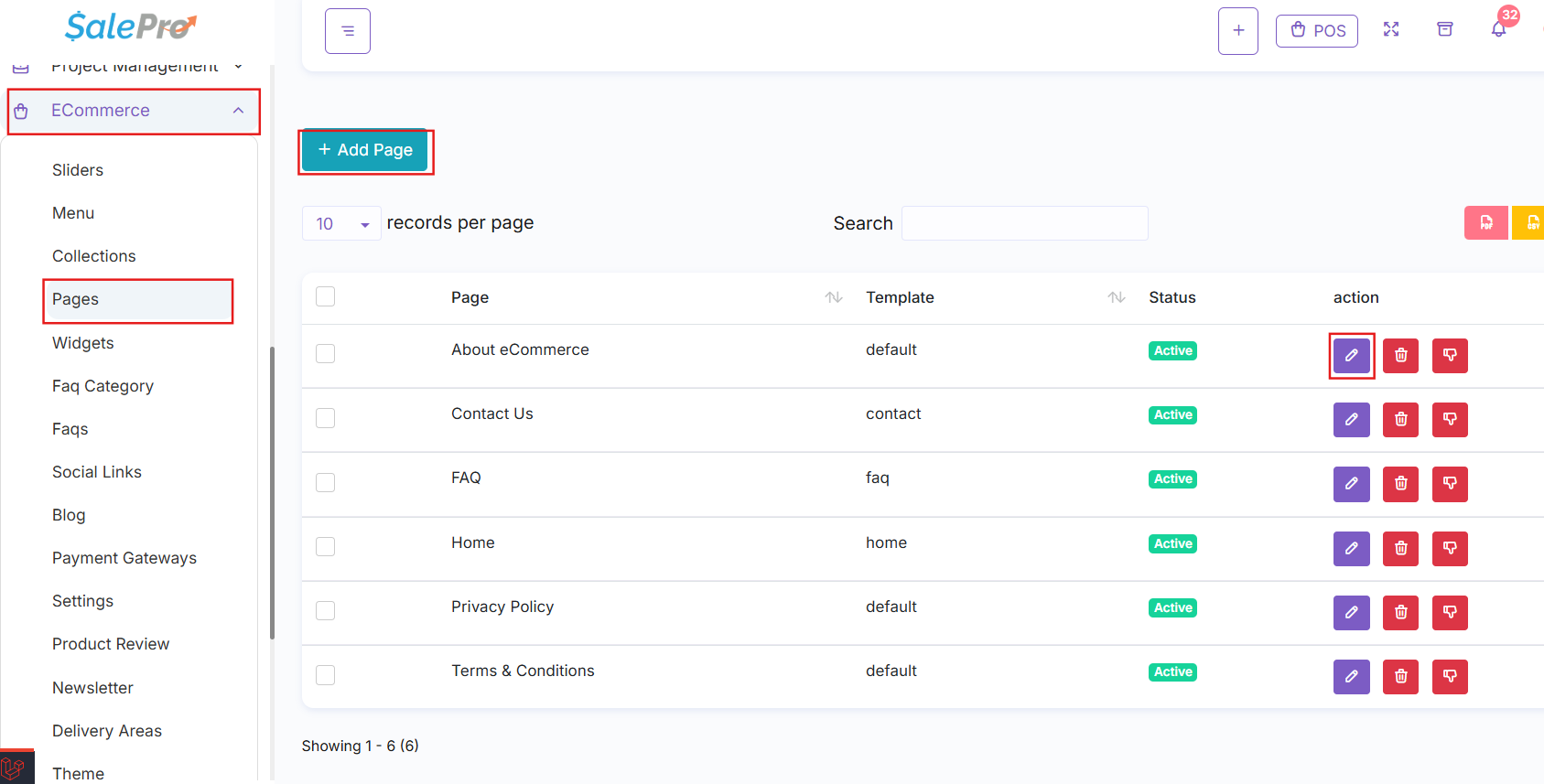
For a homepage-style page, use the available page builder/widgets to arrange banners, product collections, text, categories, and other blocks.
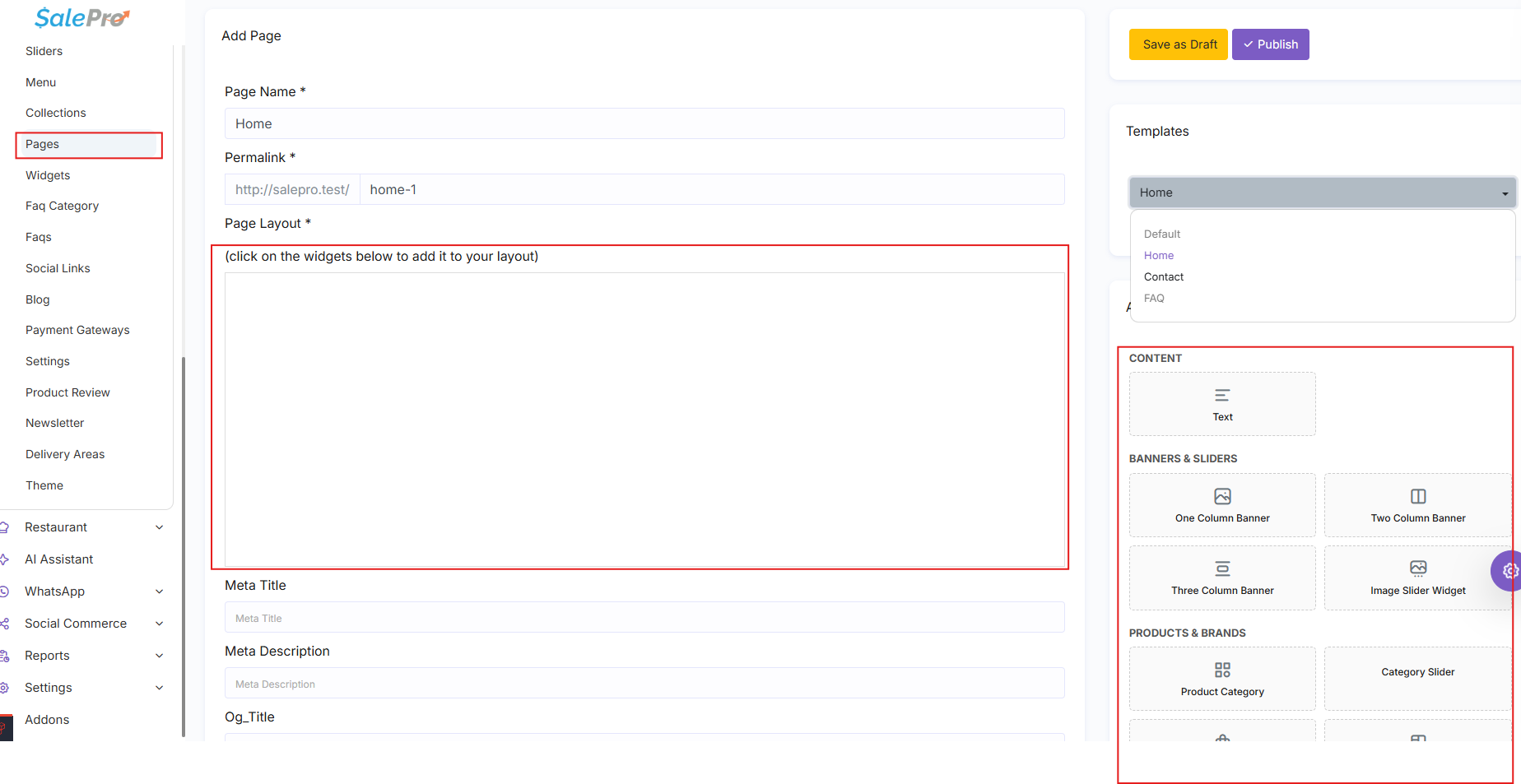
Publish the page when it is ready. If this is your homepage, return to eCommerce → Settings and select it in the Home Page field.
Build the main navigation#
Open eCommerce → Menu and create the navigation customers will use. Add links to categories, collections, pages, blog content, or other supported destinations, then assign the menu to the appropriate location.
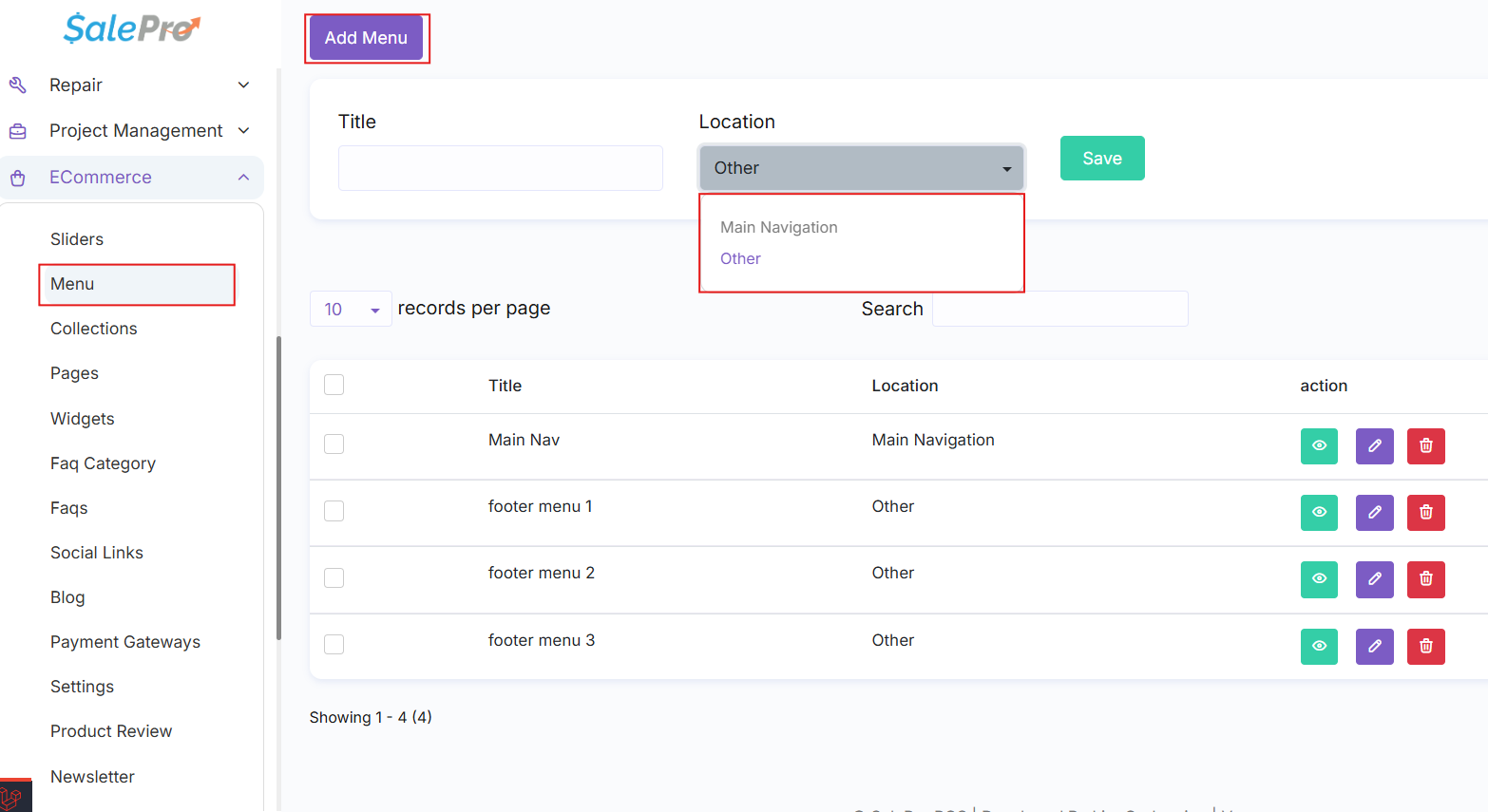
Also review Widgets, FAQ Categories / FAQs, Social Links, Blog, and other Ecommerce content screens if your storefront uses them.
Step 6 — Configure payment methods#
Open eCommerce → Payment Gateways. Enable only the payment methods you actually intend to offer, enter the required credentials/settings, and save them.
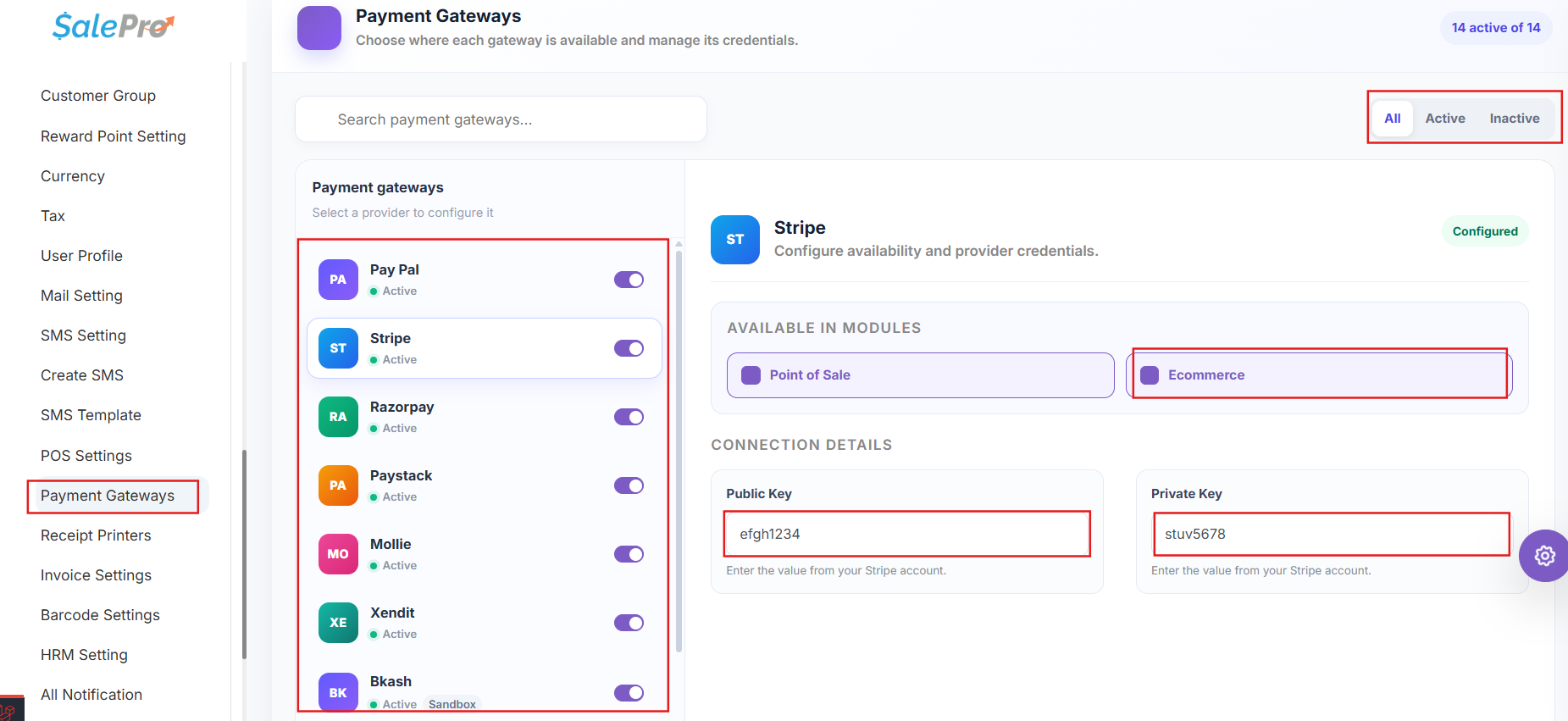
The gateways available on your installation can vary by SalePro version and region. A gateway should not be considered ready simply because it is listed—complete its credentials and place a real or sandbox test order before offering it to customers.
WhatsApp ordering#
If you want customers to place an order through WhatsApp, open eCommerce → Settings, enable WhatsApp Order, and make sure the store phone/WhatsApp number is entered correctly.
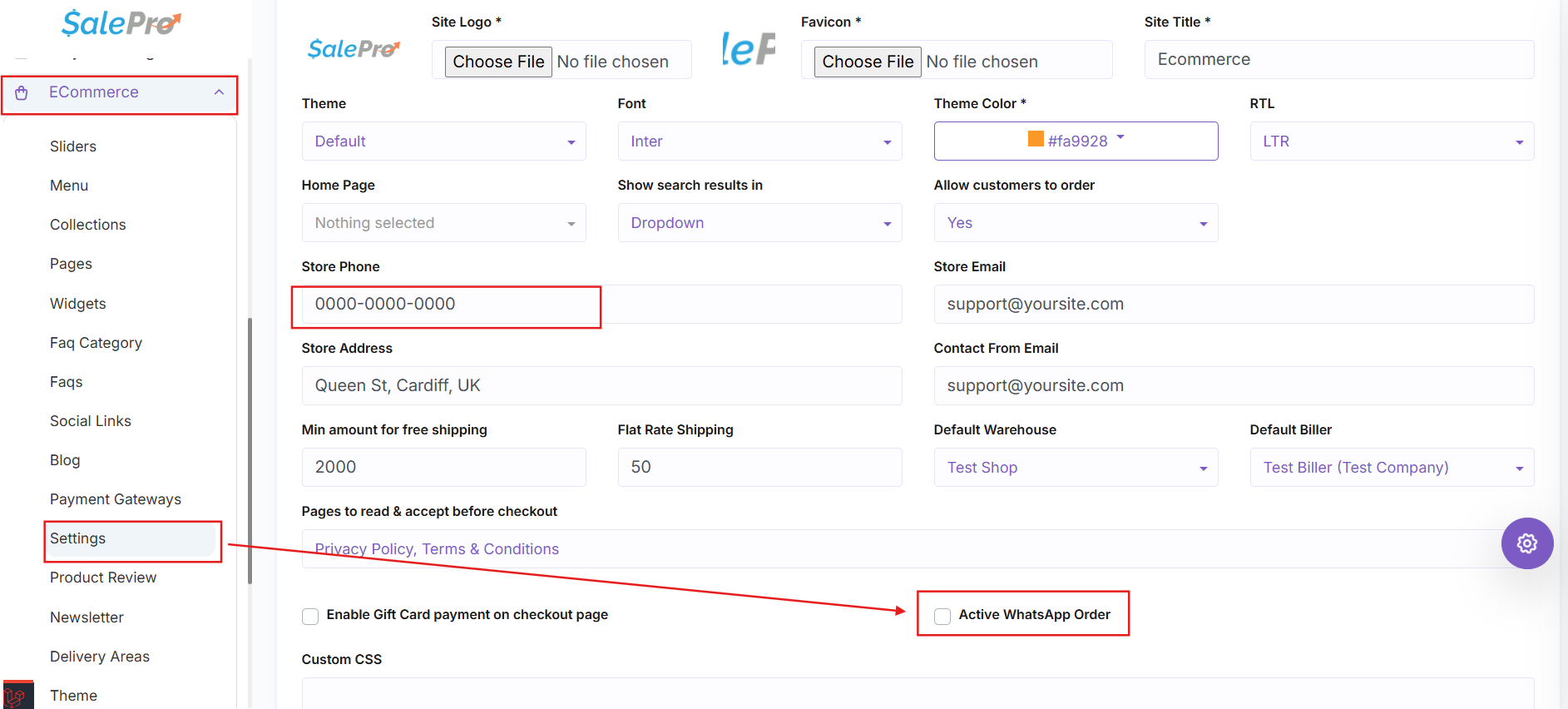
The customer can then use the WhatsApp option during checkout where supported. Treat the resulting order as an order that still requires your normal confirmation/payment process unless an integrated payment flow has separately completed.
QR-code payment#
If your version provides manual QR payment, upload the QR image for the relevant currency under eCommerce → Settings.
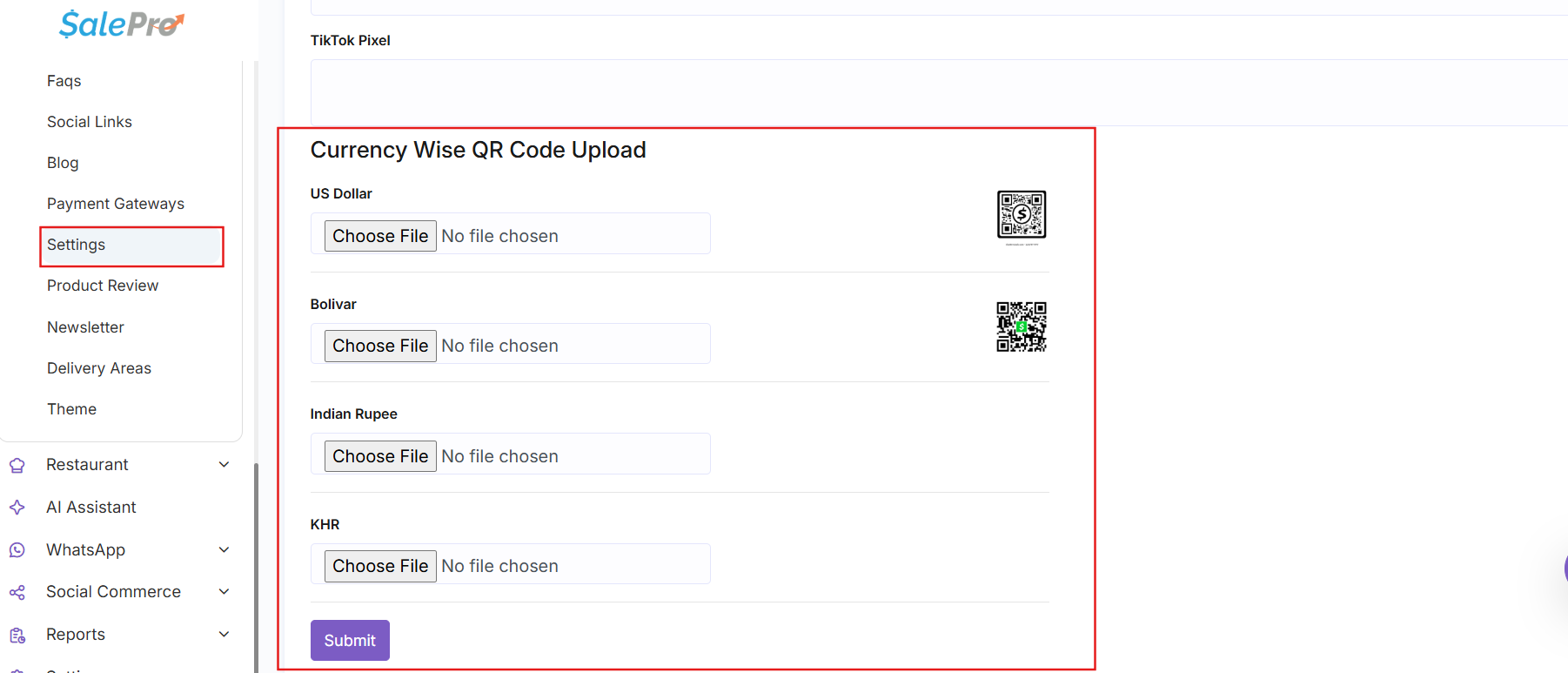
The QR option is intended for manual payment confirmation. Verify the customer's payment before fulfilment.
Step 7 — Configure delivery areas#
Open eCommerce → Delivery Areas and create the areas you deliver to. Enter the delivery charge, estimated delivery time, status, and other fields shown by your version.
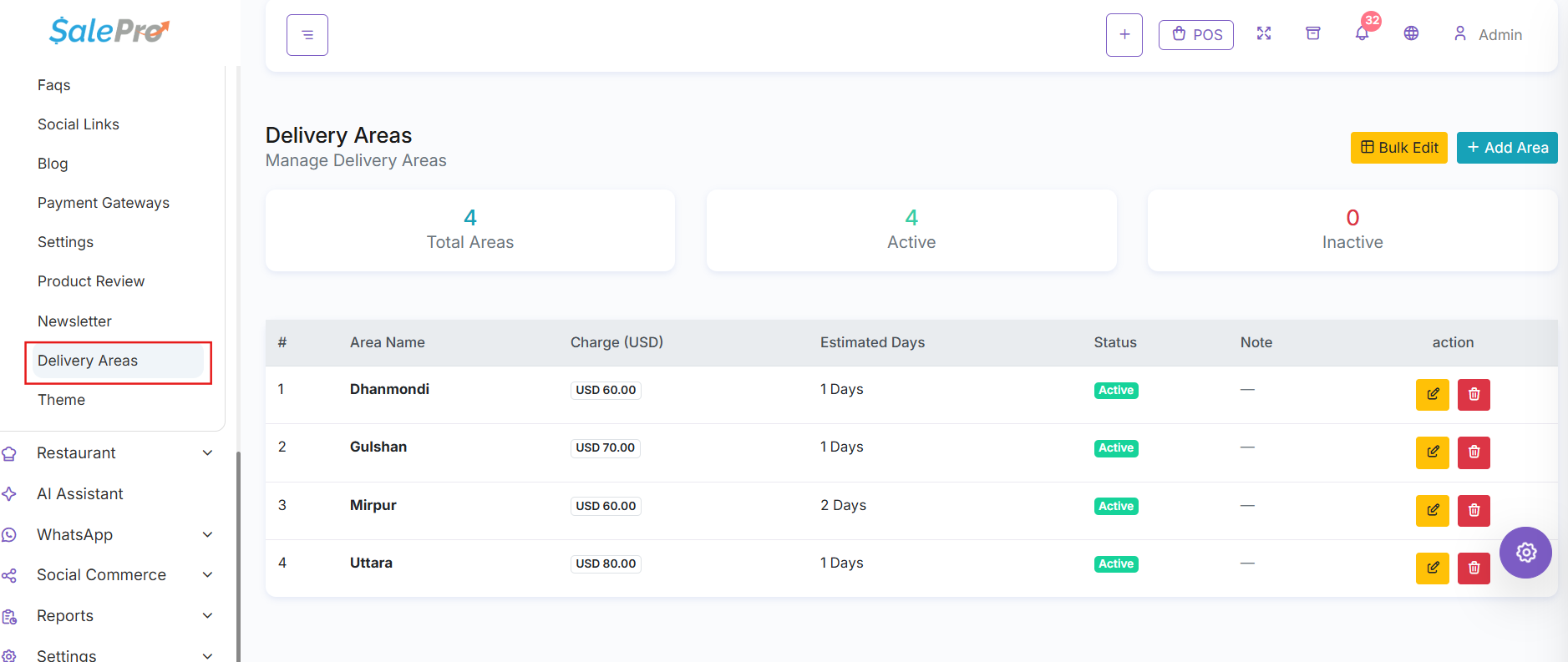
Create enough areas to cover the locations your customers can select at checkout. If a customer cannot choose delivery, check that their location matches an active delivery area and that your shipping settings are enabled.
Step 8 — Test the store as a customer#
Do not launch immediately after filling in the admin screens. Open the storefront in a private/incognito window and complete the same journey a real customer will use.

Test all of the following:
- Open the homepage and confirm the correct theme, logo, menu, sliders, and collections appear.
- Search for a product and open its product-detail page.
- Select a variant if the product has variants.
- Add the product to the cart and change the quantity.
- Register/login or continue with the customer flow supported by your store.
- Enter the shipping address and select an available delivery area.
- Apply a coupon or gift card if you use them.
- Select each payment method you plan to offer and complete its test flow.
- Place the order and confirm the success page/reference appears.
- Return to the SalePro admin panel and verify the order, customer, payment status, warehouse stock, and totals are correct.
Repeat this test on a mobile phone before announcing the store publicly.
Common Ecommerce problems#
| Problem | What to check first |
|---|---|
| eCommerce menu is missing | Go to Settings → Modules / Features and confirm eCommerce is enabled. If only one user is affected, check that user's role/permissions. |
| Product exists in SalePro but not online | Edit the product and confirm online-selling is enabled, the product is active, images/pricing are valid, and it is available from the Ecommerce warehouse. |
| Add to Cart is missing | Check that customer ordering is enabled in Ecommerce Settings, the product is available online/in stock, and any required variant has been configured. |
| Homepage is empty or incomplete | Confirm the correct Home page is selected in Ecommerce Settings and that its widgets/sections have been published. |
| Payment method is not visible | Confirm the gateway is enabled, required credentials are saved, and the method supports the current checkout/currency. |
| Delivery option is missing | Confirm there is an active Delivery Area matching the customer's location and review the shipping settings. |
| WhatsApp order does not appear | Enable WhatsApp Order and enter a valid store phone/WhatsApp number. |
| QR payment does not appear | Upload a QR code for the currency being used at checkout. |
Where to go next#
Once the basic store is working, refine product descriptions and images, review SEO fields for pages/collections, test emails and notifications, and repeat checkout testing whenever you change payment, warehouse, tax, or delivery settings.
If you are connecting an external WordPress/WooCommerce store instead of using SalePro's built-in storefront, follow the WooCommerce integration guide.
If something is unclear, tell support which guide and section you were following.