Create Recipes and Production Runs in SalePro Manufacturing
Define what each finished product consumes, then use a production run to reduce component stock and receive finished goods.
Step 1 — Enable Manufacturing#
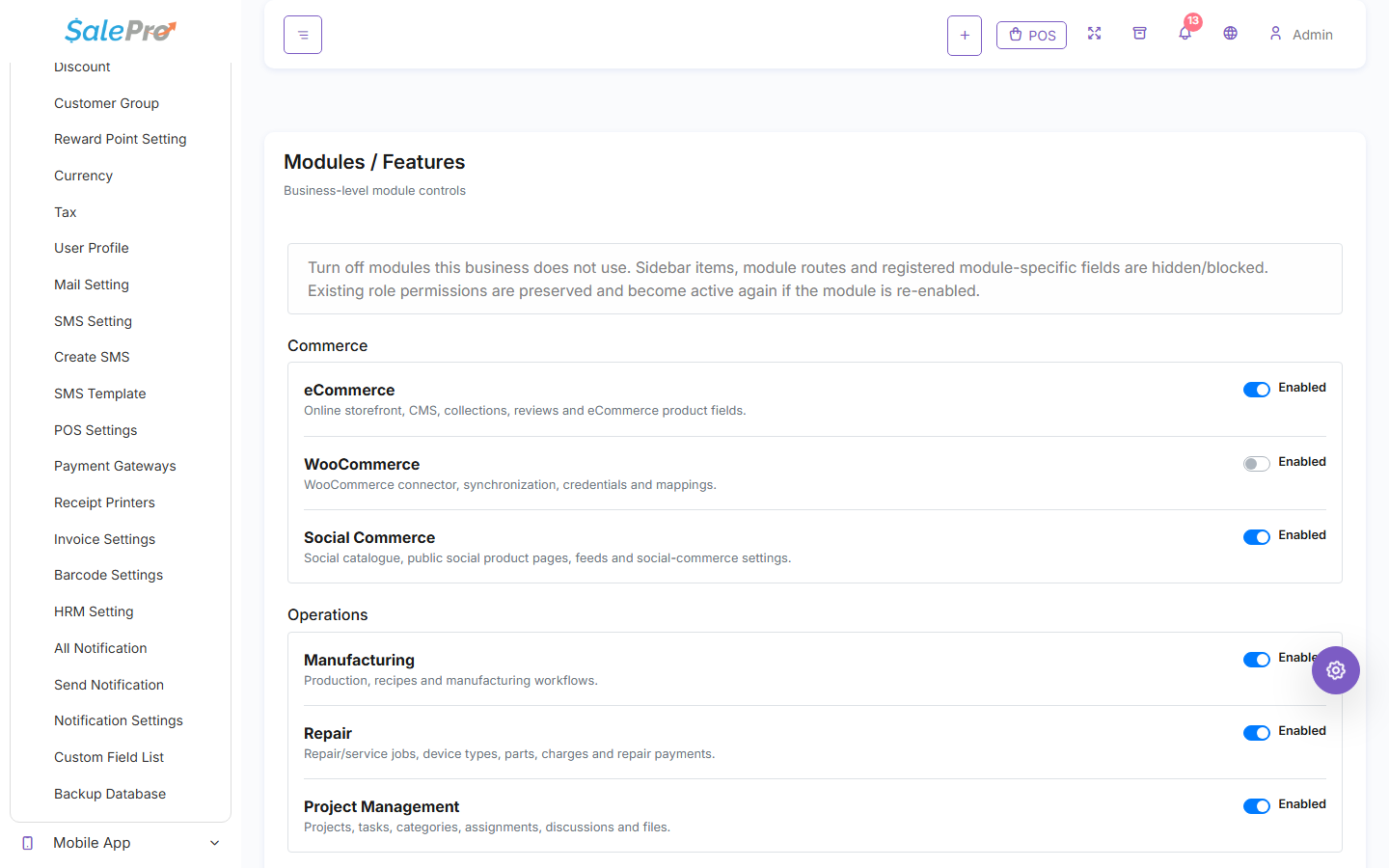
Sign in as an administrator and open Settings → Modules / Features. Enable Manufacturing, refresh the admin panel, and give the appropriate staff access to recipes and production.
Step 2 — Create a recipe / BOM#
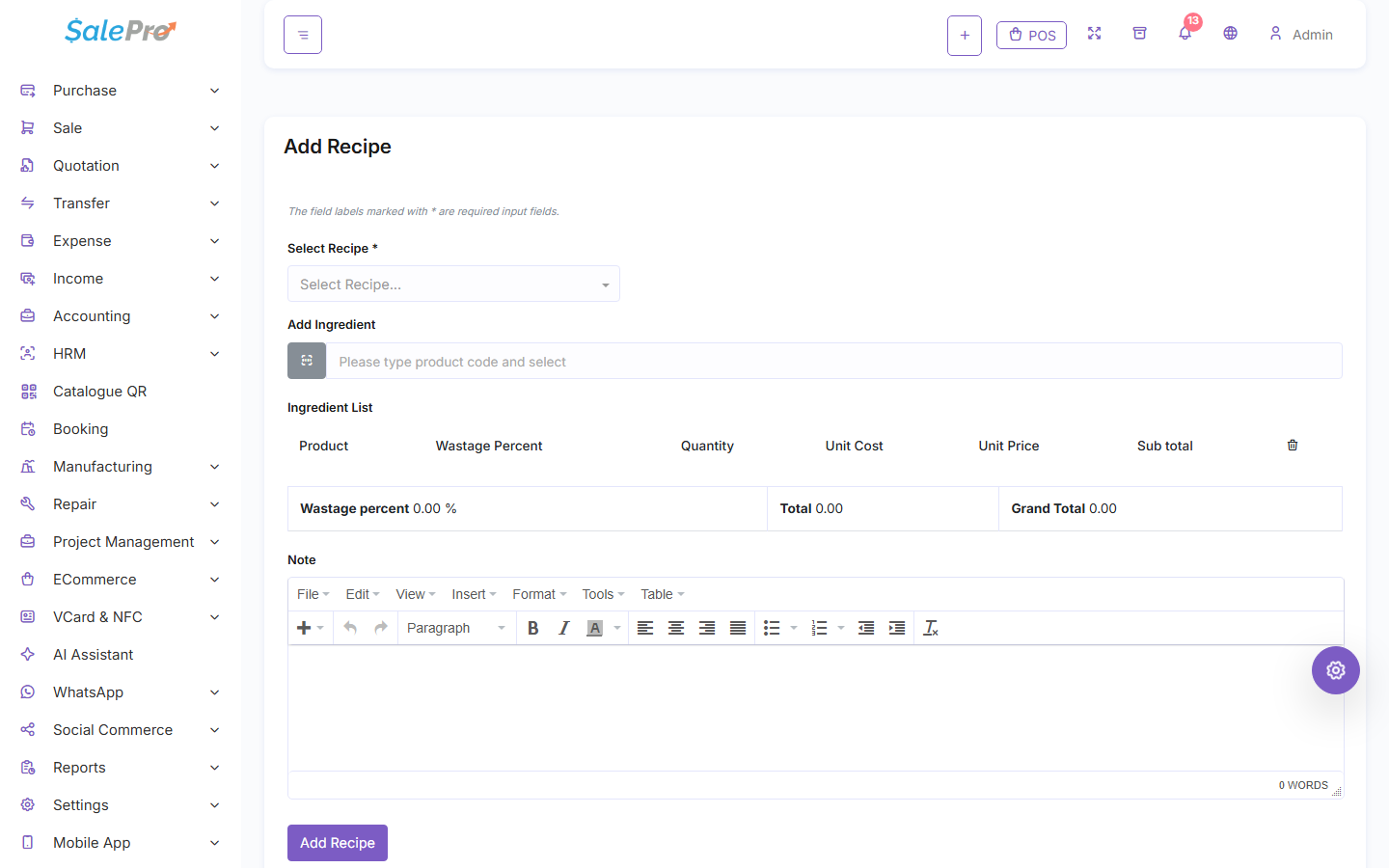
Create a recipe for the finished product and add every component/raw material with the quantity required to make the defined output quantity.
Creating or editing a recipe does not move stock. It only defines what should be consumed during production.
Step 3 — Record production#
Create a production run, choose the warehouse, recipe, output quantity, status, and any production-cost fields shown by your version.
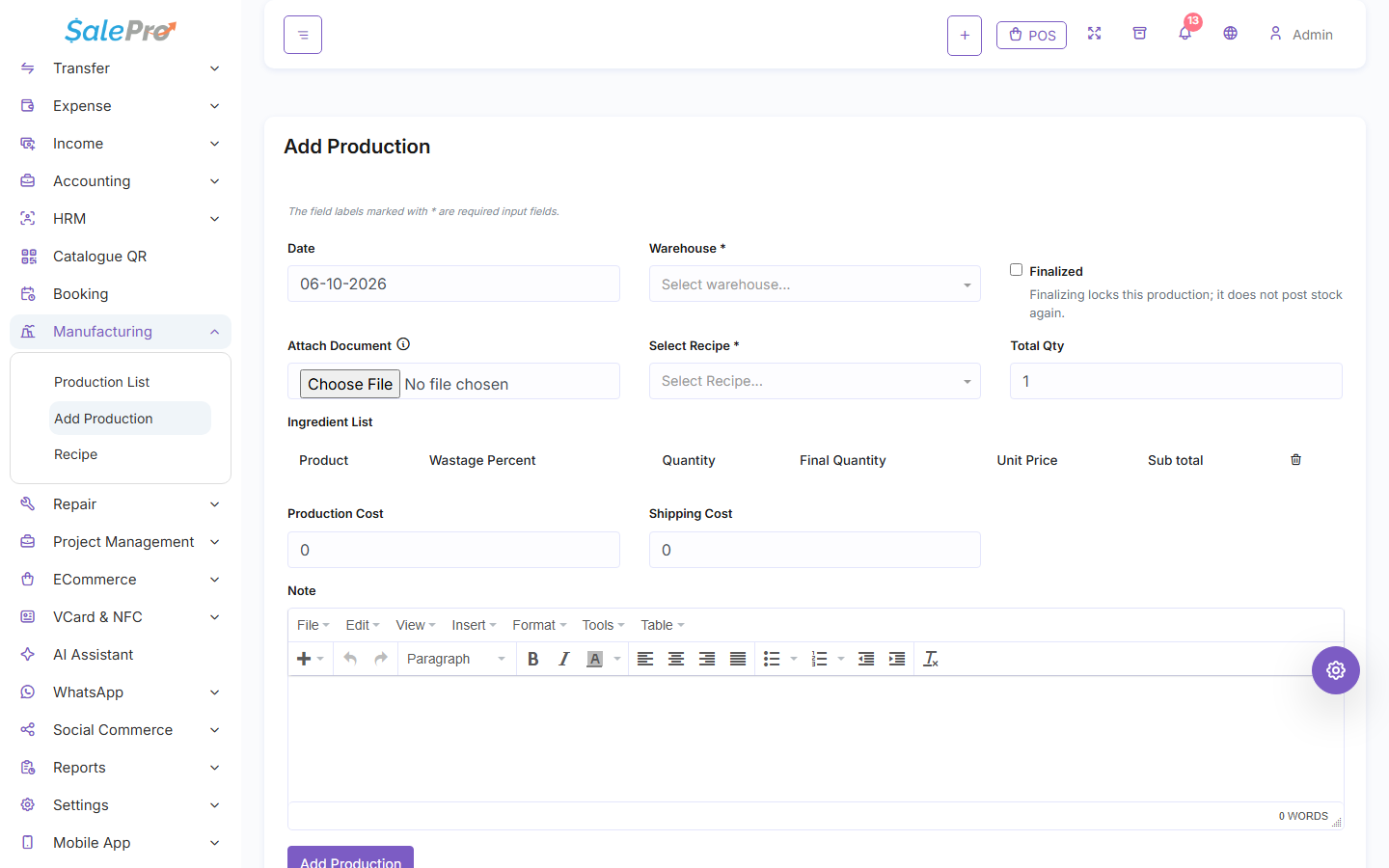
When the production is completed, review both sides of the stock movement:
- component/raw-material quantities should decrease;
- finished-product quantity should increase in the selected warehouse.
Before using it live#
Test one small production first. Compare component stock before/after, finished stock, cost, and the Stock Ledger/reporting relevant to your setup. If your products use batch/serial-specific tracking, verify that your exact workflow is supported before processing live production.
If something is unclear, tell support which guide and section you were following.