Use Restaurant POS, Reservations, Modifiers, and KDS in SalePro
Set up the Restaurant module, prepare tables and menu workflows, then run dine-in, takeaway, delivery, and kitchen orders from SalePro.
Step 1 — Enable Restaurant#
Sign in as an administrator and open Settings → Modules / Features. Enable Restaurant, refresh the admin panel, and give restaurant staff access through Roles / Permissions according to their job.
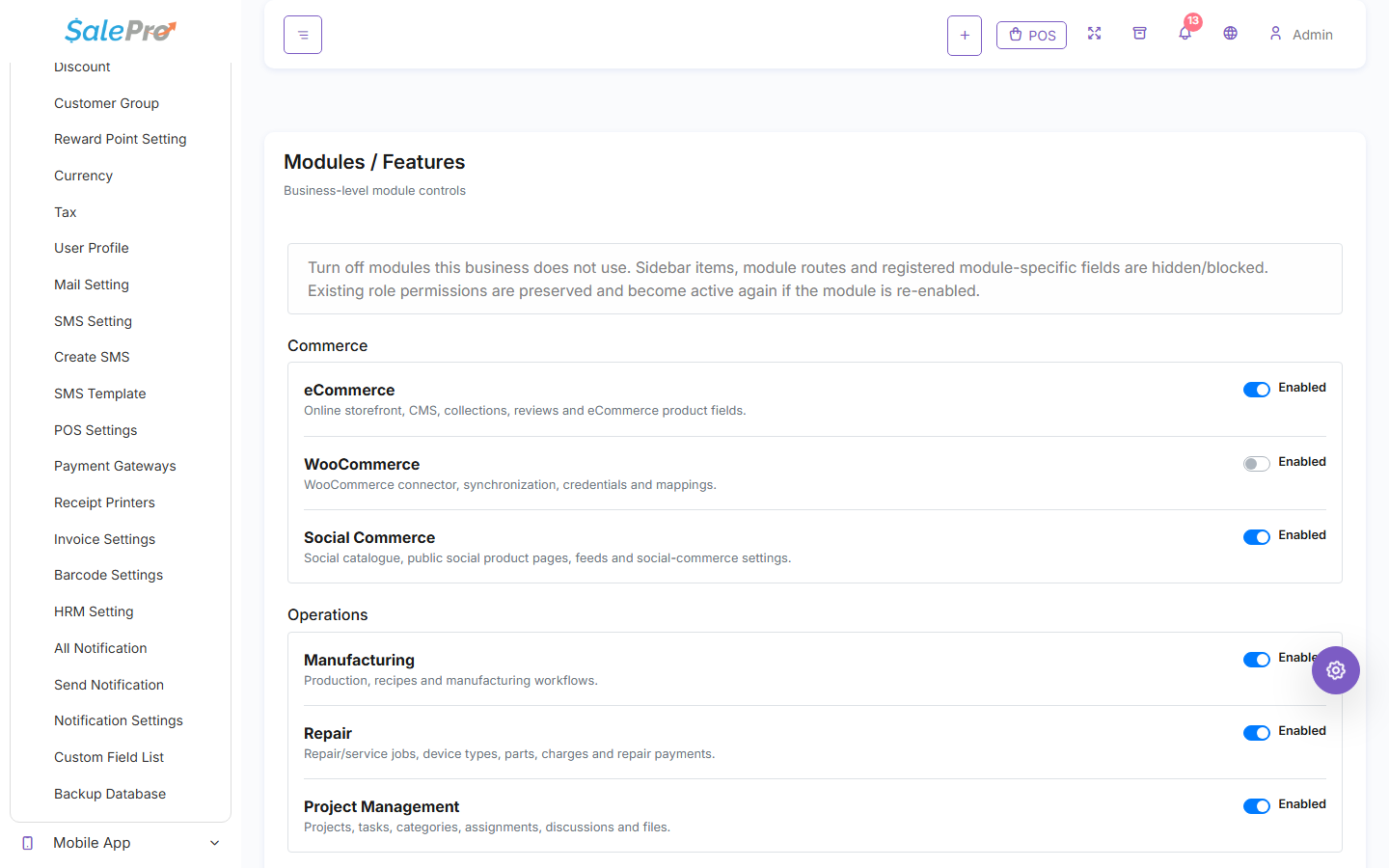
Step 2 — Prepare the restaurant layout#
Create the floors/areas and tables used by the restaurant. Then prepare the staff and service types you use, such as Dine In, Take Away, or Delivery.
Before opening POS for live service, confirm the products/menu items, prices, tax, warehouse, printers/KDS setup, and service staff are ready.
Step 3 — Configure modifiers where needed#
Use modifier groups for choices such as size, toppings, sides, cooking options, or extras. Define the allowed choices and any additional price. Where a modifier consumes an ingredient, configure it so stock usage follows the restaurant sale.
Step 4 — Take an order in Restaurant POS#
Open POS and choose the appropriate service type. For dine-in orders, select the table and service staff where required. Add products, choose variants/modifiers, review the order, and complete payment using the normal SalePro checkout flow.
Step 5 — Use KDS / kitchen workflow#
Kitchen items can move through preparation states such as Pending → Preparing → Ready. Kitchen staff update preparation status; service staff can then serve/complete the order and release the table.
Reservations#
Use Reservations to record future table bookings. Staff should still review nearby bookings when assigning a table so overlapping reservations are not created accidentally.
Before going live#
Run at least one dine-in, takeaway, and delivery test relevant to your business. Confirm table status, modifiers, kitchen flow, receipt/printing, stock reduction, payment, and final sale totals all behave as expected.
If something is unclear, tell support which guide and section you were following.