How to Allocate Landed Cost Across Imported Products in SalePro
Link same-warehouse purchases, record landed costs in their original currencies, allocate the base total exactly, then finalize FIFO imported stock layers.
Use an import batch to combine one or more purchases received into the same warehouse with freight, duty, insurance, clearing, and other landed costs. Finalization creates authoritative FIFO cost layers used by stock movements and profitability.
Before you start#
The purchases must already exist, belong to the batch’s receiving warehouse, and not be supplier-returned. Make sure the user’s role allows them to create/edit import batches, allocate landed cost, and view import profitability where required.
Create the batch and link purchases#
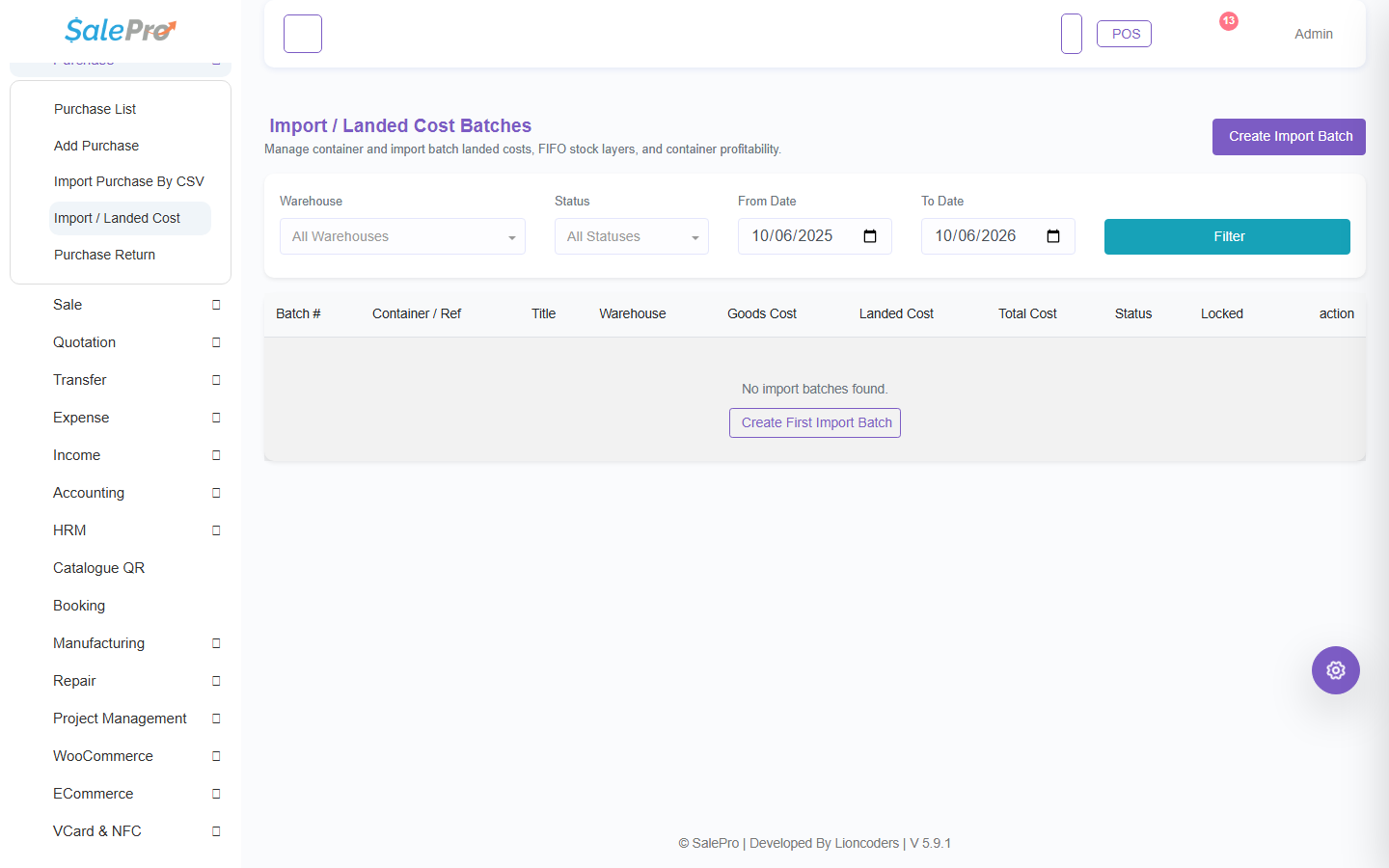
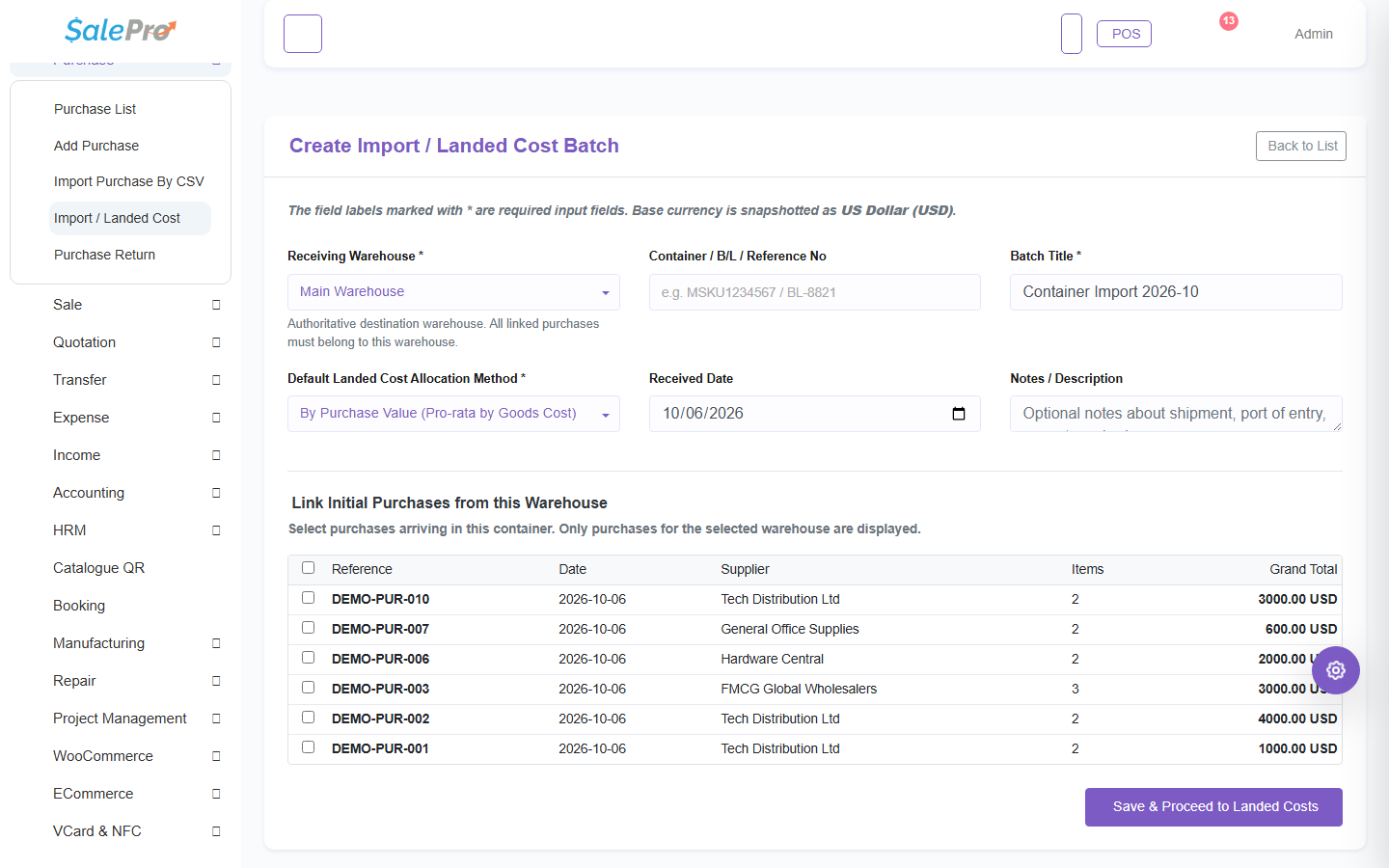
- Open Purchase > Import / Landed Cost and create a batch/container.
- Select the receiving warehouse.
- Link the eligible purchases. Cross-warehouse purchases are rejected.
- Confirm that every authoritative purchase line appears separately; identical products on different purchase lines are not collapsed.
No stock or accounting entry is created merely by creating the batch. The purchases already created the stock and payable.
Add landed-cost lines and FX snapshots#
For each freight, duty, or other cost, enter its description, original amount, currency, and exchange rate. SalePro stores the snapshot and calculates base currency as original amount ÷ exchange rate. A base-currency line uses rate 1. Review the total goods cost, landed cost, and combined cost.
Choose an allocation method#
- Purchase Value distributes cost in proportion to each line’s normalized purchase value.
- Quantity distributes cost in proportion to quantity, with rounding reconciliation.
- Manual treats each entry as an exact base-currency amount—not a weight or percentage.
For manual allocation, enter one non-negative amount for every purchase line. The allocated total must equal landed cost to four stored decimals. The page shows allocated and remaining totals; Allocate Remaining is a convenience for assigning the unresolved amount. Missing, negative, nonnumeric, underallocated, overallocated, or unknown-line input rejects the whole finalization.
Finalize and verify#
Finalization creates separate FIFO layers with received/remaining quantity, goods amount, landed amount, exact landed unit cost, source purchase line, product, variant, batch/IMEI identity, warehouse, and base currency. A finalized batch can be reopened only before any layer has been consumed.
Transfers retain the layer’s landed cost and provenance. Sales consume FIFO cost. Eligible returns and sale deletion restore the original allocation. Imported exchanges are intentionally blocked; use a sale return and a new sale.
Profitability report#
Open the batch’s Profitability page to review:
- received, sold, and remaining quantity;
- net revenue after returns;
- batch COGS, realized profit, margin, and remaining stock value;
- product rankings for most profit and highest margin (distinct calculations);
- customer quantity, gross sales, returns, net revenue, COGS, profit, margin, and rankings;
- contributing invoice drill-down.
Warehouse-restricted users see only authorized warehouse activity. Receiving cost totals may be redacted when stock was transferred into their warehouse from another receiving location.
If something is unclear, tell support which guide and section you were following.