
Platform Login, Navigation and Dashboard
Open your main SaaS domain followed by /login.
Last updated: 16 November 2026 · Product version: not specified in the supplied guide
Sign in as the superadmin
Open your main SaaS domain followed by /login. Enter the platform username and password chosen during installation. The old /super-admin entry redirects to this same login. Customer HR users should use their own tenant address instead. If a customer cannot find their workspace address, locate the organization in Customers & tenants and share its registered domain.
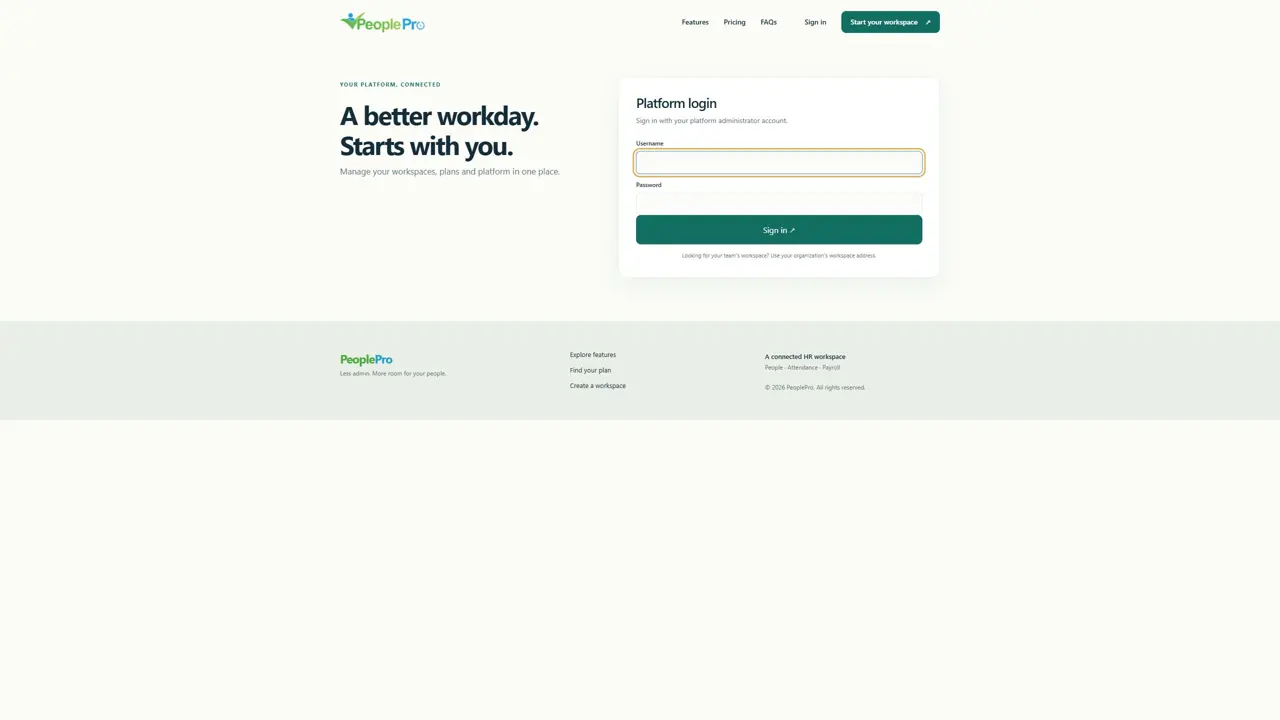
Find a menu and open the public website
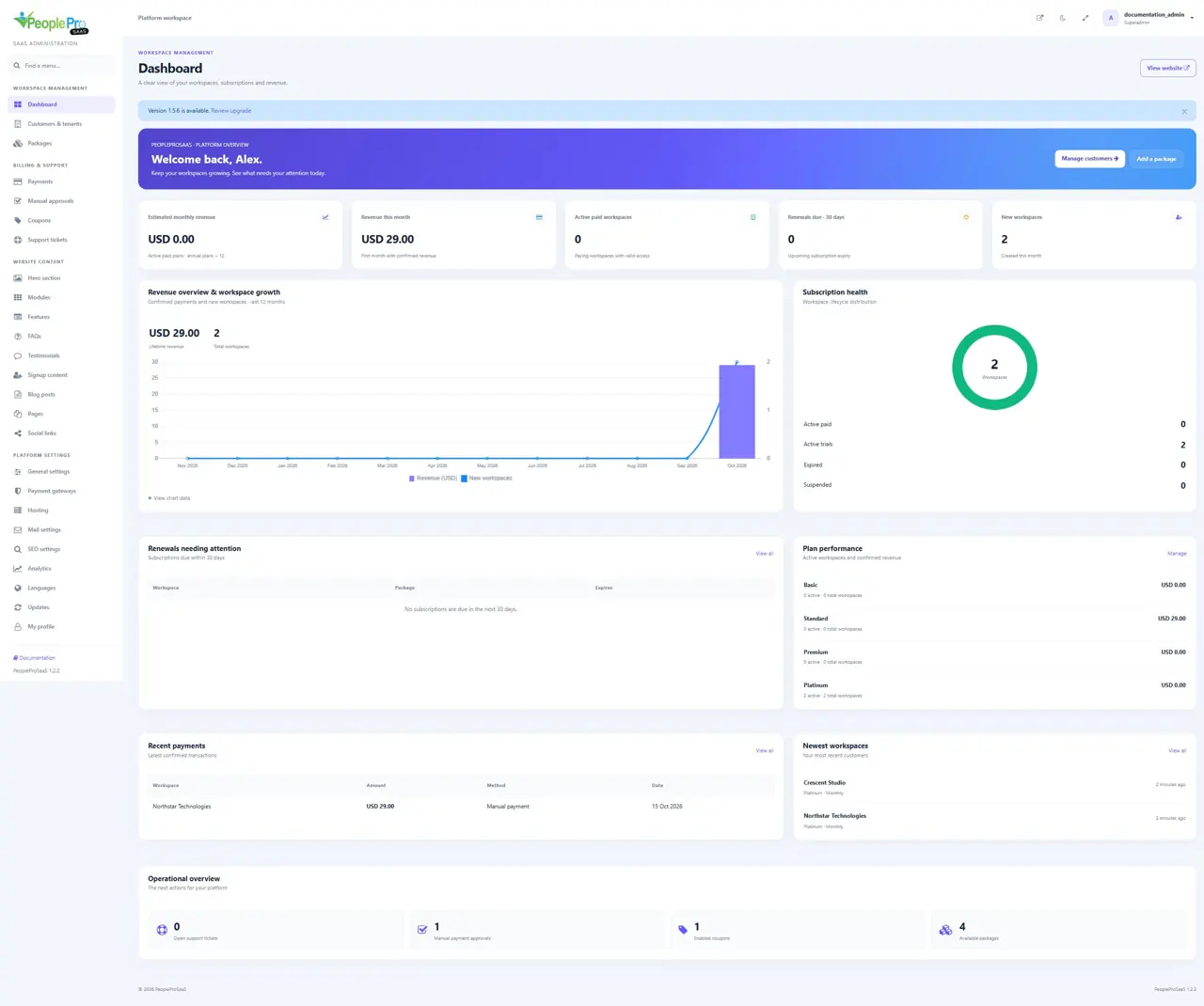
The sidebar groups the platform into Workspace management, Billing & support, Website content and Platform settings. Type into Find a menu to locate a page quickly. Use View website to inspect the public website. The top bar also provides appearance, full-screen and account controls. On a narrow screen, open the navigation menu before choosing a destination.
Top bar and account menu
View website opens the public platform in another tab. Switch color theme changes the panel appearance, and Toggle full screen expands the working area. Open the account menu to find My profile, Notifications, installed languages and Sign out. These appearance controls do not change customer data or subscription packages.
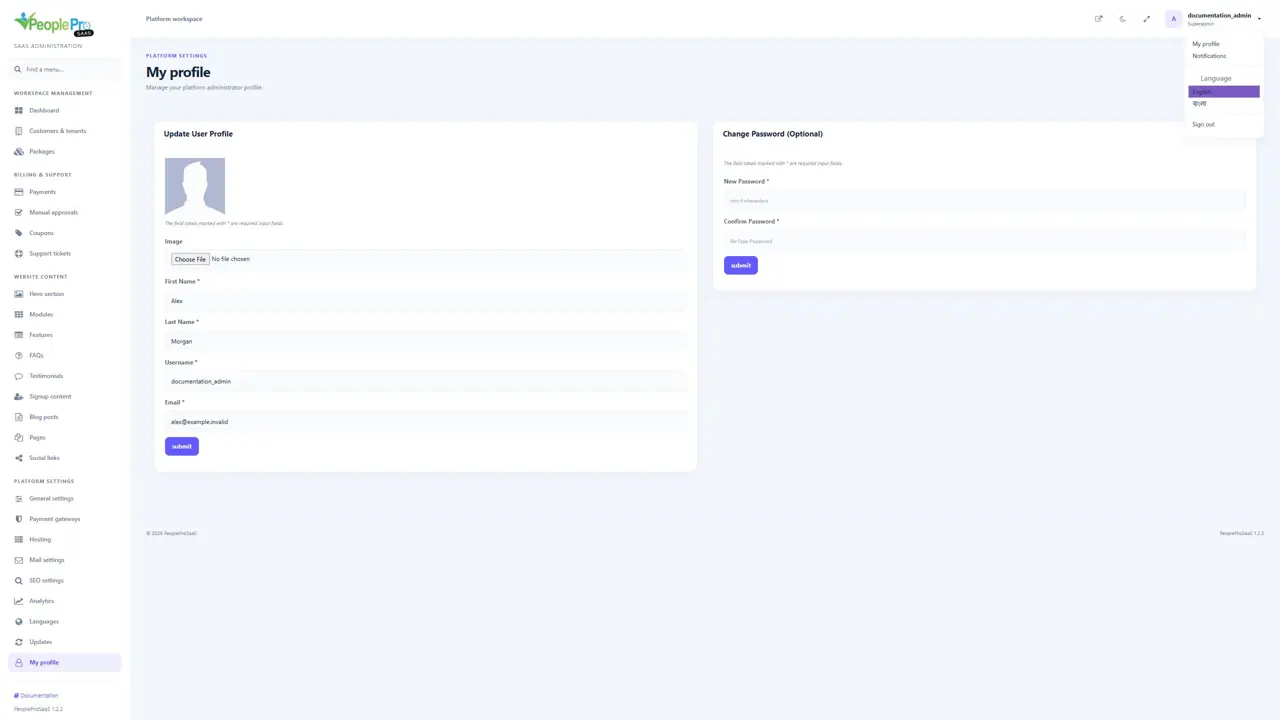
Read and clear administrator notifications
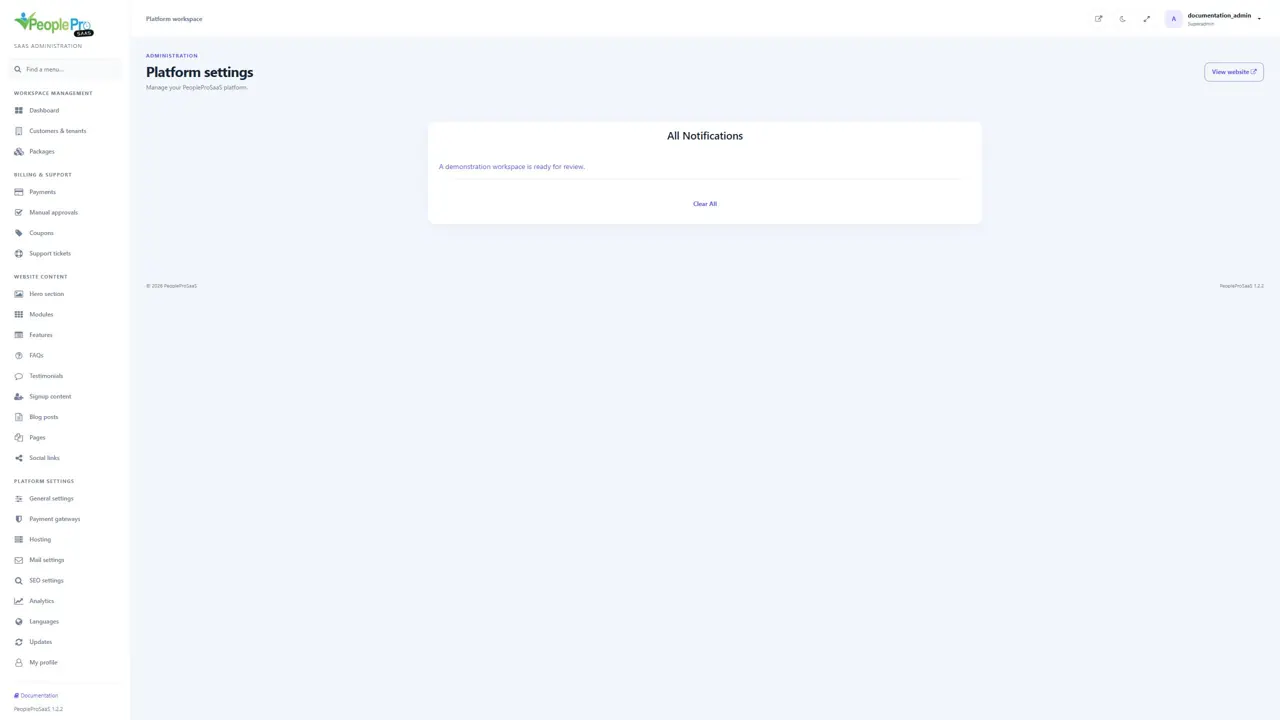
Choose Notifications in the account menu. Each available notification links to its related activity. Open a notification to inspect that record. Clear All removes the notification list for your administrator account; it does not delete the associated customer or payment. When no notifications are available, the page displays an empty-state message. This guide shows one fictional example and does not perform the clearing action.
Choose your panel language and sign out
Open the account menu and choose one of the enabled languages to change your current platform session. Manage the platform default and available languages from Languages. Sign out ends your administrator session; customers and their HR records remain in place. On a shared computer, sign out when your administration task is finished.
Use the Documentation shortcut
The Documentation link at the bottom of the sidebar opens the bundled help resource. Keep this separate PeopleProSaaS Administrator Guide and its images folder together when handing it to a colleague. Shared HR operation instructions belong to the separate PeoplePro User Guide, rather than this platform manual.
Read the dashboard
Review customer and subscription totals, active workspaces, trials and revenue summaries. Charts and recent activity help you understand which workspaces and payments need attention. Revenue statistics follow recorded payment states; a pending checkout is not the same as confirmed revenue. Use Customers & tenants or Payments to investigate the records behind a dashboard total.
Maintain your platform administrator profile
Open My profile. Upload a profile image when needed and review First Name, Last Name, Username and Email. Submit the profile form after checking the account details. The separate Change Password (Optional) form does not need completing when you are only updating your name, email or image. These details identify your platform administrator, not a tenant employee.
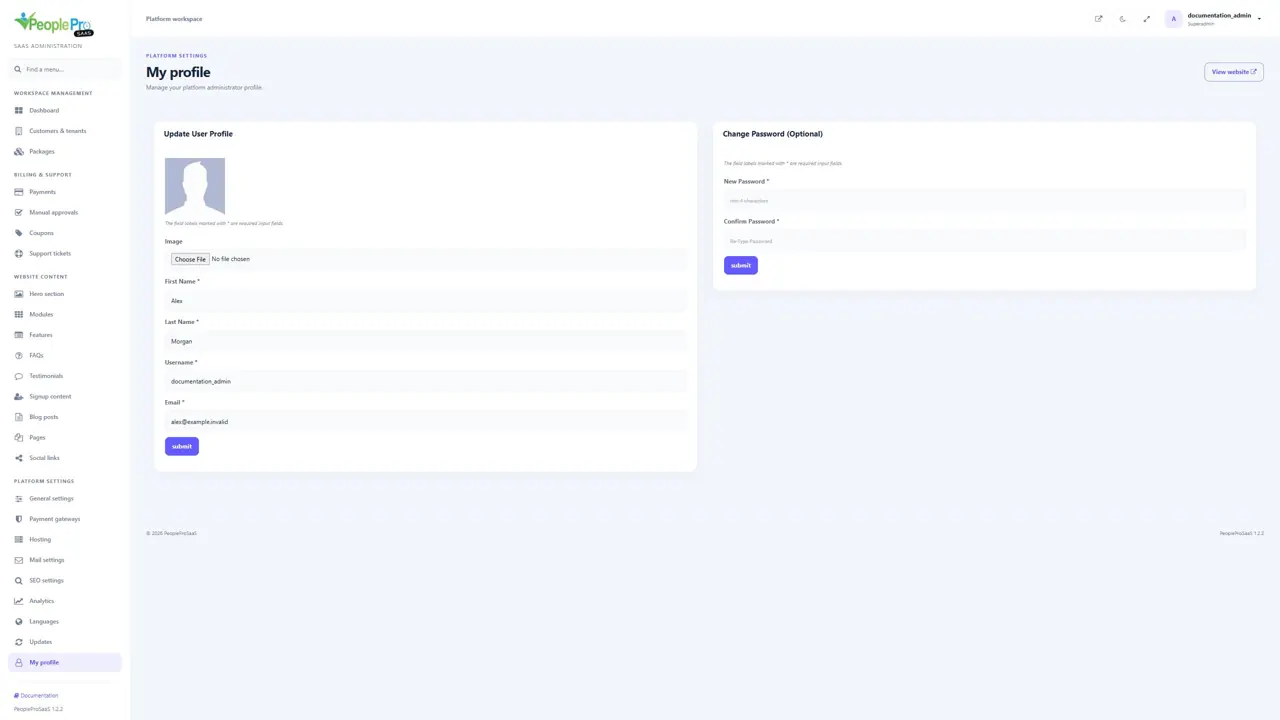
Change your own platform password
In My profile, use Change Password (Optional). Enter the new password and repeat it in Confirm Password, then submit that password form. Choose a strong password and keep it private. Leaving this form alone keeps the existing password. This action changes your platform account; use Customers & tenants > Change password when helping a customer administrator. The screenshot shows empty fields; no credential was changed for documentation.