Direct PeopleProSaaS Installation
Use a main domain such as https://example.com for the SaaS platform.
Last updated: 16 November 2026 · Product version: not specified in the supplied guide
Prepare the main domain and hosting
Use a main domain such as https://example.com for the SaaS platform. Installation of the platform on a subdomain such as app.example.com or in a subfolder such as example.com/hr is blocked. Customers can still use tenant subdomains such as northstar.example.com after setup. Ask your hosting provider to point the domain document root to the application public directory, enable HTTPS and prepare an empty MySQL database. Use PHP 8.2 or a compatible newer release with the required extensions; this application has been tested on PHP 8.3.
Configure tenant addresses before opening signup
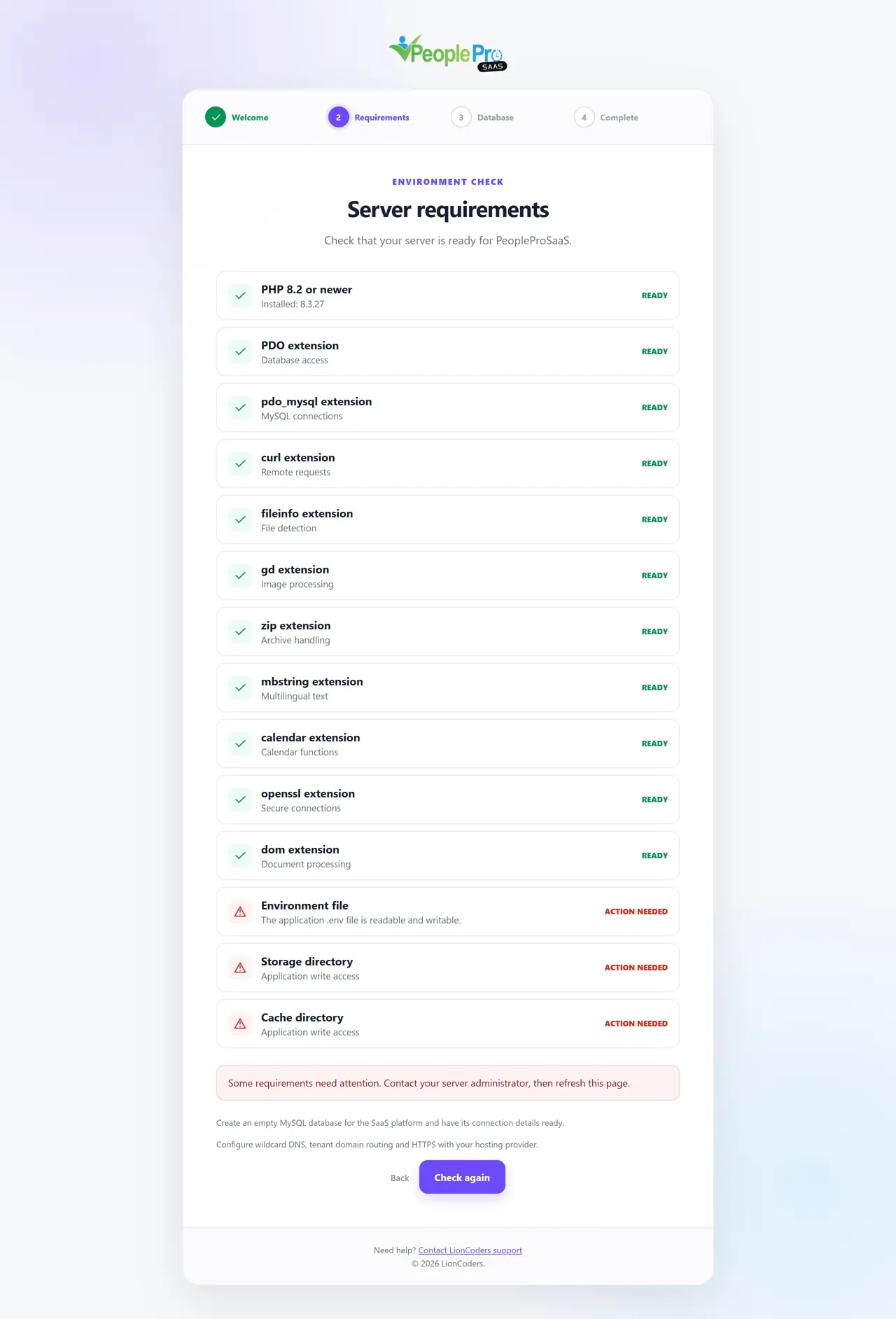
Configure wildcard DNS and web-server routing for *.example.com so customer subdomains reach the same application public directory. Arrange HTTPS for those addresses as well. VPS and PlanetHoster use this wildcard arrangement. cPanel and Plesk can also create tenant subdomains through their panel API when automatic panel provisioning is configured. DNS records and certificates are hosting tasks; adding a domain to the application does not complete them.
Start the fresh installer
Upload and extract the complete SaaS application package in the hosting location you prepared. In a fresh full distribution, CENTRAL_DOMAIN and LANDLORD_DB are initially blank. Opening the website starts /saas/install/step-1 before the application attempts to use an installed platform database. Keep the supplied application files together. The installer prepares the platform; it does not require a separate standalone PeoplePro installation.
Step 1: Welcome
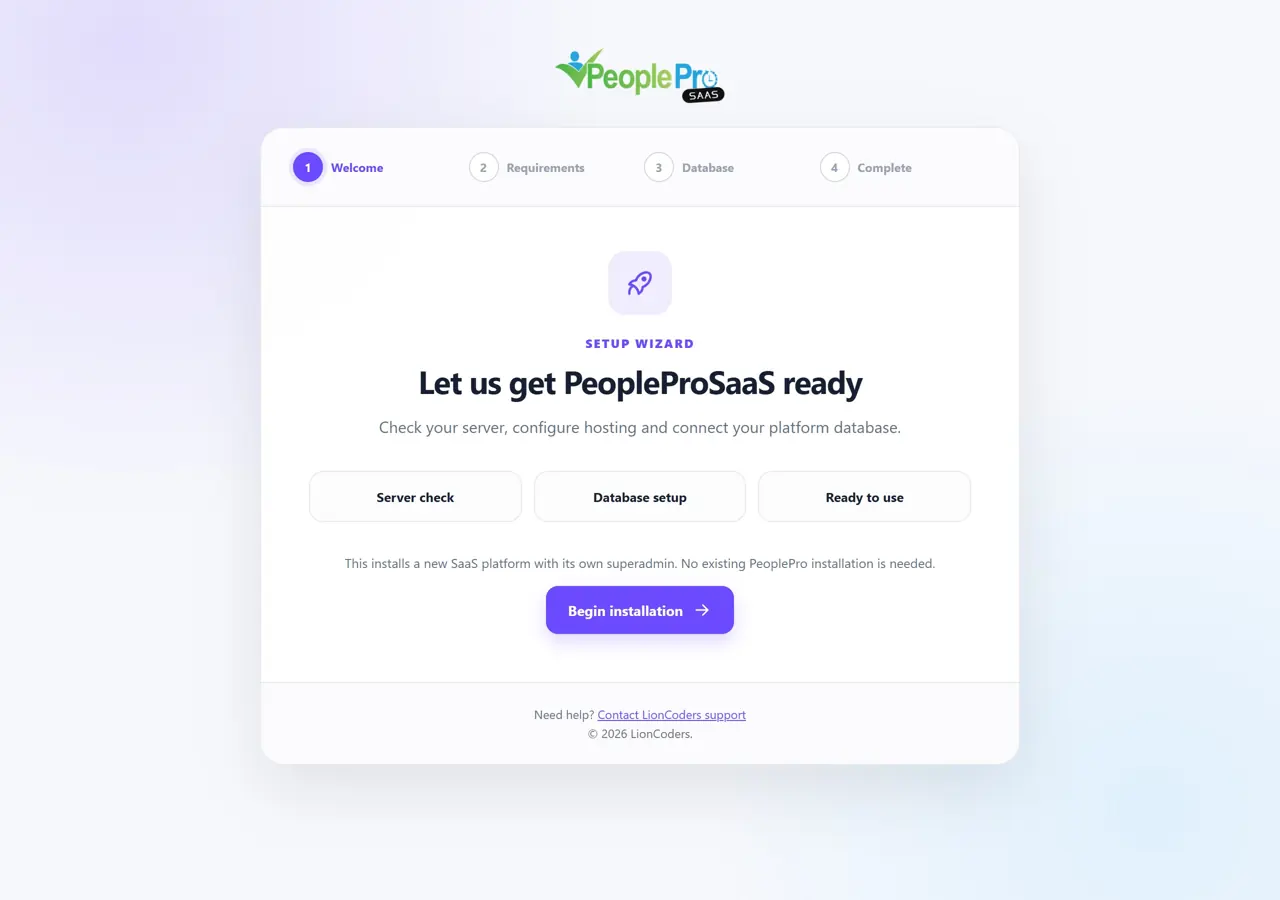
Read the PeopleProSaaS installation introduction and select Begin installation. The progress bar shows Welcome, Requirements, Database and Complete. Have your valid PeopleProSaaS purchase code ready. Check that you opened the intended main domain before proceeding, because setup verifies the purchase and domain together.
Step 2: Server requirements
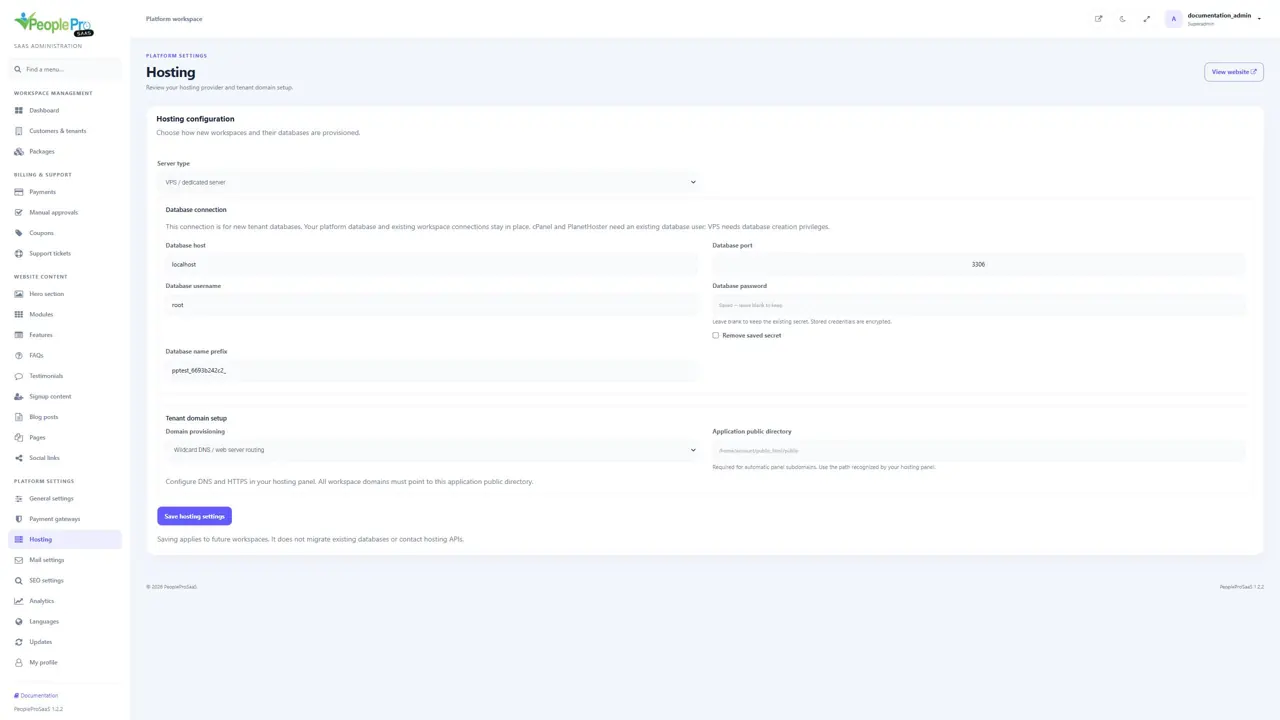
Review each PHP extension and file-permission check. Ready means the requirement is available; Action needed identifies something your hosting provider must fix. After every check passes, select Continue to database. Create an empty platform database and keep its connection details available. The platform database stores customers, packages and billing information; each customer HR workspace uses a separate database. Arrange wildcard routing or the supported hosting-panel setup before completing configuration.
Step 3: Enter purchase, database and administrator details
Choose Tenant database server, enter your PeopleProSaaS purchase code and complete the separate empty platform database connection. The central domain is detected from the address in your browser; there is no Central URL input. Enter a short prefix for new tenant databases. Create the platform administrator username, email and password, and repeat the password. Complete the matching hosting fields, review the confirmation checkbox and select Install SaaS once. Verification must succeed before setup prepares the platform database. No customer workspace is created automatically.
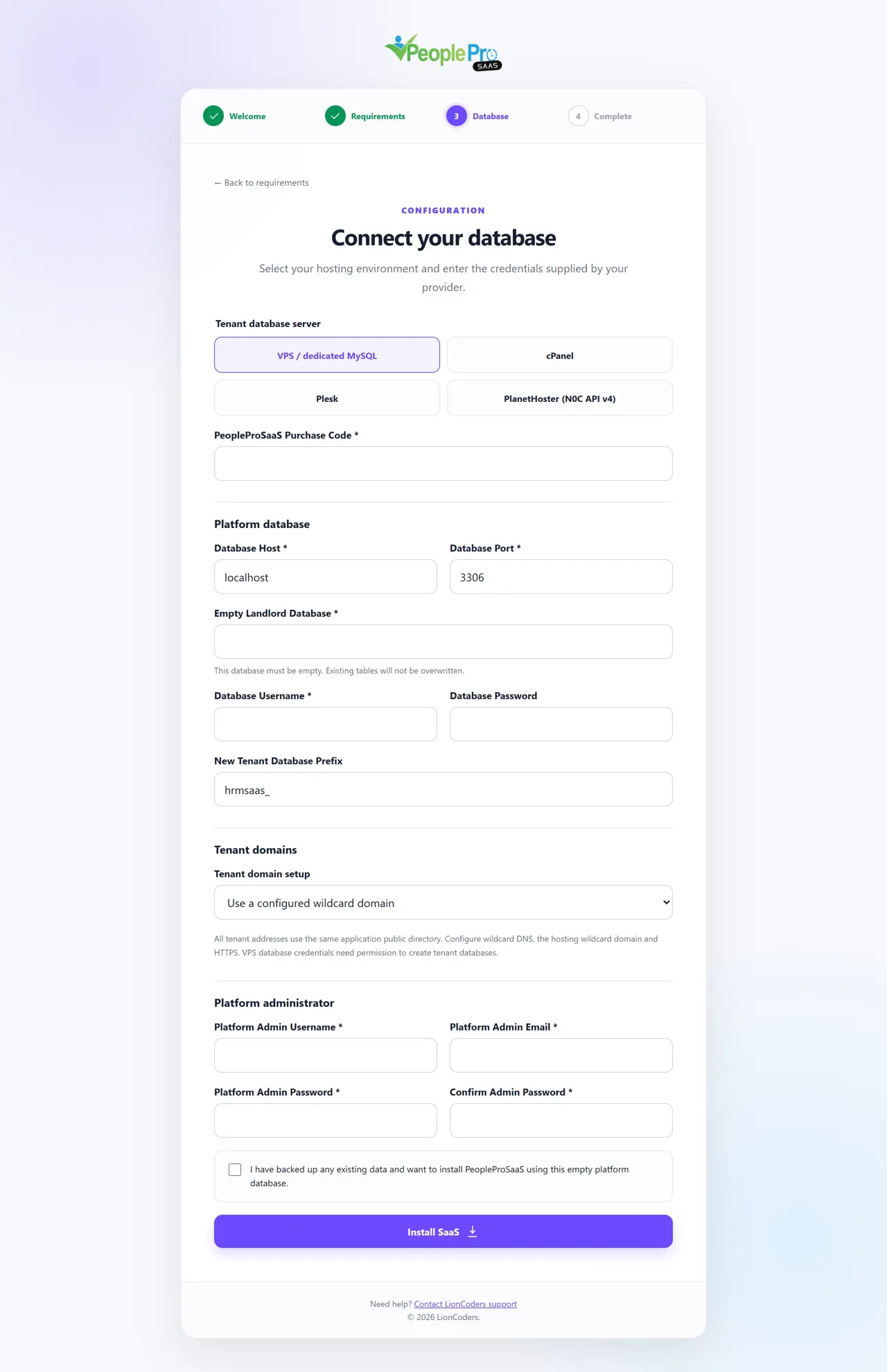
Choose the domain provisioning mode
Use a configured wildcard domain when DNS and your web server already route tenant addresses to the application. Choose automatic subdomains only for cPanel or Plesk. For automatic mode, enter the application public directory using the path recognized by the panel. This is a hosting filesystem path, not a website URL. Check the generated tenant address and HTTPS before inviting customers.
Step 4: Sign in to the new platform
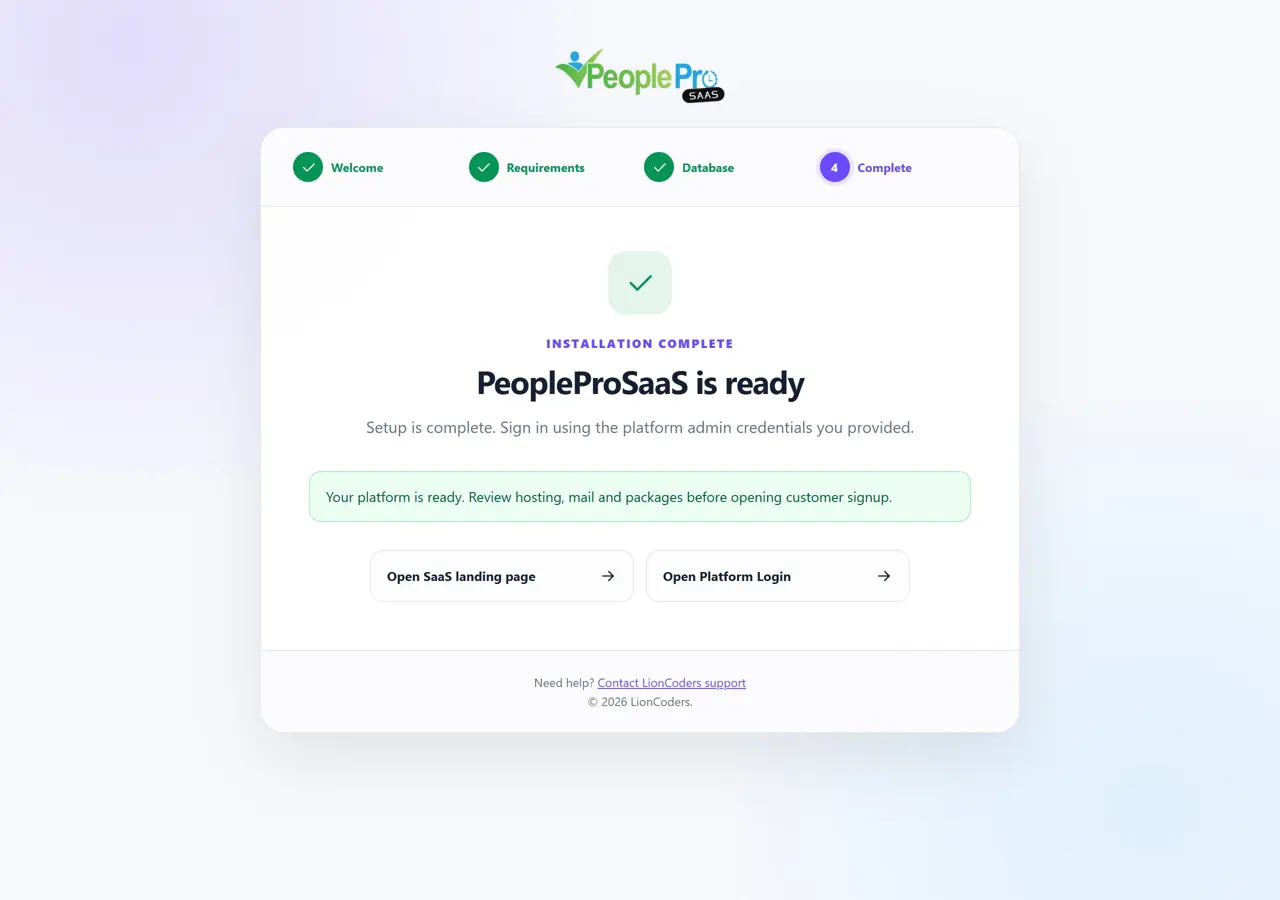
When setup reports success, select Open Platform Login and sign in with the platform administrator credentials you entered. Keep these credentials private. A successful direct installation starts your platform administration area; customers are added afterward through signup or Customers & tenants. You do not sign in with a tenant administrator account at the central platform login.
Set up the platform in a practical order
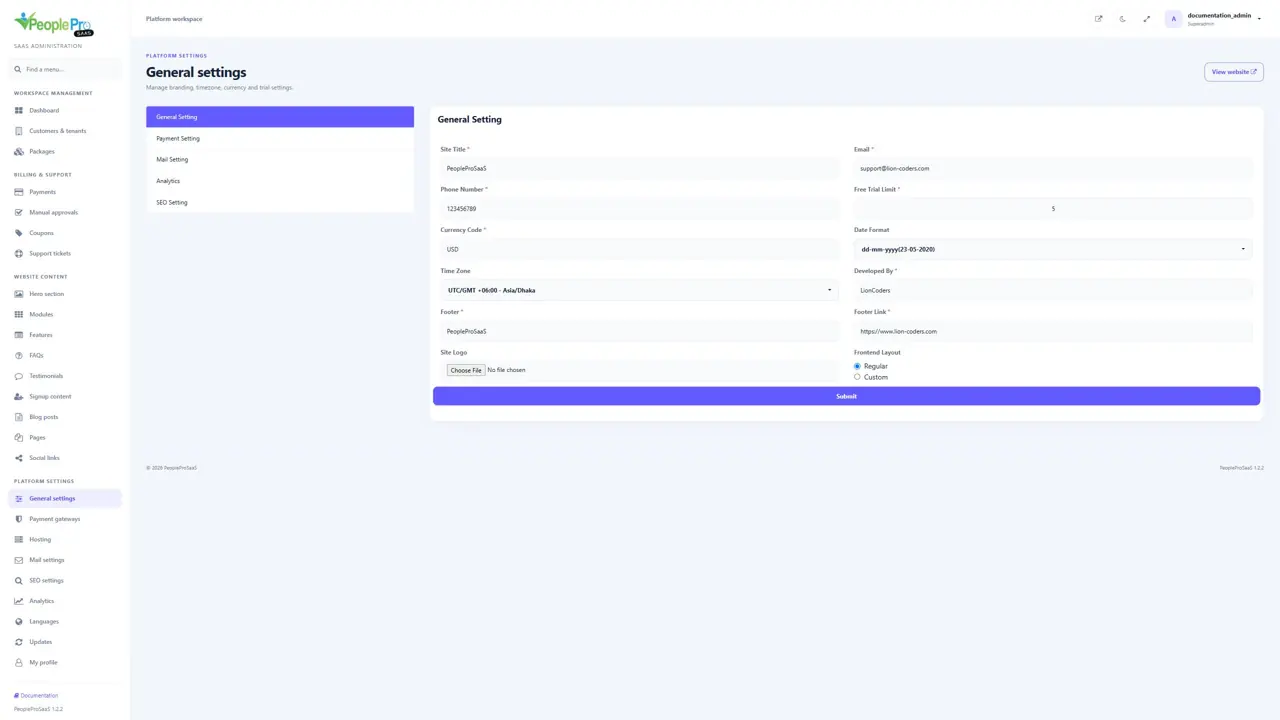
Review General settings, Hosting and Mail settings first. Create or edit your packages, check trial duration and configure the payment methods you intend to offer. Review the public homepage, FAQs and language options. Then create a small customer workspace and confirm that its address opens correctly. Check a sample attendance and payroll workflow before making the platform available to your customers.