Configure Payment Gateways
Open Payment gateways.
Last updated: 16 November 2026 · Product version: not specified in the supplied guide
Set up the payment methods you intend to offer
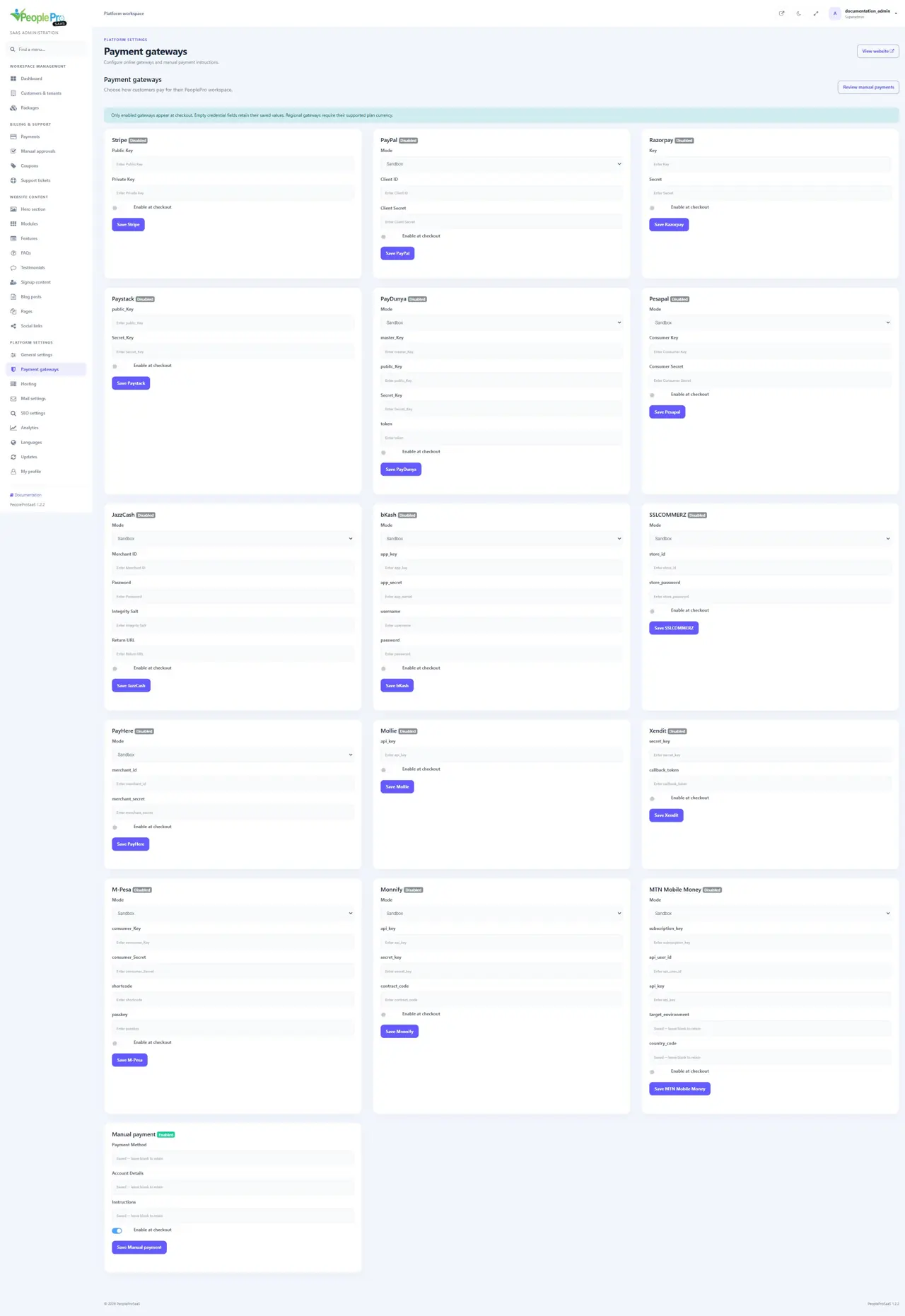
Open Payment gateways. Each provider has its own credential card and Enable at checkout switch. Complete the provider fields and save that card. Empty credential fields keep saved values; a blank-looking password field does not mean the saved secret was removed. Only enabled methods appear at checkout. Keep sandbox and live credentials consistent with the selected mode, and use a supported package currency. The guide uses blank or fictional credentials; real provider account setup and merchant testing are separate steps.
Stripe
Complete Public Key and Private Key with the matching credentials from your Stripe account. Enable at checkout and choose Save Stripe when the account configuration is ready. Use the credentials intended for your testing or live environment; never mix unrelated key pairs. Review the resulting checkout and payment reference before offering the method to customers.
PayPal
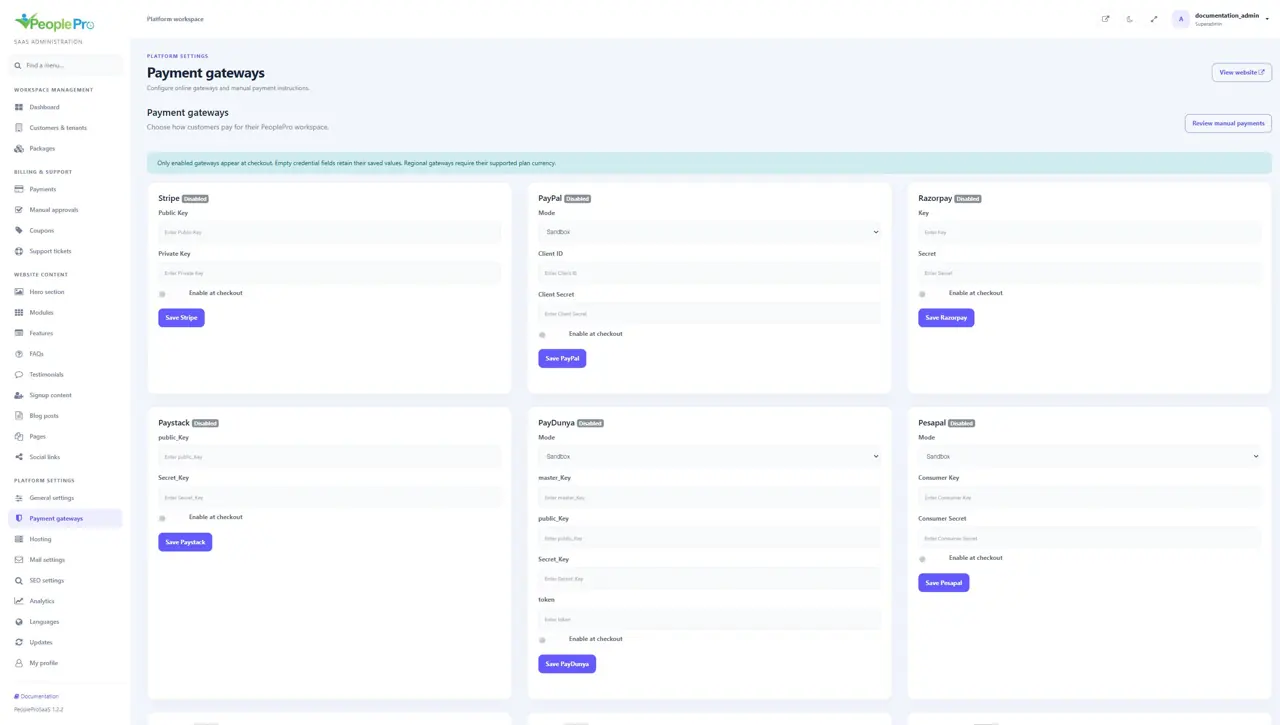
Choose Sandbox or Live, then enter the matching Client ID and Client Secret. Enable the method and save the PayPal card. The selected mode determines which account environment is used. Confirm your merchant account can receive the currency configured for the package before customers attempt payment.
Razorpay and Paystack
Razorpay uses Key and Secret. Paystack uses public_Key and Secret_Key. Enter each pair only on its own provider card, enable the intended method and save it. Keep the provider account and package currency compatible. A successful browser redirect is followed by server verification before a tenant is activated.
PayDunya and Pesapal
For PayDunya, choose the mode and complete master_Key, public_Key, Secret_Key and token. For Pesapal, choose the mode and complete Consumer Key and Consumer Secret. Save each provider separately after completing its merchant setup. If the provider requires a return or notification address, use the integration address for your own HTTPS platform domain rather than a demonstration domain.
JazzCash
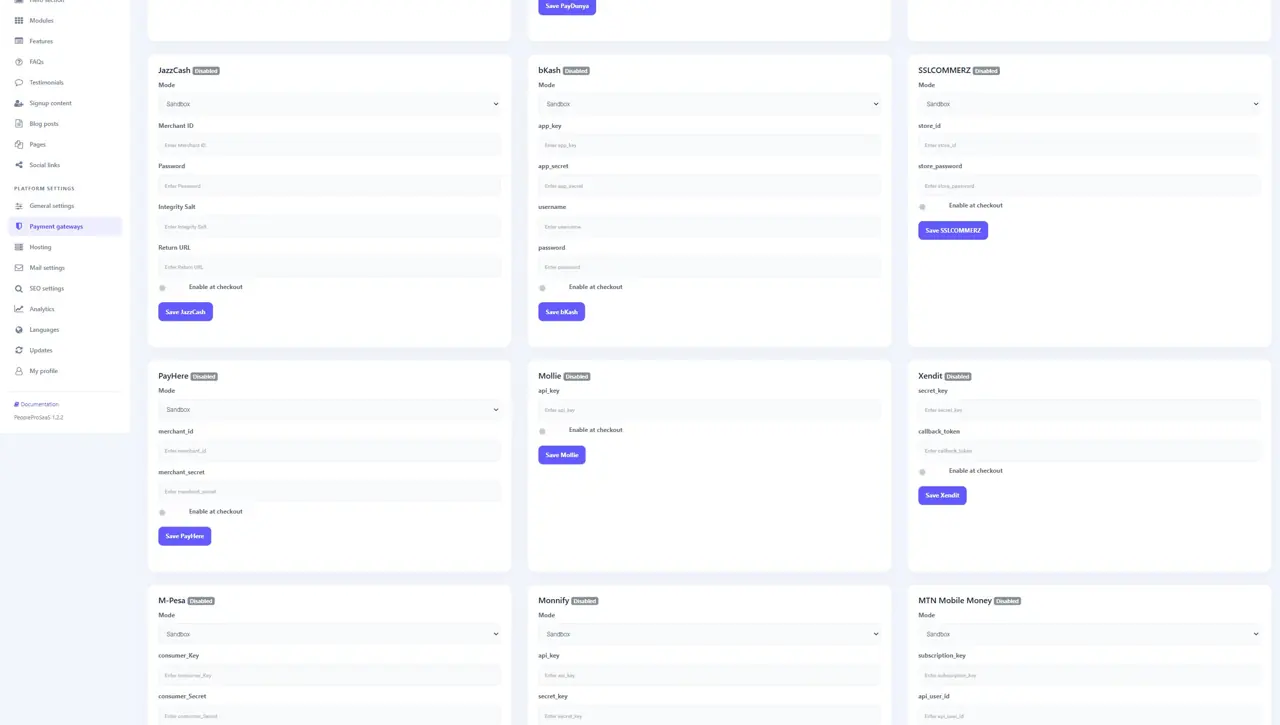
Choose the mode and complete Merchant ID, Password, Integrity Salt and the Return URL requested by the card. The integration uses PKR packages. Enable and save only after the account and return-address configuration are ready. Verify the callback reaches your platform as part of merchant testing.
bKash and SSLCOMMERZ
These integrations require BDT packages. For bKash, select the mode and complete app_key, app_secret, username and password. For SSLCOMMERZ, select the mode and complete store_id and store_password. Save the appropriate provider card and test with its matching environment before allowing customers to use it.
PayHere, Mollie and Xendit
PayHere uses a mode, merchant_id and merchant_secret. Mollie uses api_key. Xendit uses secret_key and callback_token. Complete the fields on the intended card and save it. Ensure any required provider return or notification configuration uses your platform domain. Xendit callback verification uses the configured callback token.
M-Pesa
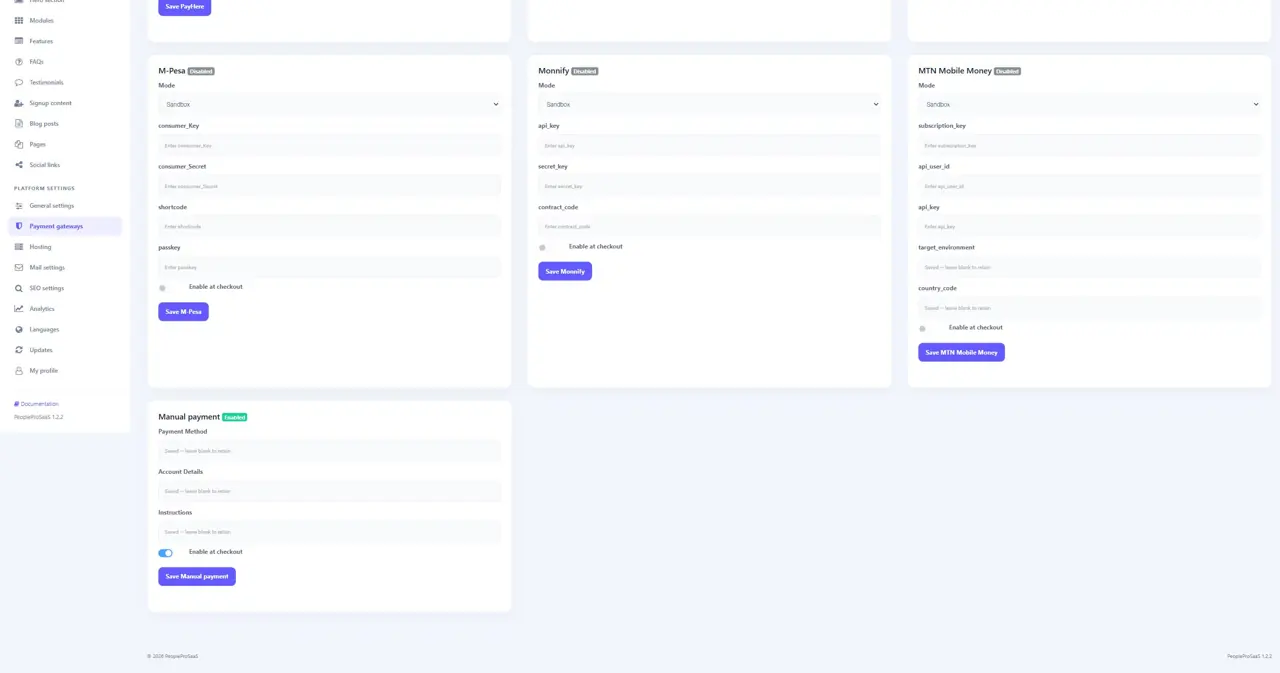
Choose the mode and enter consumer_Key, consumer_Secret, shortcode and passkey. This integration requires KES packages. Customers may need a payment phone number at checkout. Save and enable the method after completing the matching merchant setup and confirming that payment callbacks can reach your HTTPS platform.
Monnify
Choose the mode, then complete api_key, secret_key and contract_code. This integration requires NGN packages. Save the card and verify the merchant configuration and notification flow before enabling it for customers. Review the transaction reference when checking a payment result.
MTN Mobile Money
Choose the mode and complete subscription_key, api_user_id, api_key, target_environment and country_code. Keep the target environment consistent with your MTN account and the selected mode. Mobile money checkout uses the customer payment phone number, so explain the expected number format to your customers when setting up the service.
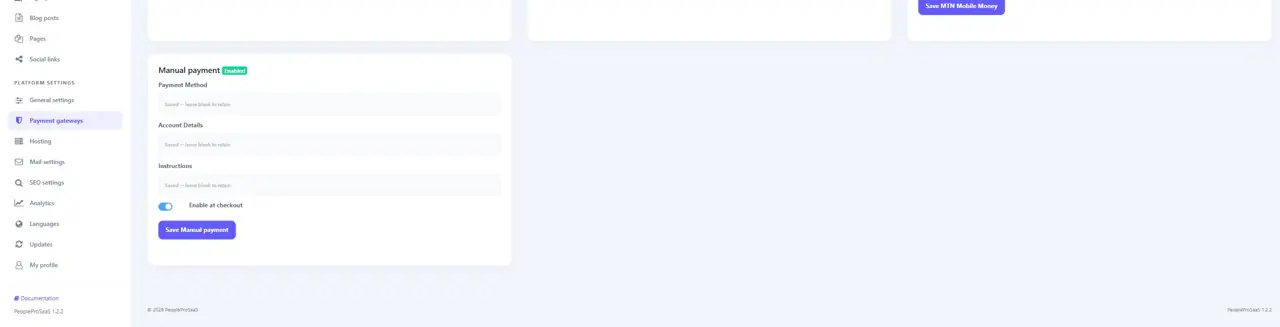
Manual payment instructions
Enter Payment Method, Account Details and Instructions for the offline payment arrangement you actually accept. These details are shown to a customer who chooses manual payment. Enable and save the card. Review pending proofs through Manual approvals rather than recording an unrelated payment or activating a different tenant.