Payments, Coupons and Customer Support
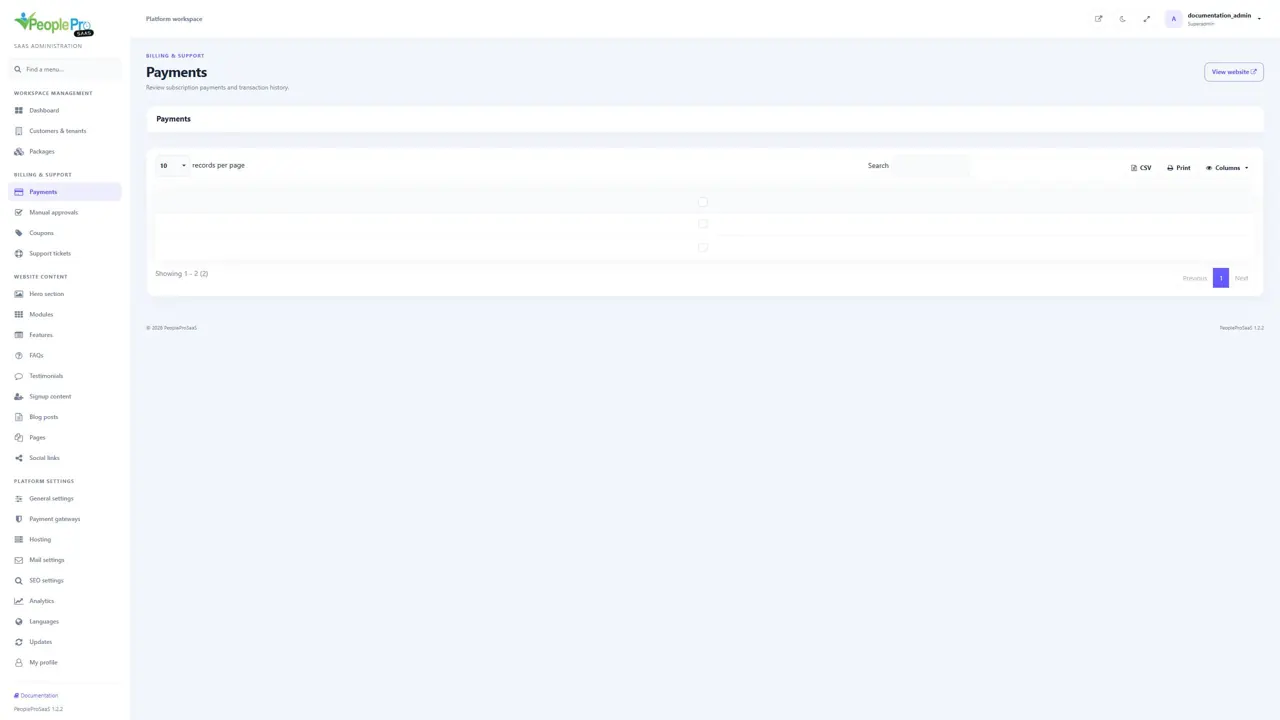
Open Payments to inspect recorded subscription transactions.
Last updated: 16 November 2026 · Product version: not specified in the supplied guide
Review payment history
Open Payments to inspect recorded subscription transactions. Search for the tenant or reference and review the package, billing period, amount, method and payment status shown. Use the table export or print controls when needed. A payment record is different from a tenant active-status switch; review both the billing result and the customer subscription when investigating access.
Approve a manual payment
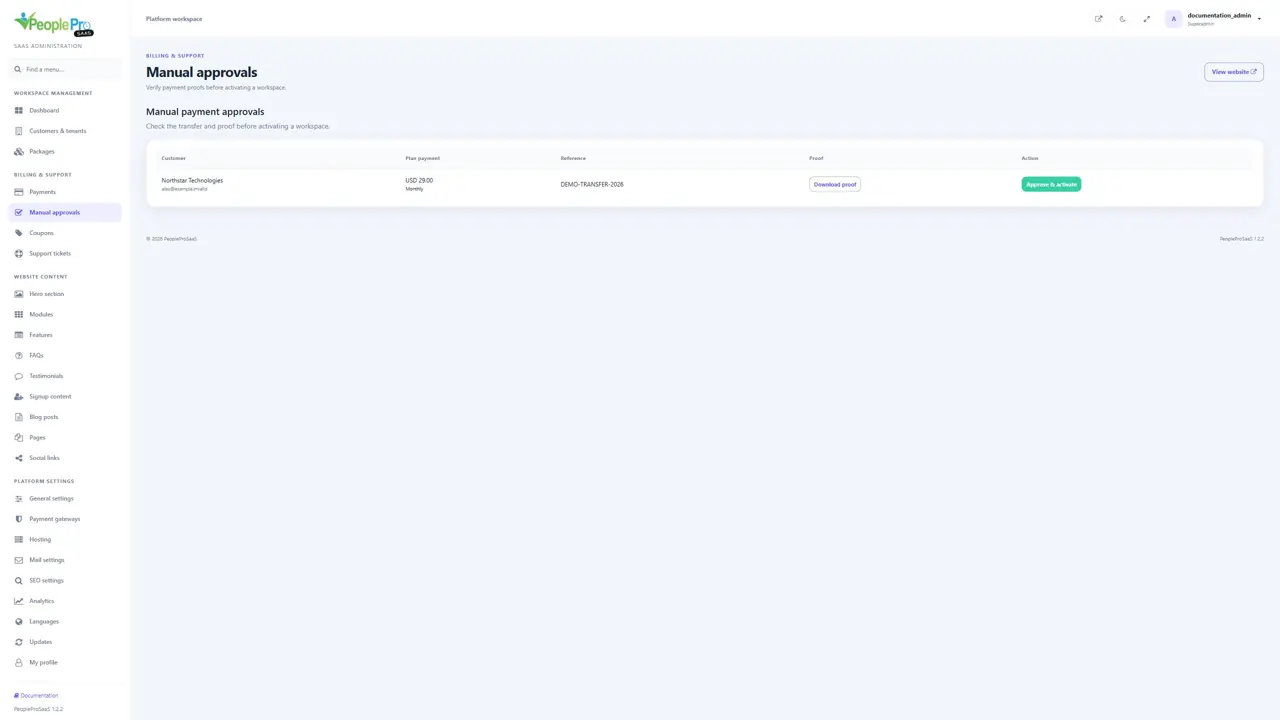
Open Manual approvals. Match the customer, plan amount, transaction reference and downloaded proof against the transfer actually received. Choose Approve & activate only after verification. Approval activates or renews the associated workspace through the checkout flow. Repeating an already completed approval does not create another customer workspace. The screenshots illustrate a pending example; no real transfer was approved for this guide.
Create a coupon
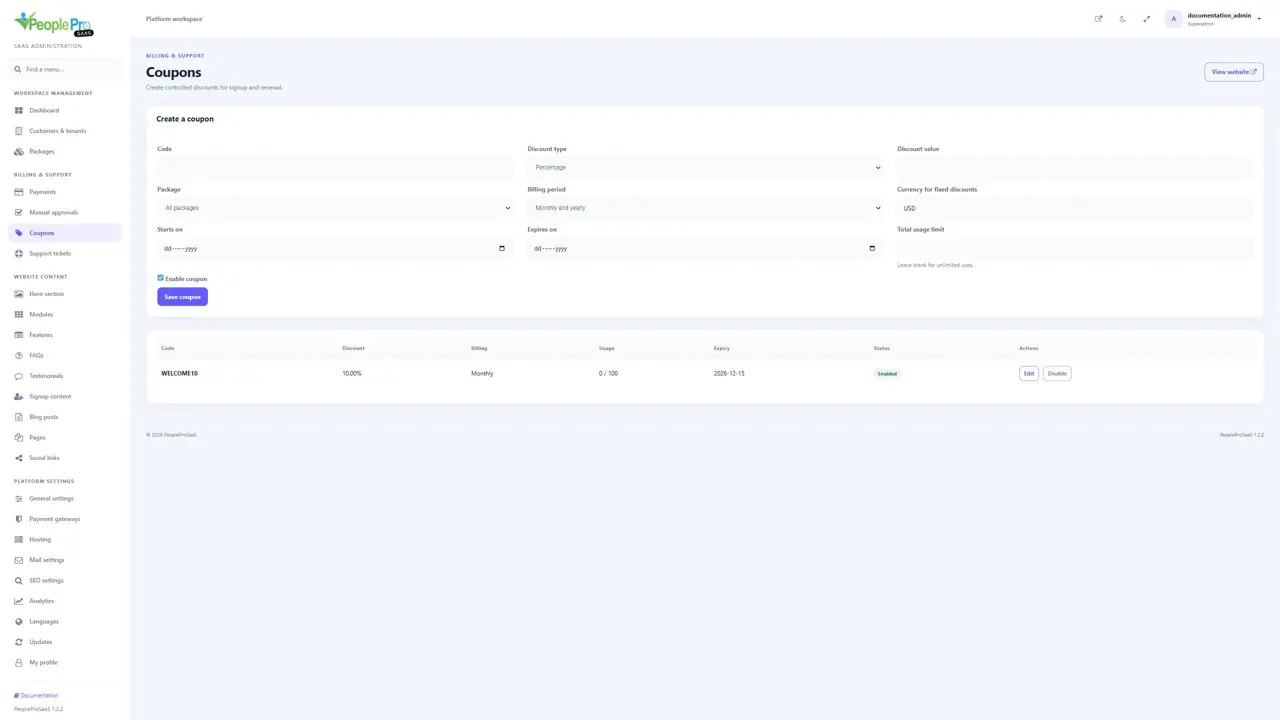
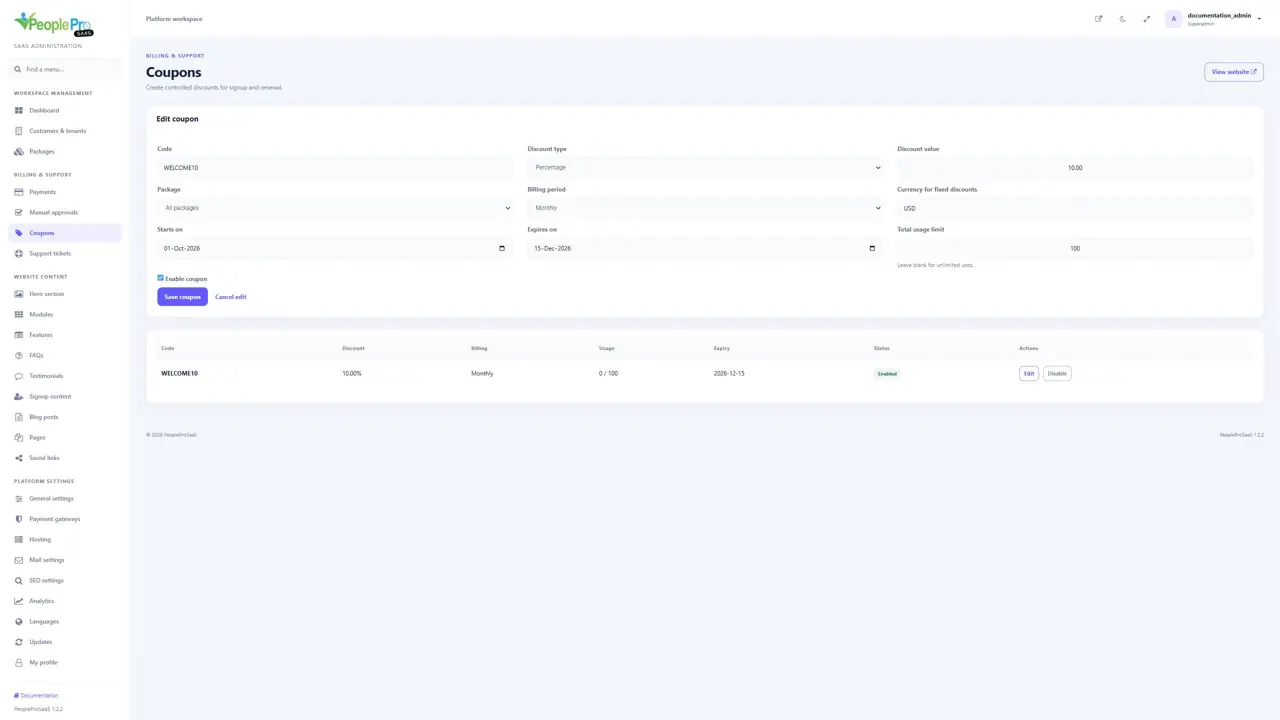
Open Coupons and enter a clear code. Choose Percentage or Fixed amount, then enter the discount value. You can restrict it to a package, monthly or yearly billing, start and expiry dates, and a total usage limit. Fixed discounts need a three-letter currency code. Leave the usage limit blank for no usage cap. Enable the coupon and save, then verify it with an eligible plan before sharing the code.
Edit or disable a coupon
Select Edit beside the coupon to review its rules and update the form. A percentage cannot exceed 100. Use Disable when a promotion should no longer be available; its prior billing history is retained. The usage counter shows how much of a limited offer has been used. Existing completed payments keep their own recorded amounts and discounts.
Review incoming support tickets
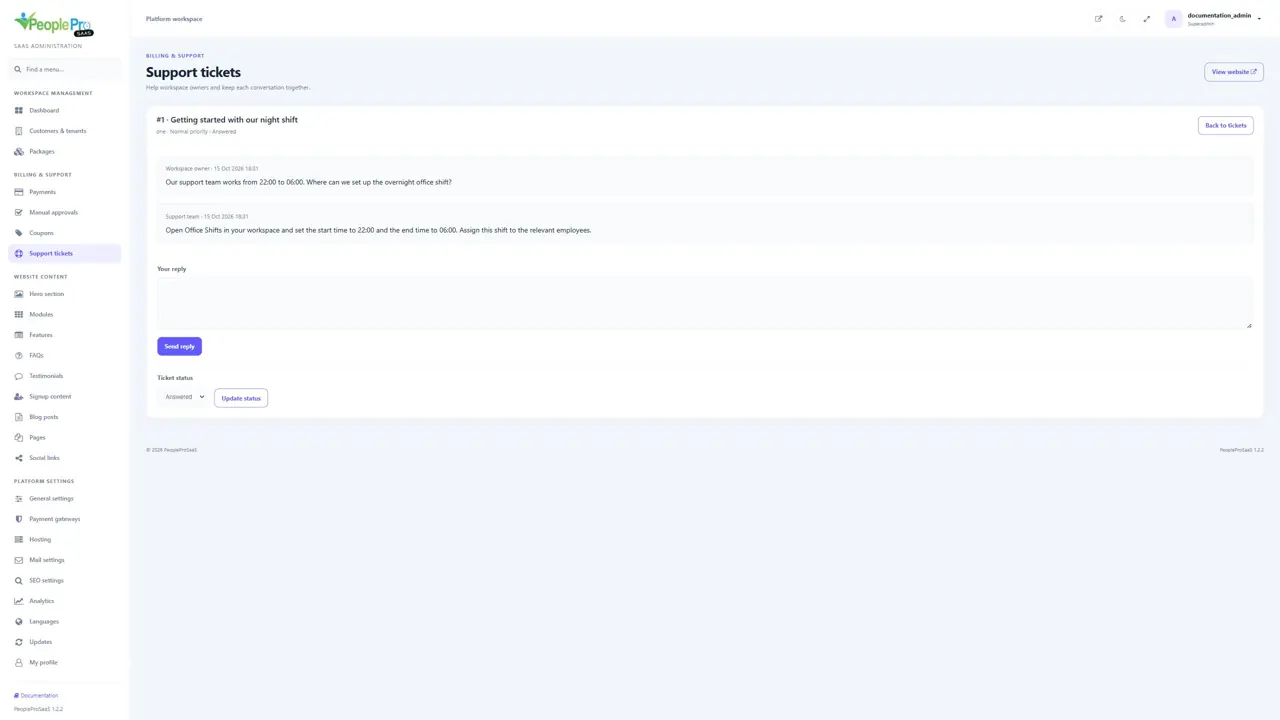
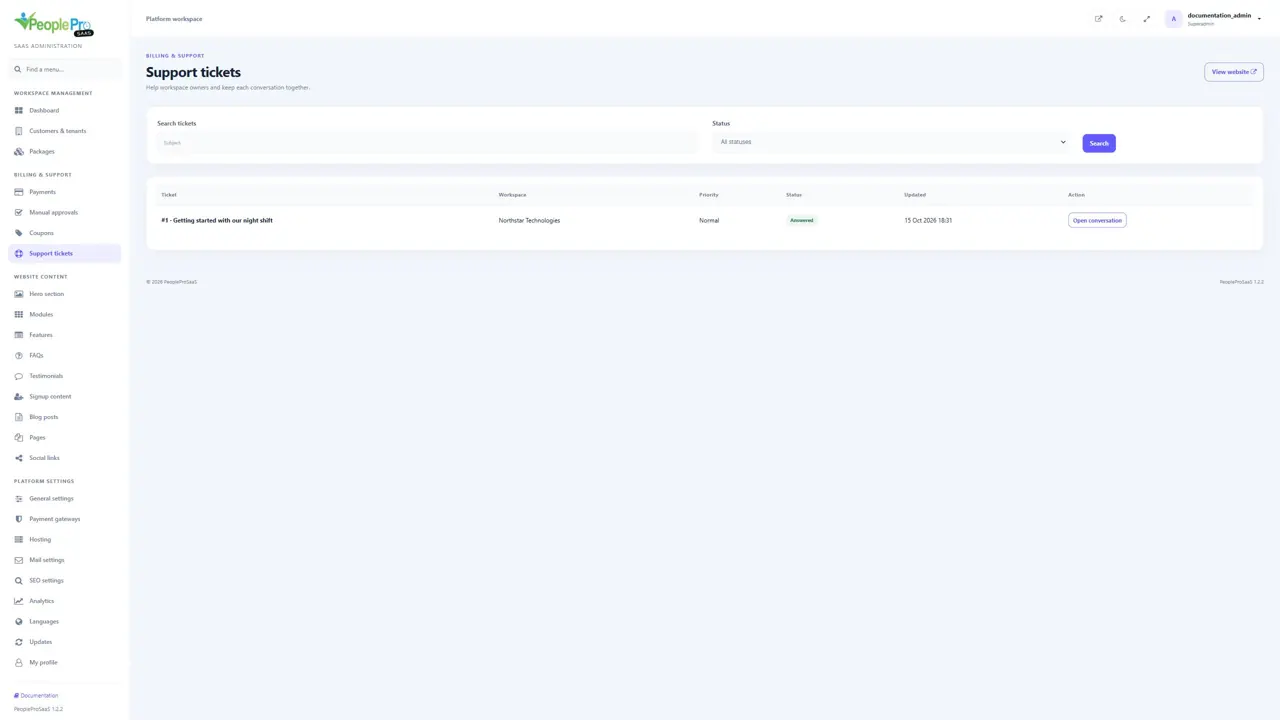
Open Support tickets to find requests from workspace owners. Search by subject or filter by Open, Answered or Closed. Review the organization, subject, priority and latest update before opening a ticket. Support conversations are scoped to the customer workspace; one customer does not see another customer ticket.
Reply to a customer and manage ticket status
Open a ticket to read the original description and conversation. Enter a helpful reply and submit it once. A platform reply marks the ticket Answered; a customer follow-up reopens the conversation. Use the status control when the request is resolved or needs reopening. The reply appears in the tenant support conversation. Password changes and other account actions must be performed from the appropriate customer administration form.