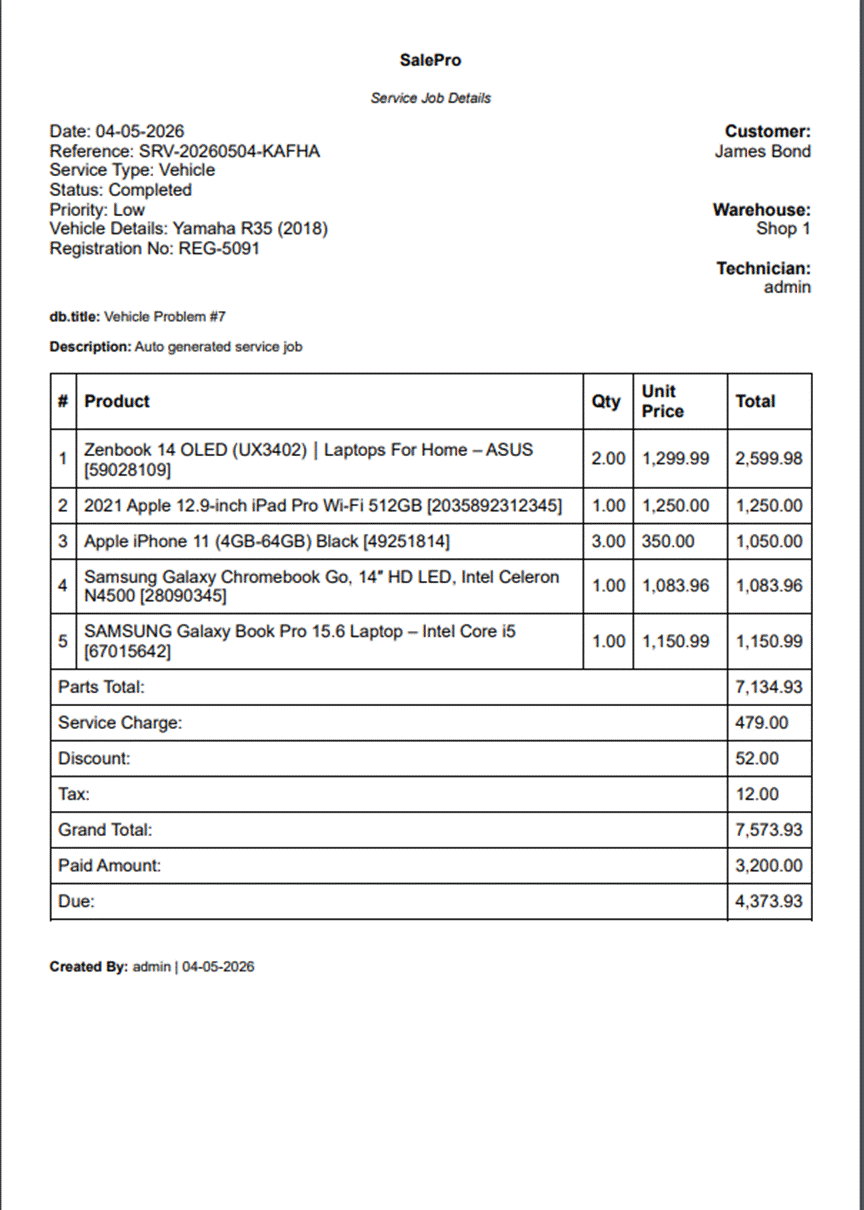
Manage repair and service jobs by maintaining device and vehicle records, tracking job status, and handling parts and billing. Create new service jobs, assign technicians, record payments, and oversee your repair operations from intake to delivery to ensure efficient service management.
Repair Dashboard
View Repair Dashboard
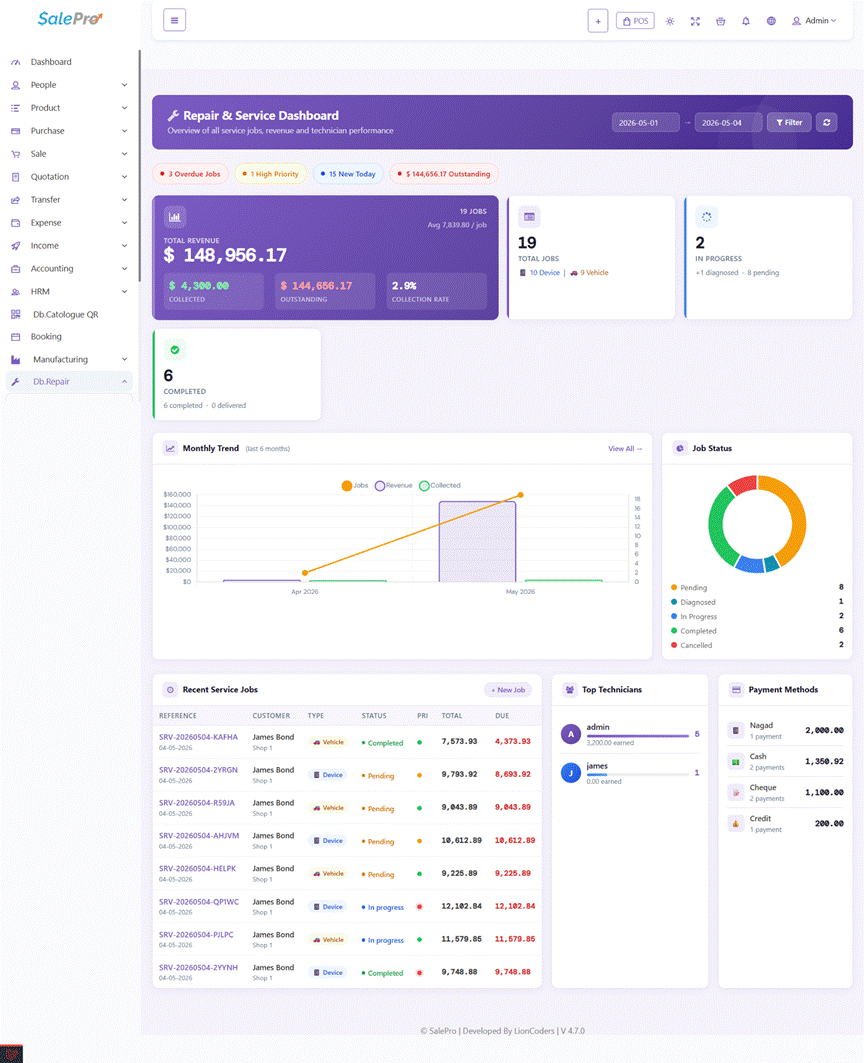
Gain immediate insight into your repair business performance by viewing the Repair Dashboard. This provides a summary of total, pending, in-progress, and completed jobs, along with revenue collected, outstanding dues, and overdue alerts. Access the Repair section to see these key metrics and get a quick overview of operations.
Dashboard Filters
Filter the dashboard data by date range to view performance for a specific period. Use the date range picker at the top of the dashboard to set a custom start and end date. The KPI cards, charts, and recent jobs table will update automatically to reflect the selected period. The dashboard also shows a top technicians summary based on completed jobs within the selected date range.
Service Job Management
View Service Job List
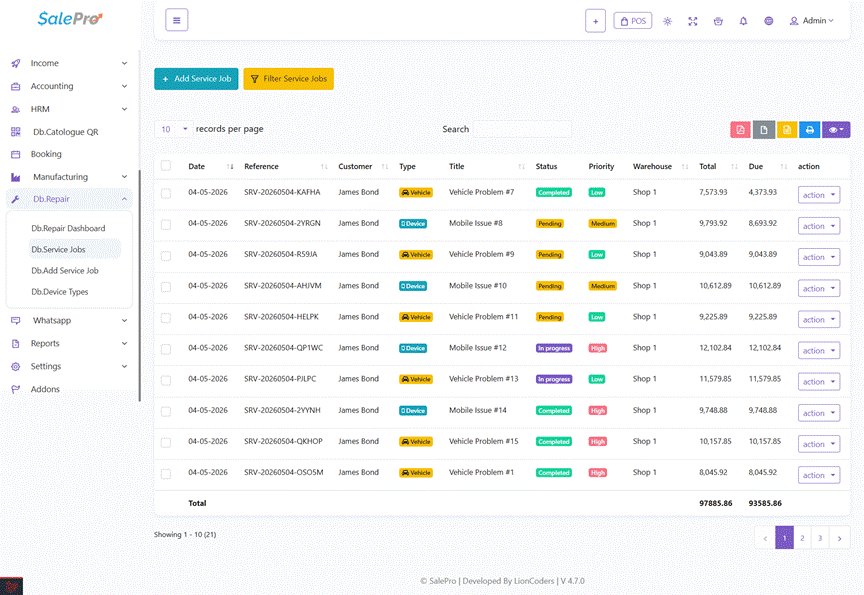
Review all service jobs by viewing the Service Job List. This displays a table detailing each job’s reference number, customer name, service type, title, status, priority, warehouse, total amount, and due amount. Navigate to the Service Jobs section to see the full list, search for specific jobs, filter by status or type, or add a new one.
Create New Service Job
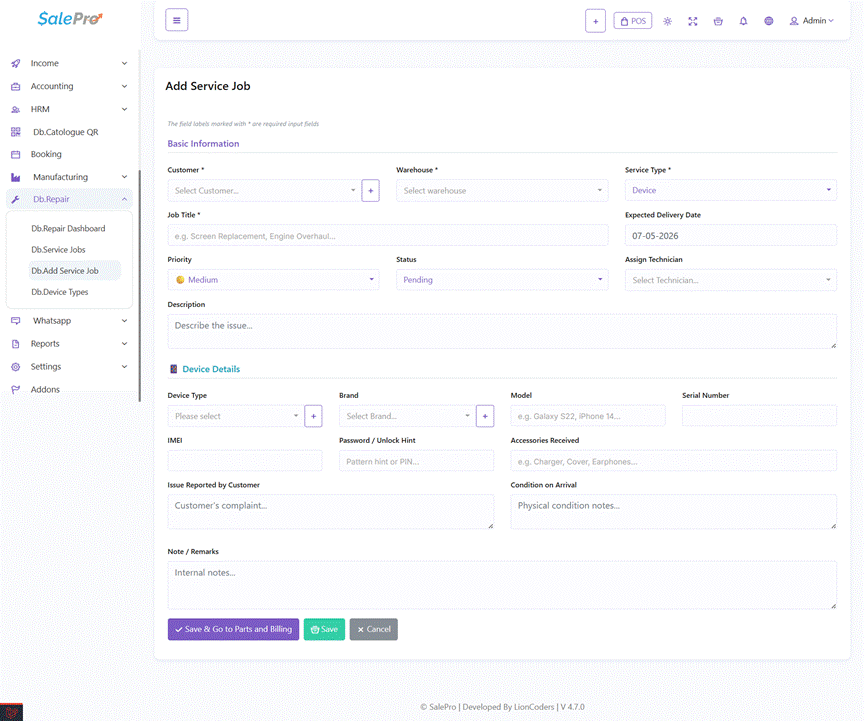
Create a new service job for a customer by opening the Add Service Job form. Select the customer, warehouse, and service type (Device or Vehicle). Enter a job title, set the expected delivery date, choose a priority level and status, and optionally assign a technician. Fill in the device or vehicle details in the relevant section, add any internal notes, and submit the form to create the job.
Submit Options
At the bottom of the create form, three action buttons control what happens after saving:
- Save & Go to Parts and Billing — saves the job and immediately proceeds to add parts and charges.
- Save — saves the job and returns to the Service Job list.
- Cancel — discards the form and returns to the list without saving.
Update Existing Service Job
Update the details of an existing service job by editing the job. Modify the title, status, priority, assigned technician, expected delivery date, warehouse, or device and vehicle details. Select the job you wish to change from the Service Jobs list and click Edit, adjust the required fields, and save the changes to update the job record.
View Service Job Details
Access a service job’s complete information by opening the job detail page. Select a job from the Service Jobs list and click View to display all its information. The detail page is divided into two columns.
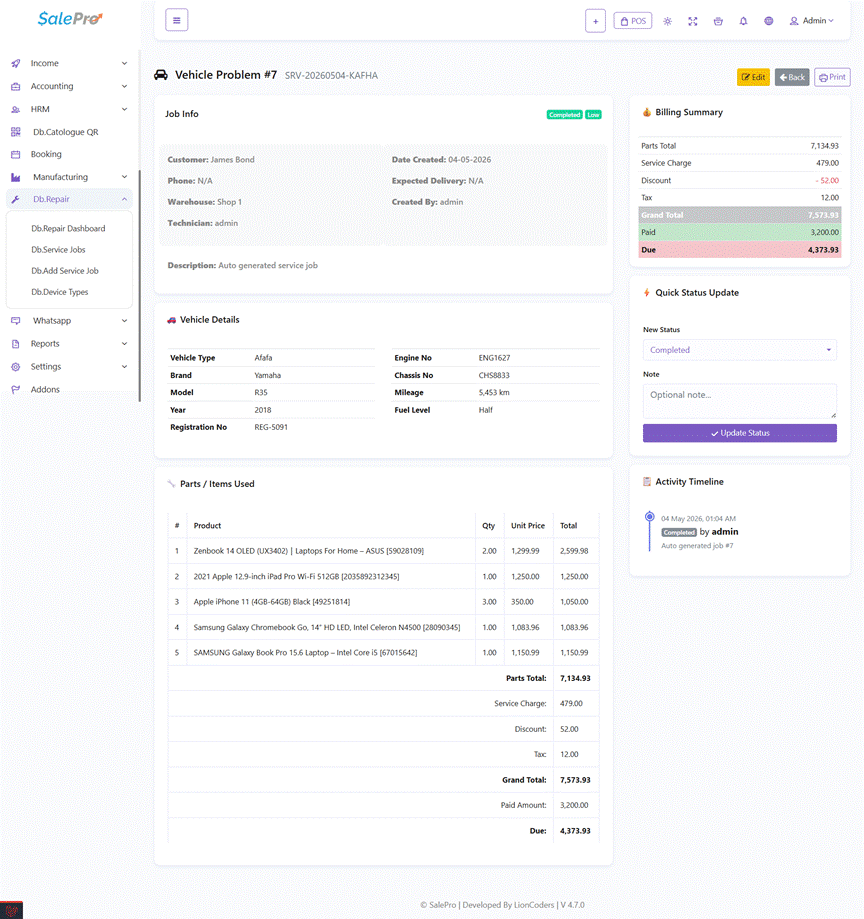
Left Column — Job Information and Records
Job Info Card
Displays the job title, reference number, and current status and priority badges at the top. The card shows two info panels side by side: the left panel lists the customer name, customer phone, assigned warehouse, and assigned technician; the right panel lists the date created, expected delivery date, delivered-on date (if applicable), and the user who created the job. Any description or internal note added to the job is shown below the panels.
Device Details Card (shown when service type is Device)
Displays the device type, brand, model, serial number, and IMEI in a table on the left. The right side shows the password or unlock hint and accessories received, followed by the issue reported by the customer and the physical condition notes on arrival.
Vehicle Details Card (shown when service type is Vehicle)
Displays the vehicle type, brand, model, year of manufacture, and registration number on the left. The right side shows the engine number, chassis number, mileage in kilometres, and fuel level, followed by any condition notes.
Parts and Items Used Card
Lists all spare parts and products added to the job in a table showing the item number, product name and code, quantity, unit price, and line total. The table footer shows the running totals: parts total, service charge, discount, tax, grand total, paid amount, and the current due balance.
Right Column — Billing, Status, and Activity
Billing Summary Card
Provides a concise summary of all financial figures: parts total, service charge, discount (shown in red), tax, grand total, paid amount, and the due balance. The due amount row is highlighted in red when there is an outstanding balance and green when the job is fully paid.
Quick Status Update Widget (hidden when printing)
Allows you to change the job status directly from the detail page without opening the full edit form. Select the new status from the dropdown (Pending, Diagnosed, In Progress, Completed, Delivered, or Cancelled), optionally enter a note explaining the change, and click Update Status. The change is saved and the page refreshes to reflect the new status.
Activity Timeline Card
Shows the complete status history of the job as a vertical timeline. Each entry displays the date and time of the change, the new status as a badge, the name of the user who made the change, and any note attached to that update.
Delete Service Job
Remove a service job from the system by deleting it. Deleting a job automatically restores any parts stock that was deducted and removes the linked sale record. Select the job from the Service Jobs list and click Delete, then confirm the action to permanently remove the job.
Device Details
Enter Device Information
When the service type is set to Device, fill in the device details section of the job form. Select the device type and brand from the dropdowns, enter the model name, serial number, and IMEI if applicable. Provide the customer’s password or unlock hint, list any accessories received with the device, describe the issue as reported by the customer, and note the physical condition of the device on arrival.
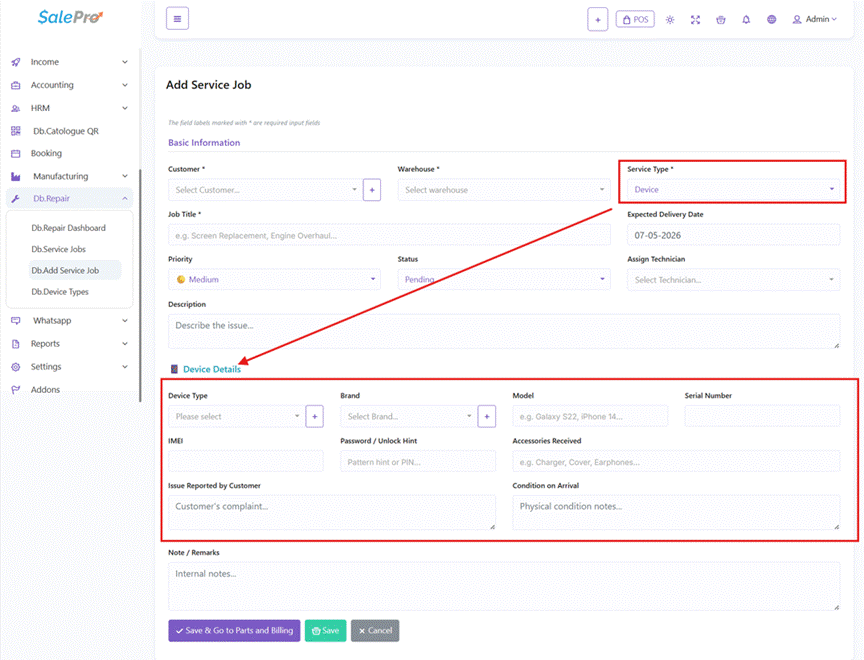
Add New Device Type
Add a new device type without leaving the service job form by clicking the plus button next to the Device Type dropdown. Enter the name of the new device type (for example Smart Watch or Tablet) in the modal that appears and submit. The new type is saved immediately and automatically selected in the dropdown.
Add New Brand
Add a new brand without leaving the service job form by clicking the plus button next to the Brand dropdown. Enter the brand name in the modal that appears and submit. The new brand is saved and automatically selected in both the device and vehicle brand dropdowns.
Vehicle Details
Enter Vehicle Information
When the service type is set to Vehicle, fill in the vehicle details section of the job form. Select the vehicle type and brand, enter the model, year of manufacture, registration number, engine number, and chassis number. Record the current mileage in kilometres and the fuel level on arrival, and add any notes on the vehicle’s physical condition.
Add New Vehicle Type
Add a new vehicle type without leaving the service job form by clicking the plus button next to the Vehicle Type dropdown. Enter the name of the new vehicle type (for example Motorcycle or Truck) in the modal that appears and submit. The new type is saved and automatically selected in the dropdown.
Customer Management
Select Existing Customer
Select the customer for a service job from the Customer dropdown on the job form. The dropdown supports live search, allowing you to type part of the customer’s name or phone number to quickly find and select them.
Add New Customer
Add a new customer without leaving the service job form by clicking the plus button next to the Customer dropdown. Fill in the customer’s group, name, phone number, and optionally their email, WhatsApp number, address, and city. Submit the modal form to save the new customer, who is then automatically selected for the current job.
Parts and Billing
View Parts and Billing Page
Access the Parts and Billing page for a service job to manage the products used in the repair and set the final charges. Navigate to the Service Jobs list and click Parts and Billing from the action menu, or click Save and Go to Parts and Billing when creating a new job.
The page header shows the job reference number, customer name, warehouse, and current status and priority badges. Quick-access buttons at the top right let you view the full job details, return to the all-jobs list, or open the print modal.
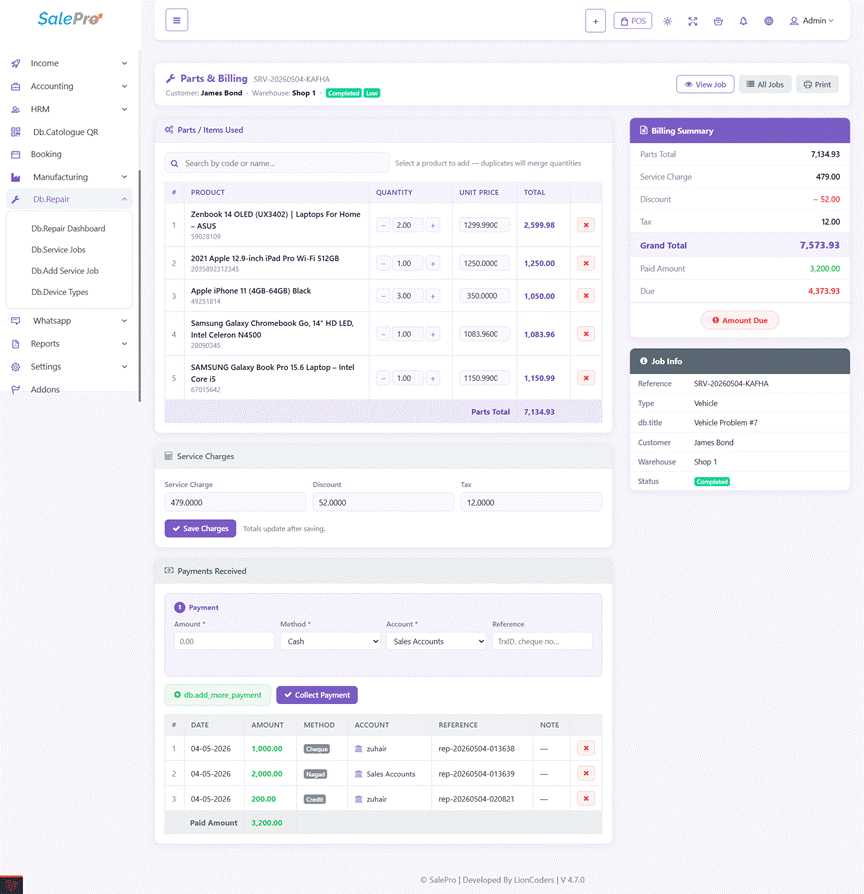
Left Column — Parts, Charges, and Payments
Parts and Items Used Section
Contains a product search bar and the parts table. The search field uses live autocomplete — type a product code or name to see matching results. When a product is selected, it is added to the job automatically and its stock is deducted from the assigned warehouse.
If a product that is already on the job is searched and selected again, the existing row flashes to indicate the duplicate and a notice appears instead of adding a second line.
The parts table shows each item with a quantity stepper (minus and plus buttons with a manual input field), an editable unit price field, and the calculated line total. Changes to quantity or price are saved automatically after a short delay. A delete button on each row removes the part and restores its stock to the warehouse.
Service Charges Section
Contains three input fields below the parts table: Service Charge (for labour or service fees), Discount (amount to deduct from the total), and Tax (amount to add to the total). Click Save Charges to update the grand total. The summary panel on the right updates immediately after saving.
Payments Received Section
Shows the payment collection form and the payment history table. The collection form contains fields for:
- Payment amount
- Payment method (Cash, Cheque, Card, bKash, Nagad, Rocket, or Bank Transfer)
- Account to credit — searchable dropdown
- Optional payment reference note
Click Collect Payment to record the payment. The system validates that the amount does not exceed the current due balance before saving. The payment history table lists each recorded payment with its date, amount, method badge, reference, and note. A delete button on each row removes the payment and recalculates the due balance automatically.
Right Column — Summary and Job Info
Billing Summary Panel
Displays a live summary of all financial figures: parts total, service charge, discount, tax, grand total, paid amount, and due balance. The due row is highlighted in red when there is an outstanding balance and green when the job is fully paid. A status badge at the bottom shows either Fully Paid or Amount Due depending on the current balance.
Job Info Panel
Shows a compact table of key job details: reference number, service type, job title, customer name, warehouse, current status badge, and expected delivery date.
Add Part or Product
Type the product code or name into the search field on the Parts and Billing page, select the correct product from the autocomplete results, and the item is added to the parts table at a quantity of one with its default price. Stock is automatically deducted from the warehouse assigned to the job.
Update Part Quantity or Price
Update the quantity or unit price of a part already added to a job directly within the parts table. Use the minus and plus stepper buttons or type a value into the quantity field to change the quantity. Click into the unit price field and enter a new value to change the price. Both changes save automatically after a short delay and the line total updates immediately. Stock is adjusted accordingly based on the difference.
Remove Part
Remove a part from the service job by clicking the delete button next to it in the parts table. Confirm the action when prompted. The part is removed from the bill and its quantity is returned to the warehouse stock automatically.
Set Service Charge, Discount, and Tax
Set the order-level charges using the fields in the Service Charges section. Enter a service charge for the labour or service fee, a discount amount to deduct, and a tax amount to add. Click Save Charges to apply the changes. The grand total is calculated automatically as the sum of all parts plus the service charge, minus the discount, plus the tax.
Payment Management
Record a Payment
Record a payment for a service job from the Parts and Billing page. Enter the payment amount, select the payment method, choose the account to credit from the searchable account dropdown, and optionally add a payment reference note. Click Collect Payment to save the record. The paid amount and due amount update immediately in the billing summary panel. Multiple partial payments can be recorded against a single job, provided each amount does not exceed the remaining due balance.
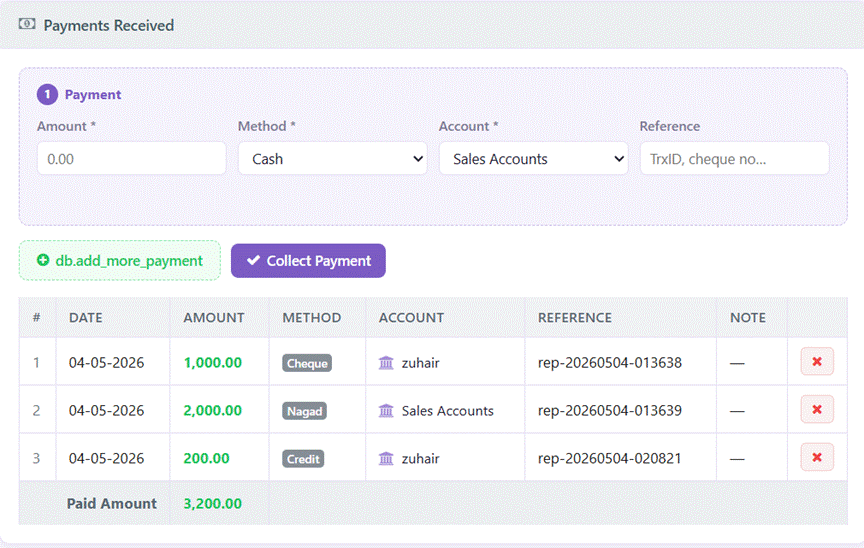
Delete a Payment
Remove an incorrectly recorded payment by clicking the delete button next to the payment entry in the payments table. Confirm the action when prompted and the payment is removed. The due amount is recalculated automatically and the billing summary panel updates immediately.
Payment and Sale Synchronization
Every payment recorded in the Repair Module is automatically synchronized with the SalePro sales system. A linked sale record is created or updated whenever a payment is added or removed, ensuring all repair revenue appears correctly in the main sales and financial reports.
Technician Assignment
Assign Technician to Job
Assign a technician to a service job by selecting them from the Assigned To dropdown on the job create or edit form. The dropdown lists all active users in the system. Select the technician responsible for carrying out the repair and save the job to record the assignment.
View Jobs by Technician
Review the workload of a specific technician by filtering the Service Jobs list. Use the search or filter options on the Service Jobs page to view only the jobs assigned to a particular technician. The Repair Dashboard also shows a top technicians summary based on completed jobs within the selected date range.
Device and Vehicle Type Management
View Device Type List
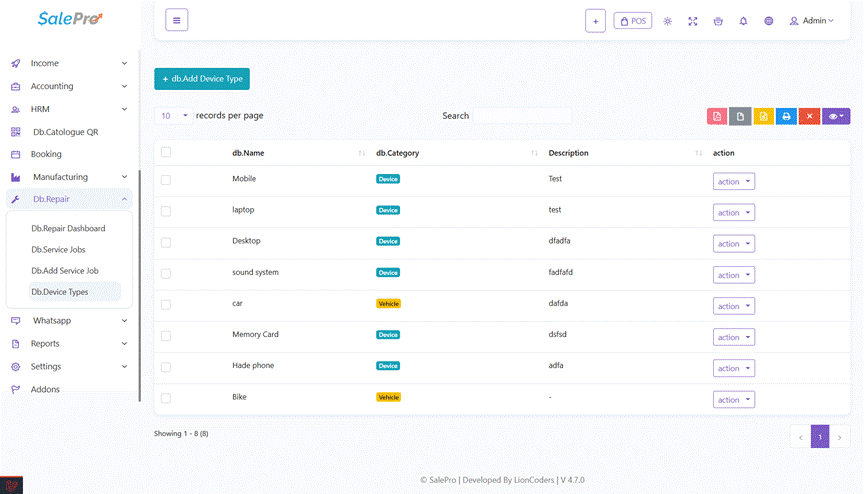
Review all configured device and vehicle types by viewing the Device Types list. This displays a table of each type’s name, category, description, and status. Navigate to the Device Types section under Repair to see the full list, search for a specific type, or add a new one.
Add New Device or Vehicle Type
Add a new device or vehicle type to the system by opening the Add Type form. Enter the type name, select the category as either Device or Vehicle, and optionally add a description. Submit the form to save the type, which will then be available in the relevant dropdown on the service job form.
Edit Device or Vehicle Type
Update the details of an existing device or vehicle type by editing it. Select the type from the Device Types list and click Edit, modify the name, category, or description, and save the changes to update the type.
Import Device Types
Import multiple device or vehicle types at once by uploading a CSV file. Prepare a CSV file with columns for name, category, and description. Navigate to the Device Types section, click Import, select your CSV file, and submit. The types are created or updated in bulk based on the file contents.
Job Status Management
Update Job Status
Update the current status of a service job as it progresses through the repair workflow. You can do this in two ways:
- Open the job detail page and use the Quick Status Update widget on the right side to change the status and add an optional note without leaving the page.
- Open the full edit form and select the new status from the Status dropdown.
Either method logs the change automatically in the job’s activity timeline.
View Status History
Review the complete status history of a service job by viewing the Activity Timeline on the job detail page. Each status change is recorded with the date and time, the new status displayed as a badge, the name of the user who made the change, and any note added at the time. This provides a full audit trail of the job’s progress.
Available Statuses
Service jobs can be assigned one of the following statuses:
- Pending — newly created, awaiting action.
- Diagnosed — issue has been assessed.
- In Progress — repair work is underway.
- Completed — repair is finished.
- Delivered — device or vehicle has been returned to the customer.
- Cancelled — the job has been cancelled.
Priority Management
Set Job Priority
Set the urgency level of a service job by choosing a priority when creating or editing the job:
- Low — routine jobs with flexible timelines.
- Medium — standard jobs that should be completed within the expected timeframe.
- High — urgent jobs requiring immediate attention. High priority jobs that are not yet completed are flagged on the Repair Dashboard.
Print and Receipt
Print Service Job Receipt
Print a receipt or job summary directly from the Parts and Billing page or the Service Job Detail page by clicking the Print button in the top action bar. A print modal opens showing the site name, job reference number, service type, status, priority, expected delivery date, customer details, warehouse, technician, device or vehicle details, parts table with all totals, and the job title with the created-by information.
Click the Print button inside the modal to open a formatted print view in a new window. The print view uses a clean, printer-friendly layout with a bordered parts table and properly aligned columns. Use your browser’s print function to print or save the document as a PDF.